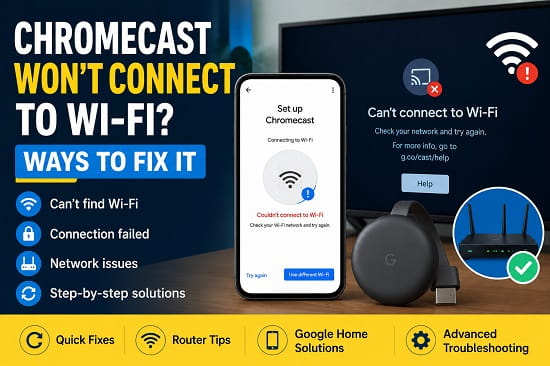
Chromecast makes it easy to stream videos, music, and other content from your phone, tablet, or computer directly to your TV. However, if your Chromecast won’t connect to Wi-Fi, it becomes almost impossible to use. You may see an error during setup, the device may fail to detect your wireless network, or it may disconnect repeatedly after connecting.
Wi-Fi connection problems can happen for several reasons. Weak signal strength, incorrect network settings, outdated firmware, router issues, or problems with the Google Home app can all prevent Chromecast from connecting successfully.
The good news is that most Chromecast Wi-Fi issues can be fixed in just a few minutes without replacing your device. In this guide, I’ll explain why Chromecast won’t connect to Wi-Fi and walk you through the most effective solutions to get it working again.
If you’re experiencing other wireless connectivity issues on your phone, you may also find my guide on Android Hotspot Not Working helpful.
Why Won’t Chromecast Connect to Wi-Fi?
Before troubleshooting, it’s useful to understand what may be causing the problem.
Some of the most common causes include:
- Weak Wi-Fi signal.
- Incorrect Wi-Fi password.
- Router configuration problems.
- Chromecast firmware issues.
- Google Home app problems.
- VPN interference.
- Network congestion.
- Unsupported Wi-Fi frequency.
- Outdated router firmware.
- Temporary software glitches.
Fortunately, these issues are usually easy to resolve.
Before You Start
Before trying advanced troubleshooting, perform these quick checks.
Confirm Your Wi-Fi Is Working
Make sure other devices such as your phone or laptop can connect to the same Wi-Fi network.
If every device has lost internet access, the problem is likely with your router or internet service rather than Chromecast.
Move Chromecast Closer to the Router
A weak Wi-Fi signal can prevent Chromecast from connecting properly.
If possible:
- Move the Chromecast closer to your router.
- Remove large objects blocking the signal.
- Avoid placing the router inside cabinets.
Check the Correct Wi-Fi Network
During setup, ensure you’re connecting Chromecast to the same Wi-Fi network used by your phone running the Google Home app.
Using different networks can cause the setup to fail.
Fix 1: Restart Chromecast
A simple restart resolves many temporary connection issues.
To restart Chromecast:
- Unplug the Chromecast from power.
- Wait about 30 seconds.
- Plug it back in.
- Wait for it to boot completely.
- Try connecting again.
Fix 2: Restart Your Router
Router software occasionally develops temporary faults.
To restart it:
- Turn off the router.
- Unplug it from power.
- Wait one minute.
- Plug it back in.
- Allow the internet connection to fully restore.
Now reconnect Chromecast.
Fix 3: Restart Your Phone
Since Chromecast setup depends on the Google Home app, restarting your Android phone or iPhone can clear temporary communication issues.
After restarting:
- Enable Wi-Fi.
- Open Google Home again.
- Continue the setup process.
Fix 4: Verify the Wi-Fi Password
One incorrect character is enough to prevent Chromecast from connecting.
Double-check:
- Uppercase letters.
- Lowercase letters.
- Numbers.
- Special characters.
If you’re unsure of the password, see How to Find Saved Wi-Fi Passwords on Android before attempting setup again.
Fix 5: Update the Google Home App
Using an outdated Google Home app can cause setup failures.
To update it:
- Open the Google Play Store or Apple App Store.
- Search for Google Home.
- Install any available updates.
- Restart the app.
Then retry the Chromecast setup.
Fix 6: Forget the Wi-Fi Network and Reconnect
Refreshing your phone’s Wi-Fi connection can sometimes resolve communication issues between the Google Home app and Chromecast.
To do this:
- Open Settings.
- Tap Wi-Fi.
- Select your current network.
- Choose Forget.
- Reconnect using your password.
- Open Google Home again.
This also refreshes network settings on many Android devices.
Fix 7: Factory Reset Your Chromecast
If Chromecast still refuses to connect to Wi-Fi, performing a factory reset can clear corrupted settings and restore it to its default state.
To reset Chromecast:
- Keep the Chromecast connected to power.
- Locate the small Reset button on the device.
- Press and hold the button for about 25 seconds.
- Continue holding it until the LED light begins flashing.
- Release the button.
- Wait for Chromecast to restart automatically.
After the reset completes, open the Google Home app and set up Chromecast again from scratch.
Fix 8: Check Whether Your Router Supports Chromecast
Although most modern routers work perfectly with Chromecast, certain router settings may interfere with the connection.
Check the following:
- WPA2 or WPA3 security settings
- DHCP enabled
- SSID broadcasting enabled
- MAC address filtering disabled
- AP Isolation disabled
If you’re unsure about these settings, log into your router’s administration page or consult your router’s manual.
Fix 9: Switch Between the 2.4 GHz and 5 GHz Wi-Fi Bands
Many dual-band routers broadcast both 2.4 GHz and 5 GHz Wi-Fi networks.
Although newer Chromecast models support both frequencies, connection problems sometimes occur on one band but not the other.
Try connecting Chromecast to:
- the 2.4 GHz network if you’re using 5 GHz
- the 5 GHz network if you’re using 2.4 GHz
The 2.4 GHz band generally provides better range, while the 5 GHz band offers higher speeds over shorter distances.
Fix 10: Disable VPN or Proxy Connections
VPN applications can occasionally interfere with Chromecast communication.
If your phone is connected to a VPN:
- Disconnect the VPN.
- Restart the Google Home app.
- Try setting up Chromecast again.
You should also temporarily disable any proxy settings that may affect your network connection.
Fix 11: Update Your Router Firmware
An outdated router firmware version can cause compatibility issues with smart devices, including Chromecast.
To update your router:
- Log into the router’s administration page.
- Check for firmware updates.
- Install any available updates.
- Restart the router.
After updating, reconnect Chromecast.
Fix 12: Update Chromecast Firmware
Chromecast normally updates automatically when connected to the internet.
If it has been offline for a long time, firmware-related issues may occur.
After restoring a stable Wi-Fi connection, allow Chromecast several minutes to install any pending updates before using it.
Fix 13: Check the Google Home App Permissions
The Google Home app requires several permissions to discover Chromecast devices.
On Android:
- Open Settings.
- Tap Apps.
- Select Google Home.
- Open Permissions.
- Ensure Location and Nearby Devices permissions are enabled.
Without these permissions, Chromecast may not appear during setup.
Fix 14: Turn Bluetooth On
During the initial setup process, Chromecast uses Bluetooth to communicate with nearby devices.
Make sure Bluetooth is enabled on your phone before opening the Google Home app.
Once setup is complete, Chromecast primarily communicates over Wi-Fi.
Fix 15: Check for Network Restrictions
Some public, office, hotel, school, or university Wi-Fi networks block device-to-device communication.
Chromecast works best on a standard home Wi-Fi network where devices are allowed to communicate with one another.
If you’re using a restricted network, consider creating a personal hotspot temporarily to complete the setup.
If your hotspot isn’t working properly, my guide on Android Hotspot Not Working explains several ways to fix common hotspot problems.
Chromecast Connected but No Internet
Sometimes Chromecast connects to Wi-Fi but still cannot access the internet.
In this situation:
- Restart the router.
- Verify your internet connection is active.
- Test internet access using another device.
- Disable VPN software.
- Restart Chromecast.
- Restart your modem.
If every device on your network has lost internet access, contact your internet service provider.
Chromecast Keeps Disconnecting from Wi-Fi
Frequent disconnections usually point to:
- Weak Wi-Fi signal
- Router overheating
- Wireless interference
- Outdated firmware
- Network congestion
Moving your Chromecast closer to the router often resolves intermittent connection problems.
Google Home Can’t Find Chromecast
If Google Home cannot detect Chromecast:
- Enable Bluetooth.
- Enable Location Services.
- Ensure both devices use the same Wi-Fi network.
- Restart your phone.
- Restart Chromecast.
- Restart your router.
- Update the Google Home app.
In many cases, simply restarting both devices solves the problem.
Tips to Prevent Chromecast Wi-Fi Problems
Although occasional connection issues are unavoidable, you can reduce them by following a few best practices.
Keep Your Router Updated
Install firmware updates whenever they’re available.
Place Chromecast Within Good Wi-Fi Range
Avoid placing your TV far from the router or behind large metal objects.
Restart Networking Equipment Occasionally
Restarting your modem and router every few weeks helps clear temporary network issues.
Keep Google Home Updated
Running the latest version of the Google Home app improves compatibility with Chromecast firmware updates.
Use a Reliable Wi-Fi Network
Avoid overloaded or unstable wireless networks whenever possible.
Frequently Asked Questions
Why won’t my Chromecast connect to Wi-Fi?
The most common causes include weak Wi-Fi signals, incorrect passwords, router configuration issues, outdated firmware, Google Home app problems, or temporary software glitches.
Can I use Chromecast without Wi-Fi?
Most Chromecast features require a Wi-Fi connection. However, some models support Guest Mode or Ethernet adapters under specific conditions.
Why does Chromecast keep asking for the Wi-Fi password?
This usually happens if the password is incorrect, the router settings have changed, or Chromecast has been reset.
Should I reset Chromecast if it won’t connect?
Yes. If basic troubleshooting doesn’t work, performing a factory reset is often one of the quickest ways to resolve persistent setup issues.
Does Chromecast support 5 GHz Wi-Fi?
Most newer Chromecast models support both 2.4 GHz and 5 GHz Wi-Fi networks.
Why does Chromecast keep disconnecting?
Weak signals, router problems, wireless interference, overheating, or outdated firmware are among the most common causes.
Can my phone hotspot work with Chromecast?
Yes. Chromecast can work with a mobile hotspot, provided both the Chromecast and the controlling device are configured correctly. If you’re having problems sharing your connection, you may find Mobile Data Not Working on Android or Android Hotspot Not Working helpful depending on the underlying issue.
Whether your Chromecast refuses to connect during setup or repeatedly disconnects from Wi-Fi afterward, the problem is usually related to network settings, router configuration, or temporary software issues rather than faulty hardware. Working through the solutions in this guide step by step will resolve most connection problems and get your Chromecast back online so you can continue streaming without interruptions.
