
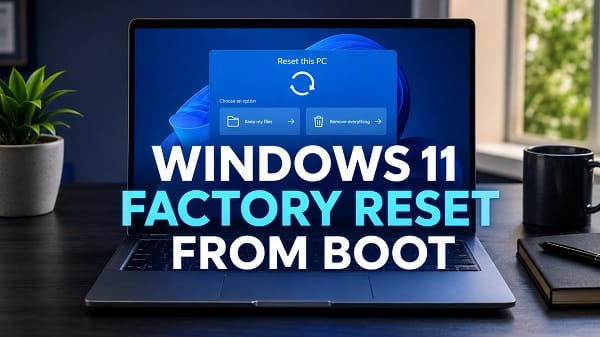
To factory reset Windows 11 from boot, enter the Windows Recovery Environment, select Troubleshoot > Reset this PC, and choose Keep my files or Remove everything. Next, select Cloud download or Local reinstall, review the reset settings carefully, and confirm the reset.
If Windows reaches the sign-in screen, hold Shift while selecting Power > Restart. If Windows will not start, interrupt the startup process twice by holding the power button when the Windows or manufacturer logo appears. Turn the PC on a third time, then select Advanced options from Automatic Repair.
A reset can remove applications, settings, accounts, and personal files depending on the option you select. Back up important data when possible, connect the computer to power, and locate the BitLocker recovery key before proceeding.
Can You Factory Reset Windows 11 Without Signing In?
Yes. You can reset Windows 11 without signing in by opening Windows Recovery Environment, also called Windows RE or WinRE. The recovery menu operates separately from the normal Windows desktop and remains available when:
- You forgot the Windows password or PIN.
- Windows freezes before reaching the desktop.
- The Start menu or Settings will not open.
- The PC repeatedly crashes during startup.
- A damaged driver or update prevents Windows from loading.
- You are preparing the computer for a new owner.
- You want to remove everything and reinstall Windows.
You may still be asked for an administrator account password or BitLocker recovery key. A factory reset is not a method for bypassing ownership or device encryption.
Factory Reset, Reset This PC, and Clean Install
These terms are often used as though they mean the same thing, but they can produce different results.
| Recovery method | What it does | Typical use |
|---|---|---|
| Reset this PC with Keep my files | Reinstalls Windows, removes apps and settings, and attempts to preserve personal files | Repairing Windows while retaining user data |
| Reset this PC with Remove everything | Reinstalls Windows and removes personal files, apps, and settings | Starting over or preparing a PC for transfer |
| Manufacturer factory recovery | Restores the PC using an OEM recovery image, often including original manufacturer apps | Returning a branded PC closer to its original setup |
| Clean installation from USB | Erases selected partitions and installs a fresh Windows copy | Severe corruption, failed reset, new drive, or complete wipe |
The built-in Reset this PC option may not restore every application that originally came from the computer manufacturer. Some reset configurations restore manufacturer customizations, while others create a cleaner Windows installation. If you specifically need the original HP, Dell, Lenovo, Acer, ASUS, or other OEM image, use the recovery instructions for that exact model.
What You Need Before the Reset
Connect the PC to reliable power
Plug a laptop into its charger. Do not begin on a nearly empty battery. A reset can take a long time and restart the computer several times.
Microsoft warns that the display can remain black for an extended period, sometimes longer than 15 minutes. Do not force the PC off merely because the screen goes blank during the reset.
Back up files if possible
Even Keep my files should not be treated as a backup. Copy important documents, photos, project files, browser data, encryption keys, and licence information to an external drive or trusted cloud account.
If Windows will not start, you may be able to recover files using Safe Mode, a recovery drive, or by connecting the storage device to another computer. Stop if the data is irreplaceable and you are unsure whether it has been backed up.
Find the BitLocker recovery key
An encrypted device may request its 48-digit BitLocker recovery key before allowing access to recovery tools or the Windows drive.
The key may be stored in:
- The Microsoft account connected to the PC
- A work or school organisation account
- A printed copy
- A text file or USB drive used when encryption was enabled
- The organisation’s device-management system
Do not start deleting partitions or resetting an encrypted PC until you know whether important files can be unlocked.
Record apps and licence details
Both reset options remove installed desktop applications. Take photos or screenshots of installed programs and note any product keys, subscriptions, VPN settings, email configurations, and specialist drivers you will need afterward.
Disconnect unnecessary devices
Remove external storage drives, printers, docks, memory cards, and nonessential USB devices. Leave connected only the keyboard, mouse, display, power adapter, and installation or recovery USB if required.
Disconnecting other drives reduces the risk of selecting or erasing the wrong storage device during advanced recovery.
Method 1: Factory Reset From the Windows Sign-In Screen
Use this method when Windows reaches the lock or sign-in screen but you cannot sign in or open Settings.
- Select the Power icon in the lower-right corner.
- Press and hold the Shift key.
- While holding Shift, select Restart.
- Continue holding Shift until the blue recovery screen appears.
- Select Troubleshoot.
- Select Reset this PC.
- Choose Keep my files or Remove everything.
- Choose Cloud download or Local reinstall.
- Review any additional settings.
- Select Reset to begin.
If a wired or wireless keyboard does not respond, try another USB port or use the on-screen accessibility keyboard where available.
This method does not require the Windows desktop and is usually the simplest way to reset a locked or damaged installation that still reaches the sign-in screen.
Method 2: Enter Automatic Repair When Windows Will Not Boot
Windows can open Recovery Environment automatically after repeated failed startups. Microsoft documents this manual trigger:
- Turn on the computer.
- Wait until the Windows logo or manufacturer logo appears.
- Press and hold the power button until the PC turns off.
- Turn it on again.
- When the logo appears, hold the power button to turn it off again.
- Turn the PC on a third time.
- Allow it to reach Preparing Automatic Repair or Automatic Repair.
- Select Advanced options.
- Choose Troubleshoot > Reset this PC.
- Select the desired reset and reinstall options.
Use this forced-interruption method only to enter recovery when normal startup fails. Do not repeatedly interrupt Windows while it is installing updates, resetting, or updating firmware.
Microsoft’s Windows Recovery Environment instructions describe the same three-startup process.
Method 3: Use Advanced Startup From Windows Settings
If Windows still opens, you can enter the same boot recovery menu without forcing shutdowns.
- Open Settings.
- Select System > Recovery.
- Find Advanced startup.
- Select Restart now.
- Confirm the restart.
- On the recovery screen, select Troubleshoot > Reset this PC.
You can also reset directly through Settings > System > Recovery > Reset PC. The Advanced startup route is useful when you specifically want to demonstrate resetting from the recovery environment.
Method 4: Use a Manufacturer Recovery Button or Key
Some computers include a recovery button or startup key that opens Windows Recovery Environment or the manufacturer’s factory-recovery utility.
The key varies by brand, model, age, and firmware configuration. It may be a function key, Escape, a dedicated button, or a key combination. There is no universal “factory reset key” for Windows 11.
Check the support page or manual for the exact computer model before using a key sequence. Manufacturer recovery may:
- Restore the original Windows image.
- Reinstall the drivers and utilities supplied with the PC.
- Erase all partitions on the internal drive.
- Offer its own file-backup option.
- Require the original recovery partition to still exist.
If the recovery partition was deleted or the drive was replaced, the manufacturer tool may not work. You may need OEM recovery media or an official Microsoft Windows 11 USB instead.
Choosing Keep My Files or Remove Everything
Keep my files
This option reinstalls Windows and keeps files stored in the user profile where possible. It removes installed apps and returns many settings to their defaults.
Choose it when:
- You are repairing your own PC.
- Personal files are not fully backed up.
- Windows is unstable but the storage drive is still healthy.
- You plan to continue using the computer.
It normally preserves files in locations such as Desktop, Documents, Pictures, Music, and Videos. It does not guarantee that every file on every drive or in every unusual location will survive.
Applications such as Microsoft Office, games, creative software, printer utilities, browsers, and manufacturer tools may need to be installed again. Windows commonly places a list of removed apps on the desktop after the reset.
Remove everything
This option removes user accounts, personal files, installed programs, and settings before reinstalling Windows.
Choose it when:
- You want a completely fresh start.
- Malware or severe corruption is suspected.
- You are selling, donating, or recycling the PC.
- Personal data has already been backed up.
If more than one drive is installed, carefully review whether Windows is resetting only the system drive or all drives. Do not assume secondary drives are excluded.
Choosing Cloud Download or Local Reinstall
Cloud download
Cloud download retrieves a fresh Windows image from Microsoft. It is often the better choice when local recovery files may be damaged.
Advantages:
- Uses a fresh Windows copy
- Can bypass corrupted local installation files
- May include a newer serviced image
Requirements and drawbacks:
- Needs a stable internet connection
- Downloads several gigabytes
- Can take longer on slow connections
- May be restricted on metered, captive, or managed networks
Local reinstall
Local reinstall uses recovery files already stored on the PC.
Advantages:
- Does not require a large internet download
- Can be faster with a slow connection
- Works offline when local recovery files are intact
Drawbacks:
- Can fail when local Windows files or the recovery image are corrupted
- May reinstall the same damaged component that caused the problem
Choose Cloud download after a failed local reset or when corruption is likely. Choose Local reinstall when the internet connection is limited and the recovery files appear healthy.
Additional Reset Settings You Must Review
Windows may offer Change settings before the final confirmation. The exact options depend on the reset choice, number of drives, Windows version, and device configuration.
Clean data
A simple file removal is quicker but may leave data recoverable with specialist tools. Cleaning the drive takes much longer and makes ordinary recovery more difficult.
Enable drive cleaning when transferring the PC to another person. For highly sensitive organisational or regulated data, follow the employer’s approved data-destruction procedure rather than relying only on a consumer reset.
Delete files from all drives
This setting can wipe secondary internal drives as well as the Windows drive. Leave it off if you intend to reset only the Windows partition and preserve data elsewhere.
External drives should be disconnected before the reset.
Restore preinstalled apps
Some systems offer an option to restore apps and customizations that came with the PC. Enable it when you want the manufacturer’s original utilities. Disable it when you prefer a cleaner Windows setup, provided required device-specific drivers and controls can be installed afterward.
Read the summary on the Ready to reset this PC screen. It is your final opportunity to confirm what will be removed.
What Happens During the Factory Reset?
After confirmation, Windows prepares the installation, restarts, removes the selected content, reinstalls the operating system, and displays the initial setup screens.
During this process:
- The PC may restart several times.
- The screen may remain black for an extended period.
- The progress percentage can appear stuck.
- Fans may speed up and slow down.
- The display resolution may change.
Do not close the laptop lid, unplug the charger, hold the power button, or remove the installation media unless Windows explicitly instructs you to do so.
Reset time can range from under an hour to several hours. Drive speed, encryption, cloud-download speed, drive-cleaning settings, and the amount of stored data all affect the duration.
Method 5: Reset or Reinstall Using a Windows 11 USB
Use official Windows installation media when:
- Windows Recovery Environment will not open.
- Reset this PC is missing.
- Both Cloud download and Local reinstall fail.
- The internal drive was replaced.
- Recovery files are severely corrupted.
- You want a complete clean installation.
Create the installation USB
On another working computer:
- Visit Microsoft’s official Windows 11 download page.
- Download the Media Creation Tool.
- Connect an empty USB drive with sufficient capacity.
- Run the tool and create Windows 11 installation media.
The USB will be erased during creation. Copy anything important from it first.
Boot from the USB
- Connect the USB to the nonworking PC.
- Turn on the computer and open its one-time boot menu.
- Select the UEFI USB entry.
- Choose the correct language and keyboard settings.
The boot-menu key varies by manufacturer. Consult the exact model’s documentation instead of changing random BIOS settings. Our how to open BIOS in Windows 11 article explains the difference between firmware settings and Windows recovery.
Open recovery tools from the installer
When Windows Setup appears, select Repair your computer instead of Install now. Then choose Troubleshoot and look for the available recovery options.
If Reset this PC is still unavailable or fails, return to the installer and perform a clean installation. A clean install can erase all files, apps, settings, manufacturer customizations, and partitions. Verify the target drive carefully.
Microsoft’s installation-media instructions describe the differences between an in-place reinstall and a clean installation.
Should You Try Other Recovery Options Before Resetting?
A factory reset is not always the first or best solution. Windows Recovery Environment includes less destructive tools.
Startup Repair
Use Troubleshoot > Advanced options > Startup Repair when Windows cannot start. It can repair certain boot configuration, registry, driver, and system-file problems without removing your applications and files.
Uninstall Updates
If the startup failure began immediately after a Windows update, select Troubleshoot > Advanced options > Uninstall Updates. Try removing the latest quality update before resetting the entire PC.
System Restore
System Restore returns system files, drivers, registry settings, and installed programs to an earlier restore point. It normally leaves personal documents unchanged.
Safe Mode
Select Troubleshoot > Advanced options > Startup Settings > Restart, then choose Safe Mode. If Windows opens, you may be able to remove a bad driver, uninstall software, back up files, or repair the original problem without a reset.
Quick Machine Recovery
Newer Windows 11 recovery environments may show Quick machine recovery under Advanced options. It connects to Windows Update and searches for a Microsoft remediation for certain widespread startup failures. If the boot problem matches a known incident, this can repair it without erasing the PC.
Try these methods first when you want to preserve installed applications and the problem has an identifiable cause.
Windows 11 Reset Is Stuck
Reset progress can pause for a long time, especially during drive cleaning or on a slow hard drive. Microsoft warns that the screen can remain black for more than 15 minutes.
Before assuming the reset is frozen:
- Keep the PC connected to power.
- Listen for drive or fan activity.
- Allow several hours for a full drive-cleaning reset.
- Do not press keys repeatedly or force a shutdown.
If there has been no visible progress or activity for many hours and the PC is clearly unresponsive, a forced shutdown may be unavoidable. The reset may then resume, roll back, or enter Automatic Repair. Use official USB installation media if the Windows installation no longer starts.
Reset This PC Failed or Says No Changes Were Made
The message There was a problem resetting your PC. No changes were made usually indicates damaged recovery files, disk errors, insufficient space, encryption trouble, or another Windows component failure.
Try these steps:
- Disconnect unnecessary external devices.
- Return to Windows RE and run Startup Repair.
- Use Cloud download if Local reinstall failed.
- Use Local reinstall if a network problem interrupted Cloud download.
- Run disk and system-file checks if Windows can still start.
- Try System Restore.
- Create official Windows 11 installation media on another PC.
Do not download a Windows image from an unofficial website. A modified image can contain malware, remove security features, or install the wrong Windows edition.
BitLocker Recovery Key Is Required
Windows RE may request a BitLocker key before showing or applying recovery options. This protects encrypted data from someone who does not own the device.
If the key is unavailable:
- Check the Microsoft account used on the PC.
- Ask the work or school administrator.
- Look for a printed or saved backup.
- Confirm that you are viewing the key for the correct device and drive.
Microsoft cannot recreate a lost BitLocker recovery key. If no key exists and the drive remains encrypted, preserving the existing files may be impossible. A clean installation can reuse the hardware only by erasing the encrypted drive.
What to Do After Resetting Windows 11
Complete Windows setup
Select the correct region, keyboard, network, account, privacy, and security options. Use the Microsoft account associated with the device when you rely on OneDrive, Store purchases, or a digital licence.
Run Windows Update
Open Settings > Windows Update, check for updates, install them, restart, and check again. Windows Update can restore security fixes and many device drivers.
Install manufacturer drivers
Visit the PC manufacturer’s support page for the exact model. Prioritise chipset, graphics, audio, network, touchpad, power-management, and firmware updates when Windows Update does not provide them.
Avoid third-party “driver updater” programs.
Restore applications and files
Install programs from their official sources. Restore files only after antivirus protection is active. Do not immediately restore unknown utilities or customizations that may have caused the original problem.
Check Windows activation
Windows 11 normally activates automatically after connecting to the internet when the same edition is reinstalled on the same hardware. A motherboard replacement or incorrect edition can require activation troubleshooting.
Frequently Asked Questions
What key do I press to factory reset Windows 11 from boot?
Windows 11 has no universal factory-reset key. Use Shift while selecting Restart, trigger Automatic Repair after repeated failed starts, or use the manufacturer’s documented recovery key for the exact model.
Can I reset Windows 11 without a password?
You can open Reset this PC from the sign-in screen without signing in. Windows may still request an administrator password or BitLocker recovery key depending on the device and recovery operation.
Does Keep my files preserve everything?
No. It attempts to retain personal files but removes installed applications and resets many settings. Back up important data whenever possible.
Does Remove everything delete files from every drive?
It depends on the selected settings and number of drives. Review whether the reset applies only to the Windows drive or all drives before confirming.
Is Cloud download better than Local reinstall?
Cloud download is preferable when local Windows files may be corrupted and a stable internet connection is available. Local reinstall is useful offline and can be faster when recovery files are healthy.
Will factory reset remove viruses?
Remove everything with a fresh Windows image can eliminate most ordinary malware, but sophisticated infections, compromised firmware, infected backups, or additional drives require further attention. Use official installation media when serious compromise is suspected.
How long does a Windows 11 factory reset take?
It may take less than an hour or several hours. Cloud download, slow drives, large amounts of data, encryption, and drive cleaning can significantly extend the process.
Can I stop a factory reset after it starts?
Do not interrupt it. Forcing the PC off can leave Windows unbootable or cause the reset to fail.
Why is Reset this PC missing?
Windows Recovery Environment may be disabled or damaged, the recovery partition may be missing, or the PC may be using a manufacturer-specific tool. Boot from official Windows 11 installation media and open Repair your computer.
Will Windows remain activated after the reset?
Usually yes. A digital licence is tied to the device hardware and matching Windows edition. Activation normally occurs automatically after the PC reconnects to the internet.
Is factory reset the same as formatting the drive?
No. Reset this PC performs a managed Windows recovery with several file-retention and reinstall choices. Formatting or deleting partitions during a clean installation is more destructive.
Can I factory reset from BIOS?
BIOS or UEFI normally does not contain Windows Reset this PC. Firmware can help you boot a recovery partition or USB, but the reset itself runs through Windows Recovery Environment or a manufacturer recovery utility.
Use Troubleshoot > Reset this PC when Windows cannot start but its recovery environment still works. Choose Keep my files only when you are repairing your own computer and have verified what will remain. Choose Remove everything, drive cleaning, and all-drive deletion only after confirming your backups and the exact target. When WinRE is missing or the reset repeatedly fails, official Windows 11 installation media provides the safest route to recovery or a clean installation.
