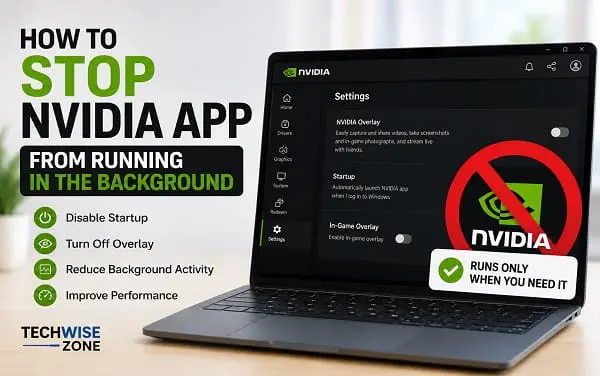
NVIDIA App can start with Windows and continue running even when you are not actively using it. That is normal behavior because the app provides driver updates, graphics settings, NVIDIA Overlay, recording features, performance monitoring, and other GPU-related tools.
Still, you may not want the NVIDIA App running every time you turn on your PC. Maybe you are trying to reduce startup programs, free up background resources, stop the NVIDIA Overlay from appearing, or simply prefer opening the app only when you need it.
The good news is that you do not need to disable your NVIDIA graphics driver to stop the NVIDIA App from running in the background. You can prevent the app from launching automatically, close it when you are finished, or disable individual NVIDIA features that continue working in the background.
Quick Answer
To stop the NVIDIA App from launching automatically with Windows:
- Press Ctrl + Shift + Esc to open Task Manager.
- Select Startup apps.
- Find NVIDIA App.
- Right-click it.
- Select Disable.
- Restart Windows.
This prevents the NVIDIA App from launching automatically at startup. Your NVIDIA graphics driver will continue working normally.
If you only want to stop NVIDIA’s recording or overlay features, you do not need to disable the entire app. You can turn off NVIDIA Overlay or Instant Replay from the NVIDIA App settings instead.
Why Does the NVIDIA App Run in the Background?
The NVIDIA App is more than a simple graphics-settings utility. NVIDIA designed it as a central application for managing NVIDIA GPU drivers, graphics settings, optimization, and features such as the in-game overlay.
The current NVIDIA App includes driver management, graphics settings, system information, performance features, and an overlay for recording, screenshots, filters, and statistics.
Because some of these features need to be available when you launch a game or use a supported application, the NVIDIA App can keep background components active.
That does not automatically mean something is wrong with your computer.
If you are checking Task Manager because you see NVIDIA processes using resources, first determine whether the NVIDIA App itself is the problem or whether you are actually seeing NVIDIA driver components.
Method 1: Disable NVIDIA App From Windows Startup
This is the method I recommend if your main goal is to prevent the NVIDIA App from opening automatically when Windows starts.
You can still launch the NVIDIA App manually whenever you need to update your driver or change NVIDIA settings.
Step 1: Open Task Manager
Press:
Ctrl + Shift + Esc
Task Manager should open.
If you see the simplified Task Manager interface, click More details.
Step 2: Open Startup Apps
Select Startup apps from the left-hand menu.
On some Windows versions, the section may be labelled Startup.
This list shows applications that Windows can launch automatically when you sign in.
Step 3: Find NVIDIA App
Look through the list for NVIDIA App.
Depending on the version installed on your PC, you may see NVIDIA-related startup entries with slightly different names.
Make sure you identify the NVIDIA App rather than randomly disabling NVIDIA services or driver components.
Step 4: Disable It
Right-click NVIDIA App and select:
Disable
You can also select the entry and use the Disable button in Task Manager.
Step 5: Restart Windows
Restart your PC and sign in normally.
The NVIDIA App should no longer open automatically.
Your NVIDIA GPU should continue working because disabling a startup entry does not uninstall or disable the display driver.
Method 2: Close the NVIDIA App From the System Tray
If you do not want to change startup behavior but simply want to stop the app after using it, close it from the Windows notification area.
Look near the clock on the taskbar.
If you do not immediately see the NVIDIA icon, click the \^ button to show hidden notification icons.
Right-click the NVIDIA App icon and look for an option such as Exit or Quit, depending on the current app version.
This closes the application interface.
However, closing the visible NVIDIA App does not mean every NVIDIA process disappears. Some NVIDIA components belong to the graphics driver and other NVIDIA services.
That distinction is important.
Method 3: End NVIDIA App in Task Manager
You can also close the NVIDIA App manually through Task Manager.
- Press Ctrl + Shift + Esc.
- Open Processes.
- Find NVIDIA App.
- Select it.
- Click End task.
If multiple NVIDIA-related processes appear, do not end them all simply because they contain the NVIDIA name.
Some processes support the display driver, NVIDIA Control Panel, audio, GPU functionality, or other components.
If your goal is only to close the NVIDIA App, end the process specifically associated with the app.
Method 4: Turn Off NVIDIA Overlay
Sometimes people think the NVIDIA App is running unnecessarily when the actual feature they want to stop is the NVIDIA Overlay.
The overlay provides features such as:
- Game recording
- Instant Replay
- Screenshots
- Game filters
- Performance statistics
- Microphone controls
- Capture controls
NVIDIA’s current app uses Alt + Z to open the main overlay.
If you do not use these features, turning off the overlay may be a better solution than disabling the entire NVIDIA App.
You can follow our detailed guide on how to turn off NVIDIA Overlay for the complete steps.
In the NVIDIA App, open:
Settings → Features → NVIDIA Overlay
Then turn the overlay off if the option is available in your version.
Method 5: Turn Off Instant Replay
If you are mainly concerned about background GPU, memory, disk, or encoding activity, check Instant Replay before disabling the entire NVIDIA App.
Instant Replay continuously maintains a temporary recording buffer so that you can save recent gameplay when something happens.
That means it is intentionally doing background capture work.
To turn it off:
- Press Alt + Z.
- Select Instant Replay.
- Choose Turn off.
This lets you keep the NVIDIA Overlay available while stopping the continuous recording buffer.
If your main concern is unnecessary background recording, this is a much more targeted solution.
Method 6: Change the NVIDIA Overlay Shortcut
You may not actually need to stop the NVIDIA App.
If the problem is that Alt + Z keeps opening the overlay accidentally, change the shortcut instead.
Open the NVIDIA Overlay with:
Alt + Z
Then:
- Click the Settings gear.
- Select Shortcuts.
- Find the shortcut for opening the NVIDIA Overlay.
- Replace Alt + Z with another combination.
- Test the new shortcut.
Our guide on NVIDIA Overlay shortcuts and how to change them covers the available shortcuts and the steps for changing them.
This is a better option if you still use NVIDIA recording, screenshots, Instant Replay, or performance monitoring.
Method 7: Stop NVIDIA App From Launching, But Keep It Installed
You do not have to uninstall the NVIDIA App just because you do not want it running at startup.
Disabling its startup entry gives you a useful middle ground.
You can:
- Prevent automatic startup
- Keep the NVIDIA App installed
- Open it manually when needed
- Continue using your NVIDIA graphics driver
- Update drivers when you choose
- Access NVIDIA graphics settings when necessary
This is usually the approach I would recommend for someone who rarely uses the NVIDIA App but still wants to keep it available.
Should You Disable NVIDIA Services?
I do not recommend disabling every NVIDIA service simply to stop the NVIDIA App from running.
This is where many troubleshooting guides go too far.
NVIDIA installs different components for different functions. Some services can support the display driver, NVIDIA Control Panel, audio features, updates, or other GPU-related functions.
Disabling all NVIDIA services can create new problems, including:
- Missing NVIDIA features
- Broken Control Panel functionality
- Driver-related errors
- Missing audio functionality
- Problems with NVIDIA applications
- Unnecessary troubleshooting later
If your goal is simply to prevent the NVIDIA App from starting with Windows, disable the NVIDIA App startup entry instead.
Do not treat every NVIDIA process in Task Manager as something that needs to be removed.
Should You Disable NVIDIA Container Processes?
You may notice processes with names such as NVIDIA Container in Task Manager.
Do not disable them just because you want the NVIDIA App to stop launching.
NVIDIA Container processes can be associated with different NVIDIA components and services. Ending one may not accomplish what you want, and disabling the related service can affect other NVIDIA functionality.
The safer approach is to leave driver-related processes alone unless you are troubleshooting a specific problem and know exactly what the particular component does.
Does Disabling NVIDIA App Affect the Graphics Driver?
No, disabling the NVIDIA App from Windows startup does not disable the NVIDIA graphics driver.
The NVIDIA App and the display driver serve different purposes.
The driver allows Windows and applications to communicate with the NVIDIA GPU.
The NVIDIA App provides a user interface for managing drivers, graphics settings, optimization, overlay features, and other NVIDIA tools.
You can therefore prevent the app from launching automatically while keeping the NVIDIA driver installed and active.
Your games should continue using the NVIDIA GPU normally.
Does Disabling NVIDIA App Affect Gaming Performance?
Normally, disabling automatic NVIDIA App startup should not reduce your GPU’s rendering performance.
The NVIDIA graphics driver remains installed.
However, you may lose convenient access to features that depend on the NVIDIA App being available.
For example, you may need to open the NVIDIA App manually when you want to:
- Check for a new driver
- Install a Game Ready Driver
- Install a Studio Driver
- Change supported NVIDIA graphics settings
- Use certain NVIDIA optimization features
- Access NVIDIA App features
If you use the NVIDIA Overlay or Instant Replay regularly, disabling those features can also remove their associated capture functionality.
What Happens When You Disable NVIDIA App Startup?
After disabling the NVIDIA App from Startup apps:
- Windows will not automatically launch the app when you sign in.
- Your NVIDIA GPU will continue to work.
- Your NVIDIA display driver will remain installed.
- Games can continue using the GPU.
- You can still open the NVIDIA App manually.
- NVIDIA services and driver components may continue running.
That last point is important.
Disabling the NVIDIA App startup entry does not mean that every NVIDIA process will disappear from Task Manager.
The goal is to stop the application from automatically launching, not to remove the NVIDIA software stack.
NVIDIA App Keeps Running After You Disable Startup
If you disabled NVIDIA App in Startup apps but still see NVIDIA processes after restarting Windows, do not assume the setting failed.
Check exactly what is running.
Open:
Task Manager → Processes
Look for the actual NVIDIA App entry and compare it with NVIDIA Container and other NVIDIA processes.
If the NVIDIA App itself is still launching automatically, check Startup apps again.
You should also make sure you disabled the correct entry and then restart Windows rather than simply signing out.
If the application keeps launching despite being disabled, an NVIDIA App update or another NVIDIA component may be triggering it. In that situation, updating or reinstalling the NVIDIA App can be more appropriate than disabling random services.
NVIDIA App Keeps Coming Back at Startup
If the NVIDIA App reappears in Startup apps after an update, this can happen because software updates may change startup registration.
Check Task Manager again after updating the app.
If you do not need automatic startup, disable the NVIDIA App startup entry again.
I would avoid using Registry hacks or third-party startup-management utilities unless Windows’ built-in Startup apps controls fail.
There is little reason to introduce additional software for a task Windows already handles.
What If NVIDIA App Is Using Too Much RAM or CPU?
First, check the actual resource usage.
Open:
Task Manager → Processes
Then look at:
- CPU
- Memory
- Disk
- GPU
Do not assume that any NVIDIA process using resources is automatically unnecessary.
If NVIDIA App itself is consuming unusually high resources while idle, try:
- Close and reopen the app.
- Restart Windows.
- Update the NVIDIA App.
- Disable NVIDIA Overlay.
- Turn off Instant Replay.
- Check for a graphics driver update.
- Reinstall the NVIDIA App if the problem continues.
If the problem began immediately after a driver update, a driver issue may be involved rather than the NVIDIA App itself.
You can also review our guide on how to roll back an NVIDIA driver on Windows 11 if the resource problem started after a recent driver installation.
NVIDIA App vs NVIDIA Control Panel
The NVIDIA App and NVIDIA Control Panel are not the same thing.
The NVIDIA App is NVIDIA’s newer unified application for drivers, graphics settings, optimization, overlay features, and other tools.
NVIDIA Control Panel is the traditional Windows utility for configuring many NVIDIA graphics and display settings.
If you disable the NVIDIA App from startup, that does not mean you have disabled NVIDIA Control Panel or the graphics driver.
If you are having trouble with Control Panel itself, see our guide on NVIDIA Control Panel not opening instead of disabling NVIDIA processes.
Should You Uninstall the NVIDIA App?
You can uninstall the NVIDIA App if you do not use its features, but I would not uninstall it simply because it runs in the background.
Disabling startup is less disruptive.
Keeping the app installed gives you access to NVIDIA’s current driver management and other features whenever you need them.
Uninstalling it makes more sense when you have decided that you do not want the application’s features at all.
Before uninstalling it, make sure you understand which NVIDIA features you currently use.
What You Should Not Disable
Avoid disabling or removing NVIDIA components blindly.
In particular, do not:
- Delete NVIDIA driver files
- Delete NVIDIA Container executables
- Disable every NVIDIA service
- Remove NVIDIA registry entries just to stop startup
- Use third-party “NVIDIA debloat” tools without understanding what they remove
- Uninstall the graphics driver when your only problem is NVIDIA App startup
These approaches can turn a simple startup preference into a driver or display problem.
A Better Way to Reduce NVIDIA Background Activity
If your goal is to reduce unnecessary NVIDIA activity, I recommend changing one feature at a time.
Start with the least disruptive option.
If you do not want NVIDIA App at startup
Disable NVIDIA App in Task Manager’s Startup apps.
If you do not use the NVIDIA Overlay
Turn off NVIDIA Overlay.
If you want to stop continuous recording
Turn off Instant Replay.
If Alt + Z keeps appearing
Change the NVIDIA Overlay shortcut.
If the problem started after a driver update
Consider updating or rolling back the NVIDIA driver.
If you use OBS for recording
You may not need NVIDIA’s recording features at all. You can compare the NVIDIA capture tools with your existing OBS setup and disable the features you do not use.
If you use OBS with an NVIDIA GPU, our guide on how to optimize an NVIDIA GPU for OBS Studio can help you configure the GPU more effectively.
Frequently Asked Questions
How do I stop NVIDIA App from running in the background?
Disable NVIDIA App under Task Manager → Startup apps. Right-click NVIDIA App and select Disable, then restart Windows.
Can I stop NVIDIA App without disabling my GPU?
Yes. The NVIDIA App and NVIDIA graphics driver are separate components. Disabling the app’s startup entry does not disable the GPU driver.
Will disabling NVIDIA App affect my games?
Normally, no. Your NVIDIA graphics driver remains installed and games can continue using the GPU. You may lose automatic access to features provided by the NVIDIA App until you open it manually.
Why does NVIDIA App run in the background?
It provides features such as driver management, graphics settings, NVIDIA Overlay, recording, performance monitoring, and other GPU-related functionality. Some components are designed to remain available in the background.
How do I stop NVIDIA Overlay from running?
Open the NVIDIA App, go to Settings, find NVIDIA Overlay, and turn it off. You can also turn off Instant Replay separately if continuous recording is the feature you want to stop.
Does NVIDIA App need to run at startup?
No. You can disable its automatic startup and launch the app manually when you need it.
Can I end NVIDIA Container in Task Manager?
You should not end NVIDIA Container processes simply because you want to stop NVIDIA App. Some NVIDIA Container components support other NVIDIA features and services.
Does disabling NVIDIA App improve FPS?
Usually, disabling the app’s startup entry does not produce a significant FPS increase. If Instant Replay, recording, or an overlay is actively using resources, disabling those specific features may make a difference on some systems.
Should I uninstall NVIDIA App?
Not necessarily. If you only dislike it starting with Windows, disabling its startup entry is a better first step. Uninstall it only if you no longer want its features.
Will NVIDIA App start again after an update?
It can happen if an application update changes its startup configuration. If that occurs, check Task Manager’s Startup apps section and disable it again if necessary.
Is it safe to disable NVIDIA App from startup?
Yes. Disabling the NVIDIA App from Windows startup is generally safe. It does not uninstall the NVIDIA driver or prevent the GPU from functioning.
The simplest solution is usually the best one. If you do not want the NVIDIA App opening every time Windows starts, disable NVIDIA App under Task Manager → Startup apps rather than disabling NVIDIA services or driver components.
If your real concern is background recording, turn off Instant Replay. If you never use the NVIDIA Overlay, disable that feature. If Alt + Z is the problem, change the shortcut instead.
That approach gives you much more control without interfering with the NVIDIA driver that your games and Windows rely on.
