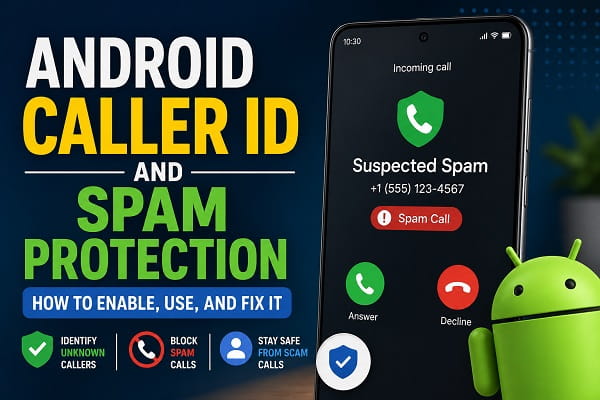
Receiving unwanted calls has become a daily frustration for many smartphone users. From telemarketers and robocalls to scammers pretending to be banks or delivery companies, spam calls can interrupt your day and sometimes even put your personal information at risk.
Fortunately, Android phones include built-in features that help identify suspicious callers before you answer the phone. Depending on your device, you may also be able to automatically detect spam numbers, receive warnings about potential scam calls, and block unwanted callers with just a few taps.
These features are known as Caller ID and Spam Protection.
Although they work quietly in the background, many Android users either don’t know they exist or aren’t sure how to enable them. Others discover that the features have stopped working after a software update or when switching to a new phone.
In this guide, you’ll learn what Android Caller ID and Spam Protection are, how they work, how to turn them on, and what to do if they aren’t identifying spam calls correctly.
What Is Android Caller ID?
Caller ID is a feature that displays information about an incoming call before you answer it.
In addition to showing the name of someone already saved in your contacts, Android’s Caller ID can sometimes identify businesses and organizations that are not stored on your phone.
For example, instead of seeing only an unknown number, you may see information such as:
- Local restaurant
- Delivery company
- Bank
- Pharmacy
- Government office
- Customer support line
This helps you decide whether to answer the call without searching the number online.
On many Android devices, Caller ID is powered by Google’s Phone app, which uses publicly available business information together with Google’s own databases to identify legitimate callers.
What Is Spam Protection?
Spam Protection works alongside Caller ID.
Its purpose is to warn you when an incoming call is suspected to be spam or fraudulent.
Rather than blocking every unknown number automatically, Android analyzes available information and may display warnings such as:
- Suspected spam
- Spam risk
- Potential fraud
- Verified business
- Business caller
This allows you to decide whether to answer, reject, or block the call.
Spam Protection is especially useful because scam callers frequently change phone numbers to avoid traditional blocking methods.
How Does Android Detect Spam Calls?
Android uses several sources of information to determine whether an incoming call may be suspicious.
These include:
- Reports submitted by Android users.
- Google’s spam detection systems.
- Public business listings.
- Verified business information.
- Patterns associated with known robocall campaigns.
When many users report the same number as spam, Google may begin warning other Android users before they answer calls from that number.
The system is designed to improve continuously as more spam reports are submitted.
Which Android Phones Support Caller ID and Spam Protection?
Support depends on both your phone manufacturer and the phone application you use.
The feature is commonly available on:
- Google Pixel phones.
- Samsung Galaxy devices.
- Motorola smartphones.
- Nokia phones.
- OnePlus devices.
- Xiaomi phones using Google’s Phone app.
- Realme devices using Google’s dialer.
- Other Android phones with the Google Phone application installed.
Some manufacturers provide their own alternatives, which offer similar functionality but may use different names or interfaces.
For example, Samsung includes Smart Call, which provides caller identification and spam protection through its own integrated service.
Benefits of Android Caller ID and Spam Protection
Enabling these features provides several advantages.
They can help you:
- Avoid answering spam calls.
- Recognize legitimate businesses.
- Reduce interruptions from telemarketers.
- Block repeated scam callers.
- Improve personal security.
- Save time by avoiding unwanted calls.
While no spam detection system is perfect, Android’s built-in protection significantly reduces the number of nuisance calls many users receive.
How to Enable Caller ID and Spam Protection on Android
Most Android phones using Google’s Phone app follow a similar process.
- Open the Phone app.
- Tap the three-dot menu or your profile icon.
- Select Settings.
- Tap Caller ID & Spam.
- Turn on See caller and spam ID.
- Enable Filter spam calls if the option is available.
Once enabled, Android will automatically begin identifying known callers and warning you about suspected spam numbers.
Depending on your device and region, some settings may have slightly different names.
How to Enable Spam Protection on Samsung Phones
Samsung Galaxy devices often use Smart Call instead of Google’s standard implementation.
To check whether Smart Call is enabled:
- Open the Phone app.
- Tap Settings.
- Select Caller ID and spam protection or Smart Call.
- Turn the feature on.
After activation, Samsung will begin identifying known businesses and warning you about suspected spam callers whenever possible.
How to Block Spam Calls on Android
Identifying spam calls is only the first step. If the same numbers keep calling, Android allows you to block them so they can no longer disturb you.
To block a number using the Google Phone app:
- Open the Phone app.
- Tap the Recent or Call History tab.
- Select the number you want to block.
- Tap Block or Block/Report Spam.
- Confirm your choice.
Once blocked, future calls from that number will be rejected automatically. If you accidentally block someone, you can always remove them from the blocked numbers list later.
If important calls aren’t reaching your phone while spam calls continue coming through, the problem may be related to your network or call settings. Our guide on why your phone is not receiving calls walks you through the most common causes and proven fixes.
How to Report Spam Numbers
Reporting spam helps improve Android’s spam detection system for everyone.
When you report a suspicious caller, the information contributes to Google’s spam database. If enough users report the same number, Android may begin warning other users before they answer calls from that number.
To report a spam number:
- Open the Phone app.
- Go to your recent calls.
- Tap the suspicious number.
- Choose Block/Report Spam.
- Confirm the report.
Only report numbers that are genuinely unwanted or fraudulent. Legitimate businesses should not be reported simply because they contacted you.
Why Caller ID and Spam Protection Is Not Working
Sometimes Android stops identifying callers or warning you about spam calls.
Several different issues can cause this.
1. The Feature Is Disabled
After a software update or resetting your phone, Caller ID and Spam Protection may be turned off.
Open the Phone app settings and confirm that both options are still enabled.
2. You’re Not Using the Google Phone App
Some manufacturers install their own dialer applications.
If your phone doesn’t use Google’s Phone app or Samsung Smart Call, the feature may not be available or may work differently.
Installing the official Google Phone app (where supported) may restore Caller ID functionality.
3. No Internet Connection
Caller identification relies on online databases.
If your phone has no mobile data or Wi-Fi connection, Android may not be able to identify unknown callers. Make sure your internet connection is working properly before testing the feature.
Caller identification may also be affected by network configuration problems. If you’re using a Samsung Galaxy device, see our guide on how to reset network settings on Samsung to restore your phone’s network-related settings safely.
4. Outdated Phone App
Running an old version of the Phone app can sometimes cause problems.
Open the Google Play Store and check for updates to:
- Phone
- Google Play Services
- Carrier Services
Installing the latest updates often resolves unexpected issues.
If incoming calls work only over Wi-Fi or you’re having trouble with internet-based calling, our guide on fixing WiFi Calling on Android explains how to configure the feature correctly and resolve common issues.
5. Regional Availability
Some Caller ID features are only available in supported countries or regions.
If Google has not enabled the service in your location, certain options may be missing from the Phone app.
6. Restricted Permissions
Caller ID requires permission to access phone functions.
Check that the Phone app has permission to:
- Phone
- Contacts
- Call logs
If these permissions are denied, some features may not work correctly.
Caller ID vs Spam Protection
Although many people think these are the same feature, they actually perform different jobs.
| Caller ID | Spam Protection |
|---|---|
| Identifies businesses and known callers | Warns about suspected spam calls |
| Displays caller information | Detects possible scam numbers |
| Helps recognize unknown callers | Helps avoid nuisance and fraudulent calls |
| Works for legitimate businesses | Focuses on suspicious callers |
When both features are enabled, they work together to give you more information before answering incoming calls.
Is Caller ID Safe to Use?
Yes. Google’s Caller ID and Spam Protection are generally considered safe to use.
The feature is designed to:
- Identify legitimate businesses.
- Warn about known spam callers.
- Improve call safety.
- Reduce unwanted interruptions.
Google states that spam detection uses information such as user reports and business listings to identify suspicious numbers.
However, no spam detection system is perfect.
Occasionally:
- A legitimate business may be flagged incorrectly.
- A spam caller may not be detected.
For this reason, you should still exercise caution whenever an unknown caller asks for:
- Banking information.
- Passwords.
- One-time verification codes.
- Personal identification details.
Tips for Reducing Spam Calls
While Caller ID and Spam Protection are helpful, combining them with good security habits provides even better protection.
Here are a few recommendations:
- Avoid answering unknown numbers unless necessary.
- Never share banking PINs or passwords over the phone.
- Register your number only with trusted websites and businesses.
- Block repeat spam callers.
- Keep your Phone app updated.
- Enable automatic spam filtering whenever available.
- Report scam calls to help improve spam detection.
These simple practices can significantly reduce unwanted calls over time.
Frequently Asked Questions
Why doesn’t my Android phone show Caller ID?
Some caller identification features depend on a stable mobile data connection. If your internet stops working while you’re away from Wi-Fi, our guide on fixing mobile data not working on Android can help restore your connection.
The feature may be disabled, unavailable in your region, or your phone may not be using the Google Phone app or Samsung Smart Call.
Can I completely stop spam calls?
No. While Android can identify and block many spam numbers, scammers frequently change phone numbers. Combining Spam Protection with manual blocking offers the best results.
Does Caller ID require an internet connection?
Yes. Android generally uses online databases to identify unknown callers and detect spam.
Is Caller ID available on every Android phone?
No. Availability depends on your phone manufacturer, Android version, and the phone app installed on your device.
Does Spam Protection block every unknown number?
No. It primarily focuses on numbers that have been identified as potential spam. Unknown but legitimate callers can still reach you.
Can I turn Caller ID off later?
Yes. You can return to the Phone app settings and disable Caller ID or Spam Protection at any time.
Make Incoming Calls Safer With Android Caller ID
Android Caller ID and Spam Protection are valuable tools that help you recognize legitimate callers while reducing interruptions from spam and scam calls. Once enabled, these features work quietly in the background to provide useful information before you answer your phone.
If Caller ID isn’t working as expected, checking your Phone app settings, internet connection, permissions, and software updates will solve many common issues. Combining these built-in protections with safe calling habits and regularly reporting spam numbers can make your Android phone far more secure and help you avoid many unwanted calls in the future.
