
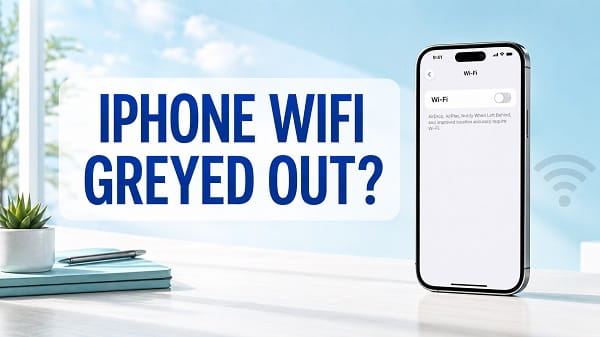
If your iPhone WiFi is greyed out, restart the iPhone first. Open Settings > Wi-Fi after it turns back on and check whether the switch is available. If it remains disabled, force restart the phone, let it cool if it is unusually hot, update iOS, remove problematic VPN or security software, and reset the network settings.
A greyed-out Wi-Fi switch is different from an iPhone that can turn Wi-Fi on but cannot connect to a network. When the control in the Settings app is faded and cannot be tapped, iOS may not be communicating correctly with the Wi-Fi hardware. The cause can be a temporary software process, excessive temperature, an incomplete update, damaged network configuration, VPN or security software, management restrictions, or a physical fault affecting the wireless components.
Follow the fixes below in order. The early steps do not erase personal data. Back up the iPhone before using the advanced reset or restore options.
Confirm Where Wi-Fi Is Greyed Out
Before troubleshooting, check whether the button is truly unavailable.
Wi-Fi Is Greyed Out in the Settings App
Open:
Settings > Wi-Fi
If the switch is pale, disabled and does not respond when tapped, continue with the fixes in this article.
The Wi-Fi Icon Is Grey in Control Center
A grey Wi-Fi icon in Control Center does not always mean the Wi-Fi hardware has failed. Tapping the icon can disconnect the iPhone from nearby Wi-Fi networks without completely disabling every Wi-Fi function.
Open Settings > Wi-Fi and check the main switch there. If the switch works, the problem is not the same as a disabled Wi-Fi setting.
Wi-Fi Is On but No Networks Appear
If the switch can be turned on but the iPhone cannot find or join networks, troubleshoot the router, location, saved network and VPN separately. A greyed-out switch means the control itself cannot be enabled.
Both Wi-Fi and Bluetooth Are Unavailable
Wi-Fi and Bluetooth share related wireless hardware. When both controls remain unavailable after a restart and iOS update, hardware failure becomes more likely, particularly after an impact, liquid exposure, severe overheating or previous repair.
Why Is Wi-Fi Greyed Out on an iPhone?
Common causes include:
- A temporary iOS networking process has stopped responding.
- The iPhone is too hot or too cold.
- An iOS update did not complete correctly.
- Network settings are corrupted.
- VPN or security software is interfering with networking.
- A configuration or device-management profile controls the setting.
- The iPhone recently suffered liquid or impact damage.
- The Wi-Fi and Bluetooth hardware has developed a fault.
- A previous repair left an antenna or internal connection damaged.
The symptom alone cannot identify the exact cause. A restart that restores the switch suggests a temporary software or temperature problem. A permanently disabled switch alongside failed Bluetooth is a stronger hardware clue.
1. Restart the iPhone
Apple specifically recommends restarting when the Wi-Fi setting is dimmed or greyed out. Apple Support
iPhone with Face ID
- Press and hold either volume button and the Side button.
- Release them when the power-off slider appears.
- Drag the slider.
- Wait about 30 seconds for the iPhone to shut down.
- Hold the Side button until the Apple logo appears.
iPhone with a Home Button
- Hold the Side or Top button until the power-off slider appears.
- Drag the slider.
- Wait for the iPhone to turn off.
- Hold the Side or Top button until the Apple logo appears.
After restarting, open Settings > Wi-Fi. If the switch works, connect to a known network and test Safari.
If the Wi-Fi switch becomes grey again later, note whether the phone was hot, charging, running a demanding app or recovering from an update.
2. Turn Airplane Mode On and Off
Airplane Mode refreshes the iPhone’s wireless state without deleting saved networks.
- Open Control Center.
- Tap the airplane icon.
- Wait about 15 seconds.
- Turn Airplane Mode off.
- Open Settings > Wi-Fi.
You can also use Settings > Airplane Mode.
This step may not help when the Wi-Fi control is completely disabled, but it is quick and safe. If Airplane Mode itself behaves strangely or Wi-Fi remains greyed out, restart the iPhone.
3. Check Whether the iPhone Is Too Hot
An iPhone may temporarily limit functions when its internal temperature is outside the normal operating range. Heat is a meaningful clue if Wi-Fi becomes unavailable while:
- The phone is charging.
- A game or camera app is running.
- The iPhone is inside a hot vehicle.
- It is exposed to direct sunlight.
- Wireless charging and navigation are active together.
- A thick case traps heat.
Disconnect the charger, stop demanding apps, move the phone out of direct sunlight and remove a thick case temporarily. Let it return to room temperature naturally before testing Wi-Fi.
Do not:
- Put the iPhone in a freezer or refrigerator.
- Place it against ice.
- blow compressed refrigerant into it.
- Heat it with a hair dryer, heat gun or oven.
- Leave it on a radiator or hot surface.
Rapid temperature changes can create condensation inside the phone. Excessive heat can damage the battery, screen, seals and internal components. Online “freezer fixes” may appear to change the symptom briefly but are unsafe and do not repair the underlying fault.
4. Force Restart the iPhone
A force restart is useful when a normal restart does not clear the problem or the Settings app is unresponsive. It does not erase photos, messages or apps.
iPhone 8, iPhone SE 2nd Generation or Later, and Face ID Models
- Press and quickly release Volume Up.
- Press and quickly release Volume Down.
- Press and hold the Side button.
- Release it when the Apple logo appears.
The sequence must be performed in that order. Keep holding the Side button even if the power-off slider appears.
iPhone 7 and iPhone 7 Plus
- Press and hold the Side button and Volume Down together.
- Release both buttons when the Apple logo appears.
iPhone 6s, First-Generation iPhone SE and Earlier
- Press and hold the Home button and the Side or Top button together.
- Release them when the Apple logo appears.
For a complete model-by-model explanation, see how to force restart an iPhone.
After the phone restarts, wait briefly and check Settings > Wi-Fi.
5. Check Available Storage
Extremely low storage can interfere with updates and normal iOS operations.
- Open Settings > General > iPhone Storage.
- Wait for the storage chart to load.
- Remove downloaded videos, offline media or unused applications if the phone is nearly full.
- Restart the iPhone.
Use Offload App when you want to remove an app while preserving its documents and data. Confirm that important photos and files are backed up before deleting them.
Free storage alone may not restore a disabled Wi-Fi switch, but it can allow iOS to complete an update or repair operation properly.
6. Install the Latest iOS Update
An iOS update can correct a software problem affecting the Wi-Fi service.
If cellular data works:
- Open Settings > General > Software Update.
- Download and install an available stable update.
- Keep the iPhone connected to power.
Large updates may require Wi-Fi, which creates a problem when the Wi-Fi switch is disabled. In that case, update through a computer:
Update Using a Mac
- Connect the iPhone to the Mac with a data-capable cable.
- Open Finder.
- Select the iPhone in the sidebar.
- Open the General tab.
- Select Check for Update.
- Choose Download and Update.
Update Using Windows
- Connect the iPhone to the PC.
- Open the Apple Devices app or iTunes on an older setup.
- Select the iPhone.
- Check for an update.
- Install it without disconnecting the phone.
Back up the iPhone before updating through a computer. Do not unplug it or allow the computer to sleep during installation.
If Wi-Fi became greyed out immediately after an update, restart once and check for a newer corrective update. Continue with the network reset if none is available.
7. Remove VPN and Security Software Temporarily
Apple recommends uninstalling VPN or security software, restarting the device and testing Wi-Fi when connection problems continue.
Start by disconnecting the VPN. If that does not help:
- Confirm that you know how to reinstall and configure the app.
- Delete the VPN or security app.
- Restart the iPhone.
- Check the Wi-Fi switch.
Also open:
Settings > General > VPN & Device Management
Review installed configuration profiles. Do not remove a work, school or carrier profile without permission. Removing a managed profile can delete organizational accounts, certificates, apps and network access.
If removing a personal VPN app restores Wi-Fi, install its latest version or contact the provider before enabling it again.
8. Reset Network Settings
Reset Network Settings removes corrupted Wi-Fi, cellular, VPN and related network configuration. It does not erase photos, messages, contacts or installed apps.
Before resetting, make sure you know the password for an important Wi-Fi network. The reset removes saved Wi-Fi networks and passwords.
To proceed:
- Open Settings.
- Tap General.
- Select Transfer or Reset iPhone.
- Tap Reset.
- Select Reset Network Settings.
- Enter the iPhone passcode.
- Confirm the reset.
Be careful to select Reset Network Settings, not Erase All Content and Settings or Delete All eSIMs.
Apple explains that Reset Network Settings removes network settings and returns them to default without erasing personal content. Apple iPhone User Guide
After the iPhone restarts:
- Open Settings > Wi-Fi.
- Check whether the switch is active.
- Select a network.
- Enter its password.
- Test the internet connection.
My reset network settings on iPhone article explains everything removed by this action and what you may need to reconnect afterward.
What If Reset Network Settings Is Also Greyed Out?
If the reset option cannot be selected:
- Restart the iPhone.
- Install an iOS update.
- Check Settings > Screen Time > Content & Privacy Restrictions.
- Review Settings > General > VPN & Device Management.
- Ask the organization’s administrator whether the iPhone is managed.
A supervised work or school phone can have settings controlled centrally. Do not erase or remove management from a device you do not own.
9. Reset All Settings
Use Reset All Settings only after restarting, updating iOS and resetting network settings.
This option returns many system preferences to their defaults without intentionally deleting photos, videos, messages or apps. However, it is more disruptive than a network reset and can affect:
- Network settings
- Privacy permissions
- Location preferences
- Keyboard settings
- Home Screen-related preferences
- Apple Pay cards
- Other customized system settings
Back up the iPhone first.
Then:
- Open Settings > General.
- Tap Transfer or Reset iPhone.
- Select Reset.
- Choose Reset All Settings.
- Enter the passcode and confirm.
Do not choose Erase All Content and Settings.
After the reset, check Wi-Fi before reinstalling VPN software or changing many preferences. Testing early helps identify whether the reset solved the problem.
10. Check Screen Time and Device Management
Ordinary Screen Time settings do not normally disable the physical Wi-Fi radio, but restrictions can interfere with account changes, configuration or troubleshooting controls.
Open:
Settings > Screen Time > Content & Privacy Restrictions
Temporarily turn off restrictions on a personally owned device and restart it. If nothing changes, restore the preferred Screen Time settings.
Then open:
Settings > General > VPN & Device Management
Look for:
- Mobile device management
- Work or school enrollment
- Configuration profiles
- VPN profiles
- Security certificates
If the iPhone belongs to an employer or school, contact its administrator. Management policies and required security software should not be removed without authorization.
11. Check Whether Bluetooth Works
Open Settings > Bluetooth and test the switch.
The result can help identify the direction:
- Wi-Fi greyed out, Bluetooth works: a software or Wi-Fi-specific fault remains possible.
- Wi-Fi and Bluetooth both greyed out: shared wireless hardware or a deeper iOS problem is more likely.
- Both return after cooling: excessive temperature may be involved.
- Both failed after impact or liquid exposure: arrange hardware inspection.
Do not repeatedly reset the network when both controls remain disabled. Multiple identical resets will not repair a damaged wireless component.
12. Check the Wi-Fi Address
Open:
Settings > General > About
Look for Wi-Fi Address. A normal iPhone displays a hardware address there.
If the field is missing, unavailable or behaves abnormally while Wi-Fi and Bluetooth remain disabled, record the symptom for Apple or a repair technician. The field alone does not prove which component has failed, but it can support the diagnosis.
Avoid apps or websites that claim they can repair or rewrite the iPhone’s Wi-Fi hardware address.
13. Back Up and Restore the iPhone
A computer-based restore reinstalls iOS and can determine whether the problem is caused by damaged system software. It is disruptive and should come after the safer fixes.
Back Up First
If cellular data or a computer connection is available, create a current backup. Confirm that important photos, messages, authentication information and app data are protected.
For an encrypted computer backup, save the backup password. Without it, the encrypted backup cannot be restored.
Restore Through a Computer
- Connect the iPhone to a trusted Mac or Windows PC.
- Open Finder, Apple Devices or iTunes.
- Select the iPhone.
- Create and verify a backup.
- Choose Restore iPhone.
- Allow the computer to download and reinstall iOS.
- Do not disconnect the iPhone during the process.
After the restore, test Wi-Fi during initial setup before restoring every app and setting when practical.
- If Wi-Fi works on a clean setup but fails after restoring a backup, configuration from the backup may be involved.
- If Wi-Fi remains greyed out on a clean installation, hardware failure becomes much more likely.
14. Use Recovery Mode If the Update or Restore Fails
Recovery Mode can reinstall iOS when the iPhone does not update normally.
Connect the phone to a computer, open Finder or Apple Devices, and use the force-restart button sequence for the model, but continue holding the required button until the recovery screen appears.
The computer may offer Update or Restore:
- Choose Update first when available to reinstall iOS without intentionally erasing the phone.
- Choose Restore only when Update fails or you have a current backup and understand that Restore erases the device.
If the download takes long enough for the iPhone to leave recovery mode, let the download finish and repeat the button sequence.
15. Check for Hardware Damage
An iPhone needs professional inspection when the Wi-Fi button remains greyed out after:
- A normal restart
- A force restart
- Cooling to room temperature
- An iOS update
- A network reset
- A clean iOS restore
Hardware becomes even more likely when:
- Bluetooth is also unavailable.
- The issue began after a drop.
- The phone has liquid exposure.
- Wi-Fi works only when the phone is pressed, twisted or moved.
- A previous screen, battery or board repair preceded the problem.
- The Wi-Fi address is unavailable.
- The phone repeatedly overheats.
Do not open the iPhone or press on its casing to make the wireless connection return. Intermittent response to pressure suggests a physical problem that can worsen.
Contact Apple, an Apple Authorized Service Provider or a reputable repair professional. Explain every test already completed so the technician can focus on hardware diagnostics.
Do Not Use a Freezer or Hair Dryer
Some old online instructions recommend cooling an iPhone in a freezer or heating its back to make the Wi-Fi switch return. Do not use either method.
A freezer can cause:
- Condensation inside the phone
- Battery damage
- Screen damage
- Corrosion
- Failure of internal seals
A hair dryer or heat gun can cause:
- Battery swelling or thermal damage
- Melted adhesives
- Screen discoloration
- Damage to cameras and sensors
- Burns or fire risk
If temperature changes affect Wi-Fi, that is diagnostic information, not a safe repair method. Let the phone return to normal room temperature naturally and arrange service if the symptom repeats.
Wi-Fi Greyed Out After an iOS Update
If the Wi-Fi button became disabled immediately after updating:
- Let the update finish completely.
- Restart the iPhone.
- Force restart if necessary.
- Check for another iOS update.
- Reset network settings.
- Update the phone through a computer.
- Back up and reinstall iOS if the problem continues.
An update may expose a pre-existing hardware weakness rather than physically causing it. A clean restore is useful because it separates damaged software from a persistent hardware fault.
Wi-Fi Greyed Out and the iPhone Is Hot
Stop charging and using demanding applications. Move the phone away from direct sunlight and let it cool naturally.
If the switch returns only after cooling:
- Check battery health under Settings > Battery > Battery Health & Charging.
- Remove unnecessary background activity.
- Stop using an incompatible charger.
- Update iOS.
- Arrange service if the phone becomes hot during light use.
Heat during gaming, navigation or fast charging can be normal within limits. Repeated overheating during basic tasks is not.
Wi-Fi Works but the iPhone Has No Internet
If the Wi-Fi switch turns on and the phone joins a network, the greyed-out problem has been resolved. A “connected but no internet” condition is a different issue.
Try:
- Test another device on the same router.
- Restart the router without pressing its factory-reset button.
- Forget the Wi-Fi network and rejoin it.
- Turn off a personal VPN temporarily.
- Test another Wi-Fi network.
- Check for an internet-provider outage.
Do not repeatedly restore the iPhone when every device on the same network is offline.
What to Use While Wi-Fi Is Unavailable
Cellular data can provide temporary internet access if the mobile plan and signal are active.
If cellular data also fails, follow iPhone not connecting to the internet using cellular data before assuming every radio has failed.
Personal Hotspot normally depends on the iPhone’s wireless functions. If the setting returns but other devices cannot connect, use Personal Hotspot not working on iPhone for the separate hotspot checks.
Frequently Asked Questions
Why is the Wi-Fi button greyed out on my iPhone?
The iPhone may have a temporary iOS problem, excessive temperature, corrupted network settings, an incomplete update, interfering security software, management restriction or wireless hardware fault.
What is the first fix for greyed-out Wi-Fi on an iPhone?
Restart the iPhone. Apple specifically recommends restarting when the Wi-Fi setting is dimmed. If it remains greyed out, force restart and let the phone return to room temperature before continuing.
Will resetting network settings fix greyed-out Wi-Fi?
It can fix corrupted network configuration. It will not repair damaged Wi-Fi hardware. The reset removes saved Wi-Fi networks and passwords but does not erase photos, messages or apps.
Why are Wi-Fi and Bluetooth both greyed out?
Both features depend on related wireless hardware and iOS services. If both remain unavailable after restarting, updating and restoring iOS, hardware failure is more likely.
Can overheating make iPhone Wi-Fi unavailable?
Yes, an iPhone can temporarily limit functions when it is outside its normal temperature range. Let it cool naturally. Do not use a freezer, refrigerator, ice, hair dryer or heat gun.
Does a grey Wi-Fi icon in Control Center mean Wi-Fi is broken?
Not necessarily. A grey Control Center icon can mean the iPhone disconnected from nearby networks. Check the main switch under Settings > Wi-Fi to determine whether the control is truly disabled.
Should I erase the iPhone to fix Wi-Fi?
Not initially. Restart, force restart, update iOS, remove problematic VPN software, reset network settings and reset all settings first. Back up before performing a full restore.
Can a VPN make the Wi-Fi button greyed out?
A VPN or security app can interfere with network configuration. Disconnect it, then uninstall a personal VPN or security app temporarily if the problem continues. Do not remove managed profiles without permission.
Is greyed-out Wi-Fi always a hardware problem?
No. Software and temperature problems can produce the same symptom. Hardware becomes more likely when both Wi-Fi and Bluetooth remain unavailable after a clean iOS restore or when the problem follows impact, liquid exposure or repair.
How much does it cost to repair greyed-out Wi-Fi?
The cost depends on the iPhone model, warranty status, country, service provider and failed component. Obtain a diagnosis before approving a repair because the same symptom can come from software, an antenna connection or board-level hardware.
Start with a restart and a temperature check, then move through the software fixes only once. If the Wi-Fi button remains disabled after a clean iOS installation, stop repeating resets and have the wireless hardware inspected.
