
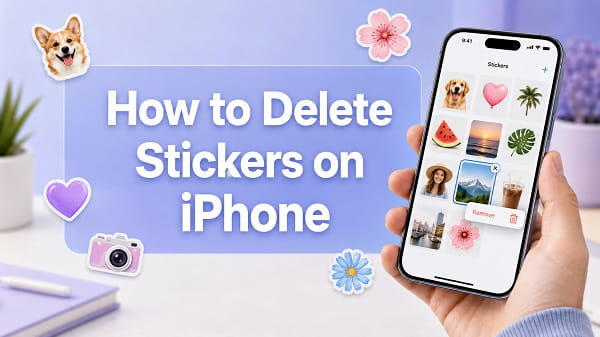
To delete a sticker you created from a photo on your iPhone, open Photos, select any photo, tap Edit > Markup > Add > Add Sticker, then touch and hold the unwanted sticker and tap Remove. You do not need to find the original photo used to make it.
That removes the sticker from your saved collection. It is different from deleting a sticker that has already been placed on a message bubble, deleting a Memoji or Genmoji, and removing a third-party sticker pack. Each type has its own controls.
The correct method depends on what you want to remove, so identify the sticker first.
Quick Steps for Every Type of iPhone Sticker
| What you want to delete | Where to go | Action |
|---|---|---|
| Sticker created from a photo or Live Photo | Photos > Edit > Markup > Add > Add Sticker | Touch and hold it, then tap Remove |
| Sticker attached to a message bubble | Messages conversation | Hold the bubble, tap Sticker Details, swipe left on the sticker and tap Delete |
| Sticker sent as its own message | Messages conversation | Hold the sticker message and use Undo Send or Delete |
| Genmoji | Emoji keyboard > Stickers | Touch and hold it, then tap Delete |
| Custom Memoji and its sticker pack | Messages or emoji keyboard > Memoji | Select the Memoji, tap More and choose Delete |
| Third-party iMessage sticker pack | Settings > Apps > Messages > iMessage Apps | Turn the app off, or uninstall its parent app |
| Sticker added to a photo in Markup | Photos > Edit | Remove it while editing, or revert the photo if already saved |
| WhatsApp, Telegram or another app’s sticker | Inside that app | Use the app’s sticker-management controls |
Removing a saved sticker does not erase the original photo. Deleting a sticker from one conversation does not remove it from your sticker collection. These differences explain why a sticker can appear to return after you thought you deleted it.
How to Delete a Sticker You Made From a Photo
Photo stickers and Live Stickers are saved in a shared collection. They can appear in Messages, the emoji keyboard and Markup in supported apps.
Use Apple’s current Photos method:
- Open the Photos app.
- Open any photo. It does not need to be the photo used to create the sticker.
- Tap Edit.
- Tap the Markup button. It looks like a pen tip.
- Tap the Add button.
- Select Add Sticker.
- Find the sticker you want to delete.
- Touch and hold the sticker.
- Tap Remove.
- Close Markup when finished.
The sticker should disappear from the saved collection. It will also stop appearing in other Apple sticker pickers after iCloud finishes syncing.
Apple documents the same steps in its photo sticker instructions. The important detail is that the sticker collection is available through Markup, even if Messages does not show a Remove option where you expect it.
Does Deleting the Sticker Delete the Original Photo?
No. The sticker is a reusable cutout based on the photo’s subject. Removing that saved cutout does not delete, crop or edit the original image in Photos.
You can also delete the source photo without automatically deleting the saved sticker. The sticker has already been added to the collection and can remain there until you remove it separately.
Does the Same Method Delete Live Stickers?
Yes. A Live Sticker is an animated sticker made from the subject of a Live Photo. Open the sticker collection through Photos and Markup, touch and hold the Live Sticker and tap Remove.
Removing it does not turn off Live Photos or delete the source image.
How to Delete Stickers From the iPhone Keyboard
On recent iOS versions, saved photo stickers and Genmoji can appear in the emoji keyboard across supported apps.
To open the sticker area:
- Tap a text field in Messages, Notes, Mail or another supported app.
- Tap the Emoji button or hold the globe key and choose Emoji.
- Swipe right to the sticker area or tap the Stickers button.
- Find the custom item you want to remove.
For a Genmoji, touch and hold it and tap Delete.
For a photo sticker, some iOS versions show Remove when you touch and hold it in the keyboard. If your iPhone does not show that option, use the Photos > Edit > Markup > Add Sticker route. That route accesses the same saved collection and is Apple’s documented deletion method.
You cannot delete ordinary built-in emoji one at a time. Emoji are part of the system keyboard, not saved custom stickers.
How to Remove a Sticker Attached to a Message
A sticker can be dragged onto a text, image or message bubble. Removing that placed sticker is different from deleting it from the saved collection.
- Open Messages.
- Open the conversation containing the sticker.
- Touch and hold the message bubble underneath the sticker.
- Tap Sticker Details.
- Locate the sticker in the details list.
- Swipe left on it.
- Tap the Delete button.
If several stickers are layered on the same message, Sticker Details lists them separately. Swipe left only on the one you want to remove.
Apple’s current Messages sticker instructions use this method. Apple also notes that supported recent operating-system versions can display changes made to stickers placed on message bubbles.
Why Hold the Message Bubble Instead of the Sticker?
Touching and holding the sticker itself may let you move or resize it. Holding the underlying message bubble reveals Sticker Details, which contains the deletion control.
If the sticker covers most of the message, double-tap the bubble to view covered text, then touch and hold an exposed part of the bubble.
Does This Delete the Saved Sticker?
No. It removes that occurrence from the conversation. The sticker remains available in your sticker drawer unless you delete it from the saved collection separately.
Can You Delete a Sticker Someone Else Added?
Open Sticker Details to see who added each sticker. The options available can depend on the message type, sender, device and operating-system versions.
Removing a sticker from your view does not guarantee that it disappears from an old screenshot, notification preview or unsupported recipient device. Message changes cannot retrieve copies someone has already saved.
How to Delete a Sticker Sent as a Message
A sticker sent inside its own message bubble behaves more like a normal iMessage than a sticker attached to another bubble.
If It Was Just Sent
Touch and hold the sticker message and tap Undo Send if the option is still available. Apple’s Undo Send window for iMessage is limited, and recipients using older software may still see the original message.
Undo Send is different from Delete. It attempts to remove the message from the conversation for supported recipients.
If the Undo Send Window Has Passed
- Touch and hold the sticker message.
- Tap More if needed.
- Select the sticker message.
- Tap the Trash button.
- Confirm deletion.
This deletes the message from your own Messages history and synced Apple devices. It does not retract an old delivered copy from another person’s phone.
Deleting the sticker message also does not remove the design from your saved sticker drawer.
How to Delete Genmoji on iPhone
Genmoji are custom emoji created with Apple Intelligence. They are stored with stickers and can be used from the emoji keyboard.
To delete a Genmoji:
- Tap any text field to open the keyboard.
- Tap the Emoji button or switch to the emoji keyboard.
- Swipe right or tap the Stickers button.
- Find the Genmoji.
- Touch and hold it.
- Tap Delete.
The Delete option appears only for custom Genmoji you can manage. Built-in Unicode emoji cannot be deleted.
Genmoji Is Missing From the Sticker Drawer
Confirm that you are looking at the sticker section rather than the main emoji grid. Swipe through the available categories and check recent items.
Genmoji availability depends on a compatible iPhone, Apple Intelligence settings, language and region. If Genmoji was created on another Apple device, allow time for iCloud to sync.
How to Delete Memoji Stickers
Every custom Memoji automatically generates a pack of facial expressions and poses. You do not normally delete one expression by itself. Deleting the custom Memoji removes the sticker pack generated from it.
Delete a Memoji Through Messages
- Open Messages.
- Start a new message or open a conversation.
- Tap the Plus button.
- Swipe up and select Memoji.
- Swipe to the custom Memoji you want to remove.
- Tap the More button.
- Tap Delete.
- Confirm if prompted.
Delete a Memoji From the Keyboard
On a current iOS version, you may also manage it through a text field:
- Open the emoji keyboard.
- Open Stickers.
- Choose the Memoji section.
- Select the custom Memoji.
- Open its More options.
- Tap Delete.
Deleting a Memoji removes the custom character and its generated sticker pack. It does not delete messages where those stickers were already sent.
Can You Delete Apple’s Animal Animoji?
No. Built-in Animoji characters are part of iOS. You can delete custom Memoji you created, but not Apple’s standard character set.
How to Remove a Third-Party Sticker Pack
Sticker packs from other creators usually come from an iMessage app or a full iPhone app. You can hide the iMessage extension without deleting the main app, or uninstall the app completely.
Turn Off the Sticker App in Messages
On a current iOS version:
- Open Settings.
- Tap Apps.
- Select Messages.
- Tap iMessage Apps.
- Select the sticker app.
- Turn it off.
This removes or hides the app from the Messages app list while leaving its main iPhone app installed.
If you want to use it again, return to the same menu and turn it on.
Delete the Sticker App Completely
- Find the app on the Home Screen or in App Library.
- Touch and hold its icon.
- Tap Remove App.
- Choose Delete App.
- Confirm.
Deleting the full app also removes its iMessage extension and locally stored sticker content. It may not remove stickers already sent in conversations.
What if the Sticker Pack Has No Home Screen Icon?
Some sticker packs are iMessage-only apps and may be easiest to find under Settings > Apps > Messages > iMessage Apps. Turn the extension off there.
If it is a downloadable app, open App Store, tap your profile picture and check the purchased-app history to identify its name. Do not install an unknown cleaning app just to remove a sticker pack.
How to Remove Stickers Added to a Photo
A sticker placed on a photo with Markup is an edit to that photo. Deleting the saved sticker from your collection does not automatically remove copies already placed on images.
Before Saving the Markup Edit
- Tap the sticker on the photo.
- Open its options.
- Tap Delete.
If it is selected, you can also use the available delete control in Markup.
After Saving the Edited Photo
Open the image in Photos and tap Edit. If the sticker cannot be selected as a separate Markup object, use Revert to Original to remove the saved edits.
Be careful: reverting removes all edits made to that photo, not only the sticker. If you want to preserve crops, color adjustments or other work, duplicate the photo first and experiment on the copy.
Deleting the Collection Sticker Is Not Enough
Think of the saved sticker as a reusable stamp. Removing the stamp from the collection does not erase places where it was already used. You must edit the message, image, note or document containing each placed copy.
How to Remove a Sticker From a Note, PDF or Document
If the sticker was added with Markup:
- Open the note, image, PDF or supported document.
- Enter Markup or editing mode.
- Tap the placed sticker.
- Open its object menu.
- Tap Delete.
- Save the document.
If the sticker cannot be selected, it may have been flattened into the image or PDF. Undo the edit if still possible, restore an earlier file version or edit the document with a tool that can cover or remove flattened image content.
Deleting the sticker from the iPhone’s saved collection will not change a previously exported PDF or shared image.
How to Delete WhatsApp Stickers on iPhone
WhatsApp maintains its own sticker packs and favorites. Deleting an Apple Live Sticker does not necessarily remove a WhatsApp pack.
The menu can change with app updates, but the normal route is:
- Open a WhatsApp conversation.
- Tap the Stickers button in the message field.
- Open the sticker pack or collection manager.
- Select My Stickers, Your Stickers or the equivalent section.
- Remove the unwanted pack or sticker.
For a favorite sticker, touch and hold it and look for Remove from Favorites.
If a third-party sticker-maker app created the pack, removing the maker app may not delete packs already imported into WhatsApp. Remove them through WhatsApp’s own sticker manager too.
How to Delete Telegram and Other App Stickers
Telegram, Signal, Messenger, Snapchat and other services use their own sticker libraries. Open that app’s settings and look for Stickers, Emoji, Chat Settings, Installed Packs or Favorites.
An Apple sticker may appear inside a third-party app because the app supports the iPhone keyboard. In that case, delete it from the Apple sticker collection using Photos and Markup. If it belongs to an app-specific pack, manage it inside the app.
This distinction is useful:
- Appears in multiple apps through the iPhone keyboard: probably an Apple photo sticker, Live Sticker, Memoji or Genmoji.
- Appears only in WhatsApp or Telegram: probably managed by that app.
- Appears under an app icon in Messages: probably an iMessage sticker extension.
Why Does a Deleted Sticker Keep Coming Back?
Several issues can make a removed sticker reappear.
iCloud Has Not Finished Syncing
Apple stickers sync across compatible devices signed in to the same Apple Account. If another iPhone, iPad or Mac has not received the deletion, it may continue showing the old collection temporarily.
Connect every device to the internet and allow time for syncing. Avoid repeatedly recreating or deleting the same sticker while devices disagree.
You Removed It From a Message, Not the Collection
Deleting one placed copy does not remove the saved sticker. Use Photos > Edit > Markup > Add > Add Sticker, then hold the item and choose Remove.
You Deleted the Collection Sticker, Not a Placed Copy
A sticker already applied to a message, photo or PDF remains there. Edit that item separately.
It Is a Different Type of Sticker
A photo sticker, Genmoji, Memoji expression and third-party sticker pack can look similar in the drawer. Check the category icon at the top of the sticker picker.
The App Is Showing a Cached Copy
Close the affected app and reopen it. If needed, restart the iPhone. Do not reinstall Messages or erase the device for a single stale sticker.
Sticker Will Not Delete on iPhone
If holding the sticker does nothing or no Remove option appears, try these checks in order.
1. Use the Photos and Markup Route
Messages and third-party keyboards do not always display every management option. Open the collection through Photos > Edit > Markup > Add > Add Sticker and try again.
2. Hold the Correct Item
For a saved sticker, hold the sticker in the collection. For a sticker attached to a bubble, hold the message bubble and open Sticker Details. For a Genmoji, hold it in the keyboard’s sticker area.
3. Close and Reopen the App
Open the App Switcher, swipe Messages or Photos away and reopen it. This refreshes the picker without deleting data.
4. Restart the iPhone
A restart can clear a stuck keyboard or sticker drawer. If the screen is frozen, follow How to Force Restart an iPhone for the correct model-specific buttons.
5. Update iOS
Open Settings > General > Software Update and install the latest compatible stable version. Sticker menus have changed across iOS releases, so an outdated version may not match current instructions.
6. Check the Touchscreen
Touch-and-hold gestures require the screen to register a steady press. Remove a thick screen protector, clean and dry the display, then try again.
If long presses fail across the Home Screen and other apps, use iPhone Touchscreen Not Working to troubleshoot the display rather than changing sticker settings.
7. Allow iCloud to Sync
Keep the iPhone connected to Wi-Fi and power for a while. Check another Apple device before assuming the sticker was permanently recreated.
8. Avoid Resetting the Whole iPhone
A factory reset is excessive for a sticker-management problem. It creates backup and activation risks and may restore the same synced sticker collection afterward.
How to Delete Multiple Stickers at Once
The standard Apple sticker collection is designed mainly for individual management. If your iOS version does not offer Select or multi-delete, touch and hold each custom sticker and remove it separately.
Deleting a custom Memoji removes its entire generated Memoji sticker pack, but do this only when you no longer want that character. Removing a third-party sticker app can delete or hide its whole pack at once.
Do not erase all keyboard data or sign out of iCloud just to clear several photo stickers. Individual deletion is slower but safer.
Can You Recover a Deleted iPhone Sticker?
There is no normal Recently Deleted folder for the saved sticker collection.
If you made the sticker from your own photo, recreate it:
- Open the source photo in Photos.
- Touch and hold the subject.
- Tap Add Sticker.
- Apply an effect if wanted.
For a Live Sticker, use the original Live Photo to restore its movement.
If someone else sent the sticker and the message remains available, touch and hold it. Depending on how it was sent, you may see Save to Stickers or find a Save option under Sticker Details.
Deleted Genmoji must normally be created again. A deleted Memoji can also be rebuilt, but its exact custom appearance may be difficult to reproduce if you did not record the settings.
Does Deleting Stickers Free iPhone Storage?
Deleting a few photo stickers usually frees very little space. Sticker files are small compared with photos, videos, offline downloads and large apps.
Removing a large third-party sticker app can recover more storage, particularly if the app stores animated packs or other media. Check its size under Settings > General > iPhone Storage.
Do not delete important photos under the assumption that doing so clears the sticker collection. The source photo and saved sticker are managed separately.
Privacy Checks Before Sharing Photo Stickers
A photo sticker normally isolates the visible subject, but inspect it before sending. Edges can include unexpected clothing, documents, faces, screens or background details.
Also remember:
- Removing a sent sticker from your phone cannot erase a screenshot.
- Undo Send has a limited window.
- Deleting the source photo does not retract the sticker.
- A recipient can save a Live Sticker you send.
- Stickers may sync to other devices using your Apple Account.
If a conversation contains sensitive material beyond the sticker, review the message itself. How to View Blocked Messages on iPhone also explains what blocking does and does not remove from existing Messages history.
Frequently Asked Questions
How do I permanently delete stickers from my iPhone?
Open Photos, select any image, tap Edit > Markup > Add > Add Sticker, touch and hold the unwanted custom sticker and tap Remove. This removes it from the synced Apple sticker collection.
How do I delete a sticker from the emoji keyboard?
Open the emoji keyboard, go to Stickers, touch and hold the custom item and choose Delete or Remove. If a photo sticker has no option there, delete it through Photos and Markup.
Why is there no delete option when I hold a sticker in Messages?
You may be holding a placed sticker rather than the underlying message. Hold the message bubble, tap Sticker Details, swipe left on the sticker and tap Delete. To remove it from the collection, use Photos and Markup.
Can I delete all iPhone stickers at once?
Apple may not provide a multi-select option for custom photo stickers. Remove them individually. You can remove an entire Memoji pack by deleting its custom Memoji or remove a third-party pack by disabling or uninstalling its app.
Can I delete built-in emoji stickers?
No. Standard emoji and Apple’s built-in characters are part of iOS. You can delete custom photo stickers, custom Memoji and Genmoji, but not the system emoji set.
How do I delete a Live Sticker?
Open Photos, tap any photo, choose Edit > Markup > Add > Add Sticker, touch and hold the Live Sticker and tap Remove.
Will deleting a Live Sticker delete the Live Photo?
No. The original photo remains in your library. Removing the photo also does not necessarily remove a sticker already saved from it.
How do I delete a sticker someone put on my message?
Hold the message bubble, tap Sticker Details, swipe left on the unwanted sticker and tap Delete. Available results can vary with message ownership and the software versions used by participants.
Does deleting a sticker remove it for the other person?
Removing a saved sticker affects your collection. Deleting an old delivered message usually affects only your history. Removing a sticker placed on a bubble can update supported conversations, while Undo Send is the feature intended to retract a recently sent iMessage. No action removes screenshots or saved copies.
How do I remove Memoji stickers?
Open Messages, select Memoji, choose your custom character, tap More and select Delete. This removes that Memoji and its automatically generated sticker pack.
How do I delete Genmoji?
Open a text field, switch to the emoji keyboard, open Stickers, touch and hold the Genmoji and tap Delete.
Why did the sticker disappear from Messages but remain in WhatsApp?
WhatsApp can maintain its own sticker packs and favorites. Open WhatsApp’s sticker manager and remove the item there. An app-specific copy is separate from Apple’s saved collection.
Will resetting the keyboard delete stickers?
It is not the correct method. Reset Keyboard Dictionary targets learned typing data and custom dictionary behavior, not a reliable sticker-cleanup process. Delete stickers from their collection instead.
Do deleted stickers disappear from my iPad and Mac?
Custom Apple stickers sync through iCloud on compatible devices signed in to the same Apple Account. Allow time for the deletion to sync. A sticker already placed in a document or sent in a message is a separate copy.
Delete the Sticker From the Right Place
For a sticker saved from a photo, use Photos > Edit > Markup > Add > Add Sticker, then hold it and tap Remove. For a sticker placed on a Messages bubble, use Sticker Details. Genmoji and Memoji have their own deletion controls, while third-party packs are managed through iMessage Apps or the app that installed them.
Choosing the matching method avoids the most common frustration: deleting one visible copy while the original sticker remains in another collection and appears again the next time the keyboard opens.
