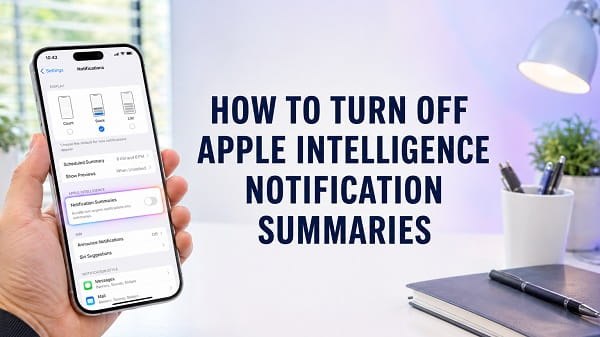
Apple Intelligence can shorten long or grouped notifications into a few lines, helping you understand several alerts without opening every app. The summaries appear in italics on the Lock Screen and in Notification Center, but they are not always helpful. A summary may leave out important context, combine unrelated messages, or make an ordinary notification sound more urgent than it is.
If you want to know how to turn off Apple Intelligence notification summaries, open Settings, tap Notifications, select Summarize Notifications, and turn the feature off. This disables AI-generated notification summaries across the iPhone without turning off ordinary notifications or removing Apple Intelligence completely.
You can also keep the feature enabled for some apps and disable it for others. That is often the better option when summaries are useful for busy group chats or social apps but unsuitable for banking, security, work, medical, or delivery notifications.
The setting is separate from Scheduled Summary, Priority Notifications, and Reduce Interruptions Focus. Those features affect when notifications arrive or where they appear, while Summarize Notifications changes the wording displayed in the notification preview.
Quick Steps to Turn Off Notification Summaries
To disable all Apple Intelligence notification summaries:
- Open the Settings app.
- Tap Notifications.
- Tap Summarize Notifications.
- Turn off Summarize Notifications.
New notifications should return to their normal previews. Existing summarized notifications may remain in Notification Center until you clear them or receive newer alerts.
This change does not turn off notification sounds, banners, badges, Lock Screen alerts, or notifications from individual apps. It only stops Apple Intelligence from rewriting long or grouped notification previews into generated summaries.
What Are Apple Intelligence Notification Summaries?
Notification summaries use Apple Intelligence to condense direct messages and groups of notifications. Instead of showing the original text of every alert, the iPhone may display a generated sentence describing what happened.
For example, a busy group conversation could appear as a short summary stating that several people discussed a meeting time. A group of shopping notifications could be reduced to a brief description of orders, deliveries, or offers.
The feature is designed to make a crowded Lock Screen easier to scan, but the displayed summary is generated by a language model. It is not a word-for-word quotation from the original notifications.
Apple warns that generative outputs can vary and that important information should be checked for accuracy. A notification summary can:
- Omit a condition or exception
- Misidentify the person who said something
- Combine separate conversations
- Make a joke sound serious
- Miss a changed time or deadline
- Misread sarcasm or informal language
- Hide the original wording until you expand the notification
For casual apps, that may be only a small inconvenience. For financial alerts, account-security warnings, workplace messages, medication reminders, school updates, and emergency information, reading the original notification is safer.
How to Turn Off Apple Intelligence Notification Summaries for All Apps
Use the main Notifications setting when you no longer want any app’s alerts rewritten by Apple Intelligence.
- Open Settings.
- Scroll down and tap Notifications.
- Tap Summarize Notifications.
- Turn off the switch beside Summarize Notifications.
- Return to the Home Screen.
- Lock the iPhone and wait for a new notification to test the change.
You do not need to restart the iPhone in most cases. The setting normally takes effect immediately for new notifications.
If you still see an italicized summary, confirm that it is a newly received notification. An older summary can remain visible in Notification Center even after the feature is disabled.
Clear the old alert by swiping left and tapping Clear, then test with a new message or app notification.
How to Turn Off Notification Summaries for One App
Disabling the feature for selected apps gives you more control than turning it off completely.
Use this method when you want normal previews from important apps but still want AI summaries elsewhere.
Method 1: Use the Summarize Notifications List
- Open Settings.
- Tap Notifications.
- Tap Summarize Notifications.
- Make sure the main feature is turned on.
- Tap Choose Notifications to Summarize if the option appears.
- Find the app you do not want summarized.
- Turn off the switch beside that app.
- Leave the other preferred apps enabled.
Depending on the installed iOS version, the app list may appear directly on the Summarize Notifications page instead of behind a separate button.
Method 2: Open the App’s Notification Settings
- Open Settings.
- Tap Notifications.
- Scroll to Notification Style.
- Select the affected app.
- Turn off Summarize Notifications if the switch is available.
This method is useful when only one app is producing confusing summaries.
Consider disabling summaries for:
- Banking and payment apps
- Password managers
- Authentication apps
- Security cameras and alarm systems
- Health and medication apps
- Work communication platforms
- School and childcare apps
- Delivery services when exact times matter
- Calendar and reminder apps
- Government or emergency-alert services
Some apps do not offer the summary switch because Apple Intelligence does not summarize their notifications, the app has not sent compatible alerts, or the feature is unavailable for the current device, language, or region.
How to Turn Off Summaries but Keep Normal Notifications
You do not need to disable an app’s notifications just because you dislike its AI-generated summaries.
Leave Allow Notifications turned on and disable only Summarize Notifications.
The app can continue showing:
- Lock Screen alerts
- Notification Center alerts
- Banners
- Sounds
- Badges
- Time-sensitive notifications
- Original notification previews
This distinction is important. Turning off Allow Notifications stops the app from alerting you entirely, while turning off Summarize Notifications preserves the alerts and restores their normal wording.
If an app’s alerts are also too noisy, adjust its sounds, badges, banner style, grouping, and preview options separately.
For an iPhone that makes too many vibration alerts, how to turn off vibration on iPhone explains the different haptic settings without requiring you to disable notification previews.
How to Turn Off All Apple Intelligence Features
You can disable Apple Intelligence completely when notification summaries are only one of several AI features you do not want.
- Open Settings.
- Tap Apple Intelligence & Siri.
- Turn off Apple Intelligence.
- Confirm the change if prompted.
This is a much broader action than disabling notification summaries. It can remove access to features such as:
- Writing Tools
- AI summaries in supported apps
- Genmoji
- Image Playground
- Visual intelligence features
- Priority notifications
- Reduce Interruptions intelligence
- Apple Intelligence features in Mail, Messages, Notes, Safari, Phone, and other supported apps
- ChatGPT integration through Apple Intelligence
- Other features added through later iOS updates
Apple states that turning off Apple Intelligence removes its on-device models from the device. That can free storage, but the models may need to download again if you re-enable Apple Intelligence later.
Use the Notifications setting instead when summaries are the only feature you want to remove.
Apple Intelligence Summaries Versus Scheduled Summary
These two features have similar names but do different jobs.
Apple Intelligence Notification Summaries
This feature changes the content shown in a notification preview. It uses generative AI to condense long or stacked alerts.
The setting is usually located at:
Settings > Notifications > Summarize Notifications
Scheduled Summary
Scheduled Summary delays selected non-urgent notifications and delivers them together at chosen times.
The setting is located at:
Settings > Notifications > Scheduled Summary
Turning off Summarize Notifications does not necessarily disable Scheduled Summary. You may stop seeing AI-generated wording but still receive several notifications together at a scheduled time.
To turn off Scheduled Summary:
- Open Settings.
- Tap Notifications.
- Tap Scheduled Summary.
- Turn off Scheduled Summary.
Afterward, supported app notifications should return to immediate delivery according to their individual settings.
If notifications arrive late rather than appearing with incorrect wording, Scheduled Summary, Focus, app settings, or network access is more likely to be responsible than Apple Intelligence summarization.
Notification Summaries Versus Priority Notifications
Priority Notifications is another Apple Intelligence feature, but it does not summarize the text.
It attempts to identify important and time-sensitive alerts and place them above other notifications.
To turn it off:
- Open Settings.
- Tap Notifications.
- Tap Prioritize Notifications.
- Turn off Prioritize Notifications.
You may also be able to leave prioritization enabled globally and disable it for selected apps.
A notification can be prioritized without being summarized, and a summarized notification does not always become a priority notification. Disabling one feature does not guarantee that the other will be disabled.
When a priority alert appears on the Lock Screen, Apple also allows you to swipe left, tap Options, and disable prioritization for the app or turn off prioritization more broadly. That Lock Screen shortcut applies to Priority Notifications, not necessarily to every AI-generated summary.
Notification Summaries Versus Reduce Interruptions Focus
Reduce Interruptions is a Focus mode that uses Apple Intelligence to decide which notifications may need immediate attention.
It can silence less important alerts while allowing selected people, apps, or intelligent breakthroughs to reach you.
To check it:
- Open Settings.
- Tap Focus.
- Tap Reduce Interruptions.
- Review the people and apps that are allowed or silenced.
- Turn off the Focus or change its schedule if it is filtering notifications unexpectedly.
Turning off Summarize Notifications will not automatically disable Reduce Interruptions. Your notification wording may return to normal while some alerts remain silenced by the Focus.
Check Control Center for an active Focus icon if notifications appear missing, delayed, or silent.
How to Know Whether a Notification Was Summarized
Apple Intelligence notification summaries normally appear in italicized text. You can tap the summarized notification or notification group to expand it and view more of the original content.
Other signs include:
- One sentence appears to describe several messages.
- The wording does not exactly match any message you received.
- A group conversation is reduced to a short overview.
- Several alerts from one app appear as a combined description.
- The summary uses names, topics, or actions drawn from multiple notifications.
Do not assume every shortened notification is AI-generated. Some apps create their own preview text, and iOS can group notifications without generating a summary.
Open the app and compare the alert with the original message before deciding that Apple Intelligence changed it.
Why Are Notification Summaries Still Showing After You Turn Them Off?
The setting normally works immediately, but several situations can make it look as though nothing changed.
1. You Are Looking at an Old Notification
Disabling the feature does not always rewrite summaries already stored in Notification Center.
Clear the existing notification and wait for a new one.
2. You Disabled the Feature for the Wrong App
Check the app name shown above the notification. A message may be delivered through a third-party messaging app rather than Apple Messages.
Return to Settings > Notifications > Summarize Notifications and verify the correct app.
3. Summarize Notifications Is Still Enabled Globally
Turning off one app does not disable all summaries.
Open the main Summarize Notifications page and turn off the master switch if you want to stop the feature everywhere.
4. You Are Seeing a Messages Conversation Summary
Apple Intelligence can also summarize unread conversations inside the Messages app. That feature appears beneath conversations in the Messages list and is controlled separately from system notification summaries.
Disabling Settings > Notifications > Summarize Notifications may not remove summaries shown inside the Messages app itself.
5. You Are Seeing a Mail Summary
Mail can show AI-generated previews and summaries inside the Mail app. Those are not the same as Lock Screen notification summaries and may have their own controls.
6. Scheduled Summary Is Still On
Scheduled Summary can continue grouping delayed notifications even after AI-generated wording is disabled.
Turn it off separately under Settings > Notifications > Scheduled Summary if you want immediate delivery.
7. The Settings App Has Not Refreshed Properly
Close Settings, reopen it, and confirm the switch. Restart the iPhone if the control appears stuck or reverses itself.
For a frozen or unresponsive device, follow the correct steps to force restart an iPhone. A force restart does not erase photos, apps, or messages.
8. A Managed Profile Controls the Device
A work or school organization may manage settings through mobile device management.
Open:
Settings > General > VPN & Device Management
Do not remove an organization’s profile without permission. Contact the administrator if notification options are restricted.
Why Is Summarize Notifications Missing?
The option appears only when the iPhone, software, language, region, and Apple Intelligence configuration support it.
The iPhone Does Not Support Apple Intelligence
Apple Intelligence requires compatible hardware. Supported iPhones include iPhone 15 Pro, iPhone 15 Pro Max, and iPhone 16 or later models that Apple lists as compatible.
An iPhone 15, iPhone 15 Plus, iPhone 14, iPhone 13, iPhone 12, iPhone 11, or older model may support the current iOS version without supporting Apple Intelligence.
Installing an iOS update does not add the required processing hardware to an unsupported model.
Apple Intelligence Is Turned Off
Open Settings > Apple Intelligence & Siri and check whether Apple Intelligence is enabled.
When it is off, the Summarize Notifications option may disappear because the underlying AI feature is unavailable.
iOS Is Outdated
Open:
Settings > General > Software Update
Install the latest stable update available for the iPhone. Keep the phone connected to power and a reliable internet connection during a major update.
The Device and Siri Languages Do Not Match
Apple Intelligence may require the iPhone language and Siri language to match and use a supported language.
Check:
- Settings > General > Language & Region
- Settings > Apple Intelligence & Siri > Language
After changing a language, the required language files and models may need time to download.
Apple Intelligence Is Still Downloading
Apple Intelligence models may download after setup, a language change, or a software update.
Connect the iPhone to power and Wi-Fi, then allow the process to finish.
If Wi-Fi cannot be enabled, use the steps in iPhone WiFi greyed out before repeatedly changing Apple Intelligence settings.
The Feature Is Unavailable in the Region
Apple Intelligence availability can vary by country, language, account type, and local regulation.
Avoid changing the Apple Account country or device region merely to force a feature to appear. That can affect subscriptions, payment methods, purchases, and services without making the feature work.
Screen Time or Device Management Is Restricting Changes
Review:
- Settings > Screen Time > Content & Privacy Restrictions
- Settings > General > VPN & Device Management
Restrictions are especially relevant on a child’s device or an employer-owned iPhone.
Notification Summaries Turned Off by Themselves
An iOS update, feature rollout, language change, or Apple Intelligence setup change can affect which summarization options are available.
Apple has also changed how notification summaries are displayed and managed as the feature has developed. Certain app categories may be handled differently after a software update.
Check:
- Whether Apple Intelligence is still on.
- Whether the iPhone and Siri languages match.
- Whether Summarize Notifications is enabled globally.
- Which apps are selected.
- Whether an iOS update is pending.
- Whether the feature is available in your current region.
Do not factory-reset the iPhone simply because the setting changed. Notification preferences can normally be corrected without deleting personal data.
How to Turn Notification Summaries Back On
You can restore the feature at any time.
- Open Settings.
- Tap Notifications.
- Tap Summarize Notifications.
- Turn on Summarize Notifications.
- Tap Choose Notifications to Summarize if prompted.
- Select the apps you want included.
- Tap the confirmation option if one appears.
Test it with a long message or a group of notifications. A summary may not appear for every alert because the feature decides when a notification is long or complex enough to condense.
Should You Disable Notification Summaries?
The best choice depends on the apps involved and how much you rely on exact notification wording.
Keep Them Enabled When
- You receive many casual group-chat notifications.
- You mainly want a quick overview.
- The apps do not carry sensitive or urgent information.
- You are willing to open the app before acting.
- You find the summaries consistently accurate.
Turn Them Off When
- Important context is frequently missing.
- Summaries are inaccurate or misleading.
- You use banking or security apps.
- You depend on exact work instructions.
- You receive medical or medication alerts.
- You prefer the original notification text.
- You are uncomfortable with generated interpretations.
- You need predictable previews for accessibility reasons.
A balanced setup is often best. Keep summaries for entertainment, social, and high-volume chat apps, while disabling them for services where exact wording matters.
Do Notification Summaries Affect Privacy?
Apple Intelligence uses on-device processing where possible and can use Private Cloud Compute for more complex requests. Apple describes protections designed to limit data exposure and allow verification of the cloud-processing environment.
However, privacy is not the only reason someone may disable summaries. The generated wording can display sensitive details more clearly on the Lock Screen than the original app preview would have.
Review Show Previews:
- Open Settings.
- Tap Notifications.
- Tap Show Previews.
- Choose Always, When Unlocked, or Never.
Selecting When Unlocked can prevent notification content from being fully visible until Face ID, Touch ID, or the passcode unlocks the iPhone.
You can also change preview settings for individual apps under their notification settings.
Will Turning Off Summaries Stop Notifications?
No. Disabling Summarize Notifications does not stop apps from sending alerts.
Normal notifications continue according to each app’s settings. The iPhone simply stops replacing long or grouped previews with an AI-generated description.
When alerts disappear completely, check:
- Allow Notifications
- Focus modes
- Scheduled Summary
- Notification sounds and banners
- App-specific notification controls
- Background data
- Internet connectivity
- Whether you are signed in to the app
If apps update only on Wi-Fi but not cellular data, iPhone not connecting to the internet on cellular data explains how to check mobile data, app access, carrier settings, VPNs, and network configuration.
Will Turning Off Summaries Improve Battery Life?
Disabling one Apple Intelligence feature is unlikely to produce a dramatic battery improvement for most users.
Notification processing is only one part of iPhone activity. Battery drain is more commonly affected by:
- Screen brightness
- Weak cellular signal
- Background activity
- Location services
- Gaming and video
- Camera use
- Navigation
- Mobile hotspot use
- A recent iOS update
- Battery age
Turning off all Apple Intelligence may remove its on-device models and background feature availability, but battery results can vary. Do not disable useful features solely because of an unverified battery claim.
Can You Disable Summaries From the Lock Screen?
The reliable method is to use Settings > Notifications > Summarize Notifications.
Swiping left on a notification provides options such as muting or turning off notifications for the app. Priority Notifications can also offer prioritization controls from the Lock Screen.
Those options are not always the same as disabling AI summaries. Using Turn Off on an alert may stop every notification from the app, which is broader than necessary.
Use the Settings app when you want to preserve normal alerts and disable only generated summaries.
Can You Disable Summaries for Text Messages Only?
You can disable notification summarization for Messages through the app list under Summarize Notifications.
Apple Intelligence also has a separate Messages feature that summarizes unread conversation content inside the Messages app. That is controlled separately and will be covered in the next dedicated TechWise Zone article to avoid confusing two different settings.
The important distinction is:
- Notification summary: Appears on the Lock Screen or in Notification Center.
- Message conversation summary: Appears beneath a conversation inside the Messages app.
Turning off one may not turn off the other.
Can You Disable Summaries for WhatsApp, Gmail, or Other Apps?
Yes, when the app appears in the Summarize Notifications list.
Open Settings > Notifications > Summarize Notifications, then disable the app while keeping the main feature enabled.
For Gmail, this affects iPhone notification previews. It does not disable Gemini-generated conversation summaries inside Gmail itself. To remove those, use the separate steps in how to turn off AI summaries in Gmail.
The same principle applies to other apps. An app may have its own AI summary feature inside the application in addition to Apple Intelligence summaries shown by iOS.
Can You Turn Off Summaries on iPad or Mac?
Compatible iPads and Macs also provide Apple Intelligence notification summarization settings.
On a compatible iPad, the path is generally:
Settings > Notifications > Summarize Notifications
On a compatible Mac:
- Open System Settings.
- Click Notifications.
- Open Summarize Notifications.
- Turn the feature off or change the selected apps.
Settings do not always synchronize identically across every device. Check the iPhone, iPad, and Mac separately when summaries remain enabled on one device.
Are Notification Summaries Available on Every iPhone?
No. An iPhone may support iOS 26 while lacking Apple Intelligence hardware.
Apple currently supports Apple Intelligence on iPhone 15 Pro, iPhone 15 Pro Max, and iPhone 16 or later compatible models. Availability also depends on the software version, language, and region.
An unsupported iPhone does not need this setting because it cannot generate Apple Intelligence notification summaries.
Frequently Asked Questions
How do I stop my iPhone from summarizing notifications?
Open Settings > Notifications > Summarize Notifications, then turn off Summarize Notifications.
Can I disable notification summaries for only one app?
Yes. Keep Summarize Notifications enabled, then deselect the app from the list or turn off Summarize Notifications inside that app’s notification settings.
Why are the summarized notifications in italics?
Apple uses italicized text to distinguish AI-generated notification summaries from ordinary notification previews.
Does turning off notification summaries disable Apple Intelligence?
No. It disables only the notification-summary feature. Other Apple Intelligence tools can remain available.
Why are notifications still grouped after I turn summaries off?
Notification grouping and Scheduled Summary are separate features. Grouped alerts can remain even when Apple Intelligence no longer rewrites their text.
Why are notifications still arriving at scheduled times?
Scheduled Summary is probably enabled. Open Settings > Notifications > Scheduled Summary and turn it off.
Will I still receive sounds and badges?
Yes, provided those options remain enabled in the app’s notification settings.
Can I turn off AI summaries without turning off notifications?
Yes. Disable Summarize Notifications and leave Allow Notifications enabled.
Why is the Summarize Notifications option missing?
The iPhone may not support Apple Intelligence, Apple Intelligence may be off, iOS may be outdated, the language may be unsupported, or a work or school profile may restrict the setting.
Can Apple Intelligence summaries be wrong?
Yes. Generated summaries can omit or misinterpret information. Open the original app before acting on an important alert.
Does disabling summaries remove old summarized notifications?
Not always. Clear old notifications manually and check newly received alerts.
Is Scheduled Summary the same as Apple Intelligence summaries?
No. Scheduled Summary controls delivery time, while Apple Intelligence summaries rewrite long or grouped notification previews.
Can I keep summaries for WhatsApp but disable them for my bank?
Yes. Use the per-app selection under Summarize Notifications.
Do notification summaries work without internet?
Some Apple Intelligence processing happens on the device, while more complex tasks may use Private Cloud Compute. Availability and behavior can depend on the feature, device state, and current software.
Will the feature return after an iOS update?
An update can change settings or introduce new options. Review Summarize Notifications after major updates if you prefer it disabled.
Use the Narrowest Setting That Solves the Problem
When only the rewritten notification text is bothering you, turn off Summarize Notifications rather than disabling all notifications or Apple Intelligence.
For a more selective setup, leave the main feature enabled and remove banking, security, health, work, and other important apps from the summary list. Check Scheduled Summary, Priority Notifications, and Reduce Interruptions separately because each controls a different part of the notification experience.
Apple’s current instructions are available in its official guides to summarizing notifications with Apple Intelligence
