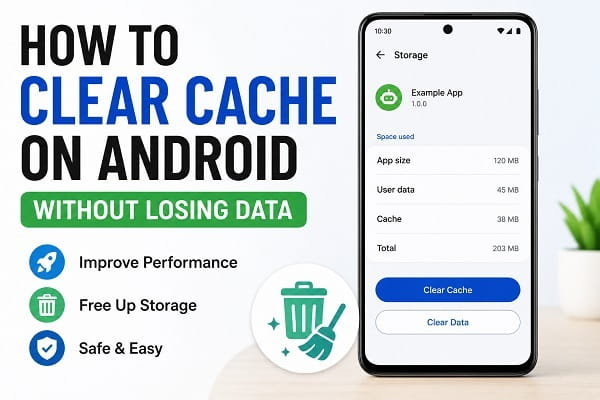
Is your Android phone running slower than usual? Are apps taking longer to open, freezing unexpectedly, or using more storage than they should?
If so, clearing your Android cache may be one of the easiest and safest ways to improve performance.
Many Android users avoid clearing cache because they worry about losing photos, messages, documents, or app data. Fortunately, cache files are different from your personal data. In most cases, you can safely clear cache without affecting your photos, videos, contacts, or important files.
In this guide, you’ll learn exactly how to clear cache on Android without losing data, why cache builds up over time, and when clearing it can help solve common Android problems.
What Is Cache on Android?
Cache is temporary data stored by apps and the Android operating system.
Apps use cached files to load content faster and improve performance.
For example:
- A browser stores website images and files.
- Social media apps save recently viewed content.
- Streaming apps cache media files.
- Shopping apps store product images.
The goal is simple: reduce loading times and improve the user experience.
While cache is useful, it can eventually become excessive or corrupted, leading to performance issues.
What Happens When Cache Becomes Too Large?
Over time, cached files accumulate.
This can result in:
- Slower phone performance
- Apps crashing unexpectedly
- Storage space running low
- Increased battery usage
- App glitches
- Loading issues
A cache that was originally intended to improve performance can sometimes do the opposite when it becomes too large.
Will Clearing Cache Delete My Data?
This is one of the most common concerns among Android users.
The short answer is:
No. Clearing cache does not delete your personal data.
When you clear cache, you typically keep:
- Photos
- Videos
- Contacts
- Messages
- Documents
- App accounts
- Saved passwords (in most cases)
You are only removing temporary files that apps can recreate later.
Cache vs Data: Understanding the Difference
Many people confuse clearing cache with clearing app data.
Clearing Cache
Removes:
- Temporary files
- Stored images
- Loading files
- Temporary app resources
Does NOT remove:
- Login information
- Personal files
- Settings
Clearing Data
Removes:
- App settings
- Login sessions
- Saved preferences
- Downloaded information
This essentially resets the app.
Because of this difference, clearing cache is usually the safer first step when troubleshooting Android issues.
Benefits of Clearing Cache on Android
If your Android phone feels sluggish even after clearing cache, there may be other factors affecting performance. Our guide on how to speed up a slow Android phone covers additional tips that can help improve responsiveness and overall system performance.
There are several reasons to clear cache periodically.
Free Up Storage Space
Some apps can accumulate hundreds of megabytes—or even gigabytes—of cache files.
Removing them can free valuable storage.
Improve Phone Performance
Clearing outdated cache can help apps run more smoothly.
Fix App Problems
Corrupted cache files can cause:
- App crashes
- Login issues
- Loading errors
Reduce System Glitches
Many Android performance issues are caused by outdated temporary files.
Improve Browser Performance
Web browsers often benefit significantly from occasional cache clearing.
How to Clear Cache for Individual Apps
This method works on most Android devices.
Step 1
Open Settings.
Step 2
Tap Apps or Apps & Notifications.
Step 3
Select the app you want to clean.
For example:
- Chrome
- TikTok
Step 4
Tap Storage & Cache.
Step 5
Tap Clear Cache.
That’s it.
The app’s temporary files will be removed without affecting your personal data.
How to Clear Cache in Google Chrome
Chrome often stores large amounts of cached data.
Step 1
Open Chrome.
Step 2
Tap the three-dot menu.
Step 3
Select History.
Step 4
Tap Clear Browsing Data.
Step 5
Select:
- Cached images and files
Leave other options unchecked if you don’t want to remove browsing history.
Step 6
Tap Clear Data.
How to Clear Cache on Samsung Phones
Samsung devices have a slightly different interface.
Step 1
Open Settings.
Step 2
Tap Battery and Device Care.
Step 3
Select Storage.
Step 4
Review storage usage.
Step 5
Clear unnecessary cached files if available.
Samsung also provides built-in optimization tools that can automatically identify storage issues.
How to Clear System Cache on Android
Some Android devices allow users to clear the system cache partition.
This process can help resolve:
- Slow performance
- Software glitches
- Update-related issues
The exact steps vary by manufacturer.
Generally, you may need to:
- Turn off the device.
- Enter Recovery Mode.
- Select Wipe Cache Partition.
- Restart the phone.
Because manufacturers use different button combinations, it’s best to check instructions for your specific device model.
How Often Should You Clear Cache?
You don’t need to clear cache every day.
For most users:
Light Users
Once every few months is sufficient.
Moderate Users
Every month or two.
Heavy Users
Monthly maintenance may be beneficial.
If your phone is performing normally, there is usually no reason to clear cache frequently.
Signs You Should Clear Cache
Many app-related problems are caused by corrupted temporary files. If certain apps continue to freeze or close unexpectedly, check out our guide on apps keep crashing after Android update for additional troubleshooting steps.
Consider clearing cache if you notice:
- Apps crashing frequently
- Slow app loading times
- Storage warnings
- Browser issues
- Unexpected app behavior
- General system sluggishness
These symptoms often indicate that temporary files have become excessive or corrupted.
Can Clearing Cache Make Your Phone Faster?
In many cases, yes.
However, the improvement depends on the cause of the slowdown.
Clearing cache can help when:
- Apps are storing excessive temporary files.
- Cached data becomes corrupted.
- Storage space is running low.
It may not help if:
- Your phone is very old.
- The battery is degraded.
- Hardware limitations are causing slowdowns.
Common Mistakes to Avoid
Clearing App Data Instead of Cache
Always verify which option you’re selecting.
Using Random Cleaning Apps
Many third-party cleaning apps provide little benefit and may display excessive advertisements.
Clearing Cache Too Frequently
Apps may temporarily load more slowly after cache is removed because they need to rebuild temporary files.
Ignoring Storage Problems
Cache isn’t always the main issue.
Large videos, downloads, and unused apps can also consume significant storage.
Additional Ways to Free Up Storage
If your phone is still running low on space, consider:
Remove Unused Apps
Delete apps you no longer use.
Delete Large Downloads
Review your Downloads folder.
Move Photos to Cloud Storage
Use services like Google Photos.
Remove Duplicate Files
Many file managers can identify duplicates.
Delete Old Videos
Videos often consume the most storage.
Frequently Asked Questions
Is it safe to clear cache on Android?
Yes. Clearing cache is generally safe and does not remove personal files.
Will clearing cache delete my photos?
No. Your photos, videos, and documents remain untouched.
Why do apps become slow again after some time?
Apps continuously generate new cache files as you use them.
Should I use a phone cleaner app?
Most Android phones already include storage management tools. In many cases, third-party cleaner apps are unnecessary.
Running low on storage can affect app downloads and updates. If you’re experiencing issues with the Play Store, our article on Google Play Store download pending fixes explains how to resolve one of the most common Android download problems.
Finally, knowing how to clear cache on Android without losing data is an essential maintenance skill for every Android user.
Cache files help apps run faster, but they can eventually consume valuable storage space and contribute to performance problems. By clearing cache periodically, you can free storage, fix app issues, and keep your phone running smoothly without risking your personal data.
The best part is that the process only takes a few minutes and can often solve common Android problems without requiring advanced troubleshooting.
If your Android phone feels slow, apps keep crashing, or storage space is running low, clearing cache is one of the safest and most effective fixes to try first.
Storage-related issues can also affect battery performance and overall device health. If you’ve noticed increased battery drain recently, read our guide on why your Android battery drains fast to identify common causes and solutions.
