Nothing is more frustrating than seeing the message: “Storage Space Running Out.” It often appears at the worst possible moment when you’re trying to install an app, update your phone, take a photo, download a file, or record an important video.
Low storage space doesn’t just prevent you from saving new files. It can also make your Android phone slower, cause apps to crash, interfere with updates, and reduce overall performance.
The good news is that you don’t necessarily need a new phone or an expensive storage upgrade. In many cases, you can recover several gigabytes of space by cleaning up unnecessary files and optimizing how your device stores data.
In this guide, you’ll learn 12 effective methods to free up storage space on Android, along with practical tips to keep your device running smoothly.
Why Android Storage Fills Up So Quickly
Many users assume photos and videos are the only things consuming storage.
In reality, storage is often used by:
- Apps
- App cache
- Downloads
- Screenshots
- WhatsApp media
- System files
- Offline videos
- Duplicate photos
- Temporary files
Over time, these files accumulate and consume significant storage space.
Before deleting anything, it’s helpful to understand where your storage is being used.
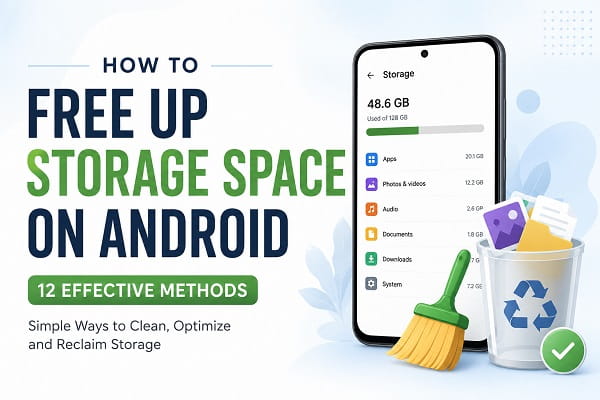
How to Check Storage Usage on Android
Before cleaning your phone, check which categories are consuming the most space.
Step 1
Open Settings.
Step 2
Tap Storage.
Step 3
Review storage categories such as:
- Apps
- Images
- Videos
- Audio
- Documents
- System
This gives you a clear picture of what needs attention.
1. Clear App Cache
One of the quickest ways to recover storage is by removing temporary files that apps accumulate over time. If you’re unsure about the process, follow our complete guide on how to clear cache on Android without losing data to safely free up space without affecting your personal files.
One of the fastest ways to recover storage is clearing cached files.
Apps store temporary files to improve performance, but these files can become unnecessarily large.
How to Clear Cache
- Open Settings.
- Tap Apps.
- Select an app.
- Tap Storage & Cache.
- Select Clear Cache.
Apps like:
- Chrome
- TikTok
often accumulate large cache files.
Clearing cache removes temporary data without affecting personal files.
2. Delete Unused Apps
Unused apps don’t just consume storage—they can also affect performance. If your phone still feels sluggish after removing unnecessary applications, check out our guide on how to speed up a slow Android phone for additional optimization tips.
Many Android users install apps and forget about them.
Unused apps consume:
- Storage
- System resources
- Background data
Review Installed Apps
Go through your app list and ask:
- Have I used this app recently?
- Do I still need it?
Removing unnecessary apps can instantly free significant storage.
3. Remove Large Videos
Videos are among the biggest storage consumers on smartphones.
A few minutes of high-resolution video can use hundreds of megabytes.
Check:
- Camera recordings
- Screen recordings
- Downloaded videos
Delete videos you no longer need or move them to cloud storage.
4. Clean Up the Downloads Folder
The Downloads folder is often overlooked.
Many files remain there long after they are needed.
Examples include:
- PDFs
- Images
- Installation files
- Documents
Review your Downloads folder regularly and remove unnecessary files.
5. Use Google Photos Backup
Photos can quickly consume storage.
Google Photos provides an easy solution.
Enable Backup
- Open Google Photos.
- Tap your profile icon.
- Select Photos Settings.
- Enable Backup.
Once your photos are safely stored in the cloud, you can remove local copies and recover storage.
6. Delete Duplicate Photos
Duplicate images are surprisingly common.
Duplicates often appear when:
- Sharing files between devices
- Restoring backups
- Downloading images multiple times
Several file management apps can help identify duplicate photos automatically.
Removing duplicates can free substantial storage.
7. Clear WhatsApp Media Files
WhatsApp is one of the biggest hidden storage consumers.
Many users accumulate thousands of:
- Photos
- Videos
- Voice notes
- GIFs
- Documents
Review WhatsApp Storage
- Open WhatsApp.
- Tap Settings.
- Select Storage and Data.
- Open Manage Storage.
Delete unnecessary files and large conversations.
8. Remove Offline Streaming Content
Streaming apps often download content for offline viewing.
Check apps such as:
- Netflix
- YouTube
- Spotify
- Disney+
- Amazon Prime Video
Delete downloaded content you no longer need.
Many users recover several gigabytes from this step alone.
9. Delete Old Screenshots
Screenshots can quickly build up over time, especially if you regularly save conversations, receipts, or online information. If you’re not familiar with Android’s screenshot features, our tutorial on how to take a screenshot on Android explains all the available methods.
Screenshots accumulate surprisingly fast.
Many people capture:
- Receipts
- Conversations
- Instructions
- Temporary information
but never delete them afterward.
Review your Screenshots folder periodically and remove unnecessary images.
10. Move Files to an SD Card
If your phone supports expandable storage, an SD card can provide additional space.
Consider moving:
- Photos
- Videos
- Documents
- Music
to external storage.
This reduces pressure on internal memory.
11. Use Built-In Storage Cleanup Tools
Many Android manufacturers include cleanup utilities.
Examples include:
Samsung Device Care
Helps identify unnecessary files.
Google Files App
Provides cleanup recommendations and duplicate file detection.
Xiaomi Security App
Offers storage management tools.
These utilities can quickly identify opportunities to recover storage.
12. Transfer Files to Another Device
Moving photos, videos, and documents to another phone is one of the most effective ways to free up space. If you’ve recently upgraded your device, follow our guide on how to transfer data from Android to Android to move your files safely.
If your storage remains full, consider moving files elsewhere.
Options include:
- Laptop
- Desktop computer
- External drive
- Cloud storage
Moving large files off your phone can dramatically increase available space.
Storage Habits That Prevent Future Problems
Cleaning storage once helps.
Developing good habits prevents future issues.
Review Storage Monthly
Regular maintenance prevents clutter.
Delete Unnecessary Downloads
Avoid keeping temporary files indefinitely.
Back Up Photos Automatically
Cloud backups reduce local storage pressure.
Remove Unused Apps
Periodically review installed applications.
Manage Messaging Apps
Media-heavy apps often consume the most storage.
Signs Your Android Storage Is Too Full
Low storage can cause several problems.
Common signs include:
- Slow performance
- Failed app updates
- Camera errors
- Download failures
- App crashes
- System warnings
If you notice these symptoms, storage cleanup should be a priority.
Can Low Storage Make Android Slower?
Yes.
Android requires free space for:
- Temporary files
- App updates
- System processes
When storage becomes nearly full, performance often suffers.
You may experience:
- Lag
- Freezing
- Slower app launches
- Longer boot times
Keeping free storage available helps maintain smooth performance.
Frequently Asked Questions
How much free storage should Android have?
Keeping at least 10–15% of storage free is generally recommended.
Is clearing cache safe?
Yes. Cache files are temporary and can usually be removed without affecting personal data.
What takes up the most storage on Android?
Photos, videos, apps, downloads, and messaging app media are often the largest storage consumers.
Should I use storage cleaner apps?
Built-in Android tools are usually sufficient. Many third-party cleaner apps provide little additional benefit.
Insufficient storage can prevent apps from downloading or updating correctly. If you’re seeing download errors in the Play Store, our article on Google Play Store download pending fixes explains how to resolve one of the most common Android storage-related issues.
Conclusion
Running out of storage space can affect almost every aspect of your Android experience, from app performance to software updates and camera functionality.
Fortunately, freeing up storage doesn’t require advanced technical knowledge. By clearing cache, removing unused apps, managing downloads, cleaning up WhatsApp media, backing up photos, and using built-in storage tools, you can recover a significant amount of space and keep your phone performing at its best.
The key is consistency. Small maintenance habits performed regularly can prevent storage issues from becoming major problems in the future.
If your Android device is constantly running low on space, start with the methods above and you’ll likely notice immediate improvements in both storage availability and overall performance.
