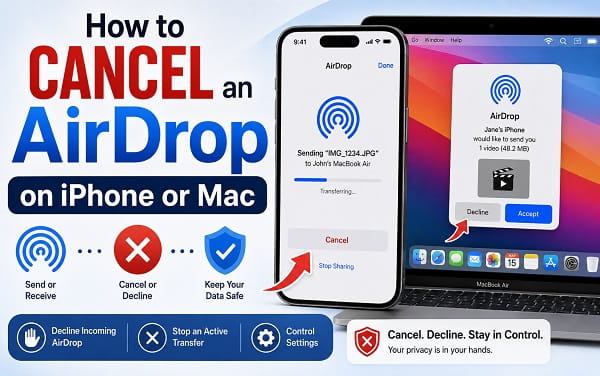
AirDrop makes it easy to send photos, videos, documents, links, and other files between nearby Apple devices. But it is also easy to tap the wrong person, start sending the wrong file, or decide that you no longer want to accept something that another person is trying to send.
If you are searching for how to cancel an AirDrop, the correct method depends on where the transfer is in the process.
If you are receiving an AirDrop from another person, you can tap Decline before accepting it. If you have not selected a recipient yet, simply close the AirDrop or Share Sheet without choosing anyone. Once a recipient has accepted the transfer and the file has arrived, AirDrop does not provide a recall feature that removes the file from the other person’s device.
The situation is less obvious when you are the sender and an AirDrop transfer is already underway. Apple’s current iPhone and Mac guides clearly document how recipients can accept or decline a transfer, but they do not document one universal sender-side Cancel AirDrop button that works at every stage and on every current Apple device.
That distinction is important. Canceling a pending request, declining an incoming file, stopping an active transfer, turning AirDrop receiving off, and deleting a file after it has been received are different actions.
Quick Answer: How to Cancel an AirDrop
Use the option that matches your situation:
- You have not selected a recipient yet: Close the Share Sheet or AirDrop screen.
- Someone is AirDropping something to you: Tap Decline.
- The sender is waiting for you to accept: Tap Decline on the receiving device.
- You accidentally selected the wrong recipient: Act before they accept. If possible, close the sharing interface and ask the recipient to decline the request.
- The transfer has already started: Use any visible stop or cancel control your current interface provides. If there is no such control, Apple does not document a universal sender-side cancel command.
- The file has already arrived: AirDrop cannot remotely recall or delete it from the recipient’s device.
- You want to stop future AirDrop requests: Change AirDrop to Receiving Off.
If your goal is simply to stop other people from sending you AirDrops, that is different from canceling one transfer.
How to Cancel Before You Send an AirDrop
The easiest AirDrop to cancel is one you have not actually sent yet.
For example, suppose you:
- Open Photos.
- Select several pictures.
- Tap Share.
- Tap AirDrop.
At this point, do not tap a person or device.
Close the AirDrop panel or Share Sheet instead.
No transfer begins until you select a recipient.
This is the safest point to back out because nothing has been transmitted.
How to Cancel an Incoming AirDrop on iPhone
If another person sends you a file through AirDrop, your iPhone can show an incoming request with options to accept or decline it.
Tap:
Decline
The transfer does not complete.
Apple currently states that recipients can accept or decline incoming AirDrop transfers.
This is the cleanest way to cancel an unwanted AirDrop.
You do not need to:
- Turn off the iPhone
- Restart it
- Disable Wi-Fi
- Disable Bluetooth
- Delete anything
- Reset network settings
Just decline the request.
How to Cancel an Incoming AirDrop on Mac
The same principle applies on Mac.
When another person sends something to your Mac through AirDrop, macOS can present the incoming transfer and let you choose whether to accept it.
Choose:
Decline
The file is not accepted.
If you regularly receive AirDrops you do not want, change your AirDrop discoverability rather than declining requests one by one.
What If There Is No Decline Button?
There are a few situations where you may not see the normal Accept and Decline choices.
One important example is AirDropping between your own Apple devices.
Apple says that when devices are signed in to the same Apple Account, an AirDrop sent between your devices can be accepted automatically.
That means you may not get the same incoming approval screen you would see when another person sends you something.
If you accidentally AirDrop something to your own Mac, iPhone, or iPad, check the receiving device immediately.
The file may already have arrived.
Can You Cancel an AirDrop While It Says Waiting?
If AirDrop says Waiting, the receiving device may not have accepted the transfer yet or the devices may still be negotiating the connection.
If you control the receiving device, tap Decline when the request appears.
If you sent the AirDrop to another person accidentally, tell them not to accept it.
On the sending device, close the sharing interface if the transfer has not progressed.
The important part is preventing acceptance before the file is delivered.
How to Cancel an AirDrop After Tapping the Wrong Person
This is one of the most common reasons people search for this topic.
Suppose you meant to AirDrop a photo to your Mac but accidentally tapped another nearby person’s device.
Do this immediately:
- Keep the AirDrop screen open long enough to confirm which recipient was selected.
- Close or dismiss the share interface if the transfer has not begun.
- If you know the recipient, ask them to tap Decline.
- If the recipient has already accepted the file, understand that AirDrop has no remote recall feature.
Do not waste time opening AirDrop receiving settings on your own iPhone.
Changing your device to Receiving Off controls incoming discoverability. It is not documented by Apple as a method for recalling an outgoing file that another device has already accepted.
Can You Cancel an AirDrop After the Recipient Accepts?
Once the recipient accepts the AirDrop, the transfer begins or completes.
Apple does not provide a feature comparable to “unsend” that remotely removes the received AirDrop from another person’s device.
If the file has already arrived, you cannot use AirDrop to take it back.
If you sent something sensitive to the wrong person, contact them and ask them to delete it.
For sensitive material, also consider whether the file contained:
- Location metadata
- Personal documents
- Private photos
- Account information
- Contact details
- Work files
AirDrop encryption protects the transfer in transit. It does not give the sender continuing control over the file after the recipient receives it.
Can You Stop an AirDrop That Is Already Transferring?
This is where the answer becomes less simple.
Apple’s current AirDrop documentation clearly explains how to start transfers and how recipients can accept or decline them, but it does not describe one universal sender-side cancel command that applies to every in-progress AirDrop on iPhone, iPad, and Mac.
Your current software version may show a progress interface or a way to stop the transfer. If a clear Cancel, Stop, or similar control is visible, use it.
Do not rely on an old tutorial that tells you to tap a particular icon or recipient twice unless the control is actually present on your screen.
Apple changes sharing interfaces over time.
Does Moving the Devices Apart Cancel AirDrop?
Not necessarily.
This is especially important on current Apple software.
Apple says that after an AirDrop transfer has been initiated, the transfer can continue over the internet if the devices move out of normal Bluetooth or Wi-Fi range.
That means walking away from the other device is no longer a dependable cancellation method once a transfer is underway.
For an incoming request that has not been accepted, tap Decline.
For NameDrop, the behavior is different, which I explain later in this article.
Does Turning Off Wi-Fi Cancel AirDrop?
AirDrop requires Wi-Fi for normal nearby transfers, but turning Wi-Fi off is not a good first-line cancel method.
Current AirDrop can continue some initiated transfers over the internet.
Turning off only Wi-Fi may therefore not be enough in every situation.
It also disrupts your normal internet connection and other Apple services.
Use the visible AirDrop controls first.
Does Turning Off Bluetooth Cancel AirDrop?
Bluetooth is used for nearby discovery, but disabling Bluetooth is also not a reliable general-purpose “undo” button for a transfer that has already begun.
Apple says initiated AirDrop transfers can continue over the internet when devices move out of normal wireless range.
If the incoming transfer is waiting for your approval, tap Decline instead.
How to Force-Interrupt an Active AirDrop as a Last Resort
If you urgently need to interrupt an active outgoing transfer, your current AirDrop interface offers no cancellation control, and the transfer has not already completed, cutting network connectivity on the sending device can force the transfer to fail.
On an iPhone, the practical last-resort approach is:
- Turn on Airplane Mode.
- Make sure Wi-Fi is off.
- Make sure Bluetooth is off.
- Leave the device disconnected long enough for the transfer to fail.
- Restore your normal connections afterward.
This is not an Apple-documented AirDrop “Cancel” command. It is a connectivity interruption.
It can temporarily affect:
- Phone calls
- Mobile data
- Wi-Fi
- Bluetooth accessories
- Apple Watch connectivity
- AirPods
- CarPlay
- Internet-dependent apps
Use it only when you actually need to interrupt a transfer and a normal cancellation control is not available.
If your iPhone already has broader Bluetooth connection problems, my Bluetooth Connected But CarPlay Not Working? Fix It article explains how Bluetooth and Wi-Fi can interact with other Apple wireless features.
Can You Cancel an AirDrop From Control Center?
Control Center lets you manage who can discover your iPhone for incoming AirDrop transfers.
You can choose settings such as:
- Receiving Off
- Contacts Only
- Everyone for 10 Minutes
Those settings are useful for controlling future incoming AirDrops.
They are not the same as a sender-side recall button.
If someone is currently trying to send you something and you have not accepted it, tap Decline.
If you want to prevent new requests, use Receiving Off.
How to Stop Future AirDrop Requests on iPhone
If your real goal is to stop people from AirDropping things to you, turn off AirDrop receiving.
Open:
Settings > General > AirDrop
Choose:
Receiving Off
You can also use Control Center:
- Open Control Center.
- Touch and hold the connectivity controls.
- Tap AirDrop.
- Select Receiving Off.
Your iPhone will no longer be discoverable as a normal AirDrop recipient.
You can turn it back on later. For the complete receiving and discoverability settings on both devices, see How to Turn AirDrop On or Off on iPhone and Mac.
How to Stop Future AirDrops on Mac
On Mac, manage AirDrop through Control Center, Finder, or System Settings.
You can:
- Open Control Center.
- Open AirDrop controls.
- Turn off AirDrop or restrict who can discover the Mac.
You can also open Finder and choose AirDrop from the sidebar to review discoverability.
The exact wording can vary with macOS version.
Is Receiving Off the Same as Canceling AirDrop?
No.
Receiving Off prevents your device from appearing as an available AirDrop recipient.
It does not:
- Recall a file you already sent
- Delete a file already received
- Undo an accepted transfer
- Remove something from another person’s Photos or Downloads folder
Think of Receiving Off as a privacy/discoverability setting, not an undo button.
Can You Cancel an AirDrop After It Says Sent?
If the sender’s device reports the AirDrop as Sent, assume the transfer has already completed.
There is no AirDrop recall command.
If the recipient is another one of your devices, delete the file from that device if you no longer want it.
If another person received it, ask them to delete it.
Can You Unsend an AirDropped Photo?
Not after the photo has been received.
AirDrop is a file transfer, not an ongoing cloud share.
Once the recipient has their own copy, you cannot remotely revoke it through AirDrop.
This differs from some cloud-sharing systems where removing access can make a shared link stop working.
An AirDropped file is delivered to the recipient.
Can You Delete an AirDropped Photo From Someone Else’s iPhone?
No.
Once another person’s iPhone has received the picture, only that person has control over deleting the local copy from their device.
You cannot open AirDrop and remotely remove it.
If you accidentally sent a sensitive image, contact the recipient immediately.
Can You Cancel an AirDropped Video?
Before the recipient accepts, they can tap Decline.
If the video is already transferring, use any cancellation control currently shown by the device.
If no stop control is available and it is critical that the transfer stop, interrupting all network connectivity can force the transfer to fail if it has not already completed.
For large video transfers, you have more time to notice a mistake than with a small photo, but do not assume that moving away from the recipient will stop it.
If your goal is to send photos or videos correctly rather than cancel them, see How to AirDrop Photos and Videos on iPhone.
How to Decline an AirDrop Without Opening the File
You do not need to open an unwanted AirDrop before declining it.
When the incoming request appears:
Tap:
Decline
This prevents the normal transfer from completing.
If you do not recognize the sender, declining is the safer choice.
Do not accept an unknown file simply to find out what it contains.
What Happens When You Decline an AirDrop?
The incoming AirDrop is not accepted by your device.
The sender can see that the transfer did not complete normally.
Declining does not:
- Block the sender permanently
- Disable AirDrop
- Turn off Wi-Fi
- Turn off Bluetooth
- Remove the sender from Contacts
If you want to stop new incoming requests from unknown users, switch AirDrop to Contacts Only or Receiving Off.
Can You Block Someone From AirDropping You?
AirDrop does not provide a simple dedicated per-person block list inside the AirDrop settings.
Your main discoverability controls are broader:
Contacts Only
or:
Receiving Off
If you are receiving unwanted AirDrops in a public location, Receiving Off is the strongest option.
How to Stop Random AirDrops in Public
If strangers keep appearing as AirDrop senders:
- Open Settings.
- Tap General.
- Tap AirDrop.
- Choose Receiving Off.
If you still want AirDrop available for people you know, choose:
Contacts Only
Do not leave Everyone for 10 Minutes enabled when you no longer need it.
Apple automatically limits the Everyone mode to a temporary period on current iPhone software, but you can turn it off sooner.
What About AirDrop Codes?
On iOS 26.2, iPadOS 26.2, macOS 26.2, and later, Apple can use an AirDrop code when sharing with someone who is not already recognized as a contact.
The receiving device displays a code.
The recipient gives that code to the sender.
The sender enters it before the transfer proceeds.
If you change your mind during this process, do not provide or enter the code.
That prevents the transfer from moving forward.
Apple says this code-based relationship can allow AirDrop between the two people for a limited period afterward, and it can be removed sooner through Contacts.
Can You Cancel an AirDrop Code Request?
Yes, in practical terms, simply do not continue the verification process.
If you are the recipient, do not share the AirDrop code.
If you are the sender, do not enter the code.
Close the AirDrop interface.
No need exists to complete a transfer you no longer want.
AirDrop vs NameDrop: They Are Not the Same
People sometimes search for “cancel AirDrop” when they actually mean NameDrop.
NameDrop is Apple’s nearby contact-sharing feature.
It lets supported Apple devices exchange contact information when they are brought close together.
Apple specifically documents how to cancel NameDrop before the transfer completes:
- Move the devices away from each other, or
- Lock the iPhone
That cancellation guidance applies to NameDrop.
Do not assume the same method is guaranteed to cancel an ordinary AirDrop file transfer.
How to Cancel NameDrop on iPhone
If the NameDrop screen appears and you do not want to continue:
- Move the two devices apart.
- Or lock your iPhone before the NameDrop transfer completes.
Apple documents these actions as ways to cancel NameDrop.
If you do not want NameDrop available, you can manage the Bringing Devices Together setting under AirDrop settings on supported iOS versions.
Does Locking the iPhone Cancel a Normal AirDrop?
Apple specifically documents locking the iPhone as a way to cancel NameDrop before it completes.
Apple’s current ordinary AirDrop guides do not present locking the iPhone as a universal cancellation method for an active file transfer.
Do not confuse the two features.
What If You Accidentally AirDrop Something Private?
If the recipient has not accepted it:
Ask them to decline.
If the transfer is still waiting, close the share interface and use the available cancellation controls.
If the file has already arrived:
- Contact the recipient immediately.
- Ask them to delete it.
- If the file contained credentials, change the affected passwords.
- If it contained a one-time code, treat the code as exposed.
- If it contained a sensitive work document, follow your organization’s incident-reporting procedure.
AirDrop itself cannot revoke a delivered file.
What If the AirDropped File Contains Your Location?
Photos can contain location metadata.
For future transfers, iPhone Photos lets you review sharing options before sending.
When sharing a photo:
- Tap Share.
- Tap Options.
- Turn off Location if you do not want to include it.
- Continue with AirDrop.
This does not undo a photo already sent, but it can prevent the same mistake next time.
Can You Cancel AirDrop by Closing Photos?
Closing Photos may stop you from initiating a transfer if you have not actually sent it yet.
Once a transfer has been accepted and is actively running, do not rely on force-closing Photos as a guaranteed cancellation method.
AirDrop is a system-level sharing service, not just a Photos feature.
Use the AirDrop transfer interface or interrupt connectivity only when necessary.
Can You Cancel AirDrop by Closing Finder on Mac?
Closing Finder is not documented by Apple as a guaranteed way to cancel an active AirDrop transfer.
Finder can be one interface for AirDrop, but the underlying transfer is handled by macOS.
Use an available transfer control when one is shown.
Why Did AirDrop Send Automatically?
If you sent something between two of your own Apple devices, Apple may automatically accept it when both devices are signed in to the same Apple Account.
That is normal.
It is designed to make transfers between your own devices easier.
Because there may be no recipient approval step, double-check the selected device before tapping it.
How to Avoid AirDropping to the Wrong Person
A few habits make accidental sends much less likely.
Check the Recipient Name
Do not tap the first AirDrop icon that appears.
Read the name carefully.
Use Your Own Device Names Clearly
If you own several Apple devices, give them recognizable names.
For example:
- Collins iPhone
- Office MacBook
- Home iPad
This makes the correct destination easier to identify.
Send Sensitive Files One at a Time
Do not select 50 private photos before confirming the recipient.
Test one harmless file first when necessary.
Review Sharing Metadata
Check whether location or other information is included before sending.
Avoid Everyone for 10 Minutes Unless Needed
Use Contacts Only for normal sharing.
A narrower recipient list reduces confusion.
How to Cancel AirDrop When the Wrong Mac Appears
If multiple Macs appear in AirDrop:
- Do not choose one until you identify it.
- Check the Mac’s device name.
- If you already tapped the wrong Mac and the request is pending, decline it from that Mac if you control it.
- If it belongs to someone else, ask them to decline.
If the file has already been received, AirDrop cannot recall it.
How to Cancel AirDrop Between Your Own Devices
This can be tricky because transfers between devices signed in to the same Apple Account may be automatically accepted.
If you tapped the wrong one of your own devices:
- Check whether the transfer already completed.
- If not, use any visible stop control.
- If necessary, interrupt connectivity before it finishes.
- Delete the unwanted copy from the receiving device afterward.
There is normally no security concern when the recipient is your own trusted device, so deleting the duplicate is usually enough.
Does Canceling AirDrop Delete the Original File?
No.
Canceling or declining an AirDrop does not delete the original photo, video, document, or file from the sender’s device.
AirDrop sends a copy.
The original remains where it was.
Does Declining an AirDrop Notify the Sender?
The sender can see that the transfer did not complete successfully.
AirDrop does not secretly accept the file when you choose Decline.
You are free to reject unexpected transfers.
Can You Recover an AirDrop You Declined?
If you declined a file, ask the sender to send it again.
AirDrop does not maintain a normal inbox of declined transfers that you can reopen later.
Where Does an AirDropped File Go After You Accept It?
The destination depends on the file type and device.
On iPhone:
- Photos and videos commonly appear in Photos
- Some documents open or save in the appropriate app
- Files may appear in Files depending on the content
On Mac:
- AirDropped files commonly appear in Downloads
If you accidentally delete a received photo afterward, my How to Recover Deleted Photos on iPhone guide explains where to check before assuming the picture is permanently gone.
Frequently Asked Questions
How do I cancel an AirDrop on iPhone?
If someone is sending something to you, tap Decline. If you have not selected a recipient yet, close the AirDrop or Share Sheet. If an outgoing transfer is already active, use any visible cancellation control. Apple does not document one universal sender-side cancel button for every active AirDrop state.
Can you cancel an AirDrop after sending it?
You may be able to stop it before the transfer completes, depending on the current interface and transfer state. Once the recipient has received the file, AirDrop cannot recall it.
How do I decline an AirDrop?
Tap Decline when the incoming AirDrop notification appears.
Can I cancel an AirDrop after someone accepts it?
If the transfer is still active, use a visible stop control if available. If the file has already arrived, there is no AirDrop recall feature.
Can you unsend an AirDrop?
Not after the recipient has received the file.
Does AirDrop have an undo button?
There is no universal recall or undo feature for a completed AirDrop.
How do I stop an AirDrop that is stuck on Waiting?
If you are the recipient, decline the request. If you are the sender, close the sharing interface and retry later. If AirDrop continues to hang, fail, or cannot find the recipient, use AirDrop Not Working or Keeps Failing? How to Fix It.
Does moving away cancel AirDrop?
Not reliably. Apple says an initiated transfer can continue over the internet after devices move out of normal Bluetooth or Wi-Fi range.
Can I turn AirDrop off to cancel a transfer?
Receiving Off controls incoming discoverability. It is not documented as a recall mechanism for an outgoing file that has already been accepted.
How do I stop people from AirDropping me?
Go to Settings > General > AirDrop > Receiving Off on iPhone.
Can I cancel NameDrop?
Yes. Apple says you can move the devices apart or lock your iPhone before NameDrop completes.
Can I delete a file from someone’s phone after AirDropping it?
No. Once the recipient has the file, you cannot remotely delete it through AirDrop.
Why did my own Mac accept the AirDrop automatically?
Apple allows AirDrops between your own devices signed in to the same Apple Account to be automatically accepted.
Cancel Before the File Is Delivered Whenever Possible
The safest time to cancel an AirDrop is before the recipient accepts it.
If you have not selected a recipient, close the Share Sheet. If you are receiving an unwanted AirDrop, tap Decline. If you accidentally chose the wrong person and the request is still pending, ask them to decline it immediately.
Once a transfer has been accepted, Apple’s current AirDrop documentation does not provide a universal sender-side cancel or recall command that works in every transfer state. If your device shows a clear stop control, use it. If you urgently need to interrupt an active transfer and no such control exists, temporarily cutting all network connectivity can force an incomplete transfer to fail, but that is a last-resort interruption rather than an official AirDrop cancel feature.
Most importantly, a completed AirDrop cannot be remotely recalled. Once the recipient has the file, you need to ask them to delete it.
If the issue is unwanted incoming AirDrops rather than one accidental transfer, use Receiving Off or Contacts Only so you do not have to keep declining requests individually.
