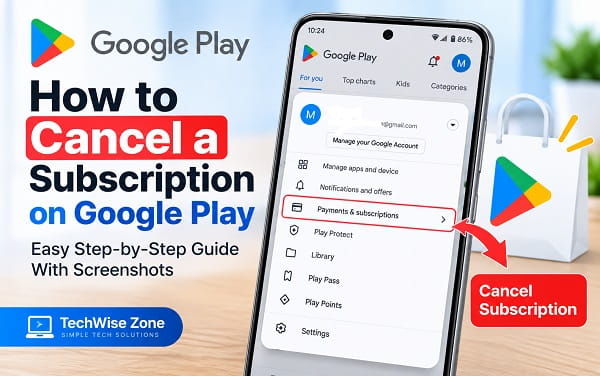
Cancelling a subscription on Google Play stops a recurring subscription that is billed or managed through your Google Play account. That can include a premium app plan, streaming service, VPN, cloud service, fitness membership, dating subscription, productivity service, or another digital subscription purchased through Google Play.
The process takes only a few steps, but the option can be difficult to find when you are unsure which Google Account was used or whether Google Play actually handles the billing.
The most important thing to know is that uninstalling an app does not cancel a Google Play subscription. If Google Play manages the subscription, you need to cancel it from the subscriptions section of the Google Account that made the purchase.
This guide shows exactly how to cancel a subscription on Google Play from an Android phone or a browser. I also cover app subscriptions, free trials, subscriptions that do not appear, prepaid plans, payment plans, refunds, pausing, and charges that continue after you thought you cancelled.
First Check Whether Google Play Is Actually Billing the Subscription
Before troubleshooting the cancellation option, confirm that Google Play manages the subscription.
Open:
Google Play Store > Profile picture > Payments & subscriptions > Subscriptions
If the subscription appears there, the cancellation steps in this guide apply.
If it does not appear, do not assume it has already been cancelled. Check your other Google Accounts first. If none of them shows the subscription, the service may be billing you directly, through Apple’s App Store, or through another payment provider.
This distinction is important because Google Play cannot cancel a subscription that another company or billing platform controls.
Quick Steps to Cancel a Subscription on Google Play
On an Android phone:
- Open Google Play Store.
- Tap your profile picture in the top-right corner.
- Tap Payments & subscriptions.
- Tap Subscriptions.
- Select the app subscription you want to stop.
- Tap Cancel subscription.
- Choose a reason if Google asks.
- Follow the confirmation prompts.
Once cancellation is confirmed, the subscription normally remains active until the end of the period you already paid for.
Google also provides a direct subscription-management page, so you can cancel through a browser if you do not have the original Android phone with you.
How to Cancel a Google Play Subscription Step by Step
The easiest method is through Google Play Store on Android. These steps apply when the subscription appears in Google Play, whether you think of it as an app subscription, membership, premium plan, or recurring service.
Step 1: Open Google Play Store
Find and open the Google Play Store app.
Make sure you are connected to the internet.
You do not necessarily have to use the same Android device on which the subscription was originally purchased. What matters is that Google Play is signed in to the Google Account that owns the subscription.
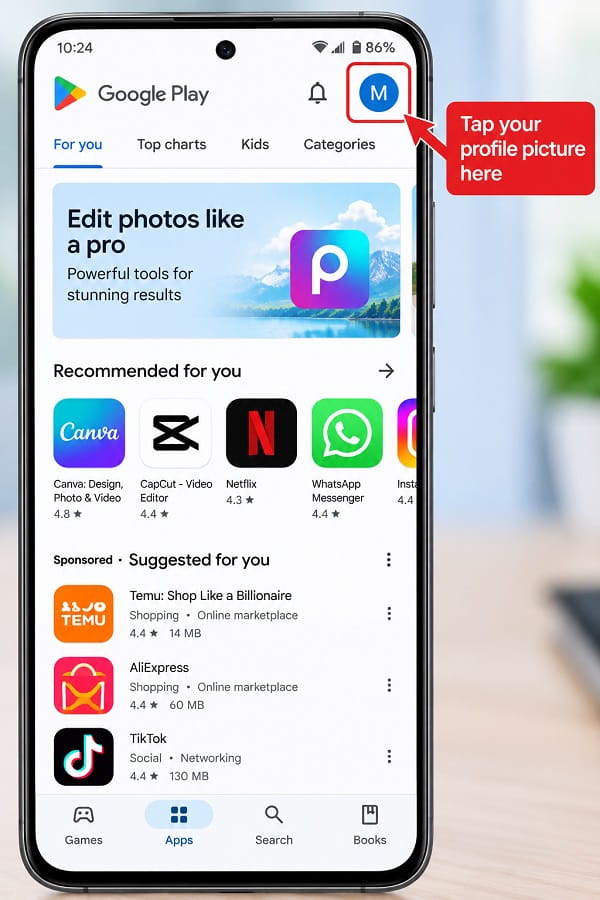
Step 2: Tap Your Profile Picture
Look in the upper-right corner of Google Play Store.
Tap your profile picture or account initial.
A menu should appear with options related to your Play account.
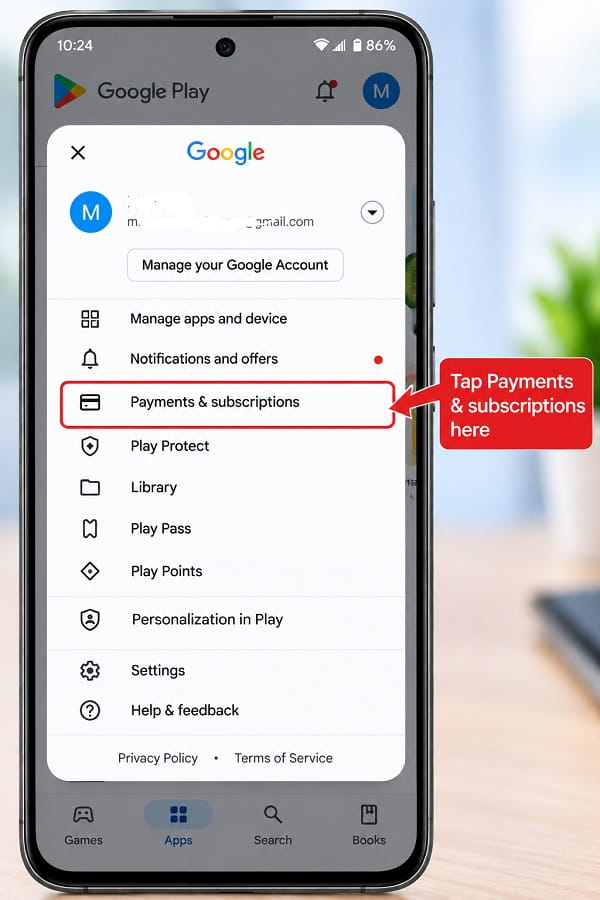
Step 3: Open Payments & Subscriptions
Tap:
Payments & subscriptions
This section contains payment methods, subscriptions, purchase history, and related billing controls.
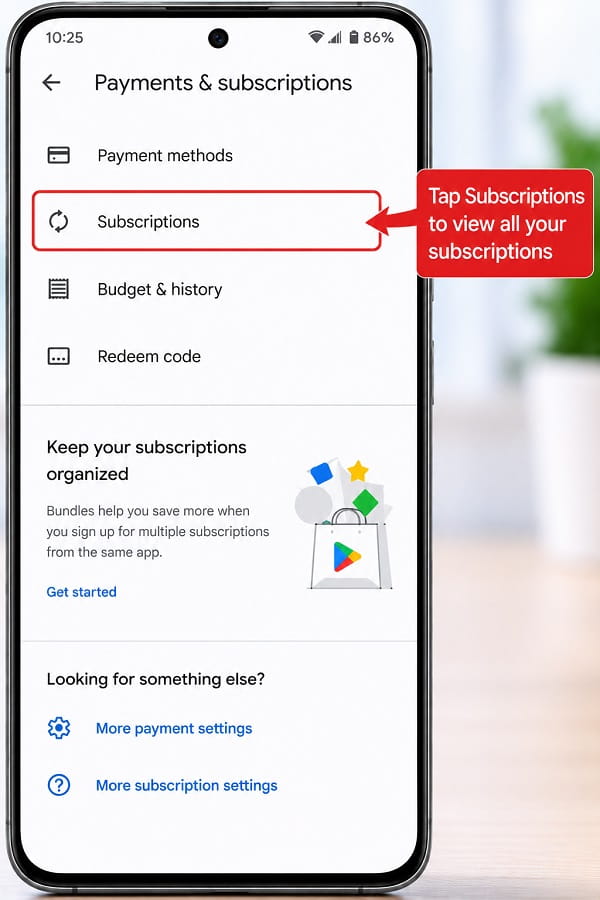
Step 4: Tap Subscriptions
Select:
Subscriptions
Google Play will display subscriptions associated with the Google Account currently selected.
You may see active subscriptions and, depending on the interface, previously cancelled or expired subscriptions.
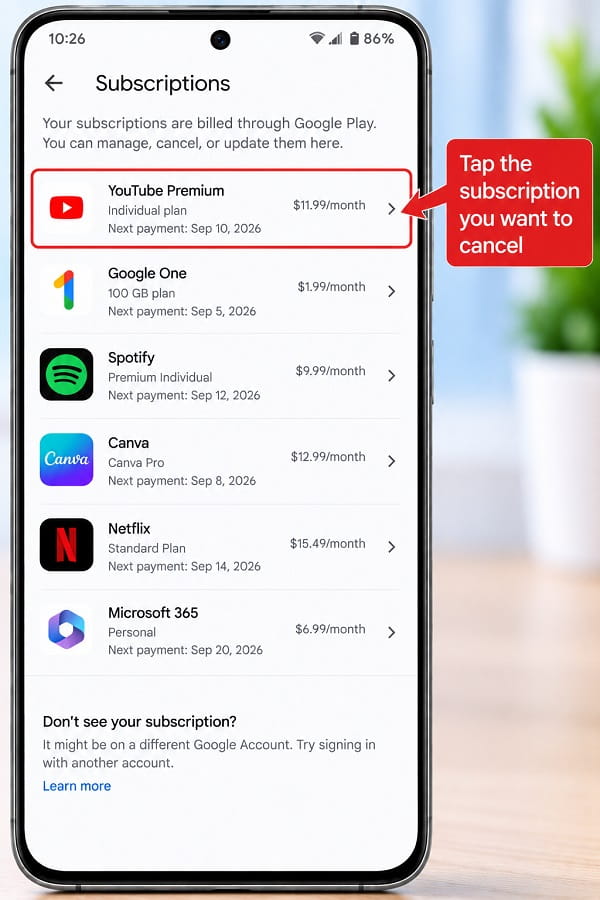
Step 5: Select the Subscription
Tap the subscription you want to cancel.
Check the app name, subscription plan, renewal date, and price before continuing.
This is especially important if you have several subscriptions from the same developer or multiple plans for the same service.
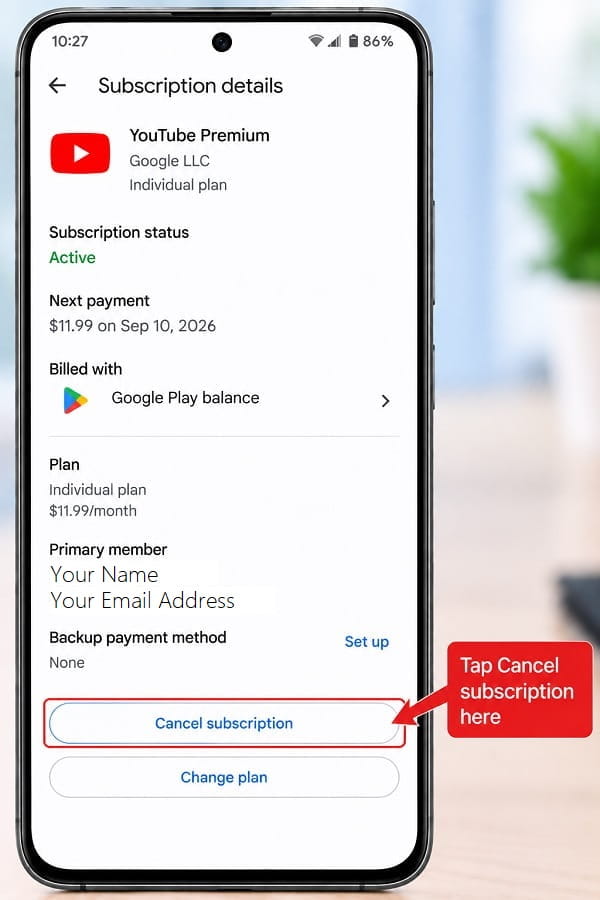
Step 6: Tap Cancel Subscription
Scroll through the subscription-management page until you see:
Cancel subscription
Tap it.
Google may first show alternatives such as pausing the subscription or switching plans if the developer supports those options.
If you want to stop future renewal completely, continue with cancellation.
Step 7: Choose Why You Are Cancelling
Google may ask why you are cancelling.
Select the answer that best matches your situation and continue.
The reason normally does not change whether you can cancel.
Step 8: Confirm the Cancellation
Follow the remaining prompts until Google Play confirms that the subscription has been cancelled.
Do not close the screen halfway through the process.
Afterward, return to the subscription page and check the status. It should show that the subscription will expire or end on a particular date rather than renew automatically.
What Happens After You Cancel a Google Play Subscription?
Cancelling normally stops the next renewal. It does not usually remove access immediately.
Google explains that if you cancel during a period you have already paid for, you can generally continue using the subscription until that paid period ends.
For example, suppose you pay for a monthly app subscription on September 1 and cancel on September 10. You would usually retain access until the end of that billing period, but Google Play should not charge you for another month when the next renewal date arrives.
The exact date is shown on the subscription page.
This means you usually do not need to wait until the last day to cancel.
Uninstalling the App Does Not Cancel the Subscription
This is one of the most common mistakes.
Deleting an Android app from your phone does not automatically cancel a recurring Google Play subscription.
The subscription is linked to your Google Account and billing arrangement, not simply to whether the app remains installed.
You can therefore uninstall an app today and still be charged at the next renewal if you never cancelled the subscription.
Always check:
Google Play Store > Profile picture > Payments & subscriptions > Subscriptions
If Google Play itself is behaving incorrectly while you are trying to manage a subscription, my Google Play Store Download Pending guide covers common Play Store account, cache, storage, and connectivity problems that can affect app operations.
How to Cancel a Google Play Subscription From a Browser
You can also cancel through Google Play on the web.
This is useful when:
- Your Android phone is lost
- The phone is broken
- You are using a computer
- You changed phones
- You want to manage subscriptions from a larger screen
Sign in to Google Play using the Google Account that owns the subscription and open your subscriptions.
For the subscription you want to stop:
- Select Manage.
- Select Cancel subscription.
- Choose a reason when asked.
- Select Continue.
- Confirm the cancellation.
Google’s current computer instructions use this flow.
The important part is signing into the correct account.
How to Manage a Google Play Subscription Through Android Settings
Google also provides a route through your Google Account settings.
On Android:
- Open Settings.
- Tap Google.
- Tap your name or account.
- Select Manage your Google Account.
- Open Payments & subscriptions.
- Tap Manage subscriptions.
- Select the subscription.
- Cancel it if the option is available.
Menu wording can vary slightly between Android manufacturers and software versions.
For most users, I still prefer the Google Play Store route because it is easier to recognize and explain.
Why Can’t I Find My Subscription on Google Play?
A missing subscription does not automatically mean it has been cancelled.
Several things can cause this.
You Are Signed Into the Wrong Google Account
This is the most common cause.
Many Android users have two or more Google Accounts on one phone.
The subscription belongs to the account that was active when the purchase was made.
Open Google Play Store, tap your profile picture, switch to another Google Account, and check Payments & subscriptions > Subscriptions again.
Repeat this for every Google Account you regularly use.
Google itself recommends switching accounts if you cannot find a subscription.
The Subscription Was Purchased Directly From the App Company
Not every app uses Google Play Billing.
Some services let users subscribe directly on the company’s website or through another payment provider.
If the subscription does not appear in Google Play, check:
- The app’s account settings
- The service’s website
- Your email receipts
- Your bank or card transaction description
Look for the company that actually collected the payment.
If the receipt came directly from the app developer rather than Google Play, you may need to cancel through that service instead.
You Subscribed Through Apple
Using an Android phone now does not mean the subscription was originally created through Google Play.
If you previously subscribed on an iPhone or iPad through Apple’s App Store, the billing relationship may still be controlled through your Apple account.
Google Play cannot cancel a subscription billed by Apple.
A Family Member or Another Account Made the Purchase
Check whether another family member or Google Account was used when the subscription was created.
This is particularly easy to overlook when multiple people share a payment card.
How to Tell Which Google Account Has the Subscription
Open Gmail and search for the app name together with terms such as:
- Google Play
- subscription
- receipt
- renewal
- order
Google Play purchase emails usually identify the account and subscription involved.
You can then switch Google Play to that account.
Also check the payment history under Payments & subscriptions.
How to Stop a Google Play Subscription From Renewing
For a standard recurring Google Play subscription, cancelling it is how you stop automatic renewal.
You do not normally need a separate “turn off auto-renew” switch.
Once cancellation is confirmed, check the subscription details.
Instead of showing another renewal date, Google Play should indicate when your access ends.
Do not assume the subscription is cancelled merely because you pressed Back or closed the app.
Look for explicit confirmation.
How to Cancel a Free Trial Before You Are Charged
A free trial can convert into a paid subscription when the trial ends.
If you no longer want the service, cancel it before the renewal or trial-end deadline shown in Google Play.
Use:
Google Play Store > Profile picture > Payments & subscriptions > Subscriptions
Select the trial and cancel it.
Then check the displayed expiration date.
Trial rules vary by app, so read the terms shown when you subscribed.
Do not rely on uninstalling the app before the trial ends.
Can You Cancel a Subscription Immediately After Paying?
Yes, you can normally cancel a recurring subscription at any point.
Cancellation usually means do not renew again, rather than “remove my access right now.”
Google states that users generally retain access for the period they already paid for.
That makes early cancellation useful when you know you only want one month or one year of a service.
You can subscribe, then cancel future renewal while continuing to use the paid period.
Does Cancelling a Subscription Give You a Refund?
Not automatically.
Cancellation and refunds are separate processes.
Cancelling stops future renewal. It does not necessarily reverse a payment that has already been charged.
Google Play has separate refund rules, and eligibility can depend on the purchase, timing, region, subscription type, and circumstances.
If you were charged accidentally, cancel the subscription first if you do not want another renewal, then review Google’s current refund options.
Do not wait for a refund decision before stopping a subscription you no longer want to renew.
What Happens to Your App Data After Cancellation?
Cancelling a subscription usually does not uninstall the app.
What happens to your data depends on the developer.
An app may:
- Keep your account
- Downgrade you to a free tier
- Disable premium features
- Limit cloud storage
- Preserve files for a period
- Delete certain data after a retention period
Before cancelling a storage, backup, password-manager, productivity, or cloud subscription, check the developer’s policy.
If your paid plan includes more cloud storage than the free plan, make sure you understand what happens when the paid period ends.
How to Pause a Google Play Subscription Instead
Some apps let you pause rather than cancel.
Google says available pause periods can vary, generally depending on the app and subscription.
To check:
- Open your Google Play subscriptions.
- Select the subscription.
- Tap Manage if shown.
- Look for Pause payments.
- Choose the available pause period.
- Confirm.
The option will not appear for every subscription.
Pausing can be useful if you expect to use the service again soon and the developer supports it.
How to Resume a Paused Subscription
Open your Google Play subscriptions and select the paused subscription.
Tap Resume and follow the instructions.
The exact billing behavior will be displayed before confirmation.
What About Prepaid Google Play Subscriptions?
Prepaid plans work differently from ordinary recurring subscriptions.
Google explains that prepaid plans normally last for a limited period and expire automatically at the end of that period.
That means there may be no future recurring payment to cancel.
If an unused prepaid plan is eligible for cancellation or refund, select it in Google Play subscriptions and follow the available options.
Always check whether the plan says prepaid or recurring before assuming automatic renewal is active.
What About Google Play Payment Plans?
Payment plans require extra care.
Google distinguishes between stopping future renewal and cancelling payments that you already committed to under an installment-style payment plan.
According to Google’s current guidance, once a payment method has been charged for a payment plan, you generally cannot simply cancel the remaining committed payments. You may be able to stop the plan from automatically renewing after the current commitment ends.
Read the subscription terms displayed in Google Play before confirming a payment plan.
This is different from an ordinary month-to-month subscription.
Why Is Google Play Still Charging Me After I Cancelled?
First check whether the charge is actually a new renewal.
Possible explanations include:
- The cancellation was never completed
- You cancelled a different Google Account
- You have two subscriptions for the same service
- The payment belongs to another family member
- The subscription is billed directly by the developer
- The charge was already authorized before cancellation
- You are on a payment plan with remaining committed payments
- The transaction is for another Google Play purchase
Open the subscription page and inspect its status.
Then review the Google Play order history and email receipt.
If the subscription still shows active renewal, cancel it again and make sure you reach the confirmation screen.
What if the Cancel Subscription Button Is Missing?
A missing button can have several causes.
The Subscription Is Already Cancelled
Look for wording showing that the plan will expire on a specific date.
If it is already set to expire and no new renewal is scheduled, there may be nothing else to cancel.
It Is a Prepaid Plan
A prepaid plan may simply expire at the end of its paid term.
Billing Is Managed Somewhere Else
The developer may handle billing directly.
Check the service’s account page and your receipt.
You Are Looking at the Wrong Account
Switch Google Accounts in Play Store and check again.
The Developer Uses a Different Subscription Flow
Some changes between plans are managed from inside the app.
Check the developer’s support documentation if the Google Play subscription page does not provide the expected option.
How to Cancel a Subscription When You No Longer Have the Android Phone
You do not need the original phone.
Use a browser on another phone, tablet, or computer.
Sign into the same Google Account used for the subscription, open Google Play subscriptions, select Manage, and cancel the subscription.
This is one reason knowing which Google Account owns a subscription is important.
How to Cancel an App Subscription After Changing Android Phones
Changing phones does not automatically cancel your Google Play subscriptions.
Subscriptions belong to the Google Account rather than to one physical Android device.
On the new phone:
- Add the Google Account used for the subscription.
- Open Google Play Store.
- Switch to that account.
- Open Payments & subscriptions > Subscriptions.
- Select the subscription.
- Cancel it.
You do not need to reinstall the subscribed app just to cancel the Google Play billing.
How to Check All Active App Subscriptions on Android
Google Play subscriptions is also useful when you simply want to find recurring charges you may have forgotten.
Open:
Google Play Store > Profile picture > Payments & subscriptions > Subscriptions
Review every active subscription.
If you use multiple Google Accounts, repeat the check for each one.
This is more reliable than looking only at the apps installed on your phone because an app may have been deleted while the subscription remains active.
Can You Cancel Google Play Subscriptions From Another Android Phone?
Yes.
Sign in with the Google Account that owns the subscription.
Google Play subscription management is tied to the account, not to a particular Android handset.
Be careful on a borrowed phone. Remove your Google Account afterward and do not save payment credentials unnecessarily.
Should You Remove Your Payment Method Instead?
Removing a payment card is not a good substitute for cancelling a subscription.
It can cause failed payments, account notices, or attempts to charge a backup payment method.
Cancel the subscription through its proper management page.
Then change or remove payment methods separately if you genuinely need to.
How to Avoid Accidental Google Play Subscriptions
Google Play makes subscription details visible before purchase, but it is still easy to forget a weekly, monthly, or annual renewal.
Before subscribing:
- Check the trial end date
- Check the renewal price
- Confirm whether billing is weekly, monthly, or yearly
- Read what happens after a promotional period
- Check the Google Account being used
- Save the purchase receipt
- Set a reminder if you only want the trial
You can also periodically review Payments & subscriptions > Subscriptions.
If you have difficulty installing or updating the app you are trying to manage, see Google Play Store Download Pending before changing unrelated subscription settings.
Frequently Asked Questions
How do I cancel a subscription on Google Play?
Open Google Play Store, tap your profile picture, select Payments & subscriptions > Subscriptions, choose the subscription, and tap Cancel subscription. Follow the prompts until Google confirms the cancellation. This applies to subscriptions billed through Google Play, including many app-based services and memberships.
How do I unsubscribe from an app on Android?
If the subscription is billed through Google Play, open your Google Play subscriptions and cancel it there. If it does not appear, check whether the developer bills you directly or whether another Google Account was used.
Does deleting an app cancel the subscription?
No. Google explicitly states that uninstalling an app does not cancel its Google Play subscription.
Can I cancel Google Play subscriptions online?
Yes. Sign into Google Play on a browser, open your subscriptions, select Manage, then Cancel subscription and confirm.
Why can’t I see my subscription in Google Play?
You may be signed into the wrong Google Account, the subscription may have been purchased through another billing provider, or it may have been purchased through Apple or directly from the developer.
Will I lose access immediately after cancelling?
Usually no. For a normal recurring subscription, Google says you can generally continue using the service until the end of the period you already paid for.
Will Google refund me when I cancel?
Cancellation does not automatically create a refund. Google Play handles refunds separately under its current refund policies.
Can I cancel a free trial before it charges me?
Yes. Open the subscription in Google Play and cancel before the trial’s renewal deadline. Check the displayed end date after cancellation.
Can I cancel a subscription from a different phone?
Yes, provided you sign in with the Google Account that owns the subscription.
What if I uninstalled the app months ago?
Check Google Play subscriptions anyway. The recurring subscription may still be active because uninstalling the app does not cancel billing.
Why is an app still charging after I cancelled?
Check the subscription status, Google Account, payment-plan terms, and receipt. The charge may belong to a different subscription or may already have been processed before cancellation.
Cancel the Subscription, Then Verify It
The safest way to stop an app subscription on Android is to manage the billing directly through Google Play rather than deleting the app or removing your payment card.
Open Google Play Store > Profile picture > Payments & subscriptions > Subscriptions, select the service, tap Cancel subscription, and continue until you receive confirmation.
Afterwards, check the subscription page again. It should show when access ends instead of another automatic renewal.
If the subscription is missing, switch through your Google Accounts before assuming it has disappeared. When none of your accounts shows it, check the original receipt because the app developer, Apple, or another billing provider may be responsible for the subscription instead of Google Play.
