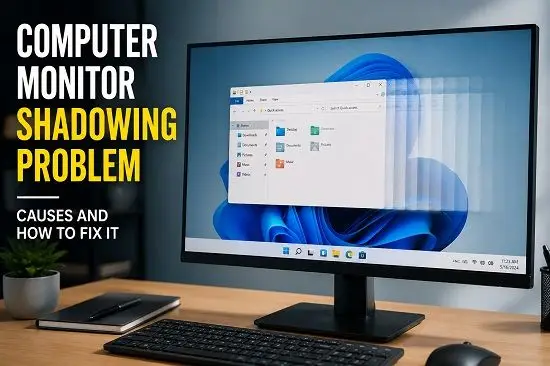
A computer monitor shadowing problem can make text appear to have a faint duplicate, leave a trail behind moving objects, or make one image seem to remain behind another. The problem is particularly noticeable when scrolling, watching videos, dragging windows, or playing games.
The confusing part is that monitor shadowing is not one specific technical fault. People use the term to describe several different display problems, including ghosting, inverse ghosting, image retention, burn-in, signal-related double images, and general display artifacts.
That is why changing one random setting rarely provides a reliable fix.
The first step is to identify what the shadow actually looks like. Once you know whether the problem follows movement, stays in one position, appears across the entire screen, or changes when you replace the cable or computer, you can narrow down the cause much faster.
This guide explains how to identify the type of monitor shadowing you have, what commonly causes it, and what you can do to fix it without replacing the monitor unnecessarily.
What Does a Computer Monitor Shadowing Problem Look Like?
Monitor shadowing can appear in several ways.
You might notice:
- A faint copy of text beside or behind the original text
- A trail behind a moving character in a game
- A dark smear behind bright objects
- A bright or colored halo around moving objects
- A previous window or logo remaining faintly visible
- A double image across part of the display
- Blurry edges when scrolling
- Horizontal or vertical lines that appear with certain inputs
The symptom itself gives you an important clue.
If the shadow moves with objects, monitor ghosting is a strong possibility.
If a previous static image remains in the same place after the content changes, image retention or burn-in is more likely.
If the entire screen looks like it has a displaced duplicate image, investigate the cable, adapter, input, or signal path.
Monitor Shadowing, Ghosting, Image Retention and Burn-In Are Different
Before changing settings, it helps to separate these problems.
| Display problem | Typical appearance | Likely area to investigate |
|---|---|---|
| Ghosting | Faint trail behind moving objects | Pixel response and monitor settings |
| Inverse ghosting | Bright, dark, or colored halo around motion | Excessive overdrive |
| Image retention | Previous static image remains temporarily | Panel behavior and display usage |
| Burn-in | Static image remains persistently | Permanent panel wear |
| Signal-related shadowing | Double or displaced image | Cable, adapter, port, dock, signal |
| General motion blur | Moving image looks soft | Refresh rate, persistence, panel behavior |
This distinction is important because the wrong fix can make the problem worse.
For example, increasing a monitor’s overdrive may reduce ordinary ghosting but create inverse ghosting if the setting is too aggressive. Current monitor testing also shows that response time has a significant effect on motion handling, while overshoot can introduce a different type of artifact.
The Fastest Way to Find the Cause
Do not start by changing ten Windows settings.
First isolate the problem.
Check the monitor’s own menu
Open the monitor’s built-in on-screen display menu.
If the shadow is visible around the monitor’s own menu, the problem is unlikely to be caused solely by Windows.
If the monitor menu is perfectly clean while Windows content shows the shadow, investigate the PC, graphics driver, cable, refresh rate, and display settings.
Check the BIOS or startup screen
Restart the computer and watch the manufacturer’s logo or BIOS screen before Windows loads.
If the problem is already visible there, Windows software is less likely to be the main cause.
If the screen looks normal until Windows starts, investigate the graphics driver, Windows display settings, or an application.
Connect the monitor to another device
This is one of the most useful tests.
Connect the monitor to another computer or compatible device using the same input.
If the shadow follows the monitor, investigate the display, cable, or input.
If the second device produces a clean image, investigate the original computer, graphics driver, GPU output, adapter, or software.
1. Check the HDMI or DisplayPort Cable
A poor or damaged cable can create display artifacts that look like shadowing or a double image.
This is particularly relevant when the monitor is connected through:
- A long video cable
- An extension
- A docking station
- A KVM switch
- A splitter
- A USB-C adapter
- A low-quality cable
ViewSonic’s current support documentation specifically identifies long cables, docking stations, extension cables, and poor shielding as possible causes of ghosting, double images, and shadowing. It recommends checking the video cable, trying a direct connection, and testing another device.
Try this:
- Turn off the monitor if necessary.
- Disconnect the HDMI or DisplayPort cable.
- Inspect both connectors.
- Reconnect the cable firmly.
- Test another cable.
- If possible, connect the monitor directly to the computer.
- Remove the dock, splitter, or adapter temporarily.
If the problem disappears, you have probably found the source.
2. Try Another Monitor Input
If your display has multiple inputs, try another one.
For example, if you are using HDMI, test another HDMI input or use DisplayPort if your computer and monitor support it.
Also check that the monitor is set to the correct input source.
This sounds simple, but a faulty port or unusual signal path can create symptoms that resemble a panel problem.
3. Set Windows to the Monitor’s Native Resolution
An incorrect resolution can make text and edges look soft or distorted.
On Windows 11:
- Open Settings.
- Select System.
- Select Display.
- Choose the affected monitor.
- Find Display resolution.
- Select the option marked Recommended.
The recommended resolution is normally the monitor’s native resolution.
Using the native resolution will not necessarily eliminate true ghosting, but it removes resolution scaling as a possible source of poor image quality.
4. Check the Monitor’s Refresh Rate
Refresh rate is another important part of motion quality.
A monitor may support 60 Hz, 75 Hz, 100 Hz, 120 Hz, 144 Hz, 165 Hz, 240 Hz, or another refresh rate.
On Windows 11:
- Open Settings.
- Go to System > Display.
- Select the affected monitor.
- Open Advanced display.
- Find Choose a refresh rate.
- Select a supported refresh rate.
If a 144 Hz monitor is running at 60 Hz, motion will generally look less fluid than it should.
However, a high refresh rate does not automatically eliminate ghosting. Pixel response characteristics still matter. RTINGS notes that slow pixel response can contribute to blur and inverse ghosting during fast movement.
If the problem appeared after changing refresh rate, return to the previous stable setting and test again.
5. Adjust the Monitor’s Response Time or Overdrive
This is one of the most important fixes for genuine motion ghosting.
Depending on the manufacturer, the setting may be called:
- Response Time
- Overdrive
- OD
- Trace Free
- AMA
- Pixel Response
- Response Time Compensation
- Fast
- Faster
- Extreme
The purpose is to accelerate pixel transitions.
If the setting is too low, pixels may not transition quickly enough and you can see a faint trail behind moving objects.
But maximum overdrive is not automatically better.
Excessive overdrive can make pixels overshoot their intended value, producing a bright, dark, or colored halo. This is commonly called inverse ghosting or overshoot.
How to find the right setting
Open the monitor’s on-screen menu.
Find the response-time or overdrive option.
If it is set to the highest mode, reduce it one level.
Then test the same content that originally showed the shadow.
A useful pattern is:
Extreme
Fast
Normal
Off
Do not assume that every monitor uses these exact names.
The best setting is the one that gives you the cleanest motion without creating obvious halos.
6. Test the Monitor at Its Normal Refresh Rate Before Tuning Overdrive
Overdrive behavior can change depending on the refresh rate and display mode.
For example, a setting that looks acceptable at 60 Hz may produce excessive overshoot at a higher refresh rate.
So when testing:
- Set the monitor to the refresh rate you normally use.
- Keep the resolution at native.
- Test the same game, video, or scrolling movement.
- Change only the overdrive setting.
- Compare each mode.
This gives you a much more meaningful result than changing refresh rate and overdrive at the same time.
7. Use a Motion Test to Confirm Ghosting
If you are unsure whether you are seeing ghosting, use a moving-object monitor test.
The idea is simple.
A moving test pattern lets you observe whether:
- A faint trail follows the object
- A bright or dark halo appears
- The image looks generally blurry
- The artifact changes with the monitor’s overdrive setting
If lowering or increasing overdrive changes the artifact significantly, the monitor’s response behavior is likely involved.
The goal is not to find the setting with the fastest marketing number. The goal is to find the setting that produces the cleanest motion.
8. Temporarily Disable FreeSync or G-SYNC
Variable refresh rate technologies such as AMD FreeSync and NVIDIA G-SYNC can improve smoothness, but they can also change how a monitor’s response behavior looks at different frame rates.
If the shadow appears mainly while gaming, temporarily disable variable refresh rate and test again.
If the problem disappears, investigate:
- Monitor overdrive
- Refresh-rate range
- GPU driver
- Frame-rate fluctuations
- Monitor firmware
- VRR compatibility
Do not assume that FreeSync or G-SYNC is defective simply because disabling it changes the result. The test is intended to isolate the cause.
If you use NVIDIA hardware, you can also review the display and G-SYNC configuration through NVIDIA Control Panel.
9. Check Whether the Problem Happens Only in Games
A monitor can appear perfectly normal on the desktop but show obvious trails in games.
Games contain much more rapid motion, high-contrast transitions, dark scenes, and fast camera movement, making panel limitations easier to see.
If the problem appears only in games:
- Test another game.
- Turn off game motion blur.
- Check the monitor’s response-time mode.
- Check the refresh rate.
- Test with VRR disabled.
- Compare different frame-rate levels.
- Update the graphics driver.
If only one game produces the effect, the game itself may be contributing to the appearance.
10. Check Whether the Problem Happens Only While Scrolling
If the shadow appears mainly when scrolling through websites or documents, the problem may be related to motion response rather than a permanent screen defect.
Test:
- Another browser
- Another website
- Another application
- Another refresh rate
- Another monitor
If the effect appears across multiple applications, investigate the monitor and connection.
If it happens only in one application, investigate that application before replacing the monitor.
11. Reset the Monitor to Factory Settings
If you have changed several picture settings and no longer know which ones are affecting the image, reset the monitor.
Look in the monitor’s menu for:
Factory Reset
Reset
Reset All
Restore Defaults
Memory Recall
The exact name varies by manufacturer.
After resetting:
- Select the correct input.
- Set Windows to the monitor’s native resolution.
- Select the desired supported refresh rate.
- Test the display before changing other options.
ViewSonic recommends a factory reset as part of troubleshooting persistent shadowing or double-image problems after checking the connection and display source.
12. Remove Docks, Hubs and Adapters
If the monitor works through a USB-C dock or hub, test it without the dock.
Connect it directly to the computer if possible.
This is particularly important with laptops.
A dock or adapter can introduce:
- Signal conversion
- Bandwidth limitations
- Compatibility problems
- Different refresh-rate limits
- Additional connection points
If the direct connection eliminates the shadow, reconnect the components one at a time until you identify which part of the setup causes it.
13. Update the Graphics Driver
A graphics driver can cause display artifacts, incorrect refresh-rate detection, flickering, black screens, and other display problems.
If the shadow began after a graphics driver update, do not automatically install another update. Consider whether the previous driver was more stable.
For NVIDIA, AMD, and Intel systems, use the manufacturer’s official driver source whenever possible.
If you use an NVIDIA GPU and have broader graphics configuration problems, our guide on Hardware Accelerated GPU Scheduling explains another Windows graphics feature that can affect the graphics stack.
14. Reset the Windows Graphics Driver
If the display suddenly develops an unusual artifact after Windows has been running, reset the graphics driver.
Press:
Windows + Ctrl + Shift + BWindows may briefly flicker or produce a short notification sound.
Wait a few seconds and check the display again.
This does not repair a physically damaged monitor. It simply reloads the graphics driver and can help determine whether the issue is a temporary graphics-stack problem.
15. Test the Monitor With Another Computer
This is one of the most important diagnostic steps.
Connect the monitor to another computer using a known-good cable.
If the shadow remains
The monitor, cable, input, or display settings are more likely to be responsible.
If the shadow disappears
The original computer, GPU, driver, adapter, or software becomes more suspicious.
This test is particularly valuable because it prevents you from replacing a monitor when the actual problem is the computer.
16. Test Your Computer With Another Monitor
Reverse the test.
Connect another known-good monitor to the computer.
If the second monitor shows the same artifact, investigate:
- GPU
- Graphics driver
- Cable
- Adapter
- Windows display settings
- GPU output port
If the second monitor is clean, the original monitor becomes more suspicious.
17. Check for Image Retention
Not every monitor shadow is ghosting.
Suppose you close a browser window but can still faintly see its outline in the same position.
That is a different symptom.
It may be image retention.
Image retention can occur when a static image remains visible temporarily after the display content changes.
It can be more noticeable with:
- Logos
- Taskbars
- Game HUDs
- Browser interfaces
- Static application windows
- Desktop elements
If your monitor has a panel-care or pixel-refresh function, follow the manufacturer’s instructions.
Do not repeatedly run panel-refresh features without checking the manufacturer’s guidance.
18. Check for OLED Burn-In
Permanent burn-in is different from temporary image retention.
Burn-in involves persistent uneven wear in the display panel and is particularly associated with OLED technology.
If the same logo, menu, or interface element remains visible regardless of what is displayed, test the monitor independently of the computer.
Try:
- Disconnecting the computer.
- Opening the monitor’s own menu.
- Switching inputs.
- Testing another device.
- Displaying different full-screen colors.
If the mark remains in the same location regardless of the input source, the panel itself becomes the main suspect.
Windows settings, graphics drivers, and HDMI cables cannot repair physically damaged pixels or permanent panel wear.
19. Check Whether the Shadow Appears on the Monitor’s Own Menu
This test deserves special attention.
If the monitor’s own menu has the same shadow, the problem is not simply a Windows application.
The monitor generates its own on-screen menu independently of Windows.
A shadow visible there can point toward:
- Panel behavior
- Monitor electronics
- Internal processing
- Input-independent display problems
If the menu is perfectly clean but Windows content shows the artifact, investigate the computer and signal path first.
20. Check the GPU and Display Output
A graphics card can contribute to display problems, although classic motion ghosting is more commonly related to monitor response behavior.
The GPU becomes more suspicious when:
- Multiple monitors show the same artifact.
- The problem appears after a graphics driver update.
- The artifact changes when switching GPU outputs.
- Other graphical corruption appears.
- The problem follows the computer rather than the monitor.
If you recently removed or reinstalled a graphics card, check that the GPU is properly seated, powered, and connected to the correct display output.
If you need to physically remove a graphics card for inspection, see our guide on How to Remove a GPU Safely.
21. Check Whether the Artifact Appears in Screenshots
This is a useful diagnostic trick.
Take a screenshot while the shadow is visible.
Open the screenshot on another device or display if possible.
If the shadow appears inside the screenshot, the problem may be occurring within the computer’s rendered image before it reaches the monitor.
If the screenshot looks perfectly normal but your physical monitor still shows the shadow, the monitor or signal path becomes more likely.
This is not a perfect hardware diagnostic, but it can provide a useful clue.
22. Check HDR if the Problem Appears Only in Certain Modes
If the shadow or display artifact occurs only when HDR is enabled, temporarily turn HDR off.
On Windows 11:
- Open Settings.
- Select System.
- Select Display.
- Select the affected monitor.
- Open HDR.
- Turn HDR off temporarily.
- Test the display again.
If the problem disappears, investigate the graphics driver, monitor firmware, cable, input mode, and HDR compatibility.
Do not permanently disable HDR simply because the test changes the symptom. The purpose is to identify whether HDR is involved.
23. Do Not Assume the Fastest Response-Time Mode Is Best
This is one of the most common mistakes in monitor troubleshooting.
Monitor specifications often advertise extremely low response-time numbers.
That does not mean the fastest on-screen setting will produce the cleanest image.
Overdrive can reduce slow transitions, but excessive overdrive can cause overshoot and inverse ghosting. Current monitor testing methods explicitly account for both response time and overshoot when evaluating motion performance.
If the monitor has several modes, test them at your normal refresh rate and choose the one with the least visible artifacting.
24. When Is Monitor Shadowing a Hardware Problem?
The problem becomes more suspicious for hardware when:
- The shadow appears on the monitor’s own menu.
- It appears with multiple computers.
- It appears with multiple cables.
- It appears on every input.
- A factory reset does not change it.
- A permanent image remains visible.
- The panel has physical damage.
- The problem does not change when Windows or the GPU is removed from the equation.
If all of these tests point toward the monitor, contact the manufacturer or service provider if the display is still under warranty.
Do not open a monitor yourself unless you understand the electrical risks and have an appropriate reason to do so.
A Better Troubleshooting Order
If you want the shortest reliable process, use this order:
- Look at the monitor’s own menu.
- Check whether the artifact follows movement or remains static.
- Check the HDMI or DisplayPort cable.
- Remove docks and adapters.
- Try another monitor input.
- Set native resolution.
- Set the correct refresh rate.
- Adjust Overdrive or Response Time.
- Test with VRR disabled.
- Reset the monitor.
- Reset the Windows graphics driver.
- Update or roll back the graphics driver.
- Test another computer.
- Test another monitor.
- Investigate image retention or burn-in if the shadow remains static.
This order starts with simple isolation tests before moving into deeper software troubleshooting.
What to Do Based on the Type of Shadow You See
| What you see | Most likely area to check first |
| Trail behind moving objects | Response time and Overdrive |
| Bright or colored halo around movement | Reduce Overdrive |
| Shadow only through a dock | Dock, adapter, or cable |
| Double image across the screen | Cable, input, adapter, or signal |
| Previous image remains after changing content | Image retention |
| Permanent logo or interface image | Burn-in or panel wear |
| Artifact appears on monitor menu | Monitor hardware |
| Artifact appears only in Windows | Driver or display configuration |
| Artifact appears on multiple monitors | GPU, driver, or PC |
| Artifact appears only in one game | Game or graphics settings |
Why Does My Monitor Have Shadows Behind Moving Objects?
The most common explanation is motion ghosting caused by pixel response behavior.
When a pixel does not transition quickly enough between colors, part of its previous state can remain visible while the next frame is being displayed. This creates a faint trail behind the moving object.
The effect is more obvious during fast movement and high-contrast transitions.
The monitor’s response-time or overdrive setting can influence the result.
Why Did Increasing Overdrive Make the Shadow Worse?
Because excessive overdrive can cause pixel overshoot.
Instead of the pixel slowly approaching the target color, the display pushes the transition too aggressively. The pixel can temporarily go past the target and then correct itself.
You may see this as a bright, dark, or colored halo.
If that happens, reduce Overdrive by one level and test again.
Why Does My Monitor Shadow When I Scroll?
Scrolling creates continuous movement across the display, making slow pixel transitions easier to notice.
If the shadow is visible only during scrolling, check:
- Refresh rate
- Response Time
- Overdrive
- Cable
- Browser
- Display driver
If it happens across several browsers and applications, the monitor becomes more likely to be responsible.
Why Does My Monitor Have a Shadow Around Text?
If text has a shadow while moving or scrolling, ghosting may be responsible.
If the text has a permanent duplicate even when stationary, investigate:
- Resolution
- Scaling
- Sharpness
- Cable
- Signal quality
- Monitor panel behavior
Set the display to its native resolution first, then test another cable and computer.
Can a Bad HDMI Cable Cause Monitor Shadowing?
Yes, particularly when the symptom is a double image, signal distortion, lines, or an artifact that changes when you move or replace the cable.
A cable cannot fix genuine panel-response ghosting, however.
The easiest test is to replace it with a known-good cable and connect the monitor directly to the computer.
Can a Graphics Card Cause Monitor Ghosting?
A GPU or driver can cause graphical artifacts, but classic motion ghosting is generally more associated with the display’s response behavior.
If the same problem appears on several monitors connected to the same computer, investigate the GPU, driver, cable, and display output.
Is Monitor Shadowing the Same as Burn-In?
No.
Ghosting usually changes with movement.
Image retention involves a previous static image remaining faintly visible.
Burn-in is persistent panel wear and is particularly associated with OLED displays.
These problems require different troubleshooting approaches.
Is Monitor Ghosting a Sign That the Monitor Is Dying?
Not necessarily.
Some monitors naturally have more visible ghosting because of their panel characteristics and response behavior.
If changing Overdrive, refresh rate, or the connection changes the symptom, the display may not be failing.
Persistent artifacts across multiple devices and inputs are more concerning.
Should I Buy a New Monitor If the Shadow Does Not Go Away?
Not immediately.
First test:
- Another cable
- Another input
- Another computer
- Another monitor
- Native resolution
- Correct refresh rate
- Different Overdrive levels
- Factory reset
If the artifact remains across different devices and inputs and is visible on the monitor’s own menu, hardware failure becomes much more likely.
Frequently Asked Questions
What is a computer monitor shadowing problem?
It is a general term used for a faint duplicate, trail, double image, or persistent shadow appearing on a monitor. The underlying cause can be ghosting, inverse ghosting, image retention, burn-in, signal problems, or display hardware.
How do I fix a shadow on my monitor?
Start by checking the cable and input, setting the native resolution and correct refresh rate, adjusting the monitor’s Overdrive or Response Time setting, resetting the monitor, and testing another computer.
What is the difference between ghosting and inverse ghosting?
Ghosting usually appears as a faint trail behind moving objects. Inverse ghosting occurs when aggressive overdrive causes a bright, dark, or colored halo around moving objects.
Why is my monitor leaving a trail?
The monitor’s pixels may be transitioning too slowly for the type of motion being displayed. Check the response-time setting, refresh rate, and monitor panel behavior.
Can changing refresh rate fix monitor ghosting?
It can improve motion clarity, but refresh rate alone does not determine ghosting. Pixel response and overdrive also matter.
Can overdrive cause monitor shadowing?
Yes. Too little overdrive can leave visible ghosting, while excessive overdrive can create inverse ghosting or overshoot.
Why does my monitor show a previous image?
If a previous image remains faintly visible after the content changes, it may be temporary image retention. If it remains permanently, investigate possible burn-in.
Why does the shadow appear only in games?
Fast movement and high-contrast scenes make motion artifacts easier to see. Check Overdrive, refresh rate, VRR, frame rate, and the game’s own motion settings.
Why does my monitor shadow when scrolling?
Scrolling creates rapid movement that exposes slow pixel transitions. If the effect appears in multiple applications, check the monitor’s response behavior and refresh rate.
How do I know if the monitor or GPU is causing the problem?
Test the monitor with another computer and test the computer with another monitor. If the problem follows the monitor, investigate the display. If it follows the computer, investigate the GPU, driver, or signal path.
Does a better DisplayPort cable eliminate ghosting?
A better cable can solve signal-related artifacts, but it cannot correct ghosting caused by the monitor’s pixel response characteristics.
Can a monitor shadowing problem be fixed without replacing the monitor?
Often, yes. Cable problems, incorrect settings, excessive Overdrive, refresh-rate issues, adapters, drivers, and temporary image retention can often be addressed without replacing the display.
When should I replace the monitor?
Consider replacement or warranty service when the artifact remains across different devices, cables, inputs, and settings, especially if it is visible on the monitor’s own menu or appears to be permanent panel damage.
Related TechWiseZone Guides
If you are troubleshooting a monitor, GPU, or Windows graphics problem, these TechWiseZone guides may also be useful:
- How to Install NVIDIA Control Panel on Windows 11 or 10
- Hardware Accelerated GPU Scheduling: Should You Enable It?
- How to Fix Desktop Window Manager High GPU Usage
- How to Fix Display 2 Isn’t Active in Windows 11
- Why Is My PC Screen Black and Pink? 10 Ways to Fix It
- How to Remove a GPU Safely
If the shadow changes when you move objects, start with ghosting and Overdrive. If it remains fixed in one location, investigate image retention or panel damage. If the entire picture appears doubled, check the cable and signal path first. That distinction will usually tell you where to look next.
