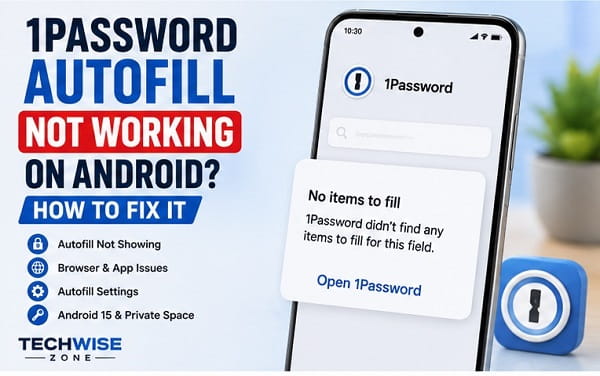
1Password can work normally as a password vault while Autofill stops appearing in Chrome, another browser, or Android apps. You may tap a username field and see no 1Password suggestion, Android may keep offering Google Password Manager instead, or 1Password may work in some apps but refuse to fill one particular website.
The 1Password Android autofill not working problem usually comes from one of three places: 1Password is not the active Android Autofill provider, its filling suggestions are configured incorrectly, or the website/app is not being matched to the saved Login item.
There are also important Android-version exceptions. 1Password’s current documentation notes that apps installed inside Android 15 Private Space cannot use the system Autofill provider, so 1Password cannot fill inside those Private Space apps through normal Android Autofill.
Start by testing Autofill in a normal browser login outside Private Space.
1. Make Sure 1Password Is the Android Autofill Provider
Open and unlock 1Password.
Go to:
Settings > Autofill
Turn Autofill on.
Android may open the system Autofill-service screen.
Choose 1Password as the preferred Autofill service.
1Password’s current Android documentation says Autofill must be enabled through 1Password settings and the Android system’s preferred service.
For the current setup instructions, see Use 1Password to save logins and sign in to apps and websites on Android.
2. Check Android’s Preferred Autofill Service Directly
The exact Android menu varies.
Search Settings for:
autofill
Look for:
- Preferred service
- Autofill service
- Passwords, passkeys & accounts
- Passwords and autofill
Confirm that 1Password is selected.
On some phones, an Android update or migration can switch the preferred provider back to Google or a manufacturer password manager.
If Android is using another provider, 1Password suggestions may not appear at all.
3. Unlock 1Password
Open 1Password and unlock the vault.
Then return to the app or website.
Depending on your 1Password security settings, Autofill may require:
- Account password
- Fingerprint
- Face unlock
- Device PIN
If the app remains locked, Android may show a 1Password prompt but not expose login suggestions until you authenticate.
4. Check “Show Filling Suggestions From”
1Password lets you choose which account or collection Autofill uses for suggestions.
Open:
1Password > Settings > Autofill
Find:
Show filling suggestions from
Choose the account or collection that contains the Login item.
This matters when you have:
- Multiple 1Password accounts
- Personal and work vaults
- Family accounts
- Collections that hide some vaults
A login stored outside the selected source can look as though Autofill is broken.
5. Test Autofill in Another App or Website
Open a well-known login page where you already have a saved item.
Tap the username or password field.
1Password Works Elsewhere
The Autofill service is functioning.
Focus on the specific app, website, saved URL, or Autofill behavior setting.
1Password Fails Everywhere
Focus on:
- Preferred Autofill provider
- 1Password update
- Android update
- App lock
- Autofill settings
- Device restart
Do not edit every saved Login item when Autofill is failing globally.
6. Update 1Password
Open Google Play Store.
Search for 1Password.
Install any available update.
1Password actively updates its Android Autofill behavior as Android and browsers change.
Restart 1Password after updating.
For current behavior, rely on 1Password’s documentation rather than old instructions written for much earlier Android versions.
7. Restart Android
Restart the phone.
A reboot can refresh:
- Android Autofill framework
- 1Password background state
- Chrome
- WebView
- System password-provider selection
After restart, unlock 1Password once and test again.
8. Check Whether Google Password Manager Is Taking Over
When Google Password Manager appears instead of 1Password, verify the preferred Android Autofill service.
Search Settings for:
autofill
Select 1Password.
Also check Chrome’s own password-manager settings if Chrome keeps surfacing Google suggestions in a way that conflicts with your chosen setup.
Avoid disabling security features randomly. The goal is simply to make 1Password the active provider where Android supports third-party Autofill.
9. Fix 1Password Autofill Not Working in Chrome
First confirm that 1Password works in another Android app.
Then in Chrome:
- Open a website with a saved 1Password Login.
- Tap the username or password field.
- Look above the keyboard or in the Android Autofill suggestion area.
- Tap the 1Password suggestion or Autofill option.
If no suggestion appears:
- Confirm 1Password is the preferred Autofill service.
- Update Chrome.
- Update 1Password.
- Restart the phone.
- Check the saved website URL in 1Password.
- Test an Incognito versus normal tab only for diagnosis, noting that privacy modes can alter browser behavior.
The keyword variant 1password android chrome autofill not working belongs on this same page rather than a separate article.
10. Check the Saved Website URL
Open the Login item in 1Password.
Compare its website field with the site you are trying to fill.
For example, a Login saved for:
example.com
may need the correct subdomain or host when the service uses multiple login domains.
Edit the Login item only when you are sure the URL is wrong.
1Password uses website information to decide where a login should be suggested.
11. Check Autofill Behavior for the Login Item
1Password currently lets Android users control where an individual Login is suggested and filled.
Open and unlock 1Password.
Open the Login item.
Tap Edit.
Use the Autofill behavior control next to the website field.
Depending on the current 1Password version, choices can include behavior such as:
- Fill anywhere on this website
- Only fill on this exact host
- Never fill on this website
If the item is set too restrictively, 1Password may correctly refuse to suggest it on a related login page.
1Password documents these controls in Change where a login is suggested and filled.
12. Create a Login for the Exact App or Website
When 1Password works elsewhere but never suggests the correct item in one app:
- Open 1Password.
- Create or edit the Login.
- Add the correct website.
- Save.
- Return to the app.
- Test Autofill.
For apps, 1Password can use app-to-website association information provided by Android and the app developer.
Poorly configured apps may not always map cleanly to the website you expect.
13. Use “Open 1Password” From the Autofill Prompt
When Android shows an Autofill menu but no matching item:
- Choose the option to open 1Password.
- Search for the login.
- Select it.
If manual selection fills successfully, the Autofill framework is working and the problem is likely item matching rather than the provider itself.
Use that clue before reinstalling 1Password.
14. Check Private Space on Android 15
This is one of the most important current limitations.
1Password’s official Android Autofill documentation says apps installed in Private Space on Android 15 cannot use the system Autofill provider.
That means 1Password cannot normally Autofill into those Private Space apps using Android’s Autofill service.
Test the same login in:
- Chrome outside Private Space
- The normal version of the app outside Private Space
If Autofill works there, 1Password itself is not broken.
Do not repeatedly reinstall 1Password to solve an Android platform limitation.
15. Check Work Profile or Managed-Device Restrictions
Company-managed Android phones can restrict:
- Autofill providers
- Password managers
- Cross-profile data
- Clipboard
- Accessibility
- Browser extensions
If 1Password works in your personal profile but not the work profile, contact the organization’s administrator.
Do not attempt to bypass enterprise management controls.
16. Check Whether the Website Blocks Autofill
Some websites use unusual login fields or intentionally restrict how password managers interact.
Test:
- Another browser
- Another login page for the same service
- Manual 1Password selection
- An updated version of the app
If 1Password works everywhere except one site, report the compatibility issue to 1Password or the website rather than resetting Android.
17. Update Chrome or the Affected Browser
Open Google Play Store.
Update:
- Chrome
- Firefox
- Edge
- Brave
- Other affected browser
Browser updates can change:
- Form detection
- Android Autofill integration
- WebView behavior
- Passkey handling
Retest after updating.
18. Update Android System WebView
Many Android apps display web-based login screens through WebView.
Open Google Play Store.
Update:
Android System WebView
if it appears as an updatable component on your phone.
Also update Chrome because some Android builds use Chrome components closely with WebView.
When 1Password fails only inside embedded login pages in apps, WebView becomes more relevant.
19. Update Android
Install current stable Android updates.
Android updates can change the Autofill framework, passkeys, credential-provider behavior, and security restrictions.
Restart afterward.
When the problem began immediately after an Android update, check for an updated 1Password release before changing deeper settings.
20. Clear 1Password Cache
Open:
Settings > Apps > 1Password > Storage & cache
Tap:
Clear cache
Do not tap Clear storage as an early fix.
Then reopen and unlock 1Password.
Test Autofill again.
21. Clear Chrome Cache When Chrome Alone Is Affected
If 1Password works in Android apps but fails only in Chrome:
Settings > Apps > Chrome > Storage & cache > Clear cache
Restart Chrome.
Avoid clearing all Chrome storage unless necessary because it can remove local browser state.
22. Check Battery Restrictions
Autofill is primarily a system-triggered interaction, but aggressive manufacturer battery management can still cause background app behavior to become unreliable.
Open:
Settings > Apps > 1Password > Battery
Avoid placing 1Password in a deep-sleep state while testing.
Samsung users should check:
Settings > Battery > Background usage limits
If 1Password works reliably only immediately after you open it, battery restriction is worth checking.
23. Check Whether 1Password Is Crashing
Open 1Password directly.
Browse several vault items.
If it crashes or closes:
- Update 1Password.
- Restart Android.
- Clear 1Password cache.
- Check available storage.
- Update Android.
Autofill cannot work reliably when the 1Password app itself is unstable.
24. Re-enable Autofill
Open:
1Password > Settings > Autofill
Turn Autofill off.
Restart the phone.
Return to 1Password and turn Autofill on again.
Select 1Password as the preferred Android service when prompted.
This can rebuild the provider registration without uninstalling the app.
25. Check Samsung Autofill Settings
Samsung menu names vary by One UI version.
Use Settings search and enter:
autofill
or:
preferred service
Make sure 1Password is selected.
Samsung may also have Samsung Pass available, so verify that the phone has not switched the preferred service back to a Samsung provider after an update or device migration.
26. Check Google Pixel Autofill Settings
On Pixel, search Settings for:
autofill
or:
passwords
Look for the preferred Autofill or credential service.
Select 1Password where Android allows it.
Then unlock 1Password and test in Chrome.
27. Fix 1Password Autofill After Moving to a New Android Phone
Phone migration tools can reinstall 1Password without preserving every system-level preference.
After switching phones:
- Sign in to 1Password.
- Confirm your vaults are present.
- Open 1Password Settings > Autofill.
- Turn Autofill on.
- Set 1Password as Android’s preferred service.
- Test a normal login.
The broader file, app, and device migration process is covered in How to Transfer Data From Android to Android, but password-manager integration should be verified separately after the move.
28. Fix Autofill Suggestions Not Showing Above the Keyboard
1Password’s current Android settings can control how suggestions are displayed.
Open:
1Password > Settings > Autofill
Review the filling-suggestion display options available on your version.
If suggestions are inconsistent, change the display method and retest.
Keyboard and Android-version behavior can affect where Autofill UI appears.
29. Fix 1Password Works in Apps but Not Websites
Focus on:
- Browser update
- Saved URL
- Autofill behavior
- Website form design
- Chrome cache
- Preferred Autofill service
Test the same Login in another browser.
If another browser works, the vault and Android provider are functioning.
30. Fix 1Password Works on Websites but Not One Android App
Focus on:
- App update
- App-to-website association
- Login item website
- Manual 1Password selection
- Work profile or Private Space
- App’s embedded browser
If the app developer has not properly associated the app with its website, matching can be less reliable.
31. Reinstall 1Password Only After You Can Sign Back In
Before uninstalling, make sure you know how to regain access.
Confirm:
- 1Password account password
- Secret Key where required
- Recovery method
- Access to another signed-in device if needed
Then reinstall 1Password from Google Play.
Sign in.
Re-enable Autofill.
Do not uninstall first and discover afterward that you cannot access the account credentials required to sign back in.
Frequently Asked Questions
Why is 1Password Autofill not working on Android?
Common causes include 1Password not being the preferred Autofill service, a locked vault, incorrect suggestion-source settings, an unmatched website URL, restrictive Autofill behavior, browser issues, or Android platform limitations.
Why is 1Password not autofilling in Chrome on Android?
Confirm 1Password is Android’s preferred Autofill provider, update Chrome and 1Password, check the saved website URL, and test manual 1Password selection from the field.
Why does Google Password Manager appear instead of 1Password?
Android may have Google selected as the preferred Autofill or credential service. Search Settings for Autofill and select 1Password.
Why does 1Password work in some apps but not others?
The failing app may have unusual login fields, incorrect app-to-website association, be inside a managed profile, or be installed in Android 15 Private Space.
Does 1Password work in Android 15 Private Space?
1Password’s current documentation says apps installed in Android 15 Private Space cannot use the system Autofill provider, so normal 1Password Autofill does not work inside those apps.
Should I enable Accessibility for 1Password?
Follow current 1Password Android documentation rather than old guides written for legacy Autofill methods. Modern 1Password relies on Android’s Autofill/credential-provider integration.
Should I clear 1Password storage?
Not initially. Clear cache first. Clearing storage is more disruptive and may require you to sign back in and restore configuration.
Should I reinstall 1Password?
Only after provider settings, updates, item matching, Autofill behavior, browser updates, cache, and restart steps fail, and only after confirming you can sign back into 1Password.
Start With the Android Autofill Provider
The quickest diagnosis is to test whether 1Password can fill any normal login on the phone.
When it fails everywhere, check the Android preferred Autofill service and 1Password’s Autofill settings first.
When it fails on only one website or app, focus on the saved URL, Autofill behavior, app association, browser, or Android profile.
That distinction prevents unnecessary reinstalling and also helps identify situations, such as Android 15 Private Space, where the limitation belongs to Android rather than 1Password.
