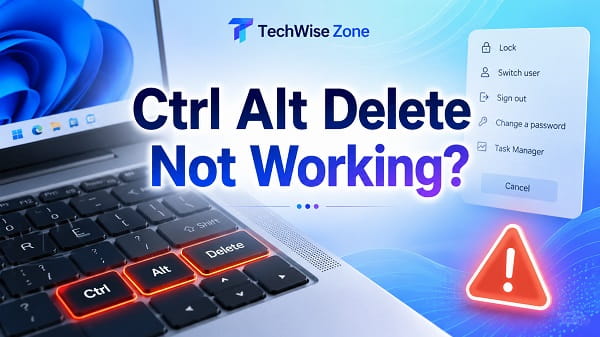
When Ctrl Alt Delete does not work on a Windows PC, the problem can be as simple as a faulty keyboard key or as complicated as damaged system files, keyboard-remapping software, a driver problem, or a Windows process that is no longer responding correctly.
On a normal Windows 11 computer, pressing Ctrl + Alt + Delete should open the Windows security screen. From there, you can lock the PC, switch users, sign out, change your password, or open Task Manager. Microsoft still documents this as the standard behavior of the shortcut.
If nothing happens when you press the three keys, do not immediately assume Windows is corrupted. First confirm that Ctrl, Alt, and Delete work individually, try another keyboard if possible, and test whether other Windows shortcuts respond. Those simple checks can quickly tell you whether you are dealing with a keyboard problem or a Windows problem.
I will start with the easiest fixes and then move into drivers, system repair, Safe Mode, clean boot, and Remote Desktop cases.
Why Does Ctrl Alt Delete Not Work?
The most common reasons include:
- One of the Ctrl, Alt, or Delete keys is not working
- A USB or wireless keyboard has lost its connection
- A laptop keyboard requires a different key combination
- Keyboard-remapping software is intercepting the keys
- Gaming software or a keyboard profile has reassigned a key
- The keyboard driver is damaged or outdated
- Windows is partially frozen
- A third-party background service is interfering with keyboard input
- Windows system files are damaged
- The shortcut is being used inside Remote Desktop, where a different key sequence is required
- The computer is managed by an organization with security policies
The fastest way to troubleshoot the problem is to determine whether the keyboard itself works before changing Windows settings.
1. Test Ctrl, Alt, and Delete Separately
Start by checking whether all three keys work independently.
For Ctrl, try:
Ctrl + C
Ctrl + V
Ctrl + A
For Alt, try:
Alt + TabFor Delete, click a disposable file or folder and press:
DeleteIf one key consistently fails in other shortcuts, the Ctrl Alt Delete problem is probably related to the keyboard rather than the Windows security screen.
Most full-size keyboards have Ctrl and Alt keys on both sides.
Try:
Right Ctrl + Alt + Deleteor use the right-side Alt key with the left Ctrl key.
If one combination works and another does not, you have probably identified a faulty or remapped key.
2. Try Ctrl Shift Esc
If you normally use Ctrl Alt Delete only to open Task Manager, use:
Ctrl + Shift + EscMicrosoft documents Ctrl + Shift + Esc as a direct shortcut for Task Manager.
If Ctrl + Shift + Esc works but Ctrl + Alt + Delete does not, Task Manager itself is fine. The failure is more likely related to the secure attention sequence, a keyboard key, or software intercepting the shortcut.
You can also right-click Start and select Task Manager.
This does not repair Ctrl Alt Delete, but it gives you access to Task Manager while troubleshooting.
3. Restart the Computer
If Windows is responding normally enough to use the Start menu:
- Click Start.
- Select Power.
- Click Restart.
A restart reloads keyboard drivers, Windows services, and the processes involved in the desktop session.
After Windows starts again, test:
Ctrl + Alt + Deletebefore opening lots of programs.
If the shortcut works immediately after restart but stops working later, a background application may be intercepting the keyboard combination.
4. Check Whether Windows Is Completely Frozen
There is an important difference between:
- Ctrl Alt Delete not working while Windows otherwise works
- Ctrl Alt Delete not working because the entire computer is frozen
Move the mouse and test:
Windows + Eor:
Windows + RIf no keyboard shortcuts work, the screen is frozen, and the mouse also does not respond, Ctrl Alt Delete is probably not the specific problem.
Give Windows a short moment if the PC is performing a heavy task.
If the system remains completely unresponsive, you may eventually need to hold the physical power button to shut it down. Use a forced shutdown only when Windows cannot be recovered normally because unsaved work can be lost.
If File Explorer or the desktop is the part that appears stuck, my How to Restart File Explorer in Windows 11 guide covers several ways to reload Explorer without rebooting the whole PC.
5. Reconnect the Keyboard
For a USB keyboard:
- Unplug the keyboard.
- Wait a few seconds.
- Plug it back in.
- Test Ctrl Alt Delete.
Microsoft recommends reconnecting a USB keyboard and trying another USB port when troubleshooting keyboard problems.
If you are using a USB hub or docking station, connect the keyboard directly to the PC for testing.
Also inspect the cable and connector for damage.
For a wireless keyboard:
- Make sure it is powered on
- Replace or recharge the batteries
- Reconnect the USB receiver
- Re-pair Bluetooth if necessary
- Move the keyboard closer to the receiver
A connection problem can sometimes affect certain key combinations even when basic typing still appears to work.
6. Test With Another Keyboard
This is one of the most useful troubleshooting steps.
Connect a different USB or Bluetooth keyboard and press:
Ctrl + Alt + DeleteIf the shortcut works with the second keyboard, Windows is probably fine.
The original keyboard may have:
- A damaged key switch
- A worn keyboard membrane
- A firmware problem
- A broken cable
- A bad wireless connection
- A custom gaming profile
- A remapped key
If both keyboards fail in exactly the same way, continue with Windows troubleshooting.
7. Check the Laptop Fn Key
Laptop keyboard layouts vary.
On some compact keyboards, the Delete function shares a key with another command and may require Fn.
Try:
Ctrl + Alt + Fn + Deleteonly if your keyboard labels indicate that Delete is a secondary function.
Do not add Fn automatically on a standard keyboard where Delete already has a dedicated key.
Also check whether your laptop has an Fn Lock mode that changes how shared keys behave.
8. Turn Off Keyboard Remapping Temporarily
Keyboard customization utilities can change what Windows receives when you press a key.
Examples include:
- Microsoft PowerToys Keyboard Manager
- AutoHotkey scripts
- Logitech software
- Razer Synapse
- Corsair iCUE
- SteelSeries software
- ASUS Armoury Crate
- Gaming keyboard utilities
- Macro software
- Key-remapping applications
If you use one of these tools, close it temporarily and test Ctrl Alt Delete again.
In PowerToys, check:
Keyboard Manager
Look for remapped keys or shortcuts involving:
- Ctrl
- Alt
- Delete
Disable the remapping temporarily.
If you use AutoHotkey, exit active scripts from the notification area.
Windows handles Ctrl Alt Delete differently from most ordinary shortcuts, but keyboard utilities, firmware profiles, or malfunctioning modifier keys can still create confusing behavior.
9. Disable Gaming Mode or Keyboard Lock Features
Some gaming keyboards have modes designed to prevent accidental key presses during games.
These modes commonly block the Windows key, but depending on the keyboard and profile, other keys can also be reassigned or disabled.
Open the keyboard manufacturer’s software and check for:
- Game Mode
- Windows Lock
- Key Lock
- Shortcut Lock
- Macro profiles
- Custom key assignments
Switch to the default profile and test again.
If the keyboard has a physical Game Mode switch, turn it off temporarily.
10. Check Accessibility Keyboard Settings
Open:
Settings > Accessibility > Keyboard
Review:
- Sticky Keys
- Filter Keys
- Toggle Keys
These features are useful and normally should not break Ctrl Alt Delete, but unusual input behavior can become easier to diagnose with them temporarily turned off.
Pay particular attention to Filter Keys if Windows seems to ignore keys that are pressed briefly or repeatedly.
After changing a setting, test the shortcut again.
Do not permanently disable accessibility features that you rely on. This step is only for determining whether the keyboard behavior changes.
11. Reinstall the Keyboard Driver
If the keyboard works for normal typing but shortcuts behave incorrectly, reinstall its Windows driver.
Right-click Start and open:
Device Manager
Expand:
Keyboards
You may see entries such as:
- HID Keyboard Device
- Standard PS/2 Keyboard
- A manufacturer-specific keyboard
Right-click the relevant keyboard and select:
Uninstall device
Confirm the removal.
Then restart Windows.
Windows should detect the keyboard and reinstall the required driver automatically.
Test Ctrl Alt Delete again.
If you use a gaming or specialized keyboard, also install the latest supported software or firmware from the manufacturer’s official website.
12. Check Windows Update
Open:
Settings > Windows Update
Click:
Check for updates
Install available updates and restart.
Then open:
Settings > Windows Update > Advanced options > Optional updates
Check whether a relevant keyboard, chipset, USB, or system driver is available.
Windows updates can include fixes for input devices and system components.
If the problem started immediately after a driver update, however, the newest driver may be part of the problem.
13. Roll Back a Recently Updated Keyboard Driver
If Ctrl Alt Delete stopped working after a driver update:
- Open Device Manager.
- Expand Keyboards.
- Right-click the keyboard.
- Select Properties.
- Open the Driver tab.
- Choose Roll Back Driver if the button is available.
- Restart Windows.
Microsoft documents driver rollback as an option when a problem begins after a driver update.
If Roll Back Driver is greyed out, Windows does not have a previous version stored for that device.
14. Check for Stuck Modifier Keys
A physically or logically stuck Ctrl, Alt, Shift, or Windows key can cause shortcuts to behave strangely.
Press and release these keys several times:
Left Ctrl
Right Ctrl
Left Alt
Right Alt
Left Shift
Right Shift
Windows
Then try Ctrl Alt Delete again.
If you use a mechanical keyboard, inspect the keycaps for debris or a switch that does not return properly.
You can also open the Windows On-Screen Keyboard to see whether a modifier appears to remain active after you release it.
Search Start for:
On-Screen Keyboard
Press your physical Ctrl and Alt keys and observe the on-screen state.
If one appears stuck, focus on that key or keyboard.
15. Test Ctrl Alt Delete in Safe Mode
Safe Mode loads Windows with a limited set of drivers and services.
Microsoft recommends Safe Mode as a way to determine whether default Windows components are responsible for a problem.
Open:
Settings > System > Recovery
Under Advanced startup, select:
Restart now
Then go to:
Troubleshoot > Advanced options > Startup Settings > Restart
Choose Safe Mode.
Once Windows starts, test Ctrl Alt Delete.
If it works in Safe Mode, a third-party application, service, or driver loaded during normal startup is a likely cause.
My How to Boot Windows 11 in Safe Mode guide covers additional ways to enter Safe Mode when normal Windows startup is difficult.
16. Perform a Clean Boot
If the shortcut works in Safe Mode, use a clean boot to isolate the interfering software more precisely.
Search for:
msconfigOpen System Configuration.
On the Services tab:
- Check Hide all Microsoft services.
- Click Disable all.
- Select Apply.
Then open the Startup tab and choose:
Open Task Manager
Disable enabled nonessential startup items.
Restart Windows and test Ctrl Alt Delete.
Microsoft describes clean boot as a method of starting Windows with essential drivers and startup programs so background software conflicts can be isolated.
If the shortcut works during the clean boot, re-enable services and startup applications in groups until you find the program causing the problem.
When finished, restore Windows to normal startup.
17. Repair Windows System Files
If Ctrl Alt Delete still does not work with multiple keyboards and the problem persists in normal Windows operation, repair Windows system files.
Open Windows Terminal (Admin) or Command Prompt (Admin).
Run:
DISM.exe /Online /Cleanup-Image /RestoreHealthLet it finish.
Then run:
sfc /scannowMicrosoft recommends running DISM before System File Checker when repairing corrupted Windows components.
Restart the computer after the scans and test:
Ctrl + Alt + DeleteIf SFC fails with a Windows Resource Protection message, use Windows Resource Protection Error: How to Fix It for the specific repair steps.
18. Try a New Windows User Account
If Ctrl Alt Delete works in Safe Mode but clean-boot testing does not clearly identify the problem, check whether the issue is tied to your Windows profile.
Create a temporary local user account:
Settings > Accounts > Other users
Add another account.
Sign into it and test Ctrl Alt Delete.
If the shortcut works normally in the new account, your original profile or user-level software configuration may be damaged.
Do not immediately delete the old account. Move important files only after you are sure the new profile is working correctly.
19. Check Whether the PC Is Managed by Work or School
On business, school, kiosk, or domain-managed PCs, administrators can control security behavior and access to Windows functions.
Open:
Settings > Accounts > Access work or school
If the PC is organization-managed, do not change Group Policy or Registry settings just to restore the shortcut.
Contact the administrator.
A managed PC can have restrictions that intentionally remove options from the Ctrl Alt Delete security screen.
That is different from the keyboard shortcut itself failing completely.
20. Ctrl Alt Delete Does Not Work in Remote Desktop
This is an important exception.
When you are inside a Windows Remote Desktop session, pressing:
Ctrl + Alt + Deleteis handled by the local PC.
For a Remote Desktop session, Microsoft documents:
Ctrl + Alt + Endas the shortcut that brings up the Windows Security dialog for the remote session.
So if Ctrl Alt Delete appears not to work in Remote Desktop, try:
Ctrl + Alt + Endinstead.
This is normal behavior and does not mean either keyboard or Windows is broken.
If you are using another remote-access application, such as a third-party support tool, look for its command for sending Ctrl Alt Delete to the remote computer.
21. Ctrl Alt Delete Works but Task Manager Does Not Open
If Ctrl Alt Delete opens the security screen but selecting Task Manager fails, then the Ctrl Alt Delete shortcut itself is working.
The problem is specifically Task Manager.
Try:
Ctrl + Shift + Escor right-click Start > Task Manager.
If none of those methods opens Task Manager, troubleshoot Task Manager or system corruption separately rather than continuing to repair the keyboard shortcut.
22. Ctrl Alt Delete Works but the Security Screen Is Blank
If the blue or dark Windows Security screen appears but no options load, restart the PC first.
Then:
- Install Windows updates.
- Run DISM.
- Run SFC.
- Test in Safe Mode.
- Test with a clean boot.
This symptom points more toward Windows components than a bad keyboard because the key sequence is already being detected.
For more information about the functions associated with this screen, see Windows Security Button: What It Is and How to Use It.
23. Ctrl Alt Delete Does Not Work at the Sign-In Screen
If Ctrl Alt Delete fails before you log into Windows, test an external wired USB keyboard if possible.
A wireless keyboard can sometimes have connection or driver problems before the full Windows session loads.
If the external keyboard works, troubleshoot the original keyboard.
If no keyboard works:
- Use the accessibility options on the sign-in screen if available.
- Restart the PC.
- Enter Windows Recovery Environment if necessary.
- Test Safe Mode.
- Check recently installed drivers or updates.
A failure that occurs before sign-in is less likely to be caused by a normal startup application because many user applications have not started yet.
24. What If Only the Delete Key Is Not Working?
If Ctrl and Alt work but Delete fails everywhere, treat it as a Delete-key problem.
Test:
- Delete in File Explorer
- Delete in a text editor
- The second Delete key if your keyboard has one
- An external keyboard
- The On-Screen Keyboard
For a compact laptop, check whether Delete shares another key through Fn.
If another keyboard works, replacing or repairing the keyboard may be more practical than changing Windows settings.
25. What If Ctrl Alt Delete Stopped Working After Installing Software?
Think about software installed immediately before the problem began.
Prioritize applications that interact with keyboard input, such as:
- Macro utilities
- Gaming keyboard software
- Hotkey managers
- Remote access tools
- Virtual machine applications
- Accessibility utilities
- Automation programs
- Security software
Update the application first.
If the problem continues, temporarily uninstall it and restart Windows.
If Ctrl Alt Delete starts working again, check the software manufacturer’s support information before reinstalling it.
26. Avoid Random Registry Fixes
You may find tutorials suggesting that you edit Registry values related to Ctrl Alt Delete.
Be careful.
Windows policies can remove individual options such as Task Manager from the security screen, but that is not the same thing as the Ctrl Alt Delete sequence doing absolutely nothing.
If your personal PC suddenly stops responding to the shortcut, troubleshoot:
- Keyboard hardware
- Keyboard software
- Drivers
- Background conflicts
- Windows corruption
before editing security policies or Registry values.
Random policy changes can create additional account and security problems without fixing the original keyboard issue.
Quick Fix Checklist
If you want the shortest troubleshooting order, use this:
- Test Ctrl, Alt, and Delete separately.
- Try the other Ctrl and Alt keys.
- Press Ctrl + Shift + Esc to see whether Task Manager works.
- Restart Windows.
- Reconnect the keyboard and try another USB port.
- Test another keyboard.
- Disable keyboard-remapping and gaming software.
- Reinstall the keyboard driver.
- Install Windows updates.
- Test Safe Mode.
- Perform a clean boot.
- Run DISM and SFC.
- If using Remote Desktop, use Ctrl + Alt + End instead.
This order avoids making major Windows changes before ruling out the simplest cause: a keyboard key that is not actually registering.
Frequently Asked Questions
Why does Ctrl Alt Delete not work?
The shortcut can fail because one of the keys is damaged, the keyboard connection is unstable, a driver is malfunctioning, keyboard-remapping software is interfering, Windows is partially frozen, or system files are damaged.
If you are using Remote Desktop, Ctrl Alt Delete normally applies to the local PC rather than the remote session.
How do I fix Ctrl Alt Delete not working in Windows 11?
Test each key individually, restart Windows, reconnect or replace the keyboard for testing, disable keyboard-remapping software, reinstall the keyboard driver, install Windows updates, test Safe Mode, and run DISM and SFC if the problem continues.
What can I use instead of Ctrl Alt Delete?
If you only need Task Manager, press:
Ctrl + Shift + EscYou can also right-click Start and select Task Manager.
To lock Windows, press:
Windows + LWhy does Ctrl Shift Esc work but Ctrl Alt Delete does not?
That tells you Windows can still receive at least the Ctrl key and can open Task Manager. The issue may involve Alt or Delete, the keyboard hardware, keyboard-remapping software, or the Windows security sequence itself.
Can I open Task Manager without Ctrl Alt Delete?
Yes.
Microsoft supports:
Ctrl + Shift + EscYou can also right-click Start and choose Task Manager.
What is Ctrl Alt Delete supposed to do in Windows 11?
It opens the Windows security screen, where you can lock the computer, switch users, sign out, change your password, or open Task Manager.
Why doesn’t Ctrl Alt Delete work in Remote Desktop?
The normal Ctrl Alt Delete sequence is handled by your local computer. In a Windows Remote Desktop session, use:
Ctrl + Alt + Endto open the Windows Security dialog for the remote session.
Can a keyboard driver stop Ctrl Alt Delete from working?
Yes. A faulty or corrupted keyboard driver can cause keyboard input problems. Reinstalling the keyboard in Device Manager and restarting Windows is a reasonable troubleshooting step.
Can a broken keyboard cause only Ctrl Alt Delete to fail?
Yes.
A single Ctrl, Alt, or Delete key may be damaged while normal letter keys continue to work. Test each key with other shortcuts and try a second keyboard.
Does Filter Keys disable Ctrl Alt Delete?
Filter Keys is not designed specifically to disable Ctrl Alt Delete, but it changes how Windows handles repeated or brief key presses. If keyboard input behaves unusually, temporarily disabling Filter Keys is a useful diagnostic test.
Should I change Group Policy if Ctrl Alt Delete does not work?
Not initially.
Policies can control options shown after Ctrl Alt Delete, particularly on managed PCs, but a shortcut that produces no response at all is more likely to involve the keyboard, input software, drivers, or Windows itself.
Start With the Keyboard Before Repairing Windows
When Ctrl Alt Delete does not work, the most important first step is deciding whether Windows is failing to process the security shortcut or whether one of the three keys is simply not reaching Windows.
Test Ctrl, Alt, and Delete separately, try a different keyboard, and use Ctrl + Shift + Esc to see whether Task Manager still works. Those checks can save you from unnecessary system changes.
If the keyboard is healthy, move on to remapping software, keyboard drivers, Windows Update, Safe Mode, and a clean boot. DISM and SFC are useful later when the problem points to Windows corruption rather than a physical key.
And if the problem happens only during Remote Desktop, remember that the correct Windows Remote Desktop sequence is Ctrl + Alt + End, not Ctrl + Alt + Delete.
