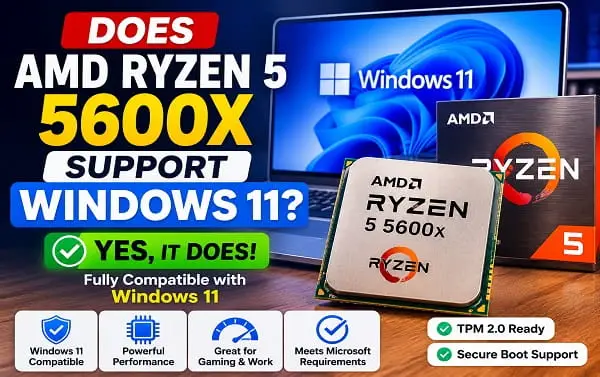
Yes, the AMD Ryzen 5 5600X officially supports Windows 11.
The Ryzen 5 5600X is included on Microsoft’s supported AMD processor list for Windows 11, and AMD also lists Windows 11 64-bit as a supported operating system for the processor. You do not need to bypass Windows 11’s CPU requirement or use an unsupported installation method simply because your PC has a Ryzen 5 5600X.
The processor is only one part of Windows 11 compatibility, however. Your PC must also meet the requirements for TPM 2.0, UEFI firmware with Secure Boot capability, memory, storage, and compatible graphics hardware. On a Ryzen desktop, the motherboard configuration is often the reason a PC fails a Windows 11 compatibility check.
If PC Health Check says your Ryzen 5 5600X system cannot run Windows 11, the problem is likely elsewhere. Here is exactly what to check.
Does the Ryzen 5 5600X Officially Support Windows 11?
Yes. The AMD Ryzen 5 5600X is officially supported for Windows 11.
Microsoft’s current list of supported AMD processors includes the Ryzen 5 5600X. AMD’s own specifications page also lists Windows 11 64-bit among the supported operating systems for the processor.
The Ryzen 5 5600X is a Ryzen 5000-series desktop processor based on AMD’s Zen 3 architecture. It has 6 cores, 12 threads, a base clock of 3.7 GHz, and a maximum boost clock of up to 4.6 GHz.
The simple answer is:
AMD Ryzen 5 5600X: Supported for Windows 11
You can install or upgrade to Windows 11 on a compatible Ryzen 5 5600X PC using a normal supported installation method.
Why Does My Ryzen 5 5600X PC Say It Cannot Run Windows 11?
If you have a Ryzen 5 5600X and Windows says your PC is not compatible, do not focus on the processor first.
The CPU is officially supported. The problem is more likely to be one of these:
- TPM 2.0 is disabled
- AMD fTPM is disabled in UEFI or BIOS
- Secure Boot is disabled or unavailable because of the current boot configuration
- The PC is using Legacy BIOS or Compatibility Support Module settings
- The system does not meet the minimum RAM or storage requirements
- The motherboard firmware needs attention
- PC Health Check has identified another compatibility issue
- The graphics hardware or driver configuration has a separate problem
For many custom Ryzen desktop PCs, TPM 2.0 and Secure Boot configuration are the first things to check.
The Windows 11 Requirements Your Ryzen 5 5600X PC Still Needs
A supported processor does not automatically make the entire PC Windows 11 compatible.
Microsoft’s minimum requirements include:
- A supported 64-bit processor with two or more cores and a clock speed of at least 1 GHz
- 4 GB of RAM
- 64 GB or more of storage
- UEFI firmware with Secure Boot capability
- TPM version 2.0
- DirectX 12-compatible graphics with a WDDM 2.0 driver
- A display that meets Microsoft’s requirements
The Ryzen 5 5600X itself meets the processor requirement. The rest of the computer still has to qualify.
If you are preparing for the upgrade, read my guide on 15 things to do before upgrading to Windows 11. It covers backups, BitLocker recovery information, storage, applications, drivers, and other checks worth completing before you begin.
How to Check Whether Your PC Has a Ryzen 5 5600X
You can confirm the processor model directly from Windows.
Use Settings
- Press Windows + I.
- Select System.
- Open About.
- Look under Processor.
Use Task Manager
- Press Ctrl + Shift + Esc.
- Select Performance.
- Click CPU.
The processor name appears near the top of the window.
Use System Information
- Press Windows + R.
- Type
msinfo32. - Press Enter.
- Look for Processor.
System Information is also useful for checking your BIOS mode.
How to Check TPM 2.0 on a Ryzen 5 5600X PC
TPM is one of the most common reasons a compatible Ryzen desktop does not immediately pass the Windows 11 compatibility check.
On AMD motherboards, TPM functionality may be provided through the processor and firmware as AMD fTPM, so you may not need a separate physical TPM module.
To check the current TPM status:
- Press Windows + R.
- Type
tpm.msc. - Press Enter.
Look for the Specification Version.
If it says 2.0, your TPM version meets the Windows 11 requirement.
If Windows says that a compatible TPM cannot be found, the feature may be disabled in your motherboard’s UEFI or BIOS settings.
Depending on the motherboard manufacturer, you may see options such as:
- AMD fTPM
- Firmware TPM
- AMD CPU fTPM
- Trusted Computing
- Security Device Support
Do not change unrelated BIOS settings while looking for TPM.
If you use BitLocker or device encryption, make sure you have your recovery key before changing firmware or security settings.
How to Enable AMD fTPM for Windows 11
The exact steps depend on your motherboard.
On many AMD motherboards, the general process is:
- Restart the computer.
- Enter UEFI or BIOS during startup.
- Find the security or trusted-computing settings.
- Locate the AMD fTPM or firmware TPM option.
- Enable it if it is disabled.
- Save the changes and restart Windows.
- Run
tpm.mscagain to confirm TPM 2.0 is available.
The menu location differs between ASUS, MSI, Gigabyte, ASRock, and other manufacturers, so use your exact motherboard documentation if you cannot find the option.
Do not assume every Ryzen 5 5600X system has the same BIOS menu.
Does the Ryzen 5 5600X Support Secure Boot?
Secure Boot support is mainly a motherboard and UEFI firmware matter rather than a processor feature you enable directly on the Ryzen 5 5600X.
A modern AM4 motherboard used with a Ryzen 5 5600X will typically support UEFI and Secure Boot, but the current system configuration may not be ready for it.
To check your current setup:
- Press Windows + R.
- Type
msinfo32. - Press Enter.
Look for BIOS Mode.
For a normal modern Windows 11 configuration, this should show UEFI rather than Legacy.
You can also check the Secure Boot status in System Information.
If your system uses Legacy BIOS mode, Secure Boot may not be available until the boot configuration is prepared correctly.
Do not simply enable Secure Boot without checking your current setup, especially if you use:
- BitLocker
- A dual-boot system
- Custom partitions
- An older Windows installation
- A custom bootloader
Is 16GB RAM Enough for Windows 11 With a Ryzen 5 5600X?
Yes. Windows 11 requires only 4 GB of RAM as a minimum.
However, 16 GB is a much more practical amount for a modern desktop, especially if you use:
- Multiple browser tabs
- Gaming
- Streaming
- Photo or video editing
- Programming tools
- Virtual machines
- Several applications at the same time
The Ryzen 5 5600X supports DDR4 memory, and the right amount of RAM depends on your workload rather than Windows 11 compatibility alone.
Even 8 GB can run Windows 11, but 16 GB generally provides a more comfortable experience for many users.
Does the Ryzen 5 5600X Need a Graphics Card for Windows 11?
Yes. The Ryzen 5 5600X does not have integrated graphics.
AMD’s specifications list a discrete graphics card as required for this processor. That means the PC needs a dedicated GPU to provide display output.
For Windows 11, the graphics hardware must also meet Microsoft’s requirements, including DirectX 12 compatibility and a WDDM 2.0 driver.
If you are choosing a graphics card for a Ryzen 5 5600X PC, see my detailed comparison of AMD GPU vs NVIDIA.
How to Check if Your Entire Ryzen 5 5600X PC Supports Windows 11
The easiest method is to use Microsoft’s PC Health Check.
The tool checks the PC against the Windows 11 requirements and identifies the reason for incompatibility when it finds one.
This is better than checking the CPU alone because it considers the whole system.
If PC Health Check says your Ryzen 5 5600X computer is eligible, you can proceed with the upgrade after backing up important files and completing your preparation.
If it says the PC is not eligible, read the exact result carefully.
A message about TPM, Secure Boot, or system requirements does not mean the Ryzen 5 5600X is unsupported.
Can You Upgrade a Ryzen 5 5600X PC From Windows 10 to Windows 11?
Yes.
If the rest of the PC meets the requirements, a Ryzen 5 5600X system can upgrade from Windows 10 to Windows 11 through the supported upgrade options.
Before upgrading:
- Back up important files.
- Run PC Health Check.
- Confirm TPM 2.0.
- Confirm UEFI and Secure Boot capability.
- Install important Windows updates.
- Check available storage.
- Save your BitLocker recovery key if encryption is enabled.
- Check important applications and drivers.
Once your PC is ready, follow my complete guide on how to upgrade from Windows 10 to Windows 11 for the installation process.
Do You Need a BIOS Update for the Ryzen 5 5600X to Run Windows 11?
Not necessarily.
If your PC is already running correctly with the Ryzen 5 5600X and PC Health Check confirms that the system is compatible, you should not update the BIOS simply because you are moving to Windows 11.
A BIOS update may be useful if:
- Your motherboard has an older firmware version
- The motherboard has a known TPM or fTPM issue addressed by a later update
- You need a firmware fix recommended by the motherboard manufacturer
- You are experiencing a specific problem that the manufacturer says the update resolves
However, a BIOS update carries more risk than a normal Windows application update. Do not perform one casually when the PC is already stable and compatible.
If a BIOS update is necessary, use the exact update for your motherboard model and follow the manufacturer’s instructions carefully.
Why Is PC Health Check Still Failing With a Ryzen 5 5600X?
Work through the result in this order.
1. Check TPM
Open tpm.msc.
If TPM 2.0 is not available, check whether AMD fTPM is disabled in UEFI or BIOS.
2. Check BIOS Mode
Open msinfo32.
Confirm that BIOS Mode is UEFI.
3. Check Secure Boot
Look at the Secure Boot status in System Information and investigate the motherboard configuration if necessary.
4. Check RAM and Storage
Confirm that you meet at least 4 GB of RAM and 64 GB of storage.
5. Check the Exact Error
Do not rely on a forum post describing another person’s PC.
The compatibility tool should tell you which requirement is not currently met.
6. Check for Existing System Problems
If Windows already has update failures, boot errors, corrupted files, or driver crashes, address those problems before attempting a major upgrade.
For example, if the computer is showing a startup problem such as Windows 11 error 0xC0000185, fix the underlying issue before making additional operating-system changes.
Is the Ryzen 5 5600X Good Enough for Windows 11?
Yes. The Ryzen 5 5600X is more than adequate for Windows 11.
Its 6 cores and 12 threads remain suitable for everyday computing, gaming, office work, multitasking, and many productivity workloads.
For example:
- Basic web browsing and office work: easily sufficient
- General Windows 11 use: easily sufficient
- Modern gaming: still capable, depending on the GPU and game
- Streaming: suitable for many setups
- Content creation: capable for many workloads
- Virtual machines and demanding professional work: usable, although more cores may help with heavier workloads
Windows 11 support is not a concern with this CPU. If your system is compatible, you do not need to replace the Ryzen 5 5600X simply to run Windows 11.
Frequently Asked Questions
Does AMD Ryzen 5 5600X support Windows 11?
Yes. The AMD Ryzen 5 5600X is officially included on Microsoft’s supported AMD processor list for Windows 11, and AMD lists Windows 11 64-bit as a supported operating system for the processor.
Why does my Ryzen 5 5600X PC fail the Windows 11 compatibility check?
The processor is supported. Check TPM 2.0, AMD fTPM, UEFI mode, Secure Boot capability, RAM, storage, and the exact issue reported by PC Health Check.
Does the Ryzen 5 5600X have TPM 2.0?
A compatible motherboard can provide firmware TPM functionality through AMD fTPM. Whether TPM 2.0 is currently available depends on the motherboard and its UEFI or BIOS configuration.
Does Ryzen 5 5600X have integrated graphics?
No. The Ryzen 5 5600X requires a discrete graphics card.
Do I need to buy a TPM module for a Ryzen 5 5600X?
Not necessarily. Many compatible AMD motherboards can provide firmware TPM through AMD fTPM. Check your motherboard settings before buying a physical TPM module.
Do I need a new CPU to upgrade a Ryzen 5 5600X PC to Windows 11?
No. The Ryzen 5 5600X is officially supported for Windows 11.
Is the Ryzen 5 5600X still good for Windows 11?
Yes. It has six cores and twelve threads and is capable of running Windows 11 comfortably for general use and many demanding workloads.
The important point is simple: the AMD Ryzen 5 5600X officially supports Windows 11. If your PC is being marked as incompatible, check the TPM, UEFI, Secure Boot, storage, RAM, and the exact compatibility result before assuming you need new hardware.
For a smooth upgrade, prepare the PC first and then follow the appropriate Windows 10 to Windows 11 upgrade method.
