
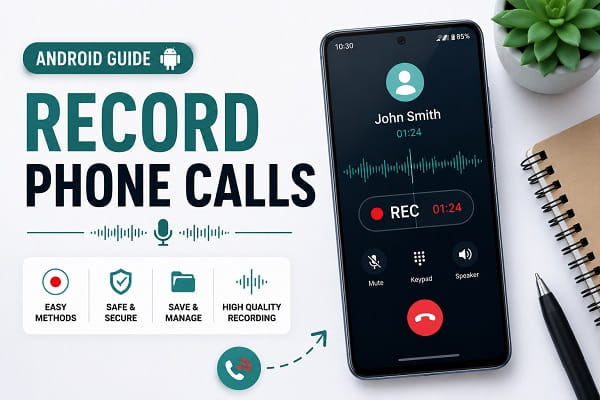
There are many situations where recording a phone call can be useful. You might need to save important business discussions, keep records of customer conversations, remember instructions from a service provider, or document an interview.
While Android devices offer powerful communication features, call recording works differently depending on your phone model, Android version, location, and carrier restrictions.
Some Android phones include built-in call recording tools, while others require third-party applications to perform the same task.
In this guide, you’ll learn how to record phone calls on Android using simple methods, understand legal considerations, and discover the best ways to save important conversations.
Can Android Record Phone Calls?
Yes, many Android devices can record phone calls.
However, availability depends on:
- Android version
- Phone manufacturer
- Country or region
- Mobile carrier policies
For example, some Samsung, Xiaomi, and OnePlus devices include built-in call recording features, while certain regions restrict or disable call recording due to privacy regulations.
Because of these differences, the options available on your phone may not match those on another Android device.
Is It Legal to Record Phone Calls?
Before recording any conversation, you should understand the laws in your country or region.
Some areas allow recording if one person participating in the conversation consents.
Other jurisdictions require all parties involved to be informed and agree before recording begins.
To avoid legal issues:
- Understand local laws
- Inform participants when appropriate
- Use recordings responsibly
- Avoid recording private conversations without permission
Always ensure compliance with applicable regulations before recording calls.
Method 1: Use Built-In Call Recording Features
Many Android manufacturers include native call recording tools.
Supported Brands May Include
- Samsung
- Xiaomi
- Oppo
- Vivo
- OnePlus
How to Check
- Open the Phone app.
- Start or receive a call.
- Look for a Record button.
- Tap Record if available.
Once activated, the conversation will be saved automatically.
Benefits
- No extra apps required
- Better call quality
- Easy access to recordings
- Integrated with the phone system
This is usually the best option when available.
Method 2: Enable Automatic Call Recording
Some devices allow automatic recording of calls.
Typical Steps
- Open the Phone app.
- Open Settings.
- Select Call Recording.
- Enable Auto Record Calls.
Depending on your device, you may be able to:
- Record all calls
- Record unknown numbers only
- Record selected contacts
This is useful if you regularly need call records.
Method 3: Use Google Phone App Call Recording
Certain Android devices support call recording through Google’s Phone app.
Requirements
- Supported region
- Compatible Android version
- Google Phone app installed
How It Works
During a call:
- Tap Record.
- A recording announcement may play.
- Recording begins.
- Tap Stop to end recording.
Important Note
Google often announces when recording starts to inform all participants.
Method 4: Use Third-Party Call Recording Apps
If your device lacks built-in support, a third-party app may help.
Popular options include:
Cube ACR
Features:
- Automatic call recording
- Cloud backup support
- Contact-specific settings
Call Recorder – ACR
Features:
- Organized call storage
- Search tools
- Backup options
Automatic Call Recorder
Features:
- Automatic recording
- Simple interface
- Easy playback
Before installing any app, review:
- User ratings
- Privacy policies
- Android compatibility
Why Some Call Recording Apps No Longer Work Well
Many users start searching for call recording solutions after receiving unwanted telemarketing or scam calls. If you’re constantly dealing with suspicious callers, check out our guide on how to block spam calls on Android to reduce unwanted interruptions.
Android has introduced stricter privacy controls in recent years.
As a result:
- Some apps record only your voice
- Some apps record poor audio quality
- Certain apps may not function on newer Android versions
This is why built-in call recording is generally more reliable than third-party solutions.
Method 5: Use Another Device
When software options are unavailable, another practical solution is to use a second device.
Example
You can:
- Place the call on speakerphone
- Use another phone or recorder
- Record the conversation externally
This method often produces acceptable results for personal reference.
However, remember to comply with local recording laws.
Where Are Call Recordings Stored?
Call recordings can quickly consume storage space, especially if you record lengthy conversations regularly. To keep your device organized and prevent storage warnings, learn how to free up storage space on Android using safe and effective methods.
The storage location depends on your device and application.
Common locations include:
Phone App
Many built-in recorders store files within the Phone application.
Internal Storage
Files may be saved in:
- Recordings
- CallRecordings
- Audio folders
Cloud Storage
Some apps automatically upload recordings to cloud services.
App-Specific Storage
Third-party recorders often maintain their own storage folders.
How to Find Recorded Calls on Android
If you need to save important information from a recorded conversation, taking screenshots can also be useful for preserving contact details, call logs, and account information. Our guide on how to take a screenshot on Android explains the easiest methods available.
If you can’t locate recordings:
Check the Phone App
Many devices provide a dedicated recordings section.
Search Files
Use your file manager and search for:
- Call
- Recording
- Audio
Check App Settings
Recording apps usually display storage locations.
Review Cloud Backups
Some services automatically synchronize recordings online.
Tips for Better Call Recording Quality
Recording quality can vary significantly.
Use Built-In Recording Features
Native tools usually provide the best audio quality.
Ensure Good Network Signal
Poor signal quality can affect recordings.
Reduce Background Noise
Quiet environments improve clarity.
Keep Software Updated
Updates often improve compatibility and recording performance.
Test Before Important Calls
Verify recording quality before relying on the feature.
Common Call Recording Problems
Record Button Missing
Possible causes:
- Regional restrictions
- Unsupported device
- Carrier limitations
No Audio in Recordings
Some Android privacy restrictions limit recording capabilities.
Recording Stops Unexpectedly
Storage limitations or software conflicts may be responsible.
Unable to Save Recordings
Check available storage space and app permissions.
Most recording issues can be resolved through updates or settings adjustments.
How to Protect Recorded Conversations
Important recordings should be backed up before switching to a new phone. If you’re planning to upgrade your device, follow our tutorial on how to transfer data from Android to Android to move your files and settings safely.
Call recordings may contain sensitive information.
To keep them secure:
Use Device Security
Enable:
- PIN
- Fingerprint lock
- Face unlock
Back Up Important Recordings
Store copies in trusted cloud services.
Delete Unnecessary Files
Avoid keeping sensitive recordings longer than needed.
Use Trusted Applications
Install apps only from reputable developers.
Frequently Asked Questions
Can Android record phone calls automatically?
Yes. Some devices support automatic call recording through built-in settings or third-party applications.
Why can’t I record calls on my Android phone?
Regional restrictions, carrier policies, or Android privacy protections may limit call recording features.
Where are call recordings saved?
Recordings are typically stored within the Phone app, internal storage, or the recording application’s folder.
Is call recording free on Android?
Many devices provide free built-in recording tools, while some third-party apps offer both free and premium versions.
Final Thoughts
Knowing how to record phone calls on Android can be helpful for business conversations, interviews, customer support interactions, and important personal discussions.
The easiest solution is usually a built-in call recording feature, but third-party apps and alternative methods may also work depending on your device. Because Android manufacturers and regions handle call recording differently, available features may vary from one phone to another.
Before recording any conversation, make sure you understand the legal requirements in your area and obtain any necessary consent. By following the methods outlined above, you can safely record and manage important phone conversations when needed.
