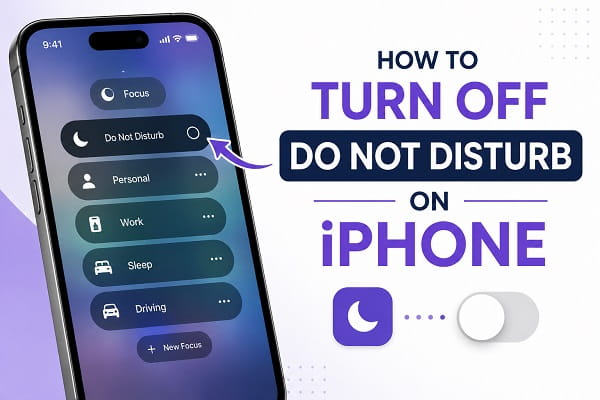
Do Not Disturb is one of the most useful features on the iPhone because it helps silence calls, messages, and notifications whenever you need to focus, sleep, or avoid interruptions. However, many users accidentally leave it enabled and later wonder why their phone isn’t ringing, why notifications aren’t making a sound, or why they keep missing important calls.
If you’ve found yourself asking how to turn off Do Not Disturb on your iPhone, the good news is that it’s a quick process. Depending on your settings, you can disable it from the Control Center, the Settings app, or the Focus menu. In some cases, Do Not Disturb may continue turning itself back on because of an active schedule or automation, so simply switching it off once may not permanently solve the issue.
This guide walks you through every method to turn off Do Not Disturb on an iPhone, explains why it sometimes won’t stay off, and shows you how to prevent it from automatically activating again.
If your iPhone is still missing notifications even after turning off Do Not Disturb, it could be related to charging or software issues. If your device also refuses to charge wirelessly, check out our guide on iPhone Wireless Charging Not Working.
What Is Do Not Disturb on iPhone?
Do Not Disturb is a feature built into iOS that temporarily silences incoming calls, text messages, app notifications, and other alerts. It’s designed for situations where you don’t want to be disturbed, such as during meetings, while sleeping, studying, or driving.
In recent versions of iOS, Apple has integrated Do Not Disturb into the broader Focus feature. This means Do Not Disturb now works alongside other Focus modes like Personal, Work, Sleep, and Driving. Each Focus mode can have its own schedules, allowed contacts, and notification settings.
When Do Not Disturb is enabled, you may notice:
- Incoming calls are silenced.
- Message notifications don’t make a sound.
- App notifications are muted.
- A crescent moon or Focus icon appears on the Lock Screen or in the status area.
- People messaging you through iMessage may see that your notifications are silenced if you’ve enabled Focus Status.
If these symptoms sound familiar, Do Not Disturb is probably turned on.
Method 1: Turn Off Do Not Disturb from Control Center
The fastest way to disable Do Not Disturb is through the Control Center.
On iPhones with Face ID
- Swipe down from the top-right corner of the screen.
- Locate the Focus button.
- Tap Focus.
- If Do Not Disturb is active, tap it once to turn it off.
The Focus icon should disappear, indicating that your iPhone will begin receiving calls and notifications normally again.
On iPhones with a Home Button
- Swipe up from the bottom edge of the screen.
- Tap the Focus or Do Not Disturb button.
- Select Do Not Disturb to disable it.
This method only takes a few seconds and works on most recent versions of iOS.
Method 2: Turn Off Do Not Disturb in Settings
If you prefer using the Settings app, you can disable Do Not Disturb there as well.
- Open Settings.
- Tap Focus.
- Select Do Not Disturb.
- Turn off the switch next to Do Not Disturb.
Once disabled, your iPhone will immediately begin delivering calls, texts, and notifications according to your normal notification settings.
Using Settings also allows you to review additional Focus options that may be causing Do Not Disturb to activate automatically.
Method 3: Disable a Do Not Disturb Schedule
Many people successfully turn off Do Not Disturb, only to discover that it turns itself back on later. This usually happens because a schedule has been configured.
To remove the schedule:
- Open Settings.
- Tap Focus.
- Select Do Not Disturb.
- Scroll to Set a Schedule.
- Tap the existing schedule.
- Turn off Schedule or delete it completely.
You should also check for:
- Time-based schedules.
- Location-based activation.
- App-based activation.
- Smart Activation.
If any of these remain enabled, Do Not Disturb may continue activating without your permission.
Method 4: Turn Off Focus Mode Completely
Since Do Not Disturb is part of Apple’s Focus system, another Focus profile may actually be responsible for silencing your notifications.
To check:
- Open Settings.
- Tap Focus.
- Review every available Focus mode, including:
- Personal
- Work
- Sleep
- Driving
- Turn off any Focus mode that is currently active.
Sometimes users believe Do Not Disturb is enabled when, in reality, another Focus profile is blocking notifications.
This is especially common if you’ve recently updated iOS or synced your settings across multiple Apple devices.
Method 5: Turn Off Do Not Disturb from the Lock Screen
On newer versions of iOS, Apple makes it easy to manage Focus modes directly from the Lock Screen.
If Do Not Disturb is active, you’ll usually see Do Not Disturb or Focus displayed near the bottom of the Lock Screen.
To turn it off:
- Wake your iPhone and stay on the Lock Screen.
- Tap the Focus or Do Not Disturb label.
- Select Do Not Disturb to disable it.
Once it’s turned off, the Focus indicator disappears and your notifications should return to normal.
This method is particularly useful if you don’t want to open the Settings app.
Method 6: Turn Off Do Not Disturb Using Siri
If you’re using Siri, you don’t even have to touch your iPhone.
Simply say:
- “Hey Siri, turn off Do Not Disturb.”
- “Hey Siri, disable Do Not Disturb.”
- “Hey Siri, turn off Focus.”
Siri will confirm the command and immediately disable the feature.
This is one of the quickest methods when you’re driving, cooking, or your hands are occupied.
Why Won’t Do Not Disturb Turn Off?
If you’ve tried turning off Do Not Disturb but your iPhone continues silencing notifications, one of the following settings is usually responsible.
Focus Schedule Is Still Active
The most common reason is an automatic schedule.
Your iPhone may be configured to enable Do Not Disturb:
- Every night.
- During work hours.
- While sleeping.
- When arriving at a specific location.
- When opening certain apps.
Open Settings > Focus > Do Not Disturb and review every schedule carefully.
Smart Activation Is Enabled
Some versions of iOS include Smart Activation, which automatically enables a Focus mode when your iPhone believes it’s appropriate.
If Smart Activation is enabled, your phone may switch into Do Not Disturb without any manual action.
Disable this option if you prefer complete control.
Another Focus Mode Is Active
Sometimes Do Not Disturb isn’t actually the problem.
For example:
- Sleep Focus
- Work Focus
- Driving Focus
- Personal Focus
can all silence notifications.
Check every Focus profile to ensure none of them are active.
Focus Is Synced Across Apple Devices
If you use multiple Apple devices signed into the same Apple Account, Focus settings may synchronize automatically.
For example:
- You enable Do Not Disturb on your Mac.
- Your iPhone automatically enables it too.
To disable this synchronization:
- Open Settings.
- Tap Focus.
- Turn off Share Across Devices.
This prevents your iPhone from copying Focus changes made on your iPad or Mac.
Your iPhone Needs a Restart
Occasionally, a temporary software glitch prevents Focus settings from updating properly.
Restart your iPhone by:
- Turning it off.
- Waiting about 30 seconds.
- Turning it back on.
After restarting, check whether Do Not Disturb has been disabled successfully.
iOS Needs an Update
Software bugs can occasionally affect Focus modes.
To check for updates:
- Open Settings.
- Tap General.
- Select Software Update.
- Install any available update.
Apple regularly fixes Focus and notification-related bugs through iOS updates.
If your iPhone recently received a software update and started behaving unexpectedly, it’s worth checking whether similar issues are affecting charging. Our guide on Why Is My Phone Not Charging After an Update? explains common software-related problems and their solutions.
How to Tell If Do Not Disturb Is Enabled
If you’re unsure whether Do Not Disturb is currently active, there are several easy ways to check.
Look for the Focus Indicator
Depending on your iPhone model and iOS version, you’ll see:
- A crescent moon icon.
- A Focus icon.
- The words Do Not Disturb on the Lock Screen.
Open Control Center
Swipe down from the upper-right corner.
If the Focus button is highlighted and says Do Not Disturb, the feature is currently enabled.
Check the Settings App
Go to:
Settings > Focus > Do Not Disturb
If the switch is turned on, Do Not Disturb is active.
Ask Siri
You can simply ask:
“Hey Siri, is Do Not Disturb on?”
Siri will tell you whether it’s currently enabled.
Do Not Disturb vs Focus Mode
Many users think these are two different features, but that’s not entirely true.
Starting with iOS 15, Apple made Do Not Disturb part of the Focus system.
Here’s the difference:
| Do Not Disturb | Focus Mode |
|---|---|
| Silences calls and notifications | Includes Do Not Disturb plus additional custom modes |
| Basic notification control | Personalized notification settings |
| One preset mode | Multiple modes such as Work, Sleep, Personal, and Driving |
| Quick to enable or disable | Can automatically activate based on time, location, or apps |
| Good for temporary silence | Better for customized routines |
If all you need is temporary quiet, Do Not Disturb is usually enough.
If you want different notification settings for work, home, sleep, or driving, Focus modes offer much greater flexibility.
Frequently Asked Questions
How do I turn off Do Not Disturb on my iPhone quickly?
The fastest method is through the Control Center.
- Swipe down from the top-right corner of the screen (or swipe up on older iPhones with a Home button).
- Tap Focus.
- Tap Do Not Disturb to turn it off.
Once disabled, your iPhone will begin receiving calls and notifications normally.
Why does Do Not Disturb keep turning back on?
This usually happens because a schedule or automation is still enabled.
Go to:
Settings > Focus > Do Not Disturb
Then check for:
- Scheduled times
- Smart Activation
- Location-based activation
- App-based activation
Disable any automation you no longer need.
Why am I still not getting notifications after turning off Do Not Disturb?
Several other settings may be preventing notifications, including:
- Another Focus mode is active.
- Notifications are disabled for the app.
- The phone is in Silent Mode.
- Notification previews are hidden.
- Low Power Mode has affected background activity.
- The app itself has notification permissions turned off.
Checking these settings usually resolves the problem.
Can I turn off Do Not Disturb without opening Settings?
Yes.
You can:
- Use the Control Center.
- Tap the Focus indicator on the Lock Screen.
- Ask Siri to turn it off.
These methods are much faster than navigating through Settings.
Does turning off Do Not Disturb affect other Focus modes?
No.
Turning off Do Not Disturb only disables that specific Focus mode.
Other Focus modes, such as Work, Sleep, Personal, or Driving, can still be enabled separately if they have their own schedules or automations.
Why do people still see “Notifications Silenced” after I turn off Do Not Disturb?
If people still see that message in iMessage, another Focus mode may still be active.
Open:
Settings > Focus
Review every Focus profile to ensure none are enabled.
You should also check whether Share Focus Status is enabled for another Focus mode.
Can Do Not Disturb silence emergency calls?
No.
Emergency calls can still come through, and you can also configure Allowed People so that important contacts can reach you even when Do Not Disturb is enabled.
This is especially useful for family members, close friends, or work contacts.
Does Do Not Disturb work on all iPhone models?
Yes.
Do Not Disturb is available on virtually all modern iPhones, although the interface may look slightly different depending on your iOS version.
The feature works on devices including:
- iPhone SE
- iPhone 11 series
- iPhone 12 series
- iPhone 13 series
- iPhone 14 series
- iPhone 15 series
- iPhone 16 series
Older iPhones running supported versions of iOS also include Do Not Disturb, though it may appear separately instead of under the Focus menu.
Will alarms still ring when Do Not Disturb is turned on?
Yes.
By default, alarms continue to sound even when Do Not Disturb is enabled. This ensures you don’t miss wake-up alarms or important reminders you’ve scheduled through the Clock app.
Can I schedule Do Not Disturb for certain hours only?
Yes.
Open:
Settings > Focus > Do Not Disturb
Then tap Add Schedule to configure when the feature should turn on and off automatically. You can create schedules based on:
- Time of day
- Your current location
- Specific apps
This allows your iPhone to enable Do Not Disturb only when it’s needed without requiring manual activation.
Whether you want to stop missing important calls or simply regain full control over your notifications, turning off Do Not Disturb on your iPhone is quick once you know where to look. If the feature keeps enabling itself, take a few minutes to review your Focus settings, schedules, and automations to prevent it from happening again. With the right settings in place, your iPhone will notify you exactly when you want it to.
