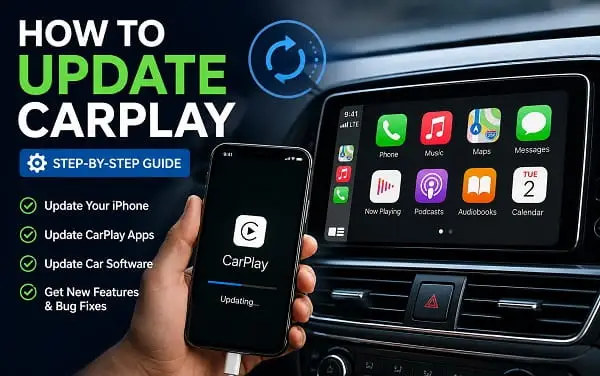
If you are searching for how to update CarPlay, the first thing to know is that Apple CarPlay usually does not have a separate update button. CarPlay runs through your iPhone and works with your vehicle’s infotainment system, so the way you update it depends on what you are actually trying to update.
In most cases, updating CarPlay means updating your iPhone to the latest compatible version of iOS. New CarPlay features, interface improvements, compatibility changes and bug fixes can arrive through iOS updates. Your car’s infotainment system may also need a separate software or firmware update from the vehicle manufacturer.
This distinction matters. Updating your iPhone will not necessarily update your car’s infotainment firmware, while updating the car’s software does not update iOS on your iPhone.
This guide explains how to update every part of the CarPlay experience, including your iPhone, CarPlay-compatible apps and your vehicle’s infotainment system.
What Does It Mean to Update CarPlay?
There are three main things that can be updated:
- The iOS software on your iPhone
- The apps that appear and work through CarPlay
- Your vehicle’s infotainment or head-unit software
For most people, the iPhone update is the most important one because Apple delivers CarPlay changes through iOS. Apple also recommends using the latest version of iOS and keeping the vehicle’s software up to date for the best CarPlay experience.
How to Update CarPlay on Your iPhone
The simplest way to update CarPlay is to update your iPhone.
Before starting, connect your iPhone to Wi-Fi and make sure it has enough battery power. It is also a good idea to back up your iPhone before installing a major iOS update.
Step 1: Open Settings
Unlock your iPhone and open the Settings app.
Step 2: Tap General
Scroll down and tap General.
Step 3: Select Software Update
Tap Software Update.
Your iPhone will check the software version currently installed and look for an available update.
Step 4: Download and Install the Update
If an update is available, tap Download and Install and follow the instructions on your screen.
Depending on the size of the update and your internet connection, the download and installation may take some time. Keep the iPhone connected to a reliable Wi-Fi network and avoid disconnecting it while the installation is in progress.
After the update is complete, reconnect the iPhone to your car and check CarPlay again.
Apple’s current guidance is to keep your iPhone updated and your vehicle’s software current when using CarPlay. You can also review Apple’s official CarPlay connection and setup instructions if you need help reconnecting after an update.
How to Turn On Automatic iPhone Updates
If you do not want to manually check for updates every time Apple releases one, you can enable automatic updates.
Go to:
Settings > General > Software Update > Automatic Updates
You can then choose options that allow your iPhone to download and install eligible updates automatically.
Automatic installation is particularly useful if you regularly use CarPlay and want to receive new iOS features and fixes without remembering to check for updates manually.
However, if you prefer to wait before installing major iOS releases, you can leave automatic installation disabled and update manually after checking the release notes and compatibility information.
Do You Need to Update CarPlay Separately?
Usually, no.
CarPlay itself is not normally updated from a separate “Update CarPlay” menu. When Apple adds CarPlay features through iOS, updating your iPhone is generally how you receive those changes.
For example, a new CarPlay capability may appear after an iOS update without you having to download a separate CarPlay application.
That said, the exact features you see can depend on several factors:
- Your iPhone model
- The version of iOS installed
- Your vehicle model
- Your vehicle’s infotainment hardware and software
- Your country or region
- Whether your car supports standard CarPlay or newer CarPlay capabilities
- Whether the feature is available on your specific vehicle
This is why two people can update to the same iOS version and still see slightly different CarPlay experiences.
How to Update CarPlay Apps
Apps such as navigation, music, podcast, messaging and other supported apps can also affect your CarPlay experience.
If an app is outdated, it may have bugs, missing features or compatibility problems even when your iPhone itself is fully updated.
To check for app updates:
- Open the App Store on your iPhone.
- Tap your profile picture.
- Look for available app updates.
- Tap Update beside an individual app, or update all available apps.
After updating the app, disconnect and reconnect your iPhone to CarPlay.
This can be especially useful if only one CarPlay app is misbehaving. For example, if music, navigation or messaging is not working properly while the rest of CarPlay works normally, updating the affected app may be more useful than resetting your entire CarPlay connection.
How to Update Your Car’s Infotainment System for CarPlay
Your car’s software is separate from your iPhone.
Some vehicles receive infotainment updates over the air, while others require you to download an update from the manufacturer’s website, use a USB drive, visit a dealership or use a manufacturer-specific companion app.
The general process is:
1. Find your vehicle’s software information
Look through the infotainment system’s settings for sections such as:
- Software Information
- System Information
- About
- General
- System Update
- Software Update
- Firmware
The wording varies by manufacturer.
2. Check the current version
Write down the software or firmware version currently installed.
3. Check the manufacturer’s official update method
Use your vehicle manual, the manufacturer’s official website or the manufacturer’s app to determine whether an update is available and how it should be installed.
4. Follow the vehicle-specific instructions
Do not install software files designed for another model, trim or infotainment system. Vehicle software can be model-specific, and using the wrong file can cause serious problems.
5. Reconnect your iPhone after the update
Once the vehicle software update is complete, restart the car if required and reconnect your iPhone to CarPlay.
If your car’s update instructions are unclear, the safest option is to contact the manufacturer or an authorized dealer rather than guessing.
Can You Update CarPlay Without Updating Your iPhone?
Sometimes, but it depends on what you mean by “update.”
You can update your car’s infotainment system without updating iOS. You can also update individual apps without installing a new version of iOS.
However, if you are trying to get new CarPlay features introduced through iOS, you will usually need to update your iPhone.
So the practical answer is:
- New Apple-delivered CarPlay features: update iOS
- App-specific fixes: update the app
- Vehicle display or connection improvements: update the car’s software if the manufacturer provides an update
How to Check Which Version of iOS You Have
To see the software currently installed on your iPhone:
- Open Settings.
- Tap General.
- Tap About.
Look for iOS Version.
You can also go directly to:
Settings > General > Software Update
This screen shows whether your iPhone is up to date and whether a newer compatible version is available.
How to Update CarPlay If You Use Wireless CarPlay
Wireless CarPlay still depends on your iPhone and your vehicle’s wireless connection.
First, update the iPhone using:
Settings > General > Software Update
Then check that:
- Wi-Fi is turned on
- Bluetooth is turned on
- Your car supports wireless CarPlay
- The iPhone is paired with the correct vehicle
- The vehicle’s wireless or Bluetooth pairing mode is active when setting up the connection
If CarPlay stops connecting after an update, forget the existing CarPlay connection and set it up again. If your phone shows a normal Bluetooth connection but the CarPlay interface still refuses to start, read Bluetooth Connected but CarPlay Not Working? Fix It for a more focused connection diagnosis.
Go to:
Settings > General > CarPlay
Select your vehicle and, if necessary, remove or forget the existing connection. Then reconnect the iPhone following your vehicle manufacturer’s setup instructions.
For wireless-only CarPlay systems, your vehicle’s steering-wheel voice-command button and the vehicle’s pairing mode may be part of the setup process.
What to Do If CarPlay Is Not Updated After Updating iOS
You may install a new iOS version and still not see the feature or change you expected. That does not always mean the update failed.
Try these checks.
Restart your iPhone
A simple restart can resolve temporary software issues after a major update.
Restart the car and infotainment system
Turn the vehicle off completely if it is safe to do so, then start it again and reconnect your iPhone.
Disconnect and reconnect CarPlay
For wired CarPlay, unplug the cable and reconnect it.
For wireless CarPlay, disconnect the existing pairing and set it up again if the problem continues.
Check whether your vehicle supports the feature
Not every CarPlay feature works on every car. Hardware and manufacturer support can affect what appears on the display.
Check the affected app
If only one app is missing or malfunctioning, update that app from the App Store.
Update the vehicle software
If the issue started because of compatibility between a newer iOS version and an older infotainment system, check whether the vehicle manufacturer has released a software update.
Why Your CarPlay Interface May Look Different After an Update
CarPlay’s appearance can change after an iOS update, but the exact result depends on the features supported by your software and hardware.
You may notice changes to:
- App availability
- App arrangement
- Dashboard elements
- Widgets
- Wallpapers
- Navigation features
- Audio controls
- Messaging and voice features
- Supported app categories
If an update appears to affect only phone-call audio rather than the CarPlay interface itself, iPhone Speaker Not Working During Calls? How to Fix It can help you separate call-audio routing problems from a broader CarPlay issue.
If your CarPlay home screen looks different after updating, that is not necessarily a problem.
You can customize supported app arrangements by going to:
Settings > General > CarPlay
Select your car and use the available customization options.
The changes may not appear until you reconnect your iPhone to the vehicle.
How to Rearrange CarPlay Apps After an Update
After updating iOS, you may want to reorganize the apps displayed on your car’s screen.
Go to:
Settings > General > CarPlay
Select your vehicle and choose Customize if that option is available.
From there, you can arrange supported apps and remove apps you do not want appearing on the CarPlay screen.
The next time you connect to your vehicle, the updated arrangement should appear.
Remember that only apps that support CarPlay can be displayed in CarPlay.
Should You Update CarPlay While Driving?
No. Do not attempt to install software updates or troubleshoot a CarPlay connection while driving.
Pull over and park safely before changing settings on your iPhone or vehicle.
This is especially important for vehicle software updates, which may take time and can require the car to remain in a specific state during installation.
How to Update an Aftermarket CarPlay System
If your car uses an aftermarket CarPlay receiver from a third-party manufacturer, the update process is different from updating a factory-installed system.
The receiver may have its own firmware version and update method.
Start by identifying:
- The exact brand
- The exact model number
- The current firmware version
- Whether the unit supports wired or wireless CarPlay
Then check the manufacturer’s official support documentation for the correct update file and installation process.
Do not download random firmware from unofficial websites simply because the file name appears to match your device. Incorrect firmware can cause the head unit to malfunction or stop working.
If your aftermarket receiver works properly and the only problem is a missing Apple feature, update the iPhone first before changing the receiver’s firmware.
How to Know Whether a CarPlay Update Was Successful
After updating your iPhone, app or vehicle software, check these things:
- CarPlay connects normally
- Navigation works
- Audio plays correctly
- Calls and messages work as expected
- Siri responds
- Supported apps appear on the screen
- The expected new feature is available, if your car supports it
If everything works but you still do not see a specific feature, check whether that feature requires a newer iPhone, a particular iOS version, a newer vehicle system or support from the vehicle manufacturer.
Common Problems After Updating CarPlay
CarPlay no longer connects after an iOS update
Restart the iPhone and the car, then reconnect.
For a wired connection, try another high-quality compatible cable and, if available, another CarPlay USB port. If the problem appears to involve the iPhone’s broader wireless settings as well, my guide on AirDrop Not Working or Keeps Failing? How to Fix It can help you check for wider Wi-Fi or Bluetooth issues.
For wireless CarPlay, check Wi-Fi and Bluetooth and re-establish the CarPlay connection. Persistent dropouts may need a different troubleshooting approach, so also see CarPlay Keeps Disconnecting? Try These Fixes if the connection starts normally but repeatedly cuts out.
A CarPlay app disappeared
Check whether the app is still installed and updated. Then open:
Settings > General > CarPlay
Select your vehicle and check the available app customization options.
CarPlay keeps disconnecting
For wired connections, inspect the cable and charging port. A cable can still charge an iPhone while providing an unreliable data connection.
For wireless connections, make sure Wi-Fi and Bluetooth are functioning properly and that the vehicle software is current.
The car screen has not changed after updating the iPhone
The change you expected may not be supported by your vehicle. Updating iOS does not automatically upgrade the physical hardware or firmware capabilities of every infotainment system.
The update is taking too long
For an iPhone update, check your internet connection, available storage and battery status.
For a vehicle update, follow the manufacturer’s instructions carefully. Do not interrupt a firmware installation unless the manufacturer specifically instructs you to do so.
Frequently Asked Questions
Is there a separate CarPlay update?
Generally, no. Apple CarPlay features are commonly updated through iOS on your iPhone. Your vehicle’s infotainment system may have a separate update provided by the car manufacturer.
How do I get the latest version of CarPlay?
Update your iPhone by going to Settings > General > Software Update. Also check whether your vehicle manufacturer has an available infotainment software update.
Does updating iOS automatically update CarPlay?
Updating iOS can update the CarPlay software experience on your iPhone and deliver compatible new features. However, some features depend on your vehicle and may not appear on every car.
Can I update CarPlay without Wi-Fi?
An iPhone software update normally requires an internet connection. The exact requirements for a vehicle software update depend on the manufacturer and update method.
Why does my friend’s CarPlay look newer than mine?
Your iPhone model, iOS version, vehicle model and infotainment hardware may be different. Some features are also limited by compatibility or manufacturer support.
Do I need to update my car to update CarPlay?
Not always. Updating iOS is usually the main way to receive Apple-side CarPlay changes. But keeping the vehicle’s software updated can improve compatibility and resolve vehicle-side issues.
Will updating CarPlay delete my settings?
Updating iOS normally does not mean that your personal data and settings will be erased, but it is still sensible to back up your iPhone before major updates. Vehicle software update behavior depends on the manufacturer.
Keep Both Sides of CarPlay Up to Date
The easiest way to think about CarPlay updates is to treat CarPlay as a connection between two systems: your iPhone and your vehicle.
Keep your iPhone updated for the latest compatible Apple features and fixes. Update individual apps when only a particular CarPlay app is causing problems. Then check your vehicle manufacturer’s official support channels for infotainment updates when the issue appears to come from the car’s display or connection system.
That approach is more reliable than searching for a separate CarPlay update button that, in most cases, does not exist.
