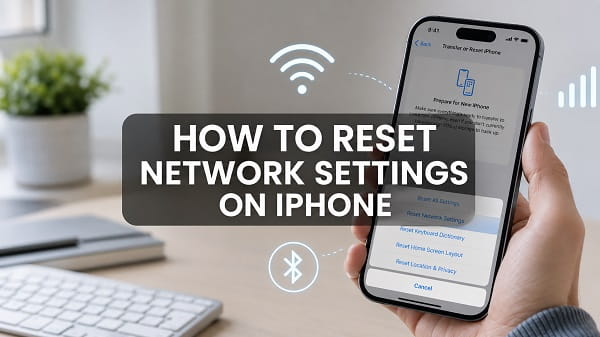
To reset network settings on an iPhone, open Settings > General > Transfer or Reset iPhone > Reset > Reset Network Settings. Enter your iPhone passcode and confirm. The phone will restart and remove saved Wi-Fi networks, Wi-Fi passwords, cellular settings, and VPN and APN settings previously used on the device.
A network reset does not delete your photos, videos, messages, contacts, apps or other personal files. It is different from Erase All Content and Settings, which performs a factory reset and removes personal data.
Resetting network settings is useful when an iPhone will not connect to Wi-Fi, cellular data stops working, Bluetooth or wireless CarPlay has persistent connection problems, or Personal Hotspot fails after simpler troubleshooting steps.
What does Reset Network Settings do on an iPhone?
Reset Network Settings returns the iPhone’s networking configuration to its default state. It removes connection records and custom network settings that may be corrupted or incompatible.
Apple states that the reset affects:
- saved Wi-Fi networks;
- saved Wi-Fi passwords;
- cellular network settings;
- VPN settings not installed by a configuration profile;
- APN settings previously used;
- the custom device name;
- manually trusted certificates; and
- cellular data roaming, which may be turned off.
Wi-Fi switches off and back on during the reset. The normal Wi-Fi and Ask to Join Networks features remain enabled, but the iPhone no longer remembers the networks it previously joined.
The device name shown under Settings > General > About > Name is reset to “iPhone.” This can change the name other devices see for Personal Hotspot, Bluetooth, AirDrop and computer connections.
Manually trusted website certificates are changed to untrusted. Certificates and VPN settings supplied by a configuration profile or mobile device management may remain because those are controlled separately.
What Reset Network Settings does not delete
The reset does not remove:
- photos and videos;
- contacts;
- text messages and iMessages;
- call history;
- installed apps and games;
- app data;
- notes and calendars;
- email accounts;
- Apple Account information;
- Face ID, Touch ID or the screen passcode;
- Apple Pay cards;
- Home Screen arrangement; or
- physical SIM and eSIM plans.
The reset menu contains a separate Delete All eSIMs option. Do not select it. Reset Network Settings itself does not intentionally erase your eSIM.
It also does not cancel your mobile plan, change your phone number or erase the iPhone. You may temporarily lose connectivity until the device reconnects to the carrier and you enter a Wi-Fi password again.
Reset Network Settings vs Reset All Settings vs factory reset
The three options have very different effects.
| Reset option | What it changes | Personal data deleted? |
|---|---|---|
| Reset Network Settings | Wi-Fi, cellular, VPN, APN and related network configuration | No |
| Reset All Settings | Network, privacy, location, keyboard and other system preferences, including Apple Pay cards | No media or app data, but many preferences are reset |
| Erase All Content and Settings | Removes accounts, apps, files, settings and personal information | Yes |
Choose Reset Network Settings when the problem is limited to connectivity. There is usually no reason to reset every iPhone setting or erase the device for a Wi-Fi, mobile data or Bluetooth fault.
Before resetting network settings
A network reset is safe for personal files, but it creates some inconvenience. Take a few minutes to prepare.
Save important Wi-Fi passwords
You will need to enter passwords again for home, work, school and other networks. Check that you know the password for at least one reliable Wi-Fi network before resetting.
If your Apple devices use iCloud Keychain, some credentials may sync again, but do not depend on that when the affected iPhone is your only way to access the account.
Record VPN and APN information
If you manually configured a VPN or APN, save the provider’s instructions. Carrier APN settings normally return automatically, but a manual or business configuration may need to be entered again.
Do not change an APN unless your carrier or administrator tells you to. Incorrect APN information can stop cellular data from working.
Note your iPhone name
The custom device name will return to “iPhone.” If you use a recognisable name for AirDrop, Personal Hotspot, CarPlay or computer backups, note it so you can restore it later.
Check whether the iPhone is managed
A school or employer may install networking through mobile device management. Some settings will not be removed by a standard network reset, and changing them may violate organisational rules.
Open Settings > General > VPN & Device Management to see whether a management or configuration profile is installed. Contact the administrator if the problem involves a managed VPN, certificate, Wi-Fi network or cellular setting.
Back up if you want extra protection
Apple says you can back up the iPhone before resetting settings if you want the option of restoring previous configuration. A backup is not normally required because personal data is not erased, but it is a sensible precaution before any major troubleshooting change.
How to reset network settings on iPhone
Follow these steps on a current version of iOS:
- Open the Settings app.
- Tap General.
- Scroll down and tap Transfer or Reset iPhone.
- Tap Reset at the bottom of the screen.
- Select Reset Network Settings.
- Enter the iPhone passcode.
- Confirm Reset Network Settings.
The iPhone may restart. After it turns back on, allow a moment for the cellular signal to return. Connect to Wi-Fi again by opening Settings > Wi-Fi, selecting the network and entering its password.
Be careful on the Transfer or Reset iPhone screen. Do not choose Erase All Content and Settings, and do not select Delete All eSIMs unless deleting the cellular plans is your intended action.
How to reset network settings on older iOS versions
On an older iPhone or iOS version, the path may be:
Settings > General > Reset > Reset Network Settings
Apple moved the Reset menu under Transfer or Reset iPhone in newer versions. If you do not see that wording, scroll to the bottom of General and look for Reset.
The result is similar: saved Wi-Fi networks and passwords, cellular settings, VPN and APN configuration are reset.
What happens immediately after the reset?
The iPhone disconnects from the current Wi-Fi network, clears the saved network list and restarts its networking services. You may notice:
- Wi-Fi is on but not connected.
- Cellular signal takes a short time to return.
- Data roaming is off.
- VPN connections are missing or inactive.
- The iPhone name has changed to “iPhone.”
- Bluetooth and wireless accessories may need attention.
- Personal Hotspot shows the default iPhone name.
- Wireless CarPlay may need to be paired again.
These are expected effects, not signs that the reset damaged the phone.
What to do after resetting network settings
Reconnect to Wi-Fi
Open Settings > Wi-Fi, tap your network and enter the password. Test Safari or another app to confirm that the internet works.
If the iPhone connects to Wi-Fi but websites do not load, test another device on the same network. Restart the router and check for an internet service outage. A network reset cannot fix a failed router or broadband connection.
Check cellular data
Turn off Wi-Fi and open a website using mobile data. If cellular data does not work, open Settings > Cellular or Mobile Data and make sure the line and Cellular Data are enabled.
If you travel or use a carrier that requires roaming, check Cellular Data Options and enable Data Roaming only when appropriate for your plan. Roaming can create additional charges.
Restore the device name
Go to Settings > General > About > Name and type the preferred name. This is especially useful when several household or workplace devices would otherwise all appear as “iPhone.”
Reconfigure VPN access
Reinstall the VPN app or enter the provider’s configuration again. VPN settings installed through a profile may remain, while manually entered settings can be removed.
If the device is managed, ask the administrator to restore the correct work or school configuration.
Test Personal Hotspot
Open Settings > Personal Hotspot, enable Allow Others to Join and reconnect the other device. The hotspot network name follows the iPhone’s device name.
Read Personal Hotspot not working on iPhone if other devices still cannot connect.
Pair CarPlay and accessories again
Wireless CarPlay depends on Wi-Fi and Bluetooth. Reconnect the iPhone through Settings > General > CarPlay and the vehicle’s pairing menu.
If the phone charges but the dashboard still does not detect it, follow phone charging but CarPlay not working because a cable or vehicle USB port may be the real problem.
When should you reset network settings?
Use the reset after restarting the iPhone and checking the obvious settings. It can help with persistent problems such as:
- iPhone not connecting to any Wi-Fi network;
- repeated “Incorrect Password” errors with a correct password;
- Wi-Fi connecting but disconnecting frequently;
- cellular data unavailable despite an active plan and signal;
- Personal Hotspot refusing connections;
- VPN failing after its settings changed;
- wireless CarPlay not pairing;
- network problems after an iOS update;
- calls repeatedly failing because of a corrupted cellular configuration; or
- a network accessory that no longer establishes a trusted connection.
A reset is less likely to help when only one website or app is down, a router has no internet connection, the carrier is experiencing an outage, the SIM is inactive or the phone has physical damage.
Try these fixes before resetting
Resetting is not dangerous, but reconnecting networks can be inconvenient. Try the following first.
Turn Airplane Mode on and off
Open Control Centre, enable Airplane Mode for about 15 seconds and turn it off. This forces the radios to reconnect without deleting saved settings.
Restart the iPhone
A normal restart can clear a temporary Wi-Fi, cellular or Bluetooth process. Test the connection after the phone turns back on.
Forget one Wi-Fi network
If only one network is affected, open Settings > Wi-Fi, tap the information button beside it and choose Forget This Network. Rejoin with the password.
This is more targeted than deleting every saved network.
Restart the router
Unplug the router from power, wait about 30 seconds and reconnect it. Wait for the internet lights to stabilise before testing.
Do not press the router’s factory-reset button, as that can erase its broadband and Wi-Fi configuration.
Check for an outage
Ask another person on the same carrier or Wi-Fi network to test their connection. A network reset cannot resolve a carrier or internet-provider outage.
Update iOS and carrier settings
Open Settings > General > Software Update and install a stable update if available. Then go to Settings > General > About and wait briefly. The iPhone may prompt you to install a carrier settings update.
Does resetting network settings delete Wi-Fi passwords?
Yes. Apple states that saved Wi-Fi networks and passwords are removed. You must select the network and enter its password again.
Passwords stored through iCloud Keychain may become available again through synchronisation, but you should still know the essential Wi-Fi password before resetting.
Does it delete Bluetooth devices?
Apple’s current reset description focuses on Wi-Fi networks, cellular settings, VPN and APN settings. In practice, Bluetooth and wireless relationships can be affected as networking services are rebuilt, particularly CarPlay and hotspot connections.
Be prepared to pair important accessories again. If your only problem is one Bluetooth device, forget and re-pair that device before resetting all network settings.
Does it remove an eSIM?
Reset Network Settings does not select Apple’s separate Delete All eSIMs action. Your eSIM should remain installed.
However, cellular configuration is reset and the line may take a moment to reconnect. If an eSIM disappears or remains inactive, do not delete or recreate it without your carrier’s instructions. Restart the phone, check Settings > Cellular, and contact the carrier if necessary.
Does it change the iPhone’s IP address?
The reset removes remembered network configuration, but whether the public or local IP address changes depends on the router, internet provider and mobile carrier.
When the iPhone rejoins Wi-Fi, the router may assign the same local address or a different one. The reset is not a reliable method for obtaining a new public IP address.
Does it fix “No Service” or “SOS Only”?
It can help when the cause is a corrupted cellular setting, but it cannot fix every No Service problem.
Before resetting:
- Turn Airplane Mode on and off.
- Restart the iPhone.
- Confirm that the mobile account is active.
- Check for a carrier outage.
- Inspect whether the SIM or eSIM line is enabled.
- Install iOS and carrier settings updates.
If No Service continues after the reset, contact the carrier. Hardware damage, a blocked account, unavailable coverage or a faulty SIM requires a different solution.
Why Reset Network Settings might not fix the problem
The router or internet service is down
If every device has the same Wi-Fi problem, troubleshoot the router or contact the internet provider.
The mobile carrier has an outage
A reset cannot restore a tower or carrier system. Wait for service or contact the carrier.
The VPN is installed through a profile
Apple notes that VPN settings installed through a configuration profile or MDM may not be removed. Open Settings > General > VPN & Device Management and contact the profile owner before changing it.
The iPhone has hardware damage
A faulty antenna, damaged SIM reader or liquid exposure cannot be repaired through settings. Seek professional diagnosis if Wi-Fi, Bluetooth and cellular signals all remain unusually weak.
The app has its own connection problem
If Safari and other apps work, the problem may be limited to one app. Update it, check its permissions, disable its private relay or VPN interaction temporarily, and reinstall it if necessary.
What if Reset Network Settings is greyed out?
The option may be unavailable because of Screen Time restrictions, an installed management profile or a temporary settings problem.
Try these steps:
- Restart the iPhone.
- Check Settings > Screen Time > Content & Privacy Restrictions.
- Review Settings > General > VPN & Device Management.
- Install the latest stable iOS update.
- Contact the organisation’s administrator if the iPhone is managed.
Do not remove a work or school management profile without permission. Removing it can delete managed apps, accounts, certificates and access.
What if the iPhone gets stuck during the reset?
A network reset normally completes quickly. If the phone remains unresponsive, wait several minutes and connect it to power. Perform a force restart if the screen does not respond.
For an iPhone with Face ID or iPhone 8 and later:
- Press and quickly release Volume Up.
- Press and quickly release Volume Down.
- Hold the Side button until the Apple logo appears.
This restarts the device without erasing data. If the iPhone repeatedly fails to start, contact Apple Support.
Frequently asked questions
How do I reset network settings on an iPhone?
Open Settings > General > Transfer or Reset iPhone > Reset > Reset Network Settings, enter the passcode and confirm.
Will I lose everything if I reset network settings?
No. Photos, messages, contacts, apps and other personal files remain. Network configuration and saved Wi-Fi details are removed.
Will resetting network settings delete my eSIM?
No. Delete All eSIMs is a separate reset option. Be careful to select only Reset Network Settings.
Do I need my Apple Account password?
The iPhone asks for the device passcode to confirm the reset. It may request additional authentication depending on device security and management settings.
How long does the reset take?
It normally takes only a few minutes, including the restart. Reconnecting Wi-Fi, VPN, CarPlay and other services can take longer.
Can I undo a network reset?
There is no one-tap undo. Re-enter Wi-Fi passwords and restore manual network configuration. A previous full backup may contain settings, but restoring an entire backup solely to recover network preferences is rarely worthwhile.
Will it reset my mobile data usage statistics?
Reset Network Settings is intended to reset connection configuration. Do not rely on it to clear the usage totals shown under Cellular. Those statistics have their own reset control.
Does it fix slow internet?
It may fix slow internet caused by corrupted network configuration, a problematic VPN or APN settings. It will not improve weak cellular coverage, an overloaded Wi-Fi network, a slow broadband plan or a carrier outage.
Should I reset network settings after every iOS update?
No. Use it only when a persistent connection problem remains after simpler fixes. Routine resets create unnecessary work because saved networks and passwords are removed.
What is the difference between forgetting Wi-Fi and resetting network settings?
Forget This Network removes one saved Wi-Fi connection. Reset Network Settings removes every saved Wi-Fi network and resets cellular, VPN, APN and related configuration across the iPhone.
Resetting network settings is a useful middle step between basic troubleshooting and drastic options such as Reset All Settings or a factory reset. Save important Wi-Fi and VPN information, select the correct Reset Network Settings option, and reconnect each service afterward. If the same fault remains, investigate the router, carrier, application, management profile or iPhone hardware instead of repeatedly resetting the device.
