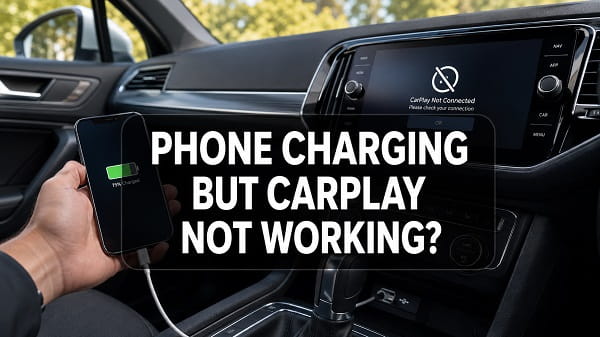
When your phone is charging but CarPlay is not working, the USB connection is delivering power but may not be transferring data. This commonly happens when you use a charge-only or damaged cable, connect to the wrong USB port, leave the iPhone locked, disable Siri or CarPlay, or have a problem with the vehicle’s infotainment system.
Start by unlocking your iPhone, connecting it to the USB port marked with a CarPlay or smartphone icon, and trying a different data-capable cable. If CarPlay still does not appear, restart the iPhone and vehicle, check that Siri and CarPlay are allowed, forget the car and pair it again.
The charging symbol can be misleading because charging and CarPlay do not use the connection in the same way. A cable or port can carry enough electrical power to charge an iPhone while its data pins fail to create the communication link CarPlay requires.
Why is my phone charging but CarPlay not working?
The most likely causes are:
- The cable supports charging but not data transfer.
- The cable is damaged or poorly fitted.
- You are using a power-only USB port in the car.
- The iPhone is locked and has not authorised the wired accessory.
- CarPlay is disabled through Screen Time restrictions.
- Siri is turned off.
- The vehicle is saved incorrectly in the iPhone’s CarPlay settings.
- The infotainment system is frozen or needs a firmware update.
- Wireless CarPlay is being disrupted by Wi-Fi, Bluetooth, VPN or another paired phone.
- Debris or damage in the iPhone charging port is affecting data contacts.
Work through the following fixes in order. Test CarPlay after each one so you know which change solved the problem.
1. Unlock your iPhone before connecting it
An iPhone can reject communication with a wired accessory while locked. Depending on the model and security settings, it may still display a charging symbol even though the data connection needed for CarPlay has not been approved.
Try this first:
- Disconnect the cable from your iPhone.
- Unlock the phone with Face ID, Touch ID or the passcode.
- Keep the iPhone on its Home Screen.
- Reconnect the cable.
- Accept any prompt asking whether to allow CarPlay or trust the accessory.
Apple advises unlocking the device and reconnecting an accessory when it is not recognised. If CarPlay works only while the phone is unlocked, check the wired accessory permission later in this article.
2. Use the correct USB port in the vehicle
Many vehicles have several USB ports, but not every port supports CarPlay. A rear-seat, centre-console or charging-pad USB port may provide power without connecting to the infotainment system.
Look for a port labelled with:
- the Apple CarPlay symbol;
- a smartphone icon;
- a USB data symbol; or
- wording such as Smartphone, Media or Connectivity.
Move the cable to another front USB port and test again. Check the owner’s manual if the ports are not labelled clearly. On some vehicles, only one port supports smartphone projection while the others are charging ports.
If CarPlay previously worked from the same port, inspect it for looseness or debris. A worn vehicle USB socket can supply power while failing to hold a stable data connection.
3. Replace the charging cable
A faulty cable is the most common explanation when an iPhone charges but does not connect to CarPlay. The power wires inside the cable can remain functional after the data wires become damaged.
Replace the cable when it is:
- frayed or sharply bent;
- loose at either connector;
- unusually long;
- connected through an extension or adapter;
- designed only for charging; or
- from an unknown manufacturer.
Use a short Apple cable or a reputable data-capable cable that supports your iPhone and the vehicle’s USB port. For older iPhones, use a certified Lightning cable. For an iPhone with USB-C, use a USB-C cable that carries data, not a power-only cable.
Do not assume a cable supports data because it is new or charges quickly. Some inexpensive cables are manufactured for charging only.
Connect the replacement cable directly between the iPhone and car. Remove hubs, splitters, magnetic connectors and unnecessary adapters while testing.
4. Avoid adapters when possible
Adapters introduce another point of failure. Apple states that some combinations of adapters, cables and vehicle entertainment systems can disrupt wired CarPlay, even when the iPhone continues to charge.
This is especially relevant when connecting a newer USB-C iPhone to an older USB-A vehicle port. Use one direct USB-A-to-USB-C data cable instead of combining a USB-C cable with an adapter.
If an adapter is unavoidable:
- Confirm that it supports data transfer.
- Remove any additional extension cable.
- Test a different compatible adapter.
- Check whether a direct cable solves the problem.
The simplest connection is usually the most reliable one.
5. Clean the iPhone charging port
Pocket lint can stop the connector from reaching the data contacts inside the Lightning or USB-C port. Charging may still work because some contacts are touching, while CarPlay fails or repeatedly disconnects.
Turn off the iPhone and inspect the port under good lighting. If you see compacted lint, clean it carefully with a soft, dry, non-metallic tool. Do not use liquid, compressed air at close range or a metal pin, as these can damage the contacts.
Also inspect the cable connector and the vehicle USB port. If the connector does not sit firmly or moves easily, the port may need professional repair.
6. Restart the iPhone and the car
A temporary software problem can prevent the CarPlay handshake even when the hardware connection is good.
Disconnect the phone, turn off the vehicle completely and restart the iPhone. Wait until the infotainment screen shuts down rather than only turning off the engine for a second. Start the vehicle again, unlock the iPhone and reconnect it.
Some head units have a separate restart method, such as holding the power or volume button for several seconds. Check the vehicle manual before using an unfamiliar button combination.
Restarting clears temporary Bluetooth, Wi-Fi, USB and infotainment processes without deleting your settings.
7. Make sure Siri is turned on
Apple requires Siri for CarPlay. If Siri is disabled, the iPhone may charge normally but CarPlay may not start.
Open Settings, tap Apple Intelligence & Siri or Siri, depending on the iOS version, and enable the available options for talking to Siri. Make sure Siri is not blocked by Screen Time or a workplace management profile.
After enabling Siri, restart the iPhone and reconnect it to the car. If the car has a voice-command button, press and hold it to check whether Siri responds.
8. Check whether Screen Time is blocking CarPlay
CarPlay can be disabled under Content and Privacy Restrictions. This setting is easy to overlook because the phone still charges and may connect to Bluetooth normally.
To allow CarPlay:
- Open Settings.
- Tap Screen Time.
- Tap Content & Privacy Restrictions.
- Open Allowed Apps & Features or Allowed Apps.
- Make sure CarPlay is enabled.
If the iPhone belongs to a child, school or employer, you may need the Screen Time passcode or approval from the administrator. A managed iPhone can have restrictions that the user cannot change.
9. Allow wired accessories
Current iPhones include a security setting that controls when wired accessories can communicate with the device. Charging may not prove that the accessory has been authorised for data.
Open:
Settings > Privacy & Security > Wired Accessories
On supported iPhones, choose an option that allows the accessory when the phone is unlocked. The wording may include Automatically Allow When Unlocked. You can keep the more secure default and simply unlock the iPhone before connecting.
Avoid selecting a less secure always-allow option merely for convenience unless you understand the security trade-off.
10. Confirm that CarPlay is enabled in the vehicle
Some infotainment systems allow Apple CarPlay to be turned off for individual devices or disabled globally.
Open the car’s Settings, Connections, Smartphone Integration or Device Manager menu. Look for Apple CarPlay and confirm that it is enabled for your iPhone.
If the system asks whether to use Bluetooth audio, USB audio or Apple CarPlay, select CarPlay. Delete old or duplicate entries for the same iPhone if they prevent the correct profile from loading.
The exact menu differs by manufacturer. Consult the vehicle manual or the manufacturer’s official support page for model-specific steps.
11. Forget the car and set up CarPlay again
A damaged pairing profile can stop CarPlay while charging continues normally.
On the iPhone:
- Open Settings.
- Tap General.
- Tap CarPlay.
- Select your vehicle.
- Tap Forget This Car.
Next, remove the iPhone from the vehicle’s saved-device list. Restart both systems, reconnect with the correct USB port and complete the setup prompts again.
If the vehicle supports wireless CarPlay, the initial wired connection may offer to enable wireless connection for future drives.
12. Turn on Allow CarPlay While Locked
If CarPlay launches while the iPhone is unlocked but stops after the screen locks, check its saved vehicle settings.
Go to:
Settings > General > CarPlay > Your Car
Enable Allow CarPlay While Locked if the option is available. This allows the established CarPlay session to continue without keeping the screen awake.
This setting is different from blindly authorising all wired accessories. It applies to the saved CarPlay relationship with that vehicle.
13. Update the iPhone
An iOS bug or compatibility problem can affect CarPlay after an update or when the phone is running an older version.
Open Settings > General > Software Update and install the latest stable iOS update available for the iPhone. Back up important data and keep the phone connected to reliable power during installation.
After updating, restart the iPhone and test CarPlay again. Updates can correct USB, wireless, Siri and app-projection problems, but they do not repair a damaged cable or port.
14. Update the vehicle’s infotainment firmware
Apple recommends confirming that the car stereo uses the latest firmware from the vehicle manufacturer. Older head-unit software may not communicate correctly with a newer iPhone or iOS version.
Firmware updates may be installed through:
- the vehicle’s built-in internet connection;
- a manufacturer’s mobile app;
- a USB update downloaded from the manufacturer;
- an authorised dealership; or
- an aftermarket stereo manufacturer’s support page.
Use only instructions and files provided for the exact vehicle or head-unit model. Installing the wrong firmware can disable the infotainment system.
15. Disconnect other phones
The car may be attempting to connect to another saved phone, especially when wireless CarPlay or automatic Bluetooth pairing is enabled.
Temporarily turn off Bluetooth and Wi-Fi on other phones in the vehicle. Remove unused devices from the infotainment system and set your iPhone as the preferred CarPlay device.
If wired CarPlay starts after another phone is disconnected, adjust the connection priority in the car’s device manager.
16. Fix wireless CarPlay settings
If your iPhone charges from a cable but the vehicle normally uses wireless CarPlay, the charging connection may be unrelated to the CarPlay link. Wireless CarPlay depends on both Bluetooth and Wi-Fi.
Check the following:
- Turn on Bluetooth and Wi-Fi on the iPhone.
- Make sure the car is in wireless or Bluetooth pairing mode.
- Open Settings > Wi-Fi.
- Tap the information button beside the vehicle’s CarPlay network.
- Enable Auto-Join.
- Open Settings > General > CarPlay and select the vehicle.
Temporarily disable Personal Hotspot and any VPN to test whether they are interfering. Forget the car from both Bluetooth and CarPlay settings, then pair it again if necessary.
Read wireless CarPlay not connecting for a deeper wireless-only troubleshooting process.
17. Reset network settings on the iPhone
Resetting network settings can help when wireless CarPlay remains broken after re-pairing. It removes saved Wi-Fi networks, Bluetooth relationships, VPN and related network configuration, so use it after the simpler fixes.
Go to:
Settings > General > Transfer or Reset iPhone > Reset > Reset Network Settings
Enter the passcode and confirm. The iPhone will restart. Reconnect to Wi-Fi, pair Bluetooth devices again and set up CarPlay from the beginning.
This does not delete photos or apps, but it does remove saved network credentials. See how to reset network settings on iPhone before proceeding if you need to understand everything that changes.
18. Test another iPhone in the same car
Testing another compatible iPhone is one of the fastest ways to isolate the fault.
- If another iPhone works with the same port and cable, the problem is probably in your iPhone’s settings, software or charging port.
- If neither iPhone works, suspect the cable, vehicle USB port, CarPlay setting or infotainment system.
- If your iPhone works in another CarPlay vehicle, the original car or head unit is more likely responsible.
Use the same cable during the first comparison, then repeat with a second known-good cable if needed.
19. Check whether the vehicle actually supports CarPlay
A USB port and touchscreen do not automatically mean the vehicle supports Apple CarPlay. Some trim levels require an optional connectivity package, activation, software update or different USB module.
Confirm support using the vehicle manual, manufacturer’s specification page or Apple’s supported-car information. Aftermarket stereos must also explicitly support CarPlay.
If the vehicle provides ordinary USB audio but not CarPlay, the iPhone can charge and play media without displaying the CarPlay interface.
20. Inspect the iPhone or vehicle hardware
Hardware service may be necessary when:
- several data cables fail in the same iPhone;
- the connector feels loose;
- CarPlay disconnects when the cable moves;
- the phone was exposed to liquid;
- the vehicle USB port is damaged;
- another iPhone also fails in the car; or
- the head unit repeatedly freezes.
Ask Apple or an authorised service provider to inspect the iPhone port. For the vehicle, contact the manufacturer, dealership or a qualified car-audio technician.
Do not replace the infotainment system before testing the cable, correct USB port and another iPhone. Those simple checks prevent unnecessary repair costs.
What if CarPlay connects but no sound plays?
If the CarPlay interface appears but audio is missing, the data connection is working. Check the car’s media volume while music or navigation audio is actively playing. Some vehicles store separate volume levels for media, calls, navigation prompts and Siri.
Also confirm that:
- CarPlay is selected as the audio source;
- the iPhone is not routing audio to another Bluetooth device;
- Silent mode is not affecting the app being used;
- the audio app is allowed to use mobile data; and
- the vehicle is not muted.
Restart the audio app and test Apple Music, Maps or a phone call to identify whether the problem affects every sound source.
Why does CarPlay keep disconnecting while the phone charges?
An intermittent data path can make CarPlay disconnect while power continues flowing. The usual causes are a worn cable, loose connector, dirty phone port, unstable USB socket or adapter.
Replace the cable first. If touching or moving the cable triggers a disconnect, inspect both ports for looseness. Remove adapters and test a direct connection.
Wireless interference can cause a similar symptom with wireless CarPlay. In that case, forget and re-pair the vehicle, enable Auto-Join for its Wi-Fi network and test without a VPN or Personal Hotspot.
See Apple CarPlay keeps disconnecting for fixes focused on repeated dropouts.
Quick diagnosis table
| Symptom | Most likely cause | Best first fix |
|---|---|---|
| iPhone charges but CarPlay never appears | Charge-only cable or wrong USB port | Try a data cable and CarPlay-labelled port |
| CarPlay works only when unlocked | Accessory security setting | Unlock before connecting and check Wired Accessories |
| CarPlay disappeared after restrictions changed | Screen Time blocked it | Enable CarPlay under Allowed Apps & Features |
| CarPlay connects and disconnects when cable moves | Damaged cable or loose port | Replace the cable and inspect both ports |
| Another iPhone works in the same car | Your iPhone setting or port | Forget the car, update iOS and inspect the port |
| No iPhone works in the vehicle | Vehicle port or head unit issue | Restart and update the infotainment system |
| Wireless CarPlay fails but charging works | Wi-Fi or Bluetooth pairing problem | Enable both radios and pair the car again |
| CarPlay screen appears without sound | Audio source or volume issue | Select CarPlay audio and adjust media volume |
Frequently asked questions
Why is my iPhone charging but not connecting to CarPlay?
Charging requires electrical power, while CarPlay also requires data communication. A charge-only cable, damaged data contacts or power-only vehicle USB port can charge the iPhone without starting CarPlay.
Can a USB cable charge but not support CarPlay?
Yes. Some cables are designed only for charging, and damaged cables can retain their power connection after their data wires fail. Use a short, reputable data-capable cable.
Which USB port should I use for CarPlay?
Use the port marked with a CarPlay, smartphone, media or data icon. Not every USB port in a vehicle supports CarPlay.
Does the iPhone need to be unlocked for CarPlay?
Unlock the iPhone during initial connection and accept any permission prompt. After setup, Allow CarPlay While Locked can let an established connection continue when the screen locks.
Does Siri need to be enabled for CarPlay?
Yes. Apple lists Siri as a requirement for setting up and using CarPlay.
Why did CarPlay suddenly stop working after an iOS update?
The update may have exposed an old cable or firmware compatibility issue, changed a permission, or disrupted the saved vehicle profile. Restart both systems, replace the cable, forget the car and check for vehicle firmware updates.
Will resetting network settings fix wired CarPlay?
It is more relevant to wireless CarPlay because it resets Wi-Fi and Bluetooth configuration. For wired CarPlay, test the cable, USB port, phone lock state and CarPlay permissions first.
Why does my phone charge through every USB port but CarPlay works through only one?
The other ports are probably designed for charging only. The CarPlay-capable port is physically connected to the infotainment system’s data interface.
Can a dirty iPhone port stop CarPlay but still allow charging?
Yes. Debris may prevent some data contacts from connecting while enough power contacts remain connected to charge the battery.
What should I do if none of these fixes works?
Test another iPhone and a known-good data cable. If no phone connects, update or service the vehicle’s infotainment system. If your iPhone fails in multiple CarPlay vehicles, contact Apple support or an authorised service provider.
When a phone charges but CarPlay does not work, begin with the physical connection rather than changing every iPhone setting. A direct data-capable cable, the correct vehicle USB port and an unlocked iPhone solve a large share of cases. If they do not, check Siri and Screen Time, recreate the saved CarPlay connection, update both systems and use another iPhone to determine which device needs attention.
