
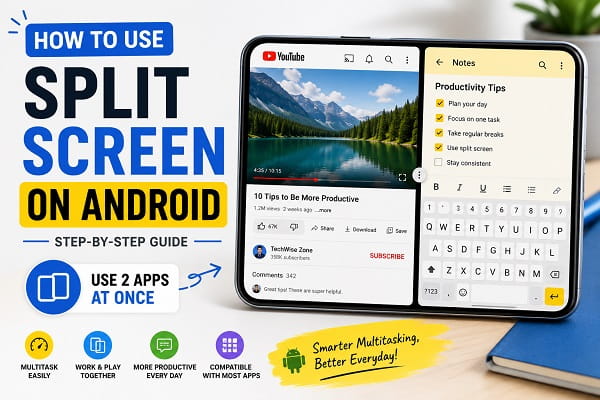
Have you ever wished you could use two apps at the same time on your Android phone?
Maybe you want to watch a YouTube tutorial while taking notes, reply to messages while browsing the web, compare information between apps, or check your email while viewing a document.
Fortunately, Android includes a powerful multitasking feature called Split Screen Mode that allows you to run two compatible apps simultaneously on a single screen.
Although this feature has been available on Android for years, many users either don’t know it exists or aren’t sure how to activate it. Once you learn how to use split screen on Android, you’ll be able to multitask more efficiently and get more done without constantly switching between apps.
In this guide, you’ll learn how split screen works, how to enable it on different Android devices, and how to troubleshoot common issues.
What Is Split Screen on Android?
Split Screen is a multitasking feature that divides your screen into two sections.
This allows you to use:
- Two apps at the same time
- Two productivity tools simultaneously
- A browser and a messaging app together
- A video player and note-taking app side by side
Instead of constantly switching between applications, both apps remain visible on your screen.
For many users, this significantly improves productivity and convenience.
Benefits of Using Split Screen
Using multiple apps at the same time can significantly improve productivity on Android. For example, you can view a document in one app while creating a digital copy in another. If you’re not familiar with mobile document scanning, check out our guide on how to scan documents using an Android phone for easy ways to digitize paperwork.
Split Screen isn’t just a cool Android feature it can make everyday tasks easier.
Better Productivity
Work on multiple tasks without switching between apps.
Easier Research
Read information in one app while taking notes in another.
Faster Communication
Reply to messages while viewing documents or websites.
Improved Learning
Watch educational videos while writing notes.
Better Multitasking
Handle work and personal tasks simultaneously.
Once you become comfortable using Split Screen, it often becomes part of your daily workflow.
Does Every Android Phone Support Split Screen?
Most modern Android devices support Split Screen.
This includes:
- Samsung Galaxy phones
- Google Pixel phones
- Motorola devices
- Xiaomi phones
- OnePlus devices
- Oppo devices
- Vivo phones
However, some older devices and certain budget phones may not support the feature.
Additionally, some apps intentionally disable Split Screen functionality.
How to Use Split Screen on Android
The exact steps may vary slightly depending on your phone manufacturer, but the process is generally similar.
Step 1: Open Your First App
Launch the first application you want to use.
For example:
- YouTube
- Chrome
- Gmail
- Notes
Step 2: Open Recent Apps
Swipe up and hold or tap the Recent Apps button.
You’ll see your recently opened applications.
Step 3: Select Split Screen
Tap the app icon at the top of the app preview.
A menu should appear.
Select:
Split Screen
or
Open in Split Screen View
Step 4: Choose the Second App
After the first app moves to the top section of the screen, select another app from your recent apps list.
The second app will appear in the remaining screen space.
You are now using Split Screen Mode.
How to Resize Split Screen Apps
One of the best features of Split Screen is flexibility.
You can adjust how much space each app uses.
To Resize
Drag the divider bar between the two apps.
Move it:
- Up to enlarge the bottom app
- Down to enlarge the top app
This allows you to prioritize whichever app you’re using most.
How to Exit Split Screen Mode
When you’re finished multitasking, exiting Split Screen is simple.
Method 1
Drag the divider bar all the way to the top or bottom.
One app will expand to full screen.
Method 2
Open Recent Apps and close one of the applications.
Method 3
Return to your Home Screen and relaunch a single app.
Any of these methods will restore normal viewing mode.
How to Use Split Screen on Samsung Phones
Samsung devices offer one of the best Split Screen experiences.
Steps
- Open the first app.
- Open Recent Apps.
- Tap the app icon.
- Select Open in Split Screen View.
- Choose a second app.
Samsung’s One UI also includes additional multitasking tools.
Multi Window Features
Some Samsung devices support:
- Pop-up windows
- Floating apps
- App pairs
These features make multitasking even more powerful.
How to Use Split Screen on Google Pixel Phones
Pixel devices use a clean version of Android.
Steps
- Open an app.
- Swipe up to open Recent Apps.
- Tap the app icon.
- Select Split Screen.
- Choose a second app.
The process is fast and easy.
Best Apps to Use with Split Screen
Split Screen works especially well when researching information online while saving important details. You can even capture useful content instantly by learning how to take a screenshot on Android and save information for later reference.
Not every app benefits equally from Split Screen.
Here are some useful combinations.
YouTube + Notes
Take notes while watching videos.
Chrome + Calculator
Useful for calculations and research.
Gmail + Docs
Read emails while editing documents.
Maps + Messages
Coordinate plans while navigating.
Browser + Shopping App
Compare prices across different stores.
These combinations can significantly improve efficiency.
Why Some Apps Don’t Support Split Screen
You may occasionally find an app that refuses to enter Split Screen Mode.
This usually happens because:
- The developer disabled support
- The app requires full-screen mode
- Security restrictions are in place
Examples may include:
- Certain banking apps
- Some games
- Secure video applications
In these cases, there is usually no workaround unless the developer adds support.
Common Split Screen Problems
Performance issues during multitasking often occur when a device is low on available storage. If your phone feels sluggish while running multiple apps, our guide on how to free up storage space on Android can help improve overall responsiveness.
Split Screen Option Missing
Possible causes:
- Old Android version
- Unsupported device
- App restrictions
Apps Closing Unexpectedly
Some apps consume large amounts of memory.
Closing background apps may help.
Performance Issues
Older devices may struggle with multitasking.
Screen Layout Problems
Rotate the device or restart the apps.
Most Split Screen issues are easy to resolve.
Tips for Better Android Multitasking
Running several apps at once becomes much easier when your device is properly optimized. If your phone struggles with multitasking, learn how to clear cache on Android without losing data to remove unnecessary temporary files and improve performance.
To get the most from Split Screen:
Use Productivity Apps
Split Screen shines when working with notes, documents, and browsers.
Keep Apps Updated
Newer versions often improve compatibility.
Close Unnecessary Apps
Freeing memory can improve performance.
Use Landscape Mode
Some apps work better in landscape orientation.
Practice Common Workflows
The more you use Split Screen, the faster and more natural it becomes.
Does Split Screen Affect Battery Life?
Yes, but usually not dramatically.
Running two active apps simultaneously requires:
- More processing power
- Additional memory
- Increased screen activity
As a result, battery usage may increase slightly.
However, for most modern Android phones, the impact is manageable.
Also Read:
- How to Find Saved WiFi Passwords on Android (Simple Steps)
- Bluetooth Not Working on Android? 10 Solutions That Work
- How to Block Spam Calls on Android (Step by Step)
Frequently Asked Questions
Can I use Split Screen on any Android phone?
Most modern Android devices support Split Screen, although some older models may not.
Can I use two apps at the same time?
Yes. Split Screen allows two compatible apps to remain open simultaneously.
Why is Split Screen not working?
The feature may be unavailable due to app restrictions, device limitations, or outdated software.
Does Split Screen slow down my phone?
Newer devices typically handle Split Screen well. Older phones may experience reduced performance during multitasking.
Many users rely on Split Screen when setting up a new device, comparing files, or moving information between apps. If you’ve recently upgraded your phone, our tutorial on how to transfer data from Android to Android will help you move your important files and settings safely.
Lastly, learning how to use split screen on Android can completely change the way you use your phone. Instead of constantly switching between apps, you can work, study, communicate, and browse more efficiently by keeping two applications open at the same time.
Whether you’re watching tutorials while taking notes, responding to messages during research, or comparing information between apps, Split Screen helps you get more done with less effort.
If your Android device supports the feature, spend a few minutes experimenting with different app combinations. You may be surprised by how useful Android multitasking can be in your daily routine.
