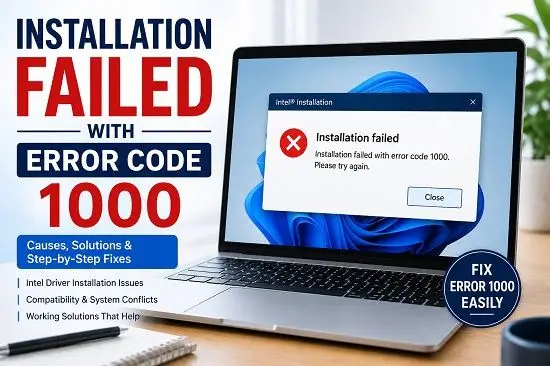
If you see “Installation failed with error code 1000” while installing a Windows driver, especially through Intel Driver & Support Assistant, the message does not always mean that the driver itself failed to install.
Recent Intel support reports show error code 1000 appearing during Intel Arc, Iris Xe, and Intel NPU driver installations. In some cases, the driver was already installed correctly even though Intel Driver & Support Assistant continued to report the installation as failed. In other cases, the error was linked to a hardware mismatch, an existing driver, Windows Update interference, or remnants of an older driver installation.
That distinction is important because repeatedly uninstalling and reinstalling the same driver may not fix the problem.
If you are dealing with this error on Windows 11, start by determining whether the driver actually failed or whether the installer is reporting the wrong status.
What Does Installation Failed With Error Code 1000 Mean?
There is no single universal cause of error code 1000 across every Windows installer.
Windows Installer itself uses error codes in the 1000–1999 range for installer-defined messages, while individual software vendors can use their own error reporting systems.
For the specific message “Installation failed with error code 1000” that has been appearing in Intel Driver & Support Assistant, recent Intel Community reports point to several different scenarios.
These include:
- The driver is already installed.
- A newer driver is already installed.
- Intel Driver & Support Assistant incorrectly reports the installation status.
- The selected driver does not match the hardware.
- An older driver is conflicting with the new package.
- Windows Update is interfering with the installation.
- A previous driver installation left behind components that conflict with the new package.
- The installation package is not appropriate for the exact device.
Intel support discussions are particularly important here because users have reported the error with both Intel graphics drivers and Intel NPU drivers.
So before removing anything, check whether Windows actually has the driver installed.
1. Check Whether the Driver Is Already Installed
This should be your first step.
An Intel Community thread involving the Intel NPU Driver reported “Installation failed with error code 1000” even though the user was being told that the driver was already installed. Intel support specifically investigated the possibility that the installer had detected the same or a newer version already present.
Open Device Manager:
- Press Windows + X.
- Select Device Manager.
- Find the hardware category associated with the driver.
- Expand the category.
- Right-click the device.
- Select Properties.
- Open the Driver tab.
- Check the driver version and date.
For example, if the error concerns an Intel NPU driver, look under the relevant processor or system-device category rather than assuming the driver must appear under Display adapters.
If the expected driver version is already installed and the device is working normally, you may not have an actual installation failure.
2. Restart Windows Before Trying the Installation Again
If the driver installation has just completed or Windows has recently installed an update, restart the computer.
A restart can finish pending driver operations and release files that were still being used by another process.
After restarting:
- Open Device Manager.
- Check the affected device.
- Confirm the driver version.
- Run Intel Driver & Support Assistant again if you use it.
- Check whether the same driver is still being offered.
Do not immediately reinstall the driver multiple times.
If the driver is already installed, repeated installation attempts can make the situation harder to diagnose.
3. Check Intel Driver & Support Assistant Separately From Device Manager
One of the most important findings from recent Intel support reports is that Intel Driver & Support Assistant can report error code 1000 even when the driver installation itself completed successfully.
In one Intel Community thread, the driver installation completed successfully but the Intel tool continued to show “Installation failed with error code 1000.” The user ultimately reported that the driver had been installed correctly and that the issue was a status-reporting problem.
This gives you an important diagnostic test.
If Intel Driver & Support Assistant says:
Installation failed with error code 1000
but Device Manager shows:
- The expected driver version
- No warning symbol
- The correct hardware
- Normal device operation
then do not automatically uninstall the working driver.
Instead, compare the installed driver version with the version Intel Driver & Support Assistant is trying to install.
4. Check Whether a Newer Driver Is Already Installed
Another common scenario is that the installer detects the same or a newer driver already installed.
This can happen when:
- Windows Update installed the driver first.
- Your computer manufacturer installed a newer OEM version.
- You manually installed the driver previously.
- Another Intel package installed the relevant component.
- Intel Driver & Support Assistant has outdated information about the system.
Open Device Manager and compare the installed driver version with the version being offered.
If the installed version is newer, there is little reason to force the older package onto the system simply to make Intel Driver & Support Assistant stop displaying an alert.
This is especially important on laptops because manufacturers sometimes customize Intel drivers for a specific device.
5. Make Sure the Driver Matches Your Hardware
A driver can fail because it is not intended for the hardware in the computer.
This is especially relevant to Intel graphics.
In an Intel Community case involving Intel Arc & Iris Xe Graphics, Intel support explained that error code 1000 can indicate a hardware-driver mismatch. The affected processor did not have the graphics hardware targeted by the driver package.
Before installing an Intel graphics package, identify your exact GPU.
Open:
Device Manager > Display adapters
You may see:
- Intel UHD Graphics
- Intel Iris Xe Graphics
- Intel Arc Graphics
- AMD Radeon
- NVIDIA GeForce
Do not assume that every Intel processor supports the same graphics driver.
A laptop with Intel UHD Graphics may require a different package from a system with Intel Arc graphics.
6. Check the Exact Driver Name and Version
Do not troubleshoot “error code 1000” without knowing what is being installed.
Intel Driver & Support Assistant may list several updates.
Write down:
- Driver name
- Driver version
- Release date
- Hardware category
- Whether the package is marked as recommended or optional
For example, recent Intel support discussions specifically involved the Intel NPU Driver for Windows version 32.0.100.4181. Multiple users reported error code 1000 around that driver release, including cases where the driver appeared to install successfully but the Intel tool continued to report a failure.
That does not mean every error code 1000 is caused by that particular driver. It shows why the exact driver package matters when diagnosing the problem.
7. Try Installing the Driver Manually
If Intel Driver & Support Assistant continues to fail, try obtaining the correct driver directly from Intel or your computer manufacturer.
For a desktop PC using Intel hardware, Intel’s official driver page may be appropriate.
For a laptop, check the laptop manufacturer’s support page first.
This matters because OEM drivers can include device-specific customizations.
A manual installation can also help determine whether the problem is with the driver package itself or the detection/reporting performed by Intel Driver & Support Assistant.
After installing manually:
- Restart Windows.
- Open Device Manager.
- Check the driver version.
- Check for warning symbols.
- Run the application or feature associated with the device.
- Reopen Intel Driver & Support Assistant.
If the driver works correctly but the assistant continues to report error 1000, the reporting system may be the problem rather than the installed driver.
8. Use a Clean Installation for Intel Graphics Drivers
If the error concerns an Intel graphics driver and an older graphics driver may be interfering, use the clean installation option when the Intel installer provides it.
A clean installation is different from simply installing the new driver over the existing one.
It can replace older driver components that are interfering with the current installation.
However, do not use aggressive driver-removal tools immediately.
First try:
- Download the correct Intel graphics package.
- Start the installer.
- Select the clean installation option if available.
- Complete the installation.
- Restart Windows.
- Check Device Manager.
Intel support has recommended clean installation in cases involving graphics driver installation failures.
If the computer manufacturer specifically requires its own graphics package, use the OEM package instead.
9. Check Windows Update
Windows Update can sometimes install or replace drivers independently of the Intel utility.
This can create a situation where Intel Driver & Support Assistant expects one version while Windows or the manufacturer has installed another.
Open:
Settings > Windows Update
Select:
Check for updates
Then review:
Advanced options > Optional updates
Look for available driver updates.
Do not install every optional driver simply because it is available. Check whether it corresponds to the hardware experiencing the error.
If the error started immediately after a Windows update, note the update’s KB number and the date. A recent Windows update may be relevant to the problem.
This is particularly important because an Intel Community case involving error code 1000 was eventually traced by the user to a Windows 11 update, which they reported uninstalling before the driver installation worked again.
10. Disconnect Unnecessary Hardware
If the error occurs while installing a graphics, chipset, NPU, or other low-level driver, temporarily disconnect unnecessary USB hardware.
Remove devices such as:
- USB hubs
- External storage
- Printers
- Capture devices
- Specialist controllers
- Unused USB adapters
- Docking stations where practical
Then restart Windows and retry the driver installation.
This is not necessarily the most likely cause of error 1000, but it reduces the number of devices and drivers involved during installation.
If you are also dealing with a Windows upgrade error such as 0xC1900101, external devices and driver conflicts become even more important. My guide on Install Error 0xC1900101 covers those upgrade-related driver problems in more detail.
11. Check Device Manager for Warning Symbols
Device Manager can quickly tell you whether Windows is having trouble with the hardware.
Look for:
- Yellow warning triangles
- Unknown devices
- Devices that repeatedly disappear
- Disabled devices
- Driver errors in Properties
If the affected device has a warning symbol, open:
Properties > General
Read the Device status message.
The status message may provide a more useful clue than error code 1000.
For example, Windows may report that the device cannot start or that a driver is missing.
Do not uninstall the device immediately. First record the device name and hardware information.
12. Remove a Problematic Previous Driver
If a previous driver installation is corrupted, the new driver may fail while trying to replace it.
You can use Device Manager to uninstall a device driver when appropriate.
Before doing this, make sure you have the correct replacement driver available.
A basic approach is:
- Download the correct driver first.
- Disconnect from the internet temporarily if automatic driver replacement is likely to interfere.
- Open Device Manager.
- Right-click the affected device.
- Select Uninstall device.
- If Windows offers the option to remove the driver package, review it carefully before selecting it.
- Restart the computer.
- Install the correct driver manually.
Do not remove chipset, storage, network, or other critical drivers casually. A bad removal can create a bigger problem than the original installation error.
13. Check for Manufacturer-Specific Drivers
If you are using a Dell, HP, Lenovo, ASUS, Acer, MSI, Samsung, or another branded computer, check the manufacturer’s support page.
This is particularly important for laptops.
The manufacturer may customize:
- Graphics drivers
- NPU drivers
- Chipset packages
- Power-management drivers
- Firmware
- Thermal controls
An Intel reference driver may work perfectly on one system but cause problems on another system that requires an OEM-customized package.
If the OEM provides a newer compatible driver, use that version rather than forcing an older generic package.
14. Check Whether the Driver Is Actually Needed
Sometimes the easiest way to deal with a recurring error is to determine whether the driver update is relevant.
If your computer is functioning normally and Device Manager already shows the expected driver, do not repeatedly reinstall the same package solely because an update utility keeps flagging it.
This is especially relevant to the Intel NPU driver reports where users found the driver was present even though Intel Driver & Support Assistant continued to report error 1000.
If a particular application requires the newer driver, then investigate further.
If nothing is broken and the installed driver is already current, the notification itself may be the issue.
15. Check the Driver Installation Logs
If manual installation also fails, look beyond the Intel assistant.
Windows and the driver installer may create logs that show what actually happened.
Look for:
- Installation failures
- Existing driver detection
- Package compatibility problems
- File-copy errors
- Permission problems
- Driver signature errors
- Device detection failures
The exact location varies by installer and driver package.
The key is to identify whether the failure occurs during:
- Driver package extraction
- Driver installation
- Device detection
- Driver activation
- Reboot
- Post-installation verification
If the installer reports success but the assistant later reports error 1000, the problem is likely occurring during verification or status detection rather than the actual driver installation.
16. Temporarily Check Third-Party Security Software
Security software can interfere with low-level driver installation.
If the error began after installing or updating third-party antivirus, endpoint protection, or system-management software, investigate that software.
Do not permanently disable security protection just to install a driver.
If the manufacturer provides a documented procedure for temporarily disabling or uninstalling the product during driver installation, follow it.
Windows Security and third-party security products can also behave differently, so avoid assuming antivirus is responsible without evidence.
17. Restart Intel Driver & Support Assistant
If Device Manager confirms that the driver is installed but Intel Driver & Support Assistant continues showing error 1000, the assistant itself may need attention.
Try:
- Close Intel Driver & Support Assistant.
- Restart Windows.
- Open the assistant again.
- Run another scan.
- Check whether the same driver is still flagged.
If the tool continues reporting the same failed installation while the driver version is correct, avoid repeatedly reinstalling the driver.
Recent Intel Community reports show that this exact situation has occurred with Intel NPU drivers.
18. Reinstall Intel Driver & Support Assistant Only If Necessary
If the assistant itself appears to be malfunctioning, reinstalling the utility may be reasonable.
Before doing so, confirm the driver is not actually missing.
Then:
- Uninstall Intel Driver & Support Assistant.
- Restart Windows.
- Download the latest official version.
- Install it.
- Run a fresh scan.
Do not use third-party driver-update programs as replacements.
The goal is to restore accurate detection, not to install as many drivers as possible.
19. What If Error Code 1000 Appears After Every Reboot?
If the driver appears installed immediately after installation but Intel Driver & Support Assistant reports error 1000 after reboot, check the driver in Device Manager before doing anything else.
This pattern is particularly significant because an Intel NPU support thread described installations that appeared successful but were still reported as failed after reboot.
If Device Manager shows the expected version and no device error, treat the assistant’s status separately from the driver’s actual installation state.
If Device Manager shows an older version, missing driver, or warning symbol, then the installation genuinely needs further troubleshooting.
20. If the Error Is for an Intel NPU Driver
The Intel NPU is used by supported processors and applications for certain AI workloads.
If Intel Driver & Support Assistant reports:
Intel NPU Driver – Windows
followed by:
Installation failed with error code 1000
first check whether the NPU driver is already present.
Recent Intel Community reports around NPU driver version 32.0.100.4181 showed multiple users experiencing error 1000, including cases where manual installation reported success but Intel’s assistant continued to show the error.
Check:
Device Manager > System devices
Look for the relevant Intel NPU device.
Then compare its driver version with the package Intel Driver & Support Assistant is recommending.
If the installed driver is already correct and the NPU is functioning, do not repeatedly uninstall it simply because the assistant reports an error.
21. If the Error Is for Intel Arc or Iris Xe Graphics
For Intel graphics, hardware identification is especially important.
Check:
Device Manager > Display adapters
Identify the exact GPU.
Then obtain the appropriate driver from Intel or your computer manufacturer.
A recent Intel support case involving error 1000 was resolved after the user manually installed the correct graphics driver and performed a clean installation. Intel’s support response also highlighted that driver compatibility depends on the actual graphics hardware in the system.
If your system has Intel UHD Graphics rather than Iris Xe or Arc, do not force an Arc/Iris-specific package simply because Intel Driver & Support Assistant offers it.
22. Do Not Use Random Driver-Download Websites
Error 1000 can tempt users into searching for a driver package from any website that promises an instant fix.
Avoid that approach.
A driver package is low-level system software. Installing the wrong or modified package can introduce:
- Compatibility problems
- Stability problems
- Security risks
- Driver conflicts
- Additional installation errors
Use:
- Intel’s official support resources
- Your PC manufacturer’s support page
- Windows Update
- The official hardware manufacturer’s support page
If you are unsure which driver belongs to your system, identify the exact hardware first.
23. When You Should Stop Reinstalling the Driver
Stop reinstalling the driver if all of these are true:
- Device Manager shows the expected driver.
- The driver version is current.
- The device has no warning symbol.
- The hardware works normally.
- Intel Driver & Support Assistant is the only place reporting the failure.
At that point, you may be dealing with a reporting or detection problem rather than a failed driver installation.
This is exactly why checking Device Manager should come before repeatedly uninstalling and reinstalling.
Frequently Asked Questions
What does installation failed with error code 1000 mean?
The meaning depends on the software producing the error. In recent Intel Driver & Support Assistant reports, error 1000 has appeared during Intel graphics and NPU driver installations. Causes can include an existing or newer driver, hardware-driver mismatch, installation conflicts, or incorrect status reporting.
Is Intel error code 1000 a serious problem?
Not necessarily. In some reported cases, the driver was actually installed successfully and Intel Driver & Support Assistant incorrectly continued to report error 1000. Check Device Manager before assuming the driver is broken.
How do I fix Intel Driver & Support Assistant error 1000?
Start by checking Device Manager, restarting Windows, comparing the installed driver version with the version being offered, and confirming that the driver matches your hardware. If necessary, install the correct driver manually or perform a clean graphics-driver installation.
Why does Intel Driver & Support Assistant say installation failed when the driver is installed?
The assistant may have a problem detecting or verifying the installed driver. Recent Intel NPU reports describe this exact situation, with users finding the driver installed correctly despite the error shown by the assistant.
Can Windows Update cause Intel error 1000?
It can contribute to driver conflicts or version mismatches. At least one Intel Community case reported that a Windows 11 update was involved in an error 1000 graphics-driver installation problem.
Should I uninstall the current Intel driver?
Not immediately. First verify whether the driver is actually missing or broken. If Device Manager shows the correct version and the hardware works, uninstalling it may create an unnecessary problem.
Why does Intel error 1000 happen with an NPU driver?
Recent reports show the Intel NPU driver producing error 1000 even when the driver installation appears successful. Check the NPU device and driver version in Device Manager before attempting another installation.
Why does Intel error 1000 happen with Arc or Iris Xe graphics?
The error can occur when the driver package does not match the hardware or when an existing driver conflicts with the installation. Confirm the exact GPU and use the appropriate Intel or OEM driver.
Should I use a third-party driver updater to fix error 1000?
No. Use the official Intel driver, Windows Update, or your computer manufacturer’s driver package. Third-party driver tools can introduce additional compatibility and security problems.
What if error 1000 keeps returning after a successful installation?
Check Device Manager first. If the correct driver is installed and the device works normally, the problem may be limited to Intel Driver & Support Assistant’s detection or reporting. If the driver is missing or Device Manager shows an error, investigate the driver installation itself.
The Most Important Check Before Reinstalling Anything
Installation failed with error code 1000 is not specific enough to justify immediately deleting drivers or using aggressive cleanup tools.
If the error appears in Intel Driver & Support Assistant, first check the hardware in Device Manager and compare the installed driver version with the version being offered. Recent Intel support reports show that some error 1000 cases are genuine installation or compatibility problems, while others are status-reporting issues where the driver is already installed.
If the driver is missing or the device has a warning symbol, install the correct driver manually, check for hardware compatibility, and investigate previous driver remnants or Windows Update conflicts.
If the driver is already installed and working normally, do not keep reinstalling it simply to clear a notification. The better approach is to determine why the driver utility is reporting the wrong status and whether a newer or OEM-specific driver is actually required.
