
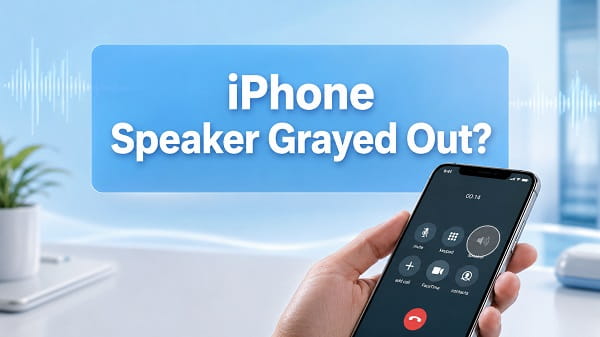
If the iPhone Speaker button is grayed out during a call, iOS is unable to switch the call to the built-in loudspeaker. The problem may be temporary, but it can also point to a failed microphone, an incorrect Bluetooth or CarPlay audio route, liquid damage, or a fault in the phone’s audio hardware.
Start by ending the call, turning Bluetooth off in Settings and restarting the iPhone. Make another normal cellular call and check the Speaker or Audio button. If it remains unavailable, open Voice Memos and try to record your voice. A failed Voice Memos test combined with a grayed-out Speaker button is a strong sign that the issue needs hardware diagnosis.
Do not factory-reset the iPhone immediately. A few targeted tests can usually show whether the problem comes from the calling app, wireless accessories, iOS or the phone itself.
What Does a Grayed-Out Speaker Button Mean?
During a phone call, the Speaker button tells the iPhone to move call audio from the receiver at the top of the screen to the built-in loudspeaker. On current iOS versions, the control may be labelled Audio when more than one output is available.
Apple’s iPhone instructions state that the in-call Audio control can be used to select the speaker or a connected Bluetooth device. If the control is gray and cannot be tapped, iOS does not currently have a usable route to offer through that control.
That can happen because:
- The Phone app or calling service has stopped responding correctly
- The call has not fully connected
- Bluetooth headphones, hearing aids or a vehicle are controlling call audio
- CarPlay is still holding the audio route
- A temporary iOS audio process has failed
- The bottom microphone cannot be accessed
- Debris, a case or a screen protector is blocking an opening
- The iPhone has been dropped, exposed to liquid or repaired incorrectly
- An internal audio component or logic-board connection has failed
The grayed-out control does not automatically prove that the bottom loudspeaker is broken. Call audio depends on both input and output. If iOS cannot initialize a required microphone or another part of the audio system, it may disable speakerphone even when music can still play through the loudspeaker.
Check Which Speaker Problem You Have
The phrase “iPhone speaker grayed out” can describe several different symptoms. Identify yours before changing settings.
| Symptom | Most likely direction |
|---|---|
| Speaker or Audio button is gray only during calls | Call state, audio routing, software or audio hardware |
| Speaker button works, but no sound comes out | Blocked or damaged loudspeaker, low volume or wrong output route |
| Voice Memos will not record and Speaker is gray | Microphone or wider audio-hardware problem |
| Speaker is gray only in WhatsApp, FaceTime or another app | App permissions, app bug or service problem |
| Bluetooth calls work, but the built-in speaker and receiver do not | Internal audio path or hardware issue |
| Problem began after liquid exposure, a drop or repair | Physical damage or a loose/damaged component |
| Volume slider is gray outside a call | Audio is routed to another device or the system is not detecting an output correctly |
If the call button is active but the loudspeaker is simply quiet, follow the speaker cleaning and sound tests below. If the button itself is disabled, pay particular attention to Bluetooth, Voice Memos and the hardware-warning signs.
1. End the Call and Make a New One
The Speaker control may remain unavailable while a call is connecting, transferring between Wi-Fi Calling and cellular service, or ending in the background.
- End the current call completely.
- Wait about 15 seconds.
- Close the Phone app from the App Switcher.
- Reopen Phone.
- Call a trusted contact or voicemail.
- Wait until the call timer begins.
- Tap Speaker or Audio.
If the button becomes available on the second call, the original call session probably failed to establish its audio route correctly.
Repeat the test with a standard cellular call rather than relying only on FaceTime, WhatsApp, Messenger or another internet-calling app. This helps separate an iPhone-wide fault from an individual app problem.
2. Increase the Volume During the Call
Use the physical Volume Up button while the call is active. Call volume and media volume are handled in different contexts, so changing the volume before the call may adjust the wrong level.
If the Speaker button is tappable but the sound is faint:
- Turn Speaker on.
- Press Volume Up several times.
- Keep the phone away from your ear because the sound may become loud suddenly.
- Check whether the sound improves.
Volume cannot make a disabled Speaker button active, but it helps distinguish a grayed control from a working control with inaudible output.
3. Turn Bluetooth Off in Settings
An iPhone may route call audio to AirPods, wireless headphones, a hearing device, a car stereo or another Bluetooth accessory. The accessory can remain connected even when it is in another room or appears idle.
For a proper test:
- Open Settings.
- Tap Bluetooth.
- Turn Bluetooth off.
- Make another phone call.
- Check whether Speaker is available.
Use Settings rather than only tapping the Bluetooth icon in Control Center. The Control Center button can disconnect accessories temporarily without fully turning Bluetooth off.
If the button works after Bluetooth is disabled, turn Bluetooth back on and reconnect devices one at a time. The accessory that makes the problem return is the likely cause.
To remove a troublesome accessory:
- Open Settings > Bluetooth.
- Tap the information button beside the device.
- Select Forget This Device.
- Restart the iPhone.
- Pair the accessory again if needed.
Hearing aids and other accessibility devices may also appear under Settings > Accessibility > Hearing Devices. Do not remove a medical or essential hearing configuration unless you know how to reconnect it or can get help from the device provider.
4. Disconnect CarPlay Completely
CarPlay can continue to control call audio when the iPhone is connected to a vehicle by USB, Bluetooth or Wi-Fi. Disconnect the cable, turn off the vehicle and move away from it before testing.
If the iPhone reconnects automatically:
- Open Settings > General > CarPlay.
- Select the vehicle.
- Tap Forget This Car temporarily.
- Turn Bluetooth off.
- Restart the iPhone and test a call.
If the Speaker button returns, recreate the CarPlay connection. Use Bluetooth Connected but CarPlay Not Working if the vehicle’s wireless audio and CarPlay pairing continue to interfere with each other.
5. Restart the iPhone
A normal restart reloads the Phone app, audio services, cellular modem and connected-device processes.
iPhone With Face ID
- Hold the Side button and either Volume button.
- Drag the power-off slider.
- Wait about 30 seconds.
- Hold the Side button until the Apple logo appears.
iPhone With a Home Button
- Hold the Side or Top button.
- Drag the power-off slider.
- Wait for the iPhone to turn off.
- Hold the Side or Top button until the Apple logo appears.
After restarting, wait for the carrier signal to return before placing a test call.
6. Force Restart an Unresponsive iPhone
Use a force restart when the Phone app is frozen, the call screen will not respond or a normal restart did not clear the problem. It does not erase photos, apps or other personal data.
For iPhone 8, iPhone SE 2nd generation or later, and current Face ID models:
- Press and quickly release Volume Up.
- Press and quickly release Volume Down.
- Hold the Side button.
- Release it when the Apple logo appears.
For older models, the button combination differs. See How to Force Restart an iPhone for the model-specific steps.
Test the Speaker button after the restart. If it becomes gray again every time the iPhone has been running for a while, note what accessory or app was used before the problem returned.
7. Test Voice Memos
The Voice Memos test is one of the most useful checks for a grayed-out iPhone Speaker button. Speakerphone calls need a functioning audio-input path as well as a working loudspeaker.
- Disconnect Bluetooth and wired accessories.
- Open the Voice Memos app.
- Tap the Record button.
- Speak toward the bottom of the iPhone for several seconds.
- Stop the recording.
- Play it back through the iPhone.
Interpret the result carefully:
| Voice Memos result | What it suggests |
|---|---|
| Recording and playback are clear | Main microphone and speaker paths are working; focus on call routing or software |
| Record button will not start | Audio input may be unavailable; hardware becomes more likely |
| Recording has no waveform or no voice | Bottom microphone may be blocked or faulty |
| Voice is faint or distorted | Debris, case interference, liquid or microphone damage |
| Recording works, but playback is silent | Output route or speaker problem |
Apple recommends this recording test when callers cannot hear you. Its current iPhone microphone troubleshooting also advises removing cases and clearing debris from the microphone openings.
If Voice Memos cannot record and the in-call Speaker control is gray, do not spend hours changing ringtone or Focus settings. Back up the iPhone and arrange a hardware inspection.
8. Test the Front and Rear Microphones
iPhones use multiple microphones for calls, recordings, noise reduction and video. One test can pass even when another microphone has failed.
Test the Rear Camera Microphone
- Open Camera.
- Select Video.
- Record while speaking normally.
- Play the video and listen to your voice.
Test the Front Camera Microphone
- Switch to the front camera.
- Record another video while speaking.
- Play it back.
Compare the two recordings with Voice Memos. If only one sounds muffled or silent, inspect the openings near that microphone. If every recording fails, the problem is less likely to be a single blocked hole.
9. Test the Built-In Speaker Outside a Call
Play a song, video, ringtone or Voice Memo through the iPhone with Bluetooth off.
For a ringtone test:
- Open Settings.
- Tap Sounds & Haptics.
- Move the Ringtone and Alerts slider.
- Listen for sound from the iPhone.
If normal media plays clearly but Speaker remains gray during calls, the loudspeaker itself can produce sound. Focus on the microphone, call route, Phone app, carrier connection or internal audio controller.
If there is no sound from media either, inspect and clean the speaker opening. Apple’s speaker troubleshooting instructions recommend checking whether the speaker or receiver is dirty or blocked and cleaning it with a small, dry, soft-bristled brush when necessary.
10. Remove the Case and Screen Protector
A poorly fitted case can obstruct the bottom microphone or speaker grille. A misaligned screen protector can cover the receiver or a front microphone.
Remove:
- The case
- Screen films that overlap an opening
- Port plugs
- Decorative skins around the bottom edge
- Clip-on camera or microphone accessories
- USB-C or Lightning adapters
Make another call without the accessories. If Speaker becomes available, inspect the removed item for a blocked or misaligned cutout.
11. Clean the Speaker, Receiver and Microphones
Power off the iPhone and examine the openings under bright light. Depending on the model, microphones are located along the bottom edge and near the camera or receiver areas.
Use a small, clean, dry, soft-bristled brush to loosen surface debris. Brush gently across the opening rather than pushing dirt farther inside.
Avoid:
- Water or cleaning solution inside an opening
- Metal pins or SIM-eject tools
- Toothpicks pushed through the mesh
- High-pressure compressed air
- Household vacuum nozzles
- Heat from a hair dryer
Aggressive cleaning can damage the protective mesh, microphone membrane or internal seals. If the opening contains packed debris that cannot be removed gently, let a repair professional clean it.
If water entered the phone recently, follow Water Entered My Phone Speaker? and allow the device to dry naturally. Do not charge a wet iPhone or try to force water out with heat.
12. Disconnect Wired Accessories and Adapters
An iPhone may treat a connected USB-C, Lightning or older headphone accessory as an audio device. A damaged adapter can leave the audio route in an incorrect state.
Disconnect:
- USB-C headphones
- Lightning headphones
- Headphone adapters
- External microphones
- Audio interfaces
- Charging docks
- USB hubs
- Vehicle cables
Inspect the charging port for debris, but do not insert metal objects. Restart the iPhone with nothing connected and make another call.
If the problem began after using one adapter, stop using it until you can test a known-good certified replacement.
13. Try a Different Type of Call
Compare several audio sources:
- A normal cellular phone call
- FaceTime Audio
- A call in another trusted app
- A call with Wi-Fi turned off
- A call with cellular data turned off, if the app supports Wi-Fi
The results can narrow the cause:
- Only one app fails: update or reinstall that app and review its microphone permission.
- Every calling app fails: suspect iOS, routing or hardware.
- Cellular calls fail but FaceTime works: check the carrier connection and carrier settings.
- Calls work through Bluetooth but not internally: inspect the built-in microphone, receiver and audio hardware.
- Speaker works only after the call connects fully: the button was disabled by the call state, not a fault.
14. Check Microphone Permission for Calling Apps
The Phone app has system-level access, but third-party calling apps require permission to use the microphone.
- Open Settings.
- Tap Privacy & Security.
- Tap Microphone.
- Enable access for the affected calling app.
You can also open Settings > Apps, select the app and review its permissions.
If Speaker is gray only inside one app, update the app through App Store. If that fails, delete and reinstall it after confirming that any conversations or data are backed up.
An app permission issue cannot normally explain a gray Speaker button in Apple’s Phone app. If the system Phone app and Voice Memos also fail, continue with the device-wide checks.
15. Install iOS and Carrier Settings Updates
An iOS update can fix audio routing, Phone app and accessory compatibility bugs.
- Back up important data.
- Connect to Wi-Fi and power.
- Open Settings > General > Software Update.
- Install the latest stable update available for the iPhone.
- Restart after installation.
To check carrier settings:
- Connect to Wi-Fi or cellular data.
- Open Settings > General > About.
- Wait on the page for about 30 seconds.
- Accept a carrier settings update if prompted.
Carrier settings can affect cellular calls, but they are less likely to explain failed Voice Memos or microphone recordings.
16. Check Call Audio Routing
The Call Audio Routing setting controls where call audio is sent automatically. It should not usually disable the Speaker button, but reviewing it can correct unexpected routing behavior.
- Open Settings.
- Tap Accessibility.
- Tap Touch.
- Tap Call Audio Routing.
- Select Automatic.
If it was set to Bluetooth Headset or Speaker, change it to Automatic and restart the iPhone. Test again with Bluetooth off.
People who intentionally use hearing devices or a specific accessibility setup should record the current setting before changing it.
17. Reset Network Settings if Only Cellular Calls Fail
Reset network settings only when the Speaker problem appears on standard cellular calls while Voice Memos, FaceTime and media audio all work.
Go to:
Settings > General > Transfer or Reset iPhone > Reset > Reset Network Settings
Enter the passcode and confirm. The iPhone restarts.
This reset removes saved Wi-Fi networks and passwords, cellular network settings and some VPN or APN configuration. It does not erase photos or apps.
Read How to Reset Network Settings on iPhone before proceeding. A network reset will not repair a failed microphone, speaker or logic-board component.
18. Reset All Settings
Use Reset All Settings after the simpler software checks have failed and the hardware tests still pass.
- Back up the iPhone.
- Open Settings > General > Transfer or Reset iPhone.
- Tap Reset.
- Select Reset All Settings.
- Enter the passcode and confirm.
This does not intentionally delete personal media or installed apps, but it resets system preferences such as network, privacy, keyboard, location and Apple Pay-related settings. You will need to configure some options again.
Do not expect this reset to help when Voice Memos cannot record, several microphones fail or the problem began immediately after physical damage.
19. Check Available Storage
Extremely low storage can make apps unstable and prevent iOS from completing updates or temporary operations.
Open Settings > General > iPhone Storage. If storage is almost full, remove unused downloads, large videos or apps you can reinstall later. Keep a backup of anything important.
Restart after freeing space and test the Phone app. Low storage is not the most common cause of a grayed-out Speaker button, but resolving it removes one source of system instability.
20. Back Up and Reinstall iOS Only as a Last Software Test
Erasing an iPhone is disruptive and cannot repair damaged audio hardware. Consider it only when:
- Voice Memos and video recordings work
- The built-in speaker plays media normally
- There was no drop, liquid exposure or repair
- The problem began after a software update or settings change
- Apple Support recommends a restore
Create an iCloud or computer backup first. A computer-based restore can reinstall iOS more completely than Reset All Settings.
For the cleanest diagnostic test, set up the iPhone temporarily without restoring the backup and make a call. If Speaker is still gray on a fresh system, restoring old settings will not solve it and hardware service is the sensible next step.
When the Problem Is Probably Hardware
Arrange a professional diagnosis when two or more of these symptoms appear together:
- Speaker or Audio is gray on every call
- Voice Memos cannot begin recording
- Recorded audio has no waveform or is silent
- Siri cannot hear you
- Both front and rear video recordings lack sound
- The iPhone takes unusually long to start
- The receiver and loudspeaker both fail during calls
- Bluetooth audio works while internal call audio does not
- The issue began after a drop, liquid exposure or screen/battery repair
- Restarting briefly fixes it, but the fault returns repeatedly
A phone can still play some system sounds when another part of its audio circuitry has failed. Passing a ringtone test does not rule out a microphone, connector or logic-board problem.
Back up the iPhone before service if it is still usable. Use Apple, an Apple Authorized Service Provider or a reputable board-level repair specialist familiar with the exact model. Ask for a diagnosis before authorizing a logic-board replacement or data-erasing repair.
iPhone 7 or iPhone 7 Plus Speaker Grayed Out
This search is especially common among iPhone 7 and iPhone 7 Plus owners. These models are now old enough that drops, frame flexing, corrosion, previous repairs and normal component aging are realistic concerns.
On an iPhone 7 or 7 Plus, a persistent gray Speaker button combined with an unavailable Voice Memos record button, failed Siri input, missing call audio or an unusually slow startup strongly points away from a simple settings problem.
Try the safe checks first:
- Turn off Bluetooth.
- Remove accessories.
- Restart and update iOS if an update is available.
- Test Voice Memos.
- Test front and rear camera recordings.
- Back up the phone.
If the recording tests fail, arrange hardware inspection. Repeated factory resets, unofficial “audio repair” apps and random settings changes are unlikely to restore a failing physical audio path.
Repair cost should be compared with the phone’s age, battery health, storage capacity and remaining software support. If important data is not backed up, tell the repair provider that data preservation is the priority before approving work.
Speaker Button Grayed Out After an iOS Update
If the issue began immediately after an update, first restart the iPhone and check whether another iOS update is available. A small follow-up release may address bugs discovered after a major update.
Then test Voice Memos and camera recordings:
- If all recordings work, continue with Bluetooth, call routing, app updates and Reset All Settings.
- If recordings fail too, the timing may be coincidental. The update did not necessarily damage the speaker, and hardware diagnosis may still be required.
Avoid downgrading iOS with unsigned files or unofficial tools. It introduces security and activation risks and may not be possible for the installed version.
Speaker Grayed Out After Water Exposure
Liquid can obstruct an acoustic opening, corrode connectors or damage internal audio components. Water resistance also decreases with age, impacts and previous repairs.
If the iPhone became wet:
- Disconnect all cables.
- Turn it off if it behaves abnormally.
- Place it in a dry area with airflow.
- Keep the port facing downward when practical.
- Do not use heat, rice or compressed air.
- Do not charge it while the connector may be wet.
- Back it up once it is stable and dry enough to use.
If the Speaker button remains gray after the exterior is dry, professional inspection is safer than repeatedly testing calls. Corrosion can progress even when the iPhone initially appears to recover.
Speaker Grayed Out After Screen or Battery Repair
If the problem began immediately after repair, return to the repair provider. A cable, microphone assembly, shield, screw or connector may have been disturbed, or the device may have had pre-existing impact damage.
Document the symptoms:
- Whether Speaker worked before the repair
- Whether Voice Memos records
- Which camera recordings have sound
- Whether Bluetooth calls work
- Whether startup takes longer
- Whether the phone was erased or updated during service
Do not open the iPhone again unless you have the correct tools and repair experience. Modern components and seals are easily damaged, and an incorrect screw can cause serious internal problems.
Frequently Asked Questions
Why is the Speaker button grayed out on my iPhone?
iOS may be unable to access a valid call-audio route because of a temporary software problem, Bluetooth or CarPlay connection, failed microphone, accessory, liquid damage or internal audio fault. Test Voice Memos after turning Bluetooth off to narrow it down.
Why is Speaker gray even though music still plays?
Media playback proves that the loudspeaker can produce sound, but speakerphone calls also require microphone input and call-audio processing. A microphone or wider audio-system failure can disable Speaker while music continues to play.
Why can nobody hear me when Speaker is grayed out?
The bottom microphone or another part of the audio-input path may be blocked or unavailable. Remove the case, clean the openings gently and test Voice Memos. If it cannot record, seek hardware service.
Can Bluetooth make the iPhone Speaker button gray?
It can interfere with or take control of the active call-audio route. Turn Bluetooth off under Settings and make a new call. If the button returns, forget and reconnect the responsible accessory.
Can CarPlay cause the problem?
Yes. A vehicle can remain selected as the call-audio destination through USB, Bluetooth or wireless CarPlay. Disconnect from the vehicle completely and test the iPhone by itself.
Will resetting network settings fix a gray Speaker button?
It may help if the problem occurs only on cellular calls and all local audio tests pass. It will not fix a failed microphone, speaker or internal component.
Will a factory reset fix it?
Only if the cause is software. A factory reset cannot repair physical or liquid damage. Run the Voice Memos, video and media tests first and back up all data before considering an erase.
Does Silent mode disable speakerphone?
No. Silent mode affects alerts and some system sounds, but it should not gray out the in-call Speaker control. Focus mode also does not normally disable speakerphone.
Can a blocked speaker grille gray out the button?
A blockage usually makes sound quiet or distorted rather than disabling the button. However, debris or a case can also obstruct a microphone, and a microphone problem can affect speakerphone availability.
How do I know whether the microphone is broken?
Record a Voice Memo and videos with both cameras. If one recording is silent or distorted, inspect the corresponding microphone area. If every recording fails and Speaker is gray, hardware service is likely needed.
Why is Speaker grayed out only on FaceTime or WhatsApp?
The app may lack microphone permission, have a software bug or be using an incorrect audio route. Update the app, review Settings > Privacy & Security > Microphone, restart the iPhone and test Apple’s Phone app.
Is this problem common on the iPhone 7?
Many repair searches involve the iPhone 7 and 7 Plus, but the symptom alone does not identify one exact failed part. A gray Speaker button plus failed Voice Memos, failed Siri or slow startup warrants an audio-hardware diagnosis.
Can I keep using the iPhone with Bluetooth headphones?
Bluetooth may provide temporary call audio when an internal route fails, but it does not repair the cause. Back up the device and arrange service, especially if recording features or emergency-call audio are unreliable.
Use the Test Results to Choose the Next Step
If restarting and disabling Bluetooth restore the Speaker control, reconnect accessories one at a time and watch for the problem to return. If only one app is affected, update its permission and software. If cellular calls alone fail, check carrier settings and consider a network reset.
If the iPhone Speaker remains grayed out and Voice Memos cannot record, stop treating it as a basic volume problem. Back up the phone and arrange hardware diagnosis. That combination is far more useful than the gray button by itself because it shows that the iPhone cannot initialize an essential part of its audio system.
