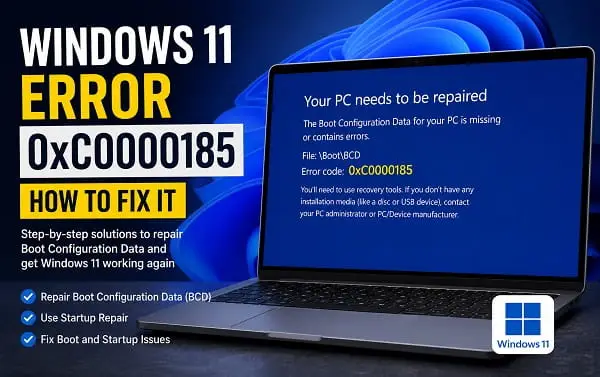
Windows 11 error 0xC0000185 can stop your computer before you ever reach the sign-in screen. Instead of loading Windows, you may see a recovery screen saying:
Your PC/Device needs to be repaired
or:
The Boot Configuration Data for your PC is missing or contains errors.
You may also see a file path such as:
\EFI\Microsoft\Boot\BCD
followed by:
Error code: 0xC0000185
This error usually means Windows cannot access the information it needs to start correctly. In many cases, the problem is related to damaged or inaccessible boot configuration data, a storage problem, a recently changed hardware configuration, or a failed update.
The good news is that you do not always need to reinstall Windows. Start with the least destructive recovery methods and work toward the more advanced repairs only if necessary.
What Does Windows 11 Error 0xC0000185 Mean?
Error 0xC0000185 is a Windows startup and recovery error. The exact wording can vary, but it commonly appears when Windows cannot load the boot information or a device needed during startup.
A typical message looks like this:
Recovery

Your PC/Device needs to be repaired.

The Boot Configuration Data for your PC is missing or contains errors.

File: \EFI\Microsoft\Boot\BCD

Error code: 0xC0000185
On another computer, the message may instead say that a required device is not connected or cannot be accessed.
The error can appear after:
- A failed Windows update
- A sudden power loss
- An improper shutdown
- A failed driver or hardware change
- Cloning or moving a Windows installation
- Changing BIOS or UEFI settings
- Changing storage-controller settings
- Damaged boot files
- File-system or SSD problems
- Bootloader changes caused by another operating system
The exact cause matters because the safest repair method is not always the same.
Microsoft’s startup troubleshooting guidance classifies missing or corrupted Boot Configuration Data as a boot-loader problem, while Startup Repair is designed to diagnose and repair common startup problems, including damaged boot files and BCD-related issues. citeturn0search0turn0search6
Before You Start: Do Not Reset or Reinstall Windows Yet
If your files are important, do not immediately choose Reset this PC, format the drive, or start a clean Windows installation.
The Windows partition may still be completely intact. Sometimes only the boot configuration or EFI boot files are damaged.
Before making major changes:
- Disconnect unnecessary external drives.
- Remove USB flash drives after checking that you are not intentionally booting from one.
- Keep a laptop connected to power.
- Have your BitLocker recovery key available if device encryption is enabled.
- Avoid changing several BIOS settings at once.
If you recently installed another operating system or changed the boot order, the problem may be related to Windows Boot Manager rather than lost Windows files. My guide on how to go back to Windows 11 from Bazzite explains how a working Windows installation can remain on the drive even when its boot configuration needs repair.
1. Disconnect External Devices and Restart
Start with the simplest check.
Shut down the computer completely and disconnect unnecessary devices, including:
- External hard drives
- USB flash drives
- SD cards
- USB hubs
- Docking stations
- Printers
- External audio interfaces
- Other non-essential USB accessories
Then turn the PC back on.
Why does this help? A computer can occasionally try to boot from the wrong connected device, or an attached device can complicate startup troubleshooting.
If Windows starts normally after disconnecting something, reconnect your devices one at a time to identify the problem.
Microsoft also recommends removing non-essential hardware when troubleshooting Windows startup and installation problems. citeturn0search10turn0search12
2. Check Whether Windows Boot Manager Is Still the First Boot Option
If you can enter the BIOS or UEFI settings, check the boot order.
Look for a menu with a name similar to:
- Boot
- Boot Order
- Boot Priority
- Boot Options
- UEFI Boot
- Boot Manager
On a normal Windows 11 UEFI installation, you should typically see an entry named:
Windows Boot Manager
Make sure the correct Windows Boot Manager entry is selected as the first boot option.
This is particularly important if you recently:
- Installed Linux
- Used a second operating system
- Added another SSD
- Cloned your Windows drive
- Reset your BIOS settings
- Changed the boot mode
If Windows Boot Manager is missing entirely, do not assume the Windows installation itself has disappeared. Continue to the recovery steps below.
If you need help entering firmware settings, use the manufacturer-specific instructions for your device. Do not randomly change storage, Secure Boot, TPM, RAID, AHCI, or CSM settings while looking for the boot menu.
3. Enter the Windows Recovery Environment
Windows Recovery Environment, commonly called WinRE, gives you access to recovery tools without starting Windows normally.
If the error appears repeatedly, Windows may automatically open recovery options.
If it does not, you can sometimes trigger WinRE by interrupting the boot process repeatedly. Another option is to boot from a properly created Windows 11 installation USB.
Once you reach the recovery screen, select:
Troubleshoot
> Advanced options
You should see tools such as:
- Startup Repair
- Command Prompt
- System Restore
- Startup Settings
- Uninstall Updates
- UEFI Firmware Settings
If your device is encrypted, Windows may request your BitLocker recovery key before allowing certain recovery operations.
4. Run Startup Repair First
For most users, Startup Repair should be the first real repair attempt.
From Windows Recovery Environment, open:
Troubleshoot
> Advanced options
> Startup Repair
Choose the Windows installation if you are asked to select one.
Startup Repair scans for common startup problems and attempts to repair them automatically. Microsoft states that it can address problems including missing or damaged system files, corrupted Boot Configuration Data, damaged boot records, incompatible drivers, and certain registry problems. citeturn0search0
Let the tool finish, then restart the PC.
If Startup Repair Fixes the Problem
Allow Windows to start fully.
After signing in:
- Back up important files.
- Check Windows Update.
- Restart once more to confirm the repair is stable.
- Avoid making unrelated BIOS changes.
If Startup Repair Says It Could Not Repair Your PC
Do not panic and do not reinstall Windows yet.
Move to the next steps.
5. Use System Restore if the Error Started Recently
If the error began after a driver installation, update, application change, or configuration change, System Restore may be able to return Windows system files and settings to an earlier working state.
In WinRE, go to:
Troubleshoot
> Advanced options
> System Restore
Choose a restore point from before the problem started.
System Restore does not normally remove your personal documents, but it can remove drivers, applications, and updates installed after the selected restore point.
If there are no restore points, skip this method.
6. Check for a Failed Windows Update
A bad or interrupted update can leave Windows unable to boot correctly.
From WinRE, open:
Troubleshoot
> Advanced options
> Uninstall Updates
You may have options to remove:
- The latest quality update
- The latest feature update
Start with the smaller, more recent update when appropriate.
After uninstalling the update, restart the PC.
If the error disappears, allow Windows to start normally and make sure you have a backup before attempting the update again.
For other update-related Windows problems, you may also find my guide on install error 0xC1900101 useful, especially if the issue started during an upgrade and Windows rolled back because of a driver or compatibility problem.
7. Check Whether the Windows Drive Is Detected
Before repairing boot files, confirm that the storage drive is actually visible to the computer.
Restart and enter BIOS or UEFI.
Look for information about installed storage devices.
Your internal SSD or hard drive should normally appear in a storage, NVMe, SATA, or system-information section.
If the Drive Is Not Detected
This may be a hardware problem rather than a damaged BCD.
Check:
- Whether a recently installed drive is seated correctly
- Whether the drive appears intermittently
- Whether another known-good drive can be detected
- Whether your manufacturer provides hardware diagnostics
Do not keep rebuilding boot files if the drive itself is disappearing from the firmware.
If the Drive Is Detected
Continue with the recovery steps.
Remember that a drive being visible in BIOS does not automatically mean its Windows boot files are intact.
8. Identify the Correct Windows Partition
This step is important before using advanced commands.
In the Windows Recovery Command Prompt, the Windows partition may not be assigned the same letter it normally uses when Windows is running.
For example, your normal C: drive might appear as D: in WinRE.
Open:
Troubleshoot
> Advanced options
> Command Prompt
Then test likely drive letters:
dir C:\Windows
dir D:\Windows
dir E:\Windows
You are looking for a real Windows installation containing folders such as:
- Windows
- Users
- Program Files
Stop when you identify the correct drive.
For example, if this command works:
dir D:\Windows
your Windows installation may be on D: while you are in recovery mode.
Write the correct letter down before continuing.
9. Repair the Windows Boot Files With BCDBoot
On modern Windows 11 systems that use UEFI, BCDBoot can be a more appropriate repair tool than blindly running old boot commands copied from legacy Windows tutorials.
First identify the EFI System Partition.
At the Command Prompt, run:
diskpart
list volume
Look for a small FAT32 volume that is clearly the EFI System Partition.
Do not guess.
Once you are certain you have identified the correct EFI partition, select it and assign a temporary drive letter:
select volume <number>
assign letter=S
exit
Replace <number> with the actual EFI partition volume number.
Now, if your Windows installation was found on D:, run:
bcdboot D:\Windows /s S: /f UEFI
Replace D: with the actual Windows partition letter you identified earlier.
This command recreates or repairs the boot files using the Windows installation as the source and the EFI System Partition as the destination.
Restart the computer and check whether Windows starts.
Important Warning
Do not format the EFI System Partition just because a random tutorial tells you to.
Do not run destructive DiskPart commands unless you are completely certain of the selected drive or partition.
If you have multiple operating systems or multiple EFI partitions, selecting the wrong volume can create additional boot problems.
The Windows boot-repair section of my Bazzite-to-Windows 11 guide explains this same UEFI-focused approach in more detail.
10. Should You Run Bootrec Commands?
You may see older guides recommending a sequence such as:
bootrec /fixmbr
bootrec /fixboot
bootrec /scanos
bootrec /rebuildbcd
These commands can be relevant in some recovery situations, but they should not be treated as a universal first fix for every Windows 11 computer.
Modern Windows 11 installations usually use UEFI and an EFI System Partition. A repair strategy designed around an older BIOS/MBR installation may not be the best match for your actual system.
For a typical modern UEFI system, I recommend trying:
- Startup Repair
- Checking Windows Boot Manager
- Identifying the correct Windows partition
- Identifying the correct EFI partition
- Repairing the boot files with BCDBoot
before experimenting with a long list of commands.
If you are unsure whether your PC uses UEFI or legacy BIOS, stop and check before making structural boot changes.
11. Check the File System for Errors
If the BCD or boot files became damaged because the drive has file-system problems, checking the disk can help identify the issue.
From the recovery Command Prompt, first make sure you know the correct Windows drive letter.
If Windows is on D:, you can run:
chkdsk D: /f
The /f option tells CHKDSK to repair file-system errors it finds.
For more extensive checks, you may see the /r option recommended. That can take much longer, particularly on a large hard drive.
Do not interrupt the process while a repair is running.
If CHKDSK Reports Serious Problems
Back up important data as soon as you can.
Repeated disk errors, disappearing drives, extremely slow reads, or recurring boot corruption can indicate an underlying SSD or hard-drive problem.
In that situation, repairing the BCD may get Windows running temporarily, but the storage hardware should still be investigated.
If your device reports a boot-device problem rather than 0xC0000185, my guide on Boot Device Not Found on HP: How to Fix the 3F0 Error covers additional checks for storage detection and startup failures.
12. Check BIOS and Storage Controller Settings
This step requires caution.
A Windows installation can fail to start if the storage-controller mode was changed after Windows was installed.
Depending on the hardware, you may see settings related to:
- AHCI
- RAID
- Intel RST
- VMD
- NVMe
- Storage controller mode
Do not randomly switch these settings.
If Windows was installed while the system was configured for one storage mode and you later change that mode, Windows may be unable to access the system drive correctly.
If you recently changed a setting and the error began immediately afterward, restore the previous configuration before changing anything else.
The same principle applies to:
- Secure Boot
- CSM
- Boot mode
- UEFI/Legacy mode
Change one thing at a time and record the original setting.
13. Remove Recently Added Hardware
If 0xC0000185 appeared after you added or replaced hardware, shut the computer down and consider removing the new component temporarily.
Possible sources of trouble include:
- A newly installed SSD
- A PCIe expansion card
- New RAM
- A USB storage device
- A docking station
- An external drive
For desktops with multiple internal drives, make sure Windows is trying to boot from the correct physical disk.
Do not disconnect the original Windows drive if you are not certain which drive contains it.
14. Recover From a Dual-Boot or Bootloader Change
This error can appear after installing another operating system or changing a bootloader.
The important point is that Windows may still be installed.
If you see another boot menu, such as GRUB, look for:
Windows Boot Manager
If Windows Boot Manager starts successfully from that menu, your Windows installation is likely still present and the problem may be the default boot order rather than missing data.
If Windows Boot Manager no longer appears, Startup Repair and BCDBoot may restore the Windows boot entry.
Do not delete Linux partitions or format the EFI partition before confirming where Windows is installed.
15. Use Manufacturer Recovery if the Boot Repair Fails
If Startup Repair, System Restore, BCDBoot, disk checks, and hardware checks do not resolve the problem, check whether your PC manufacturer offers a recovery option.
Some manufacturers provide:
- Cloud recovery
- Factory recovery
- Built-in recovery partitions
- Hardware diagnostics
- BIOS-level recovery tools
Manufacturer recovery can be useful when Windows and device-specific drivers need to be restored together.
However, read the warnings carefully. Some recovery methods erase the internal drive.
Back up data first whenever possible.
16. Reinstall Windows Only After Protecting Your Files
A clean Windows installation can fix persistent boot corruption, but it should be a later option when your important files are protected.
Before reinstalling:
- Confirm whether the current Windows partition is still accessible.
- Copy important files to another drive if possible.
- Check whether BitLocker encryption is enabled.
- Confirm the correct Windows edition.
- Identify the correct physical drive before deleting partitions.
If you can access your files from recovery or another computer, back them up before making destructive changes.
A reinstall is more appropriate when:
- The Windows installation is severely corrupted
- The boot repair tools repeatedly fail
- The drive is healthy but the system is beyond practical repair
- You have a complete backup
- You are certain you are selecting the correct installation drive
Why Error 0xC0000185 Can Keep Coming Back
If the error returns after a temporary repair, the BCD itself may not be the original problem.
Common underlying causes include:
- A failing SSD or hard drive
- A loose or unreliable storage connection
- An incorrect storage-controller setting
- A recurring update or shutdown problem
- Firmware issues
- Another operating system modifying boot settings
- File-system corruption
- Hardware instability
If the error returns repeatedly, check the health of the storage hardware instead of rebuilding the BCD over and over.
Frequently Asked Questions
What is Windows 11 error 0xC0000185?
It is a startup or recovery error that commonly appears when Windows cannot access required boot information or a required device. In many cases, the Boot Configuration Data is missing, corrupted, or inaccessible.
Does error 0xC0000185 mean my files are gone?
No. The error can prevent Windows from starting even when your files and Windows installation are still present on the drive. Do not format the drive before checking recovery options.
Can Startup Repair fix 0xC0000185?
It can. Startup Repair is designed to diagnose and repair common startup problems, including damaged system files and boot configuration problems. It should be one of the first repair options to try.
What if Windows Boot Manager is missing?
Check the boot order first. If the Windows installation still exists, use Windows Recovery Environment and try Startup Repair. On a UEFI system, BCDBoot may be used to recreate or repair the Windows boot files after correctly identifying the Windows and EFI partitions.
Should I run bootrec /fixboot?
Not automatically. Windows 11 normally uses UEFI on modern hardware, so blindly applying legacy boot-repair command sequences may not be the safest approach. Check your actual boot configuration first.
Can a bad SSD cause 0xC0000185?
Yes. If Windows cannot reliably read the boot files or access the system drive, storage problems can produce startup errors. Check whether the drive is detected in firmware and run appropriate diagnostics.
Can a Windows update cause error 0xC0000185?
Yes. A failed or interrupted update can sometimes contribute to boot problems. From WinRE, you may be able to uninstall the latest update before moving to more advanced repairs.
Will resetting the PC fix 0xC0000185?
It may, but resetting or reinstalling Windows is not the first option I recommend. Try Startup Repair, System Restore, update removal, boot-file repair, and storage checks first.
The Safest Repair Order for Error 0xC0000185
Windows 11 error 0xC0000185 looks serious because it can block startup completely, but the safest first assumption is not that Windows is gone. Often, the Windows installation and your files are still on the drive while the boot configuration or startup path needs attention.
Start by disconnecting unnecessary devices and checking Windows Boot Manager. Then use Startup Repair and System Restore before moving into advanced recovery commands. If the Windows installation is still present but its UEFI boot files are damaged, identify the correct Windows and EFI partitions carefully and use BCDBoot rather than guessing with destructive commands.
If the error keeps returning after repair, investigate the storage drive and recent firmware or hardware changes. Fixing the boot files is useful, but identifying the reason they became inaccessible is what helps prevent the same startup failure from coming back.
