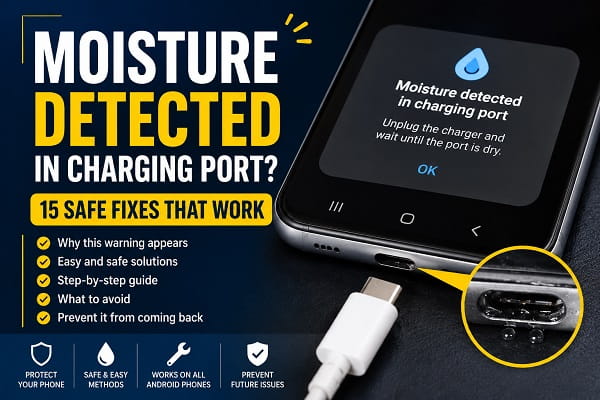
A moisture detected in charging port warning means your phone has disabled its wired USB connection because it senses liquid, condensation or conductive debris in the port or on the cable. Unplug the charger immediately, keep the port facing downward and allow the phone and cable to dry in a ventilated place. Do not force wired charging, insert an object into the port or use heat to speed up the process.
The alert is usually temporary. It may disappear after the connector dries, but a wet port can take several hours and sometimes up to 24 hours to become completely dry. If the warning remains after the phone, cable and adapter are unquestionably dry, troubleshoot the accessory, restart the phone and use the manufacturer-specific steps below.
What the Moisture Warning Means
Modern phones can monitor the electrical behavior of the charging connector. When the device detects conditions that resemble moisture or conductive material, it disables wired charging and USB accessories to protect the contacts.
Depending on the phone, the message may say:
- Moisture detected in charging port
- Moisture or foreign material detected
- Check charger or USB port
- Liquid or debris in USB port
- Liquid detected in USB-C connector
- Liquid detected in Lightning connector
- Charging not available
These messages do not all come from the same operating system, but their immediate meaning is similar: disconnect the cable and do not use the port until it is dry.
Charging through a wet connector can cause the metal contacts to corrode. It can also damage the cable or create an unreliable connection that later affects charging, file transfers, Android Auto or CarPlay.
Why the Warning Appears When the Phone Looks Dry
Visible water is only one possible cause. The sensor may react even when the outside of the phone appears dry.
Common triggers include:
- Rain, splashes or accidental immersion
- Steam from a bathroom or kitchen
- High humidity and rapid temperature changes
- Condensation after moving between cold and warm environments
- Sweat reaching the connector during exercise
- A wet or contaminated charging cable
- Pocket lint, dirt or residue in the port
- Corrosion from an earlier liquid exposure
- A damaged cable or charging connector
- A temporary USB service or software error
A water-resistant rating does not make a phone waterproof. Water resistance can also decrease with age, drops, repairs and normal wear. Treat every moisture warning as genuine until the phone and its accessories have had enough time to dry.
1. Unplug the Charger Immediately
Disconnect the cable from the phone as soon as the alert appears. Disconnect the other end from the power adapter, computer or vehicle USB port as well.
Do not repeatedly reconnect the cable to see whether the warning has disappeared. Each test introduces power to a connector that may still be wet. Repeated connection attempts can also push moisture or debris farther into the port.
Inspect both ends of the cable. A dry phone can still display a warning if the cable connector is wet or contaminated.
If the phone was connected to Android Auto, CarPlay, a computer, a flash drive or another wired accessory, disconnect that accessory too. The protection applies to data connections as well as charging.
2. Remove the Case and Wipe the Exterior
Remove the phone case if it is damp or covers part of the charging-port area. A wet case can trap moisture against the phone and slow evaporation.
Use a clean, soft, dry, lint-free cloth to wipe:
- The outside of the phone
- The area around the charging-port opening
- The charging cable connector
- The outer surface of the power adapter
Only wipe surfaces you can reach without inserting the cloth into the port. Do not push a tissue, cotton swab or twisted corner of fabric into the connector. Fibers can remain inside and create a second problem.
If the adapter itself became wet, stop using it until it has been properly inspected or replaced. A power adapter connected to household electricity requires more caution than a damp phone case.
3. Hold the Charging Port Facing Down
Turn the phone so the port points toward the floor. This position allows gravity to help any loose droplets move toward the opening instead of deeper into the device.
Gently tap the phone against the palm of your hand while keeping the connector down. Samsung similarly advises gently shaking a wet Galaxy device with its port facing downward. The movement should be light and controlled.
Do not shake the phone violently. Aggressive movement does not dry the connector faster and increases the chance of dropping the device.
4. Leave the Phone in a Ventilated Area
Place the phone on a clean, dry surface in a room with normal airflow. Keep the charging port uncovered and, where practical, angled downward.
A regular room fan can provide gentle airflow across the outside of the phone. Position the fan several feet away and use normal, cool air. Do not direct a high-pressure stream into the port.
Avoid enclosed drawers, bags and humid bathrooms. A cool room with moving air is more useful than a warm but poorly ventilated space.
The safest drying method is time plus airflow. It may feel slow, but it avoids the heat and pressure that can damage seals, adhesives and connector contacts.
5. Wait Before Testing the Port
Do not assume the connector is dry because its opening looks clear. Moisture can remain beneath the contacts or on the cable where it is difficult to see.
For an iPhone, Apple recommends waiting at least 30 minutes before trying a wired connection again. If the alert returns, the connector may need up to 24 hours to dry completely. Apple explains the process in its official liquid-detection alert instructions.
Android drying time varies with the amount of liquid, room humidity and phone design. A light condensation warning may clear relatively quickly, while a soaked connector can require many hours.
When testing:
- Confirm that the phone and cable connector look and feel dry.
- Use one known-good cable.
- Connect it once without forcing it.
- If the warning returns, unplug it and continue drying.
Do not run through multiple wired chargers while the alert is active. A different cable is useful only after the port has had enough time to dry.
6. Let the Cable and Accessories Dry Too
The phone may not be the wet component. Rain, condensation or a spill can reach the plug at the end of the charging cable. Dirt or corrosion on that plug may also trigger the warning.
Disconnect the cable from power and place it in a dry, ventilated area. Keep both connectors exposed to normal airflow. Do not reconnect it until it is completely dry.
Once the waiting period has passed, compare the original cable with another certified, undamaged cable. If the warning appears only with one cable, stop using that cable. A damaged or contaminated accessory can cause repeated alerts even when the phone’s port is fine.
Check the power adapter as well. Replace an adapter that has liquid damage, visible corrosion, a burnt smell, cracked casing or unusual heat.
7. Restart the Phone After It Is Dry
A restart can refresh the USB service and clear a notification that remained after the moisture disappeared. It cannot remove real water, so restart only after completing the drying process.
To restart most Android phones:
- Hold the power button, or the power and volume-down buttons on some models.
- Tap Restart.
- Wait for the phone to turn back on before connecting a cable.
To restart an iPhone, use the normal power-off slider for the model, wait about 30 seconds and turn it on again.
If the device’s battery is critically low, leave it powered off while the port dries. Use compatible wireless charging only if the phone supports it and the entire back of the device is dry.
8. Try a Different Dry Cable and Adapter
After the port is dry and the alert has cleared, test with a certified cable and adapter that are known to work properly.
Replace the original accessory if it has:
- Dark or green residue on the connector
- Bent, loose or discolored contacts
- A frayed cable jacket
- A plug that becomes unusually hot
- A loose fit in several devices
- A history of exposure to water
If several known-good cables trigger the same warning, the problem is more likely to be in the phone’s port, sensor or USB software.
If the moisture message disappears but the phone still will not charge, use Phone Not Charging After an Update to separate software, battery and charging-hardware problems.
9. Inspect for Dry Debris Without Digging
Wait until the connector is completely dry, then turn the phone off and inspect the port under a bright light.
Look for:
- Pocket lint packed at the back
- Dust around the entrance
- Sand or makeup residue
- Green, white or dark corrosion
- Bent contacts
- A damaged USB-C center tongue
Do not insert a pin, paper clip, SIM-eject tool or other metal object. Avoid cotton swabs and toothpicks as well. They can bend contacts, leave fibers or break inside the port.
For an iPhone, follow How to Clean an iPhone Charging Port Safely before attempting any surface cleaning. If debris is compacted deep inside a USB-C or Lightning connector, professional cleaning is safer than scraping it out at home.
Residue left by salt water, soda, coffee or another contaminated liquid is more serious than clean water. Even after the liquid evaporates, conductive or corrosive material can remain. Arrange professional inspection rather than pouring cleaner into the connector.
10. Clear the USB Cache on a Dry Samsung Galaxy
Samsung Galaxy phones may continue displaying the water-drop icon after the connector is completely dry. Samsung recommends clearing the USBSettings cache when this happens.
Only perform these steps after confirming there is no moisture in the phone or cable:
- Open Settings.
- Tap Apps.
- Select the Filter and sort icon.
- Enable Show system apps, then tap OK.
- Find and open USBSettings or USB Settings.
- Tap Storage.
- Tap Clear cache.
- Restart the phone and test with a dry cable.
Menu names can differ by Galaxy model and One UI version. Samsung documents these steps in its water-drop icon troubleshooting.
Clear the cache, not personal data elsewhere on the phone. A factory reset is not a sensible early fix for a charging-port moisture alert.
11. Update the Phone’s Software
If the port and accessories are dry, the hardware looks undamaged and the warning keeps returning, check for an operating-system update.
On Android:
- Open Settings.
- Tap System, Software update or System update.
- Download and install any available update.
On iPhone:
- Open Settings.
- Tap General.
- Select Software Update.
Charge wirelessly during the update only if the device supports it and is otherwise dry. Do not override a genuine liquid warning simply to install software.
A software update is most relevant when the alert began after an operating-system change and there has been no liquid exposure. It is much less likely to help when the connector has visible corrosion or physical damage.
Moisture Detected on Samsung but the Port Is Dry
On a Samsung Galaxy, high humidity, debris, a contaminated cable or a stuck USBSettings state can produce the water-drop icon even when no visible liquid remains.
Use this order:
- Disconnect all USB accessories.
- Dry the phone and cable fully.
- Restart the phone.
- Test one different certified cable.
- Clear the USBSettings cache.
- Install available One UI updates.
- Arrange service if the warning returns with every cable.
Do not clear the USB cache before drying the connector. Hiding or clearing a notification does not make wet contacts safe to power.
Some Galaxy models sound an alarm when a charger is connected during a moisture warning. This is expected protective behavior. Disconnect the cable rather than attempting to silence the alarm and continue charging.
Liquid or Debris in USB Port on Google Pixel
Pixel phones can disable USB when they detect liquid or debris. The notification may change to OK to use USB port after the connector becomes safe again.
Disconnect the cable, turn the port downward and allow the phone to dry naturally. If the port appears clean and dry but the warning remains, power the phone off, let it cool for several minutes and restart it.
Do not reconnect the cable until the phone reports that the USB port is safe. If the warning continues for hours, repeatedly returns or appears with multiple dry cables, contact Google support or an authorized repair provider.
A burned, melted or corroded USB-C port requires service. Do not test it with additional chargers.
Liquid Detected on iPhone
An iPhone may display Liquid Detected in USB-C Connector, Liquid Detected in Lightning Connector, Liquid Detected or Charging Not Available.
The warning can be triggered by liquid in the iPhone port, the cable connector or an attached accessory. Wired charging and accessory use are disabled to reduce the risk of corrosion and permanent connector damage.
Use this sequence:
- Disconnect the cable from the iPhone and power source.
- Hold the connector downward.
- Tap the phone gently against your hand to release excess liquid.
- Leave it in a dry area with airflow.
- Wait at least 30 minutes before the first test.
- If the alert returns, disconnect the cable and allow more drying time, potentially up to 24 hours.
If the warning appears every time a particular dry cable is connected, replace the cable or accessory. If it appears with every Apple or certified accessory, the port may need service.
Should You Use Emergency Override on iPhone?
Some iPhones offer an emergency override that allows wired charging despite the liquid warning. This option does not remove the moisture or make charging safe. It bypasses the protection.
Avoid emergency override unless power is essential and no safer option is available. Charging a wet connector can corrode its pins and cause lasting charging or data problems.
Wireless charging is the safer temporary option when:
- The iPhone supports Qi or MagSafe charging
- The back of the iPhone is completely dry
- The wireless charger and power source are dry
- The phone shows no signs of overheating or internal damage
If wireless charging does not work, see iPhone Wireless Charging Not Working instead of returning to the wet cable.
Can You Charge Wirelessly During a Moisture Warning?
Usually, yes, if the phone supports wireless charging and its back surface is completely dry. Wireless charging does not use the USB-C or Lightning contacts.
Before placing the phone on a charging pad:
- Remove any wet case.
- Dry the back and sides of the phone.
- Confirm the charging pad is dry.
- Center the phone correctly on the pad.
- Monitor it for unusual heat.
Stop if the phone becomes excessively hot, was submerged, has a swollen battery or shows other signs of damage. Wireless charging provides temporary power, but it does not repair a corroded or faulty charging port.
What Not to Do
Many popular drying tricks create more risk than the warning itself.
Do Not Use a Hair Dryer or Heater
Hot air can damage the battery, display adhesive, water-resistant seals and plastic components. It may also drive liquid deeper into the phone.
Use normal room-temperature airflow instead.
Do Not Use Compressed Air
Compressed air can force moisture and debris deeper into the connector. A high-pressure stream may also damage delicate contacts.
Do Not Put the Phone in Rice
Rice is not a controlled drying method. Small particles and dust can enter the charging port, and the phone still may not receive enough airflow.
Leave it in a ventilated room instead.
Do Not Insert Anything Into the Wet Port
Avoid toothpicks, pins, paper clips, brushes, cotton swabs and folded tissue while moisture may still be present. These objects can damage contacts or leave material behind.
Do Not Pour Alcohol or Cleaner Into the Port
Do not add rubbing alcohol, contact cleaner or water in an attempt to flush the connector. The wrong liquid can damage coatings, seals and internal components.
Do Not Force the Charger or Repeatedly Override the Alert
The charging lockout is a safety feature. Bypassing it repeatedly increases the chance of corrosion and permanent port failure.
How to Tell Whether the Port Is Damaged
A normal moisture warning should clear after the connector and accessories are dry. Continued problems may indicate contamination, corrosion or physical damage.
Arrange inspection if you notice:
- Green, white or black residue inside the port
- Burn marks, melting or a burnt smell
- Bent contacts or a damaged USB-C center tongue
- A cable that no longer seats fully
- Charging that works only at an angle
- Repeated connection and disconnection
- Excessive heat near the port
- The warning after every certified cable
- Failure to charge after 24 hours of drying
- Camera fogging or moisture beneath the display
- A phone that was submerged in salt water or another corrosive liquid
Stop using the port if it looks burned, melted or badly corroded. Continuing to test chargers can damage both the phone and accessories.
If charging works but wired data or an in-car connection fails, the port may still have damaged data contacts. Phone Charging but CarPlay Not Working explains why power can continue even when a USB data connection does not.
Do You Need a Factory Reset?
Almost never. A factory reset cannot dry liquid, remove corrosion or repair a damaged connector. It also erases personal data and adds unnecessary work to a problem that is usually physical or accessory-related.
Consider a reset only if the manufacturer or authorized support technician confirms a software fault after the phone has been inspected, the port is dry and less disruptive troubleshooting has failed.
For Samsung phones, clearing the USBSettings cache is the more targeted software step. For other Android devices, a restart and system update are safer first choices.
How to Prevent Future Moisture Alerts
A few habits can reduce both genuine and false warnings:
- Dry the phone before connecting a charger.
- Keep cable ends off wet counters and floors.
- Avoid charging in steamy bathrooms.
- Remove a damp case promptly.
- Let the phone adjust after moving from a cold place into warm, humid air.
- Inspect cables for dirt, corrosion and damage.
- Use certified charging accessories.
- Keep the port protected from pocket lint and sand.
- Never connect a cable immediately after swimming, exercise or heavy rain.
Water resistance is a backup protection, not permission to charge while the connector is wet.
Frequently Asked Questions
Why does my phone say moisture detected when it is dry?
Humidity, condensation, a wet cable, conductive debris, corrosion or a temporary USB software error can trigger the warning. Dry the phone and cable first, then restart and test with another certified cable.
How long does moisture stay in a charging port?
Light condensation may clear relatively quickly, but trapped moisture can take several hours. Apple notes that an iPhone connector may require up to 24 hours to dry completely.
How can I remove the moisture warning quickly?
There is no safe instant bypass. Disconnect the cable, point the port downward and use gentle room-temperature airflow. Avoid heat, compressed air and objects inserted into the connector.
Can I use a fan to dry the charging port?
Yes. A regular fan providing cool, gentle airflow across the phone can help evaporation. Do not use a high-pressure air source or push air directly into the connector at close range.
Can I use a hair dryer on the cool setting?
A regular room fan is the safer choice. A hair dryer may produce more heat or pressure than expected and can push liquid deeper into the device.
Should I turn the phone off?
Turning it off is sensible when the phone was significantly wet, the battery is low or the warning will not clear. At minimum, unplug every wired accessory and stop testing the port until it is dry.
Can I use wireless charging while moisture is detected?
Yes, if the phone supports wireless charging and the back of the device and charging pad are completely dry. Stop if the phone becomes unusually hot.
Why does the warning return with one cable?
That cable may be wet, dirty, corroded or damaged. Stop using it and test a certified dry replacement after the phone’s port has dried.
Why does the warning return after every restart?
Persistent moisture, debris, corrosion, a damaged port or a faulty sensor may be responsible. Samsung users can clear the USBSettings cache after the connector is completely dry. Other phones may need authorized service.
Is it safe to override liquid detection on iPhone?
Emergency override allows charging but does not make a wet connector safe. Use wireless charging when possible and reserve the override for a genuine emergency.
When should I take the phone for repair?
Arrange service if the warning remains after up to 24 hours of drying, returns with several certified cables or appears alongside corrosion, overheating, burning, loose connections or other signs of physical damage.
Let the Port Dry Before Troubleshooting Further
The safest response to a moisture detected in charging port warning is simple: unplug the cable, keep the connector facing down and give the phone and accessories time to dry in moving room air. Only after the port is unquestionably dry should you restart the phone, test another cable or clear Samsung’s USB cache.
Avoid rice, heat, compressed air, liquids and objects inside the connector. If the warning continues after a full drying period or the port shows corrosion or physical damage, stop testing chargers and arrange professional inspection.
