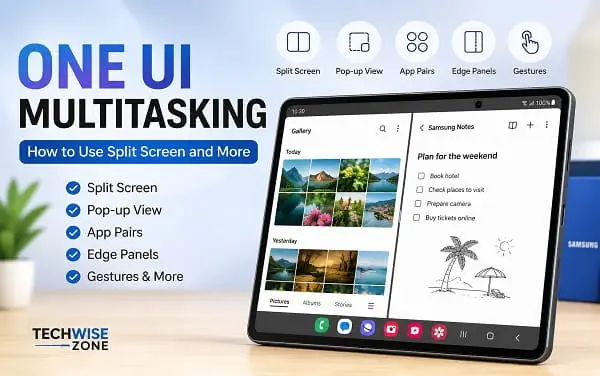
Samsung Galaxy phones and tablets have several multitasking features that make it easier to use multiple apps without constantly switching between full-screen windows. One UI includes split screen, pop-up view, App pairs, Edge panels, multitasking gestures, and, on supported devices, a taskbar.
These features can be useful when you want to browse the web while taking notes, watch a video while replying to messages, compare information between two apps, or keep a calculator open while working. If you want to explore more useful Android settings, see our guide to hidden Android features.
The exact options vary by Galaxy model and One UI version, and some apps do not support every multitasking feature. Samsung’s current documentation confirms that Multi Window is available across supported Galaxy phones, tablets, and foldable devices, with some differences between models.
What Is One UI Multitasking?
One UI multitasking refers to Samsung’s collection of features for using multiple apps at the same time or switching between them more efficiently.
The main feature is Multi Window. It allows compatible apps to appear side by side in split-screen view or in a floating pop-up window. Samsung also provides ways to launch apps from Recents, the Edge panel, the taskbar on supported devices, and gestures.
Depending on your Galaxy device, you may have access to:
- Split screen
- Pop-up view
- App pairs
- Edge panels
- Multitasking gestures
- Taskbar
- Drag and drop
- Additional multitasking features on supported foldable devices
You do not need to use every feature. Split screen alone can be extremely useful if you regularly work with two apps together.
How to Use Split Screen on Samsung Galaxy
Split screen is one of the easiest ways to use two compatible apps simultaneously.
For example, you could use Chrome and Samsung Notes together, or open Messages beside another application.
To open two apps in split screen:
- Open the first app.
- Open the Recents screen.
- Tap the app’s icon at the top of its preview.
- Select Open in split screen view.
- Select the second app.
The two applications should now appear together on the display.
Samsung also supports opening apps in split screen by dragging them from supported multitasking trays, including the Edge panel and taskbar.
How to Resize Split Screen
When two apps are open, a divider separates their windows.
Drag the divider to give one application more or less screen space.
This is especially useful on tablets and foldable phones because their larger displays provide more room for both applications.
How to Open an App in Pop-Up View
Pop-up view works differently from split screen.
Instead of giving two apps fixed sections of the screen, it opens one application in a floating window that you can move and resize.
To use pop-up view:
- Open the app.
- Open Recents.
- Tap the app’s icon.
- Select Open in pop-up view.
You can then move the window around the display and resize it when necessary.
Pop-up view is useful for apps such as Messages, Calculator, Notes, or another application that you need occasionally while working in another app.
Split Screen vs. Pop-Up View
The two features are designed for different situations.
Split screen is better when you need to actively use two applications for a longer period.
Pop-up view is better when you need quick access to one application without giving it half of the screen.
For example, you can read an article in Chrome while writing notes in split screen, or keep Calculator in a floating window while checking prices on a website.
How to Use One UI Multitasking Gestures
Supported Galaxy devices running newer versions of One UI can use gestures to move an open application into split screen or pop-up view.
Go to:
Settings → Advanced features → Multi window
Depending on your device, you may see:
- Swipe for split screen
- Swipe for pop-up view
When enabled, supported devices can use a two-finger swipe from the bottom to move the current app into split-screen mode. A one-finger swipe inward from a top corner can open the current app in pop-up view.
If you find yourself activating multitasking accidentally, you can turn these gestures off.
How to Use the Edge Panel for Multitasking
The Edge panel provides quick access to apps and other tools on supported Galaxy devices.
To check whether it is enabled, go to:
Settings → Display → Edge panels
You can use the Apps Edge panel to quickly access applications and, on supported devices, drag apps into split-screen or pop-up views.
This can be useful if you regularly use the same apps together.
How to Create an App Pair
If you repeatedly use the same two applications together, an App pair can save time.
An App pair lets you save two compatible apps so they can launch together in split-screen mode.
To create one on a supported device:
- Open the two apps in split screen.
- Tap the divider or multitasking controls between the apps.
- Select the App pair option.
- Choose where to save the pair.
Depending on the device, an App pair can be added to the Home screen, Apps Edge panel, or taskbar.
For example, you could create an App pair for Chrome + Samsung Notes or YouTube + Messages.
How to Use the Taskbar for Multitasking
Some Galaxy tablets and foldable devices include a taskbar that provides quick access to applications.
The taskbar can make it easier to switch between apps and launch applications into Multi Window. App pairs can also be added to the taskbar on supported models.
This is particularly useful on larger displays because you can keep frequently used applications within easy reach while working.
One UI Multitasking on Galaxy Tablets
Multitasking becomes particularly useful on a Galaxy tablet because the larger screen gives you more space to work with two applications.
Compatible Galaxy tablets support split-screen view, allowing two apps to remain visible simultaneously. You can adjust the size of each window using the divider.
You can use a tablet to:
- Browse the web while taking notes
- Read a document while writing
- Watch a video while chatting
- Check email while viewing your calendar
- Compare information from two apps
- Keep Calculator open while working
The experience can feel much closer to using a small computer than a traditional phone. If you are also troubleshooting other Android features, our guide on WiFi Calling not working on Android covers another common Android issue.
One UI Multitasking on Galaxy Z Fold Devices
Galaxy Z Fold devices provide additional screen space for multitasking.
Supported Z Fold models can open apps in split screen or pop-up view, create App pairs, and use the taskbar for Multi Window on compatible devices.
This makes the larger inner display useful for combinations such as:
- Email and web research
- Notes and documents
- Messaging and video
- Calendar and email
- File management and browsing
Some foldable models also include additional options through Samsung’s Labs settings.
How to Drag and Drop Between Apps
One UI multitasking can also make it easier to move content between compatible applications.
Depending on the apps, you may be able to drag and drop:
- Text
- Images
- Links
- Files
Support varies by application, so drag and drop will not work everywhere.
Why Can’t I Use Split Screen With Some Apps?
Not every Android application supports split screen.
If Open in split screen view is missing for one application, that does not necessarily mean there is a problem with your Samsung phone.
The application may simply restrict multi-window functionality.
Try another application. If Chrome works in split screen but a particular third-party app does not, the limitation may be built into that application.
How to Fix One UI Multitasking Not Working
If split screen or pop-up view stops working, try these steps.
Restart Your Galaxy Device
Restart the phone or tablet and test Multi Window again.
A temporary One UI or application problem may disappear after a restart.
Check for Software Updates
Go to:
Settings → Software update
Then check for available updates.
Software updates can fix bugs and change how certain multitasking features work.
Test Another Application
Try opening another compatible app in split screen.
If the second app works, the problem may be limited to the original application.
Check Multi Window Settings
Open:
Settings → Advanced features → Multi window
Check the available settings and gestures.
The options can vary depending on your Galaxy model and One UI version.
Disable Multitasking Gestures
If multitasking keeps activating accidentally, disable the gesture settings you do not need.
Look for:
Swipe for split screen
and:
Swipe for pop-up view
How to Exit Split Screen
When you finish using two apps together, you can return to normal full-screen use.
Depending on your device, you can use the multitasking controls or drag the divider toward the edge of the display.
You can also return to the Home screen. The apps can remain available through Recents.
How to Stop Apps From Opening in Multi Window Automatically
If applications keep opening in split screen or pop-up view without you intending to do so, a gesture may be responsible.
Go to:
Settings → Advanced features → Multi window
Then check the multitasking gesture settings.
If necessary, disable:
Swipe for split screen
and:
Swipe for pop-up view
This is particularly useful if you frequently touch the edges or corners of the display while using your phone.
How to Make One UI Multitasking More Useful
The best way to use One UI multitasking is to build it around the tasks you actually perform.
If you regularly research and take notes, use a browser and note-taking app in split screen.
If you need to respond to messages while using another application, pop-up view may be more convenient.
If you repeatedly use the same two apps together, create an App pair.
If you use a Galaxy tablet or foldable, customize the taskbar or Edge panel with your most-used applications.
The goal is not to keep as many apps open as possible. It is to reduce unnecessary switching and make common tasks faster. You can also make your Home screen less cluttered with our guide on how to remove the search bar from the Android home screen.
Useful One UI Multitasking Combinations
Here are a few combinations worth trying:
Research: Chrome + Samsung Notes
Communication: Messages in pop-up view + another app
Shopping: Browser + Calculator
Study: Browser or document + Notes
Travel: Maps + Messages
Work: Gmail + Calendar
These combinations become particularly useful on larger Galaxy displays.
Frequently Asked Questions
What is One UI multitasking?
One UI multitasking is Samsung’s collection of features for using multiple apps at the same time or switching between applications efficiently. It includes Multi Window, split screen, pop-up view, App pairs, Edge panels, and taskbar features on supported devices.
How do I use multitasking on Samsung?
Open the Recents screen, tap the app icon, and select Open in split screen view or Open in pop-up view when available. You can also use supported Edge panel, taskbar, or gesture options.
Does every Samsung phone support split screen?
No. Availability depends on the Galaxy model, One UI version, and application. Some apps do not support split-screen view.
Why is split screen not available for an app?
The application may not support Android’s multi-window functionality. Test another compatible application to determine whether the limitation is specific to that app.
Can I use two apps at once on a Samsung tablet?
Yes. Compatible Galaxy tablets support split-screen multitasking, allowing you to use two apps simultaneously.
What is the difference between Multi Window and split screen?
Multi Window is Samsung’s broader multitasking system. Split screen is one way Multi Window allows you to use multiple applications.
What is pop-up view in One UI?
Pop-up view opens an application in a smaller floating window that you can move and resize over another app.
What are App pairs?
App pairs allow you to save two compatible applications so they can launch together in split-screen mode on supported Galaxy devices.
Why do Samsung apps keep opening in split screen?
You may be accidentally triggering a Multi Window gesture. Check Settings → Advanced features → Multi window and disable the relevant gesture if necessary.
Can I multitask on a Galaxy Z Fold?
Yes. Supported Galaxy Z Fold devices provide Multi Window features designed for their larger inner displays, including split screen, pop-up view, and App pairs.
Is One UI multitasking available on every Galaxy device?
The available features vary by Galaxy model, One UI version, screen size, and application. Samsung changes some multitasking features between devices and software versions.
One UI multitasking is one of the more useful parts of Samsung’s Android interface because it gives you several ways to work with multiple apps instead of constantly switching between full-screen windows.
Start with split screen if you want two apps side by side. Use pop-up view when you need a floating window. If you regularly use the same applications together, create an App pair. On supported tablets and foldables, the taskbar can make switching and launching apps even faster.
The exact options depend on your Galaxy model and One UI version, but once you understand Multi Window, Edge panels, App pairs, and pop-up view, multitasking on a Samsung device becomes much easier and more useful.
