
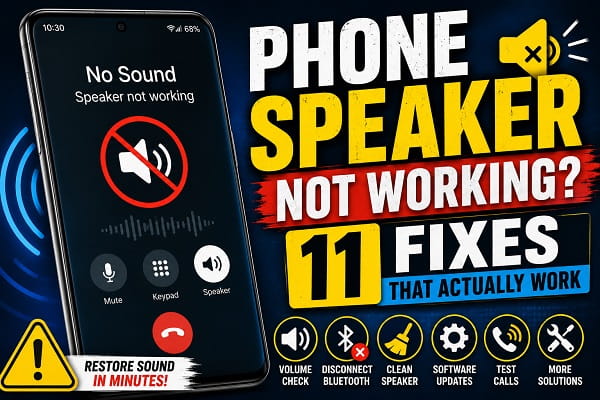
Few things are more frustrating than picking up your phone to watch a video, answer a call on speaker, or listen to a voice message only to discover that no sound is coming from the speaker.
At first, it may seem like a serious hardware problem, but a silent phone speaker doesn’t always mean the speaker itself is damaged. In many cases, the issue is caused by simple settings, software glitches, Bluetooth connections, or temporary system errors that can be fixed in just a few minutes.
The challenge is that several different problems produce the same symptom. A phone connected to a Bluetooth speaker, a clogged speaker grille, low media volume, water exposure, or even an app conflict can all make it appear as though the speaker has stopped working completely.
Before spending money on repairs or replacing your phone, it’s worth working through a few troubleshooting steps to identify the real cause.
This guide explains why your phone speaker is not working, the most common reasons behind the problem, and the most effective solutions for restoring clear audio on both Android phones and iPhones.
How Your Phone Speaker Works
Understanding how your phone produces sound makes troubleshooting much easier.
Every smartphone contains one or more speakers that convert electrical signals into sound waves.
Depending on your phone, these speakers may be used for:
- Music playback
- Videos
- Speakerphone calls
- Alarms
- Notification sounds
- Games
- Navigation directions
Several different components work together to produce audio, including:
- The operating system
- Audio drivers
- Media applications
- Internal amplifier
- Speaker hardware
If any one of these components fails, your phone may produce distorted sound, very low volume, crackling audio, or no sound at all.
Signs Your Phone Speaker Has a Problem
Speaker issues don’t always look the same.
You may experience one or more of the following:
- No sound during videos.
- Speakerphone doesn’t work.
- Music plays through headphones only.
- Calls are silent on speaker mode.
- Crackling or distorted audio.
- Volume is much lower than normal.
- Notification sounds disappear.
- Alarms don’t play through the speaker.
Recognizing these symptoms helps narrow down the possible cause much faster.
Why Your Phone Speaker Is Not Working
There isn’t a single explanation for speaker problems.
Some issues are caused by software, while others involve physical damage or incorrect settings.
The most common causes include:
- Low media volume.
- Bluetooth devices still connected.
- Silent or Do Not Disturb mode.
- Dust blocking the speaker grille.
- Water damage.
- Software bugs.
- Faulty applications.
- Audio routing problems.
- System updates.
- Damaged speaker hardware.
Fortunately, many of these problems can be resolved without professional repair.
Check the Volume First
It sounds obvious, but many speaker problems are simply caused by low media volume.
Remember that Android and iPhone often use separate volume controls for:
- Media.
- Calls.
- Notifications.
- Alarms.
Increasing the ringtone volume won’t necessarily increase video or music volume.
Play a video or song while pressing the Volume Up button to ensure the media volume is actually turned up.
Turn Bluetooth Off
Bluetooth is one of the most common reasons people think their phone speaker has stopped working.
If your phone is still connected to:
- Wireless earbuds
- Bluetooth headphones
- A smartwatch
- Your car
- A Bluetooth speaker
the audio may be playing through that device instead of your phone.
Open your Bluetooth settings and disconnect any devices that are currently connected.
Then play a video again to see whether sound returns.
Restart Your Phone
Temporary software glitches occasionally interrupt Android’s audio services.
Restarting your phone refreshes:
- Audio processes.
- Background services.
- Hardware communication.
- Media routing.
A simple restart solves more speaker problems than many people expect.
If you haven’t restarted your phone recently, try this before moving on to more advanced troubleshooting.
Check Silent Mode and Do Not Disturb
Silent Mode and Do Not Disturb don’t usually disable media playback, but depending on your settings, they may affect:
- Notifications.
- Alarms.
- Incoming call sounds.
- Some system audio.
Turn these features off temporarily and test your speaker again.
If sound returns, review your notification and audio settings to identify what changed.
Clean the Speaker Grille Carefully
Over time, your phone’s speaker grille can collect dust, lint, pocket debris, and other particles that reduce sound quality.
If the speaker sounds muffled or unusually quiet, inspect the grille under good lighting.
If you notice dirt or debris:
- Use a soft, dry brush to loosen the particles.
- Gently wipe the area with a microfiber cloth.
- Use compressed air sparingly and from a safe distance.
Avoid using:
- Sharp objects
- Pins
- Needles
- Toothpicks
- Excessive force
These can permanently damage the speaker mesh or internal components.
Check for Water Damage
Water is one of the most common causes of speaker problems.
Even if your phone is water-resistant, moisture trapped inside the speaker can temporarily reduce sound quality.
Signs of water damage include:
- Muffled audio
- Crackling sounds
- Distorted music
- Low speaker volume
If your phone recently came into contact with water, allow it to dry completely before testing it again.
Avoid using heat from hair dryers or placing the phone in rice, as these methods are generally ineffective and may cause additional problems.
Instead, keep the phone in a dry, well-ventilated place until the moisture evaporates naturally.
If your speaker still sounds muffled after drying, see our guide on how to get water out of your phone speaker for additional recovery steps.
Test the Speaker With Different Apps
Sometimes the speaker isn’t the problem.
Instead, one specific application may fail to produce sound.
Try testing your phone with:
- YouTube
- Spotify
- Voice Recorder
- Alarm Clock
- Phone Speaker during a call
- Notification sounds
If audio works everywhere except one application, updating or reinstalling that app may solve the issue.
Check Whether Headphone Mode Is Stuck
Occasionally, your phone mistakenly believes headphones are still connected even after they’ve been unplugged.
When this happens:
- The speaker produces no sound.
- Audio continues routing to a nonexistent headset.
- Speakerphone may not work.
Restarting the phone usually fixes this problem.
If you’re using wired headphones, unplug and reconnect them once before testing the speaker again.
Boot Into Safe Mode
Third-party applications sometimes interfere with Android’s audio system.
Starting your phone in Safe Mode temporarily disables downloaded apps while leaving built-in system apps running.
If the speaker works normally in Safe Mode, one of your installed apps is likely causing the problem.
Restart the phone normally afterward, then uninstall recently installed or suspicious applications one at a time until the issue disappears.
Update Your Phone Software
Software bugs occasionally affect speaker performance.
Manufacturers release updates to fix problems involving:
- Audio playback
- Call quality
- Bluetooth
- Media routing
- System stability
To check for updates:
- Open Settings.
- Tap Software Update or System.
- Check for available updates.
- Install any recommended updates.
After the installation finishes, test your speaker again.
Clear Bluetooth Audio Routing Issues
Even after Bluetooth devices disconnect, Android may occasionally continue routing audio incorrectly.
To rule this out:
- Turn Bluetooth off completely.
- Restart the phone.
- Play media through the speaker.
If the sound returns, reconnect your Bluetooth devices only when needed.
Reset Audio or Network Settings
If you’ve recently changed audio settings or installed a major software update, resetting certain settings may resolve speaker issues.
Some Android phones allow you to reset:
- Sound settings
- Accessibility settings
- Network settings
Resetting these options does not usually erase personal files such as photos or videos.
If you’re using a Samsung Galaxy device, resetting network settings may also resolve related audio routing problems after Bluetooth or Wi-Fi configuration issues.
Use Your Phone’s Built-In Diagnostic Tools
Many smartphone manufacturers include hidden diagnostic tests for hardware components.
For example:
- Samsung Members
- Motorola Device Help
- Xiaomi CIT Menu
- Google Pixel Diagnostics (supported models)
These tools can test:
- Speakers
- Microphones
- Display
- Sensors
- Vibration motor
If the diagnostic test reports a hardware fault, software troubleshooting is unlikely to solve the problem.
When the Speaker Hardware Is Damaged
If none of the previous solutions work, the speaker itself may have failed.
Hardware damage can result from:
- Drops
- Water exposure
- Physical impact
- Manufacturing defects
- Long-term wear
Typical signs include:
- No sound at all.
- Persistent crackling.
- Very distorted audio.
- Speaker works intermittently.
- Volume remains extremely low despite maximum settings.
In these situations, professional repair or speaker replacement is usually required.
Should You Repair or Replace the Phone?
The answer depends on:
- The age of the phone.
- Repair cost.
- Overall condition.
- Remaining battery health.
Replacing the speaker is often worthwhile for newer phones.
However, if your device has multiple hardware problems, investing in a replacement phone may be the more cost-effective option.
How to Prevent Speaker Problems
Although some hardware failures are unavoidable, good maintenance can significantly extend the life of your phone speaker.
Here are a few simple habits to follow:
- Keep your phone away from excessive moisture.
- Clean the speaker grille regularly.
- Avoid exposing the phone to sand or dust.
- Use a protective case.
- Install software updates promptly.
- Disconnect unused Bluetooth devices.
- Avoid playing audio at maximum volume for long periods.
These small precautions help maintain clear sound quality and reduce the likelihood of future speaker issues.
Frequently Asked Questions
Why is my phone speaker not working but my headphones do?
If audio plays normally through headphones but not through the phone’s speaker, the issue is usually related to the speaker itself, Bluetooth audio routing, software settings, or a hardware fault. Start by disconnecting Bluetooth devices, restarting the phone, and testing the speaker with different apps.
Why is my phone speaker so quiet?
A quiet speaker is often caused by dust blocking the speaker grille, low media volume, water inside the speaker, or audio enhancement settings. Cleaning the speaker carefully and checking your sound settings may improve the volume.
Can water permanently damage a phone speaker?
Yes. If water reaches the speaker or other internal components, it can cause permanent damage. However, temporary muffled sound is common after light water exposure and may improve once the speaker dries completely.
Why does my speaker crackle or sound distorted?
Crackling sounds may indicate:
- Moisture inside the speaker.
- Dust or debris.
- Software issues.
- A damaged speaker.
- Audio distortion caused by playing sound at maximum volume for long periods.
Testing the speaker with different apps can help determine whether the issue is caused by software or hardware.
Why does my phone speaker only work during calls?
This usually indicates that the media speaker and earpiece are behaving differently. Check your media volume settings, Bluetooth connections, and audio output before assuming the speaker is faulty.
Can an app stop my phone speaker from working?
Yes. Some third-party applications can interfere with audio playback or change sound settings. Booting your phone into Safe Mode is one of the easiest ways to determine whether an installed app is causing the problem.
Should I reset my phone to fix the speaker?
A factory reset should be your last option. Most speaker problems are resolved through simpler troubleshooting steps such as restarting the phone, updating the software, cleaning the speaker, or disconnecting Bluetooth devices.
If you decide to perform a factory reset, make sure your important data is backed up first.
Common Mistakes to Avoid
When trying to fix a silent phone speaker, avoid these common mistakes:
- Inserting sharp objects into the speaker grille.
- Pouring liquids into the speaker opening.
- Using excessive compressed air pressure.
- Ignoring software updates.
- Assuming the speaker is broken before checking Bluetooth connections.
- Performing a factory reset without trying simpler solutions first.
Avoiding these mistakes reduces the risk of causing additional damage while troubleshooting.
When to Contact a Repair Technician
If you’ve completed every troubleshooting step in this guide and your phone speaker still doesn’t produce sound, it’s time to seek professional assistance.
A qualified technician should inspect the phone if:
- The speaker remains completely silent.
- Audio crackles even after cleaning and drying.
- The phone was exposed to significant water damage.
- The device was dropped before the problem started.
- Built-in diagnostic tests report a hardware failure.
Professional repairs are often less expensive than replacing the entire phone, especially if the issue is limited to the speaker module.
Restore Your Phone Speaker Without Guesswork
A phone speaker that suddenly stops working doesn’t always mean an expensive repair is waiting. In many cases, the problem can be traced to Bluetooth connections, software glitches, dust buildup, water exposure, or incorrect sound settings.
Working through the fixes one by one helps eliminate the most common causes before considering professional repair. Simple steps such as restarting your phone, cleaning the speaker grille, checking for software updates, and testing the speaker with different apps solve the problem for many users.
If none of these methods restore the sound, a hardware inspection is the safest next step. Taking action early can prevent a small issue from becoming a more costly repair and help you get your phone’s audio working properly again.
