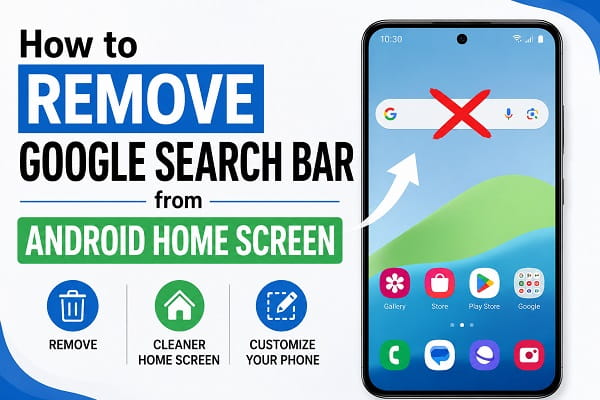
Google search bar is one of the first things you’ll notice on the home screen of many Android phones. While some users find it convenient for quickly searching the web or launching Google Assistant, others prefer a cleaner home screen with more space for apps and widgets.
If you’ve tried long-pressing Search Bar without success, you’re not alone. On some Android phones, Search Bar can be removed in just a few taps, while on others it’s permanently integrated into the default launcher. The exact method depends on your phone’s manufacturer and the launcher you’re using.
In this guide, you’ll learn how to remove Search Bar from your Android home screen on Samsung, Google Pixel, Xiaomi, Motorola, OnePlus, Tecno, Infinix, OPPO, vivo, and other Android devices. We’ll also explain what to do if your phone doesn’t allow you to remove it.
Why Is Search Bar on My Android Home Screen?
Search Bar is a Google widget that provides quick access to Google Search, voice search, and sometimes Google Lens. Many Android manufacturers include it by default because Android is built around Google’s services.
Depending on your device, Search Bar may be:
- A removable widget.
- Built into the default launcher.
- Part of the home screen layout.
- Added by a third-party launcher.
Whether you can remove it depends largely on which of these applies to your phone.
Android offers many customization features that most users never explore. If you want to personalize your device even further, check out our guide on hidden Android features for more useful settings and shortcuts.
Can You Remove Search Bar on Every Android Phone?
No.
Some Android phones allow you to remove Search Bar just like any other widget, while others lock it to the home screen.
Generally:
- Samsung Galaxy phones usually allow the search widget to be removed.
- Google Pixel phones keep Search Bar permanently on the home screen when using the default Pixel Launcher.
- Xiaomi, Motorola, OnePlus, OPPO, vivo, Tecno, and Infinix phones vary depending on the launcher and Android version.
If your phone doesn’t support removing Search Bar, using a different launcher is often the easiest solution.
Method 1: Remove Search Bar Like a Widget
On many Android devices, the Google search bar behaves like a normal widget.
To remove it:
- Go to your home screen.
- Touch and hold the Google search bar.
- Wait for the menu or drag handles to appear.
- Drag the widget to Remove or Remove from Home.
- Release your finger.
Search Bar disappears immediately, but the Google app remains installed on your phone.
This method works on many Samsung, Motorola, Xiaomi, OPPO, vivo, Tecno, and Infinix devices.
Method 2: Remove Search Bar on Samsung Galaxy Phones
Samsung’s One UI gives you more flexibility than many Android launchers.
To remove the search widget:
- Touch and hold the Google search bar.
- Tap Remove if the option appears.
- Confirm the action if prompted.
If you accidentally remove it, you can always add it back from the Widgets menu.
Method 3: Can You Remove Search Bar on Google Pixel?
Google Pixel phones are different.
Search Bar at the bottom of the home screen is built into the Pixel Launcher and cannot be removed through the standard settings.
If you want to remove it, your options are:
- Install a third-party launcher such as Nova Launcher, Lawnchair, or Niagara Launcher.
- Customize your home screen using a launcher that doesn’t permanently display Search Bar.
There is currently no official setting that removes Search Bar while using the default Pixel Launcher.
Method 4: Remove Search Bar Using a Different Launcher
If your phone doesn’t let you remove Search Bar, changing the launcher is often the easiest workaround.
Popular Android launchers include:
- Nova Launcher
- Lawnchair
- Niagara Launcher
- Microsoft Launcher
Most of these launchers allow you to customize your home screen completely, including removing the Google search bar, changing icon layouts, and adjusting grid sizes.
After installing a launcher from the Google Play Store, set it as your default home app and configure your home screen the way you like.
If your phone feels slow after installing or changing a launcher, there are several ways to improve performance. Our guide on how to speed up a slow Android phone covers simple tweaks that can make your device more responsive.
Why Can’t I Remove Search Bar?
There are several possible reasons. In some cases, incorrect system settings or app configurations can affect how your home screen behaves. Before making major changes, you can try resetting app preferences on Android, which restores default app settings without deleting your personal data.
- Your phone’s launcher locks Search Bar in place.
- Search Bar is built into the home screen rather than added as a widget.
- Your manufacturer has disabled customization.
- You’re using the default Pixel Launcher.
- Your device administrator or work profile restricts changes.
If none of the standard methods work, installing a custom launcher is usually the only solution.
Does Disabling the Google App Remove Search Bar?
Some users assume that disabling the Google app will automatically remove Search Bar from the home screen. Unfortunately, that’s not always the case.
On many Android phones, Search Bar is linked to both the Google app and the phone’s launcher. While disabling the Google app may remove some Google features, it doesn’t necessarily remove the search widget.
To disable the Google app:
- Open Settings.
- Tap Apps.
- Find and select Google.
- Tap Disable if the option is available.
Keep in mind that disabling the Google app may also affect:
- Google Assistant
- Voice Search
- Google Discover
- Search suggestions
- Other Google services
Because of this, disabling the app isn’t usually the best way to remove Search Bar.
How to Add Search Bar Back
If you remove Search Bar and later decide you want it back, you can easily restore it.
On most Android phones:
- Touch and hold an empty area of the home screen.
- Tap Widgets.
- Locate the Google widget.
- Select the Search widget.
- Drag it to your preferred location on the home screen.
You can also resize the widget on many devices by touching and holding it, then dragging the adjustment handles.
Will Removing Search Bar Affect My Phone?
No.
Removing Search Bar only changes the appearance of your home screen. It does not:
- Delete the Google app.
- Remove your Google account.
- Affect Google Chrome.
- Disable Google Search.
- Delete your saved data.
You can still search the web by opening the Google app, Chrome, or your preferred browser.
Benefits of Removing Search Bar
Many Android users choose to remove Search Bar simply because they prefer a cleaner layout.
Some advantages include:
More Home Screen Space
Removing Search Bar frees up room for additional apps or widgets.
Better Customization
A cleaner home screen allows you to organize icons exactly the way you want.
Minimalist Appearance
Many users prefer a simple home screen without unnecessary widgets.
Easier Widget Placement
Without Search Bar occupying space, you can place clocks, calendars, weather widgets, or notes wherever you like.
What If Search Bar Keeps Coming Back?
If Search Bar reappears after you’ve removed it, one of the following may be happening:
- Your launcher automatically restores default widgets.
- A software update reset your home screen layout.
- You’re using the default launcher after switching from another launcher.
- Your home screen settings were reset.
If the problem continues, consider switching to a launcher that offers more customization options.
Frequently Asked Questions
Can I remove the Google search bar without installing another launcher?
Yes, if your phone treats it as a removable widget. However, devices like Google Pixel keep Search Bar permanently attached to the default launcher.
Why can’t I remove Search Bar on my Pixel phone?
The Pixel Launcher is designed to keep the Google search bar permanently on the home screen. At the moment, Google doesn’t provide an official option to remove it.
Will removing Search Bar improve performance?
Not significantly. Removing the widget mainly changes the appearance of your home screen rather than improving your phone’s speed or battery life.
Can I replace the Google search bar with another widget?
Yes. Once Search Bar has been removed, you can usually replace it with another widget, such as a clock, weather forecast, calendar, or notes widget.
If you’re redesigning your home screen, you may also want to organize your apps by hiding those you don’t use often. Our guide on how to hide apps on Android explains several methods that work on most Android phones.
Does removing Search Bar delete Google Search?
No. The Google app remains installed unless you uninstall or disable it. You can continue searching the web through the Google app or your preferred browser.
Is it safe to use a third-party launcher?
Yes, provided you download it from the Google Play Store and choose a trusted launcher with positive reviews. Popular launchers such as Nova Launcher and Microsoft Launcher are widely used and offer extensive customization options.
Customize Your Android Home Screen the Way You Want
The ability to remove Search Bar from your Android home screen depends largely on your phone’s manufacturer and the launcher you’re using. On many Android devices, Search Bar works like a standard widget and can be removed in seconds. On others particularly Google Pixel phones—the default launcher keeps it permanently visible.
If your phone doesn’t offer a built-in option to remove Search Bar, installing a customizable launcher provides the easiest alternative. This gives you greater control over your home screen layout, allowing you to create a cleaner and more personalized Android experience without affecting the rest of your phone’s functionality.
