
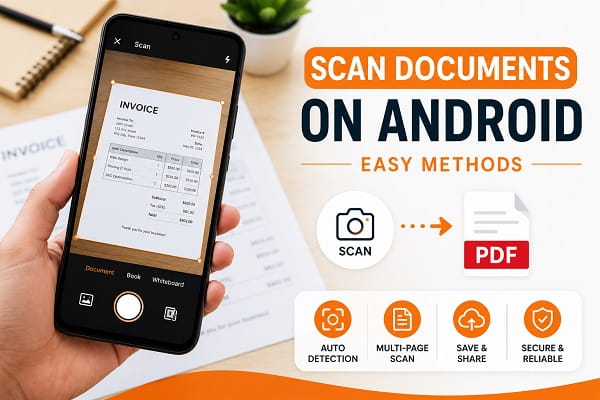
one are the days when you needed a bulky scanner to digitize documents. Today, your Android phone can function as a powerful document scanner, allowing you to capture receipts, contracts, certificates, notes, IDs, invoices, and other paperwork in just a few seconds.
Whether you’re a student submitting assignments, a job seeker uploading documents, a business owner managing records, or simply someone who wants to keep paperwork organized, learning how to scan documents using an Android phone can save both time and money.
The best part is that most Android users already have the tools they need. Many document scanning features are available through free apps and even built-in Android services.
In this guide, you’ll learn several easy methods for scanning documents on Android, how to improve scan quality, and how to convert scans into professional PDF files.
Why Scan Documents Using Your Android Phone?
As you scan more documents, certificates, receipts, and paperwork, storage usage can increase quickly. If your device is running low on space, our guide on how to free up storage space on Android can help you recover valuable storage without deleting important files.
Document scanning has become increasingly important in daily life.
People commonly scan:
- School assignments
- Contracts
- Business documents
- Tax records
- Receipts
- Certificates
- Passports
- Driver’s licenses
- Medical records
- Utility bills
Instead of carrying physical copies everywhere, scanned documents allow you to store important information securely on your device or in cloud storage.
Benefits of Mobile Document Scanning
Using your Android phone as a scanner offers several advantages:
- No dedicated scanner required
- Quick and convenient
- Easy PDF creation
- Cloud storage support
- Instant sharing
- Reduced paper clutter
- Better document organization
For many users, a smartphone scanner completely replaces traditional scanners.
What Makes a Good Document Scan?
Before learning the scanning methods, it’s helpful to understand what separates a professional-looking scan from a poor-quality one.
A good document scan should:
- Be clear and readable
- Have proper lighting
- Show all document edges
- Minimize shadows
- Maintain accurate colors
- Be saved in an appropriate format
Fortunately, modern scanning apps automatically improve many of these areas.
Method 1: Scan Documents Using Google Drive
Many users scan documents when setting up a new phone or backing up important information. If you’ve recently upgraded your device, learn how to transfer data from Android to Android to safely move your files and settings.
Many Android users don’t realize that Google Drive includes a built-in document scanner.
Because Google Drive comes pre-installed on many Android phones, this is often the easiest method.
Step 1
Open Google Drive.
Step 2
Tap the + (Plus) button.
Step 3
Select Scan.
Step 4
Point your camera at the document.
Step 5
Capture the image.
Step 6
Adjust the crop if necessary.
Step 7
Save the scan as a PDF.
Advantages
- Free
- Built into many Android devices
- Creates PDF files automatically
- Syncs with Google Drive
This method works well for receipts, contracts, invoices, and school documents.
Method 2: Use Google Files
Some Android devices include document scanning through Google Files.
Steps
- Open Google Files.
- Locate the scanning feature if available.
- Position the document properly.
- Capture the image.
- Save or share the file.
Availability may vary depending on your Android version and device manufacturer.
Method 3: Scan Documents Using Microsoft Lens
Microsoft Lens is one of the most popular document scanning apps available.
It is especially useful for:
- Office documents
- Whiteboards
- Notes
- Business paperwork
How to Use Microsoft Lens
- Install Microsoft Lens.
- Open the app.
- Select Document Mode.
- Capture the document.
- Adjust the edges.
- Save as PDF, Word, or image.
Why Many Professionals Prefer It
Microsoft Lens includes:
- Excellent edge detection
- Strong text clarity
- Multiple export formats
- Integration with Microsoft services
It’s a great option for students and professionals.
Method 4: Scan Documents Using Adobe Scan
Adobe Scan is another powerful free document scanner.
Features
- Automatic edge detection
- OCR (text recognition)
- PDF creation
- Cloud storage support
How It Works
- Install Adobe Scan.
- Open the application.
- Point the camera at the document.
- Allow automatic capture.
- Save the file.
Adobe Scan is particularly useful for creating polished, professional-looking PDFs.
Method 5: Use Your Phone’s Built-In Camera
Even without a dedicated scanning app, you can still create document images.
Best Practices
- Place the document on a flat surface.
- Use good lighting.
- Hold the phone steady.
- Capture the entire document.
Afterward, you can:
- Crop the image
- Adjust brightness
- Convert to PDF
While not as advanced as scanning apps, this method works in emergencies.
How to Create a PDF from a Scan
Sometimes you may need to capture information quickly before creating a PDF. In those situations, knowing how to take a screenshot on Android can be useful for saving important information directly from your screen.
PDF files are the preferred format for most scanned documents.
Reasons include:
- Professional appearance
- Easy sharing
- Consistent formatting
- Wide compatibility
Most scanning apps automatically save documents as PDFs.
If not, you can:
- Open the image.
- Tap Share.
- Select Print.
- Choose Save as PDF.
This built-in Android feature is extremely useful.
How to Scan Multiple Pages into One PDF
Many users need to scan more than one page.
Examples include:
- Assignments
- Contracts
- Reports
- Application forms
Most document scanning apps support multi-page PDFs.
Process
- Scan the first page.
- Select Add Page.
- Continue scanning.
- Save all pages into a single PDF.
This creates a professional document that is easier to share.
Tips for Better Document Scans
Even the best app cannot completely compensate for poor scanning habits.
Use Good Lighting
Natural light often produces the best results.
Avoid Shadows
Keep your hands and phone from casting shadows on the page.
Place Documents on a Flat Surface
Wrinkled or curved pages can reduce scan quality.
Clean Your Camera Lens
A dirty lens can create blurry images.
Keep the Phone Steady
Movement can reduce sharpness.
Capture All Edges
Ensure the entire document is visible.
These small adjustments can dramatically improve scan quality.
Common Mistakes to Avoid
Using Low Light
Dark environments often create grainy scans.
Cropping Important Information
Double-check document borders before saving.
Saving Only as Images
PDFs are often easier to organize and share.
Ignoring File Size
Large PDF files can be difficult to email.
Forgetting to Back Up Important Documents
Always store important scans in cloud storage.
Where Should You Store Scanned Documents?
If you frequently connect to cloud storage services such as Google Drive or OneDrive, having a reliable internet connection is essential. If you’re experiencing connectivity problems, check out our guide on WiFi connected but no internet on Android for troubleshooting tips.
After scanning, it’s important to keep documents organized.
Popular options include:
Google Drive
Easy cloud access across devices.
OneDrive
Ideal for Microsoft users.
Dropbox
Reliable file synchronization.
Local Storage
Useful for quick access.
External Storage
Provides additional backup protection.
Having multiple backups helps prevent accidental data loss.
Security Tips for Sensitive Documents
Scanned documents may contain personal information.
Examples include:
- Passports
- Financial statements
- Contracts
- Medical records
To protect your information:
Use Strong Device Security
Enable:
- Fingerprint lock
- Face unlock
- PIN protection
Store Sensitive Files Securely
Avoid sharing confidential files unnecessarily.
Use Trusted Apps
Download scanning apps only from reputable sources.
Enable Cloud Security Features
Use two-factor authentication when available.
Frequently Asked Questions
Can I scan documents without a scanner?
Yes. Android phones can scan documents using apps like Google Drive, Microsoft Lens, and Adobe Scan.
What is the best free scanner app for Android?
Google Drive, Microsoft Lens, and Adobe Scan are among the best free options.
Can I scan documents directly to PDF?
Yes. Most scanning apps allow direct PDF creation.
How do I improve scan quality?
Use good lighting, keep the camera steady, and ensure the document is flat and fully visible.
Final Thoughts
Learning how to scan documents using an Android phone is a valuable skill that can save time, reduce paperwork, and make document management much easier.
With free tools like Google Drive, Microsoft Lens, and Adobe Scan, you can create professional-quality scans in seconds without purchasing a dedicated scanner. Whether you’re scanning school assignments, business paperwork, receipts, or personal records, your Android phone already has the power to handle the job.
By following the methods and tips in this guide, you’ll be able to create clear, organized, and professional digital documents whenever you need them.
