
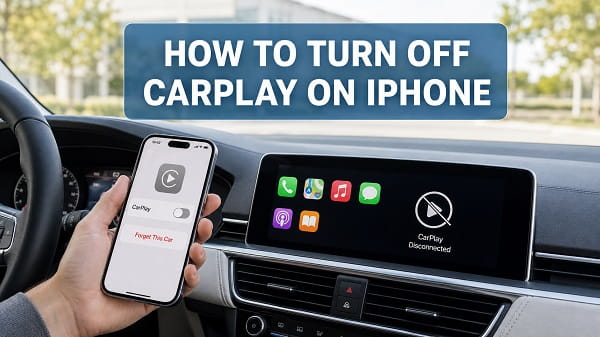
To turn off CarPlay on an iPhone for a particular vehicle, open Settings > General > CarPlay, select the car and tap Forget This Car. This removes the saved CarPlay connection and stops the iPhone from automatically reconnecting until you set it up again.
If you want to disable CarPlay completely for every vehicle, open Settings > Screen Time > Content & Privacy Restrictions > Allowed Apps & Features, then turn off CarPlay. On some iOS versions, the menu is labelled Allowed Apps instead.
You can also disconnect a current wired session by unplugging the cable or stop a wireless session temporarily by turning off Wi-Fi and Bluetooth. The best method depends on whether you want a temporary disconnect, want to stop one car from connecting or want CarPlay unavailable across the entire iPhone.
Make these changes while the vehicle is parked. Do not navigate through iPhone or dashboard settings while driving.
Ways to Turn Off Apple CarPlay
The phrase “turn off CarPlay” can describe several different goals. Use this table to choose the right method.
| What you want to do | Best method |
|---|---|
| End a wired CarPlay session once | Unplug the iPhone from the CarPlay USB port |
| End wireless CarPlay temporarily | Disconnect through the car or turn off Wi-Fi and Bluetooth in Settings |
| Stop one vehicle from reconnecting | Settings > General > CarPlay > Car > Forget This Car |
| Disable CarPlay on the entire iPhone | Turn off CarPlay through Screen Time restrictions |
| Prevent CarPlay while the phone is locked | Turn off Allow CarPlay While Locked |
| Keep charging without CarPlay | Use a charging-only vehicle port or charger |
| Stop a rental or sold car retaining access | Forget the car on the iPhone and delete the iPhone from the vehicle |
There is no regular CarPlay on-and-off switch inside Settings > General > CarPlay. That menu manages saved vehicles. The full disable option is located under Screen Time because CarPlay is treated as an allowed system feature.
Method 1: Disconnect Wired CarPlay Temporarily
The quickest way to stop wired CarPlay is to disconnect the cable from the iPhone or vehicle USB port.
- Wait until the vehicle is safely parked.
- Stop navigation, calls or media if necessary.
- Unplug the USB cable.
- Select the vehicle’s normal radio, Bluetooth audio or home screen.
This ends the current CarPlay session but does not erase the vehicle from the iPhone. CarPlay can start again the next time you connect the phone to the same data-enabled port.
Some vehicles support both wired and wireless CarPlay. Unplugging the cable may not end CarPlay if the vehicle immediately changes to its wireless connection. If that happens, disconnect through the car’s device menu or use the wireless methods below.
Method 2: Disconnect Wireless CarPlay Temporarily
Wireless CarPlay uses Bluetooth to discover and begin communicating with the vehicle, then relies on Wi-Fi for the main connection. Turning off only one connection may not produce the result you expect.
Disconnect Through the Vehicle
The least disruptive option is normally the car’s infotainment menu:
- Open the vehicle’s Device Manager, Connections, Phone Projection or similarly named menu.
- Select your iPhone.
- Choose Disconnect, Stop CarPlay, Switch Device or Bluetooth Audio.
- Return to the vehicle’s home screen.
The wording differs by car manufacturer. This method can end CarPlay without disabling Wi-Fi or Bluetooth for your AirPods, Apple Watch and other devices.
Turn Off Wi-Fi and Bluetooth in iPhone Settings
For a definite temporary disconnection:
- Open Settings > Wi-Fi.
- Turn Wi-Fi off.
- Return to Settings.
- Open Bluetooth.
- Turn Bluetooth off.
Wireless CarPlay should disconnect. These changes also affect other wireless accessories and services, so turn the features back on when needed.
The Wi-Fi and Bluetooth buttons in Control Centre do not always disable the radios completely. They often disconnect accessories temporarily while leaving features available for system services. Use the Settings app when you need a more reliable test.
Turning Wi-Fi and Bluetooth on again can allow the vehicle to reconnect automatically because its CarPlay profile remains saved. Use Forget This Car if you do not want that behaviour.
If Bluetooth reconnects but the CarPlay screen does not return, my article on Bluetooth connected but CarPlay not working explains the separate roles of Bluetooth and Wi-Fi.
Method 3: Forget a Car on the iPhone
Forgetting the vehicle is the best way to turn off CarPlay for one car without blocking it everywhere.
- Open Settings on the iPhone.
- Tap General.
- Select CarPlay.
- Tap the vehicle under My Cars.
- Select Forget This Car.
- Confirm the removal.
The vehicle disappears from the saved CarPlay list. The iPhone should no longer start CarPlay with that car until you complete setup again.
For a wireless vehicle, also check these areas:
- Settings > Bluetooth for the car’s normal hands-free connection.
- Settings > Wi-Fi for a saved vehicle network.
- The vehicle’s device or phone list for the iPhone.
Removing only the CarPlay profile can leave ordinary Bluetooth calling and audio available. This can be useful when you want hands-free calls but do not want the CarPlay interface. However, some vehicles automatically offer to enable wireless CarPlay again when the phone is paired through Bluetooth.
Apple uses the same Forget This Car path in its current CarPlay troubleshooting instructions before setting up the connection again.
Method 4: Disable CarPlay Completely With Screen Time
Use Screen Time when you want CarPlay unavailable on the iPhone, regardless of the vehicle.
- Open Settings.
- Tap Screen Time.
- Select Content & Privacy Restrictions.
- Turn on Content & Privacy Restrictions if it is disabled.
- Tap Allowed Apps & Features or Allowed Apps.
- Find CarPlay.
- Turn its switch off.
CarPlay should no longer start through a cable or wireless connection. The iPhone can still charge, connect to ordinary Bluetooth and perform unrelated tasks.
This method is useful when:
- You never use CarPlay.
- A child should not access it.
- You are diagnosing repeated automatic connections.
- A workplace or family device needs a restriction.
- You want to stop both wired and wireless CarPlay without deleting every saved car first.
If Screen Time requests a passcode, enter the Screen Time passcode rather than the normal iPhone unlock code. A parent, family organiser, school or employer may control the restriction on a managed phone.
Do not remove a management profile to change CarPlay without permission. Contact the administrator when Allowed Apps & Features is locked or CarPlay is not listed.
Method 5: Turn Off Allow CarPlay While Locked
This setting prevents or limits CarPlay access while the iPhone is locked, but it does not disable CarPlay completely.
- Open Settings > General > CarPlay.
- Select your vehicle.
- Turn off Allow CarPlay While Locked.
The next connection may require you to unlock the iPhone. CarPlay can still work when the phone is unlocked and authorised.
Use this option when your main concern is privacy or unauthorised access while the phone is locked. Do not use it as the only step if you want the car permanently removed, because the saved vehicle profile remains on the iPhone.
The option may be absent on some vehicle, connection and iOS combinations. In that case, use Forget This Car or Screen Time restrictions.
How to Stop CarPlay From Starting Automatically
Automatic CarPlay is convenient when you use it, but annoying when you prefer the vehicle’s normal interface.
Try these methods in order:
Select a Different Connection Type in the Car
Open the vehicle’s device manager and select Bluetooth Audio, Phone Only, Do Not Launch Projection or the closest equivalent. Some cars let you disable Apple CarPlay for an individual phone while preserving basic calls and music.
Turn Off Automatic Projection
Look in the car’s settings for:
- Smartphone Integration
- Phone Projection
- Apple CarPlay
- Device Manager
- Connections
- Projection Preferences
Turn off automatic launch or automatic projection if the option exists. Consult the vehicle manual because these controls are not standardised across manufacturers.
Forget This Car
If the car offers no auto-launch switch, remove its saved CarPlay profile from Settings > General > CarPlay. This is more reliable than closing CarPlay after every connection.
Use a Charging-Only Port
For wired CarPlay, connect the iPhone to a vehicle port that supplies power but does not support smartphone data. Rear-seat ports, a 12-volt USB charger or a separate power adapter may charge without launching CarPlay.
Check the port label and vehicle manual. Do not assume every USB port behaves the same way. Some are connected to the infotainment system, while others provide power only.
If the phone charges but you later decide that CarPlay should work, read phone charging but CarPlay not working. That article explains data-capable cables and the correct vehicle USB port.
How to Turn Off Wireless CarPlay but Keep Bluetooth
Wireless CarPlay and ordinary Bluetooth are related but not identical. It is often possible to keep hands-free calls and Bluetooth audio while preventing the full CarPlay interface.
- Open Settings > General > CarPlay on the iPhone.
- Select the vehicle.
- Tap Forget This Car.
- Open the vehicle’s saved-device list.
- Remove the iPhone’s CarPlay or projection profile if it has a separate entry.
- Pair the iPhone again through the car’s standard Bluetooth menu.
- Decline any prompt offering to activate wireless CarPlay.
- Choose Bluetooth calls and audio as the permitted services.
Some infotainment systems bundle Bluetooth and wireless CarPlay into one profile. If the car repeatedly enables CarPlay, its own settings may contain an individual Disable CarPlay, Projection Off or Bluetooth Only option.
Turning off Auto-Join for the vehicle’s Wi-Fi network may stop the wireless stage, but it can also leave an incomplete connection that repeatedly attempts to start. Forgetting CarPlay and choosing Bluetooth-only pairing is usually cleaner.
How to Turn Off CarPlay but Keep Charging
There are three practical approaches:
Use a Power-Only USB Port
Connect to a port not labelled for CarPlay, media or smartphone projection. Confirm in the vehicle manual that it is intended for charging.
Use a 12-Volt USB Charger
A reputable charger connected to the vehicle’s accessory socket can charge the iPhone independently of the infotainment system.
Disable CarPlay Through Screen Time
If you must use the same data-enabled USB port, turn CarPlay off through Settings > Screen Time > Content & Privacy Restrictions > Allowed Apps & Features. The phone should still receive electrical power.
A charge-only cable may also prevent CarPlay, but I do not recommend buying a deliberately limited cable when a charging port or Screen Time setting is available. Using clearly identified equipment is easier to troubleshoot later.
Turn Off CarPlay From the Vehicle
An iPhone is only one side of the connection. Many vehicles store their own CarPlay preference and device list.
While parked:
- Open the infotainment Settings menu.
- Find Connections, Devices, Smartphone Integration or Phone Projection.
- Select the iPhone.
- Disable Apple CarPlay, choose Bluetooth-only mode or remove the phone.
- Restart the infotainment system if the change does not take effect.
This is often the best solution when several drivers share the same car. You can disable CarPlay for one iPhone without changing its settings for other vehicles.
The menu varies by manufacturer, model year and aftermarket head unit. Use the vehicle or stereo manual rather than applying a button sequence intended for a different system.
Remove CarPlay From a Rental or Shared Vehicle
Deleting the vehicle from the iPhone is only half of the privacy cleanup. The car may retain your device name, Bluetooth information, call history, recent destinations or contacts that were permitted to sync.
Before returning a rental or selling a vehicle:
- Open Settings > General > CarPlay on the iPhone.
- Select the vehicle and tap Forget This Car.
- Open Settings > Bluetooth.
- Tap the information button beside the vehicle.
- Select Forget This Device if you no longer need ordinary Bluetooth pairing.
- Open the vehicle’s device list.
- Delete your iPhone.
- Clear personal data, navigation history and synced contacts from the infotainment system if available.
Do not factory-reset a rental’s entire infotainment system unless the rental company instructs you to do so. Remove only your personal profile and data.
Turn Off Driving Focus Without Disabling CarPlay
Driving Focus is not CarPlay. It controls notifications and communication behaviour while driving. You can turn off the automatic Focus activation and continue using CarPlay.
- Open Settings.
- Tap Focus.
- Select Driving.
- Open its activation settings.
- Turn off Activate With CarPlay or adjust automatic activation.
If a Driving Focus notification appears while you are a passenger, choose I’m Not Driving when the option is available.
Disabling Driving Focus does not stop the CarPlay dashboard, navigation, music or connection. It only changes the Focus behaviour.
What Happens When You Disable CarPlay?
The result depends on the method used.
| Method | CarPlay result | Other effects |
|---|---|---|
| Unplug cable | Ends current wired session | Charging stops unless another charger is used |
| Turn off Wi-Fi and Bluetooth | Ends wireless session | Disconnects other wireless services and accessories |
| Forget This Car | Removes one saved CarPlay relationship | Other vehicles remain available |
| Screen Time restriction | Blocks CarPlay across the iPhone | Charging and ordinary Bluetooth can still work |
| Turn off Allow While Locked | Requires more interaction or an unlocked iPhone | CarPlay remains available when authorised |
| Disable in vehicle | Stops that infotainment system from launching CarPlay | iPhone can use CarPlay elsewhere |
Turning off CarPlay does not delete Apple Maps, Music, Messages or other apps from the iPhone. It only prevents those supported apps from appearing through the CarPlay interface.
It also does not erase navigation history or synced information already stored by a vehicle. Remove the phone from the infotainment system separately when privacy is the reason for disabling CarPlay.
How to Turn CarPlay Back On
If you disabled the system through Screen Time:
- Open Settings > Screen Time.
- Tap Content & Privacy Restrictions.
- Select Allowed Apps & Features or Allowed Apps.
- Turn CarPlay on.
To reconnect a forgotten vehicle:
- Start the vehicle and place it in CarPlay pairing mode.
- For wired CarPlay, connect the iPhone to the correct data-enabled USB port.
- For wireless CarPlay, make sure Bluetooth and Wi-Fi are on.
- Press and hold the steering-wheel voice button if the vehicle requires it.
- Open Settings > General > CarPlay.
- Select the vehicle under available cars.
- Approve the prompts on the iPhone and dashboard.
Apple’s current CarPlay connection instructions confirm that wireless setup uses both Bluetooth and Wi-Fi and may require selecting the vehicle under General > CarPlay.
CarPlay Is Still Connecting After You Turn It Off
If CarPlay keeps returning, one of the following is usually responsible:
- The vehicle was disconnected but not forgotten.
- Wireless CarPlay remained saved after you unplugged the cable.
- The iPhone was removed from CarPlay but still saved in the car’s device manager.
- Another iPhone in the vehicle is connecting.
- Screen Time restrictions were not switched on before CarPlay was turned off.
- The car automatically re-enables projection during Bluetooth pairing.
- An aftermarket wireless CarPlay adapter is still active.
Use this cleanup sequence:
- Forget the vehicle under Settings > General > CarPlay.
- Forget its Bluetooth entry if you do not need Bluetooth-only service.
- Remove the iPhone from the vehicle’s saved devices.
- Unplug any wireless CarPlay adapter.
- Restart the iPhone and infotainment system.
- Disable CarPlay through Screen Time if you want a global block.
If the real problem is repeated connection loss rather than an unwanted connection, use Apple CarPlay keeps disconnecting. A damaged cable, weak wireless link or corrupted pairing profile needs repair rather than permanent disabling.
CarPlay Is Missing From Allowed Apps
The Screen Time menu name can differ by iOS version. Look for Allowed Apps & Features or Allowed Apps under Content & Privacy Restrictions.
If CarPlay is not listed:
- Confirm that Content & Privacy Restrictions is enabled.
- Restart the iPhone.
- Install the latest stable iOS update available for the device.
- Check whether a Screen Time passcode is required.
- Open Settings > General > VPN & Device Management and see whether the iPhone is managed.
A school or employer can hide or enforce features through mobile device management. Do not remove a management profile without authorisation.
CarPlay Is Off but the iPhone Still Connects to Bluetooth
This is normal. CarPlay, Bluetooth calling and Bluetooth audio are separate connection modes.
Disabling CarPlay through Screen Time does not necessarily stop the car from handling:
- Hands-free phone calls.
- Bluetooth music.
- Contact syncing.
- Vehicle notifications.
- The manufacturer’s companion app.
To stop all communication with the vehicle, open Settings > Bluetooth, tap the information button beside the car and select Forget This Device. Remove the iPhone from the vehicle’s device list as well.
CarPlay Is Off but the iPhone Still Charges
This is also normal. Charging uses electrical power, while CarPlay requires a data or wireless connection and permission to run.
An iPhone can charge when:
- CarPlay is restricted through Screen Time.
- The vehicle has been forgotten.
- Siri is unavailable.
- A power-only USB port is used.
- The data portion of a cable or port is not active.
Do not use the charging icon as proof that CarPlay is still connected. Look at the dashboard interface and Settings > General > CarPlay instead.
Frequently Asked Questions
How do I turn off CarPlay on my iPhone?
Open Settings > General > CarPlay, choose the vehicle and tap Forget This Car. To disable CarPlay for every car, use Settings > Screen Time > Content & Privacy Restrictions > Allowed Apps & Features and turn CarPlay off.
Can I temporarily disable Apple CarPlay?
Yes. Unplug the cable for wired CarPlay. For wireless CarPlay, disconnect through the vehicle’s device menu or turn off Wi-Fi and Bluetooth in iPhone Settings. The saved connection remains and can work again later.
How do I stop CarPlay from connecting automatically?
Forget the vehicle under Settings > General > CarPlay or disable automatic phone projection in the car’s infotainment settings. Turning Wi-Fi or Bluetooth off temporarily will not prevent future reconnection after they are enabled again.
Does Forget This Car delete anything from my iPhone?
No. It removes the saved CarPlay relationship for that vehicle. It does not delete iPhone apps, photos, messages or music.
Can I use Bluetooth without CarPlay?
Usually, yes. Forget the CarPlay profile, pair the iPhone through the car’s normal Bluetooth menu and decline wireless CarPlay activation. The available options depend on the infotainment system.
Can I charge my iPhone without using CarPlay?
Yes. Use a charging-only vehicle USB port, a reputable 12-volt USB charger or disable CarPlay through Screen Time while using the existing port.
Does turning off Bluetooth disable CarPlay?
It can interrupt wireless CarPlay, but Wi-Fi is also part of that connection. Turning Bluetooth off does not affect a wired CarPlay session. Use Forget This Car for a reliable long-term removal.
Does turning off Wi-Fi stop wireless CarPlay?
Wireless CarPlay cannot maintain its normal connection without Wi-Fi. Turning Wi-Fi off should disconnect it, but the iPhone may reconnect when Wi-Fi is enabled again because the vehicle remains saved.
Why does CarPlay start when I plug in my iPhone?
The cable is connected to a data-enabled CarPlay port and the vehicle is saved or authorised. Use a charging-only port, disable automatic projection in the car or restrict CarPlay through Screen Time.
Is Allow CarPlay While Locked the CarPlay off switch?
No. Turning it off restricts CarPlay while the iPhone is locked. It can still run after the phone is unlocked and approved.
Will disabling CarPlay stop Driving Focus?
Not necessarily. Driving Focus can activate from vehicle motion or Bluetooth settings. Open Settings > Focus > Driving and adjust its activation separately.
How do I remove my iPhone from a rental car?
Forget the vehicle under iPhone CarPlay and Bluetooth settings, then remove the iPhone and personal information from the vehicle’s device manager before returning it.
For most users, Forget This Car is the cleanest answer because it disables CarPlay only for the unwanted vehicle. Use the Screen Time restriction when you want CarPlay completely unavailable, and use the infotainment settings when you want to preserve the iPhone’s CarPlay connections for other cars.
