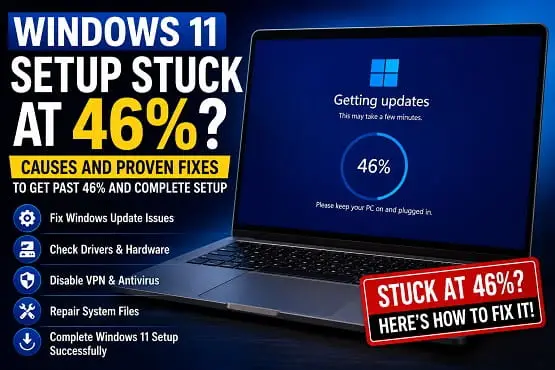
If Windows 11 Setup is stuck at 46%, you are not alone. This problem commonly happens during the Getting updates stage of an in-place upgrade or when Windows Setup is checking and downloading updates before installation.
The frustrating part is that the percentage may remain at 46% for a long time without showing an error. In some cases, Setup eventually continues. In others, it stays there indefinitely or fails and returns Windows to the previous version.
The good news is that a Windows 11 Setup freeze at 46% does not automatically mean your PC is incompatible or that you need to reinstall Windows. The problem can be caused by Windows Update services, a damaged update cache, a driver conflict, third-party security software, a VPN, external hardware, insufficient storage, or corrupted system files.
The most important thing is to understand which stage is stuck. If the screen says Getting updates and stops at 46%, the update-checking process itself may be the problem. In that situation, running Setup again and choosing not to download updates during Setup can be more effective than repeatedly waiting for the same screen.
Why Does Windows 11 Setup Get Stuck at 46%?
The 46% point is most often reported while Windows Setup is performing online update-related tasks. During this stage, Setup may be checking for newer installation files, compatibility information, drivers, and updates.
A problem at this point can be caused by:
- A slow or unstable internet connection
- A VPN or network filter
- A corrupted Windows Update cache
- A stuck Windows Update service
- Third-party antivirus or security software
- A problematic driver
- External USB devices
- Insufficient free storage
- Corrupted Windows system files
- Background software interfering with Setup
- A compatibility issue discovered during the upgrade
Because several different things can happen around the same percentage, there is no single fix that works for every PC. The best approach is to start with the least disruptive solution.
Before You Force Restart the PC, Check How Long It Has Been Stuck
Do not immediately turn off the computer simply because the progress has remained at 46% for a few minutes.
A major Windows upgrade can appear to pause while Setup is downloading files, checking compatibility, or processing information in the background.
If the percentage has been stuck for a short time, give it some time, especially if:
- Your internet connection is slow
- The PC has an older hard drive
- The computer is downloading a large amount of data
- Disk or network activity is still visible
However, if the screen has remained at exactly 46% for several hours with no meaningful activity, or Setup eventually reports a failure, it is reasonable to stop repeating the same attempt and troubleshoot the cause.
If you are upgrading from Windows 10, make sure you have already completed the important preparation steps in my guide on things to do before upgrading to Windows 11.
Fix 1: Restart the PC and Run Windows 11 Setup Without Downloading Updates
This is one of the first things I would try when the setup screen specifically says Getting updates and repeatedly stops at 46%.
Restart the computer normally. Then run the Windows 11 installation again.
When Setup asks whether you want to download updates, drivers, and optional features, choose the option that postpones those updates, such as:
Not right now
The exact wording can vary depending on the Windows version and installation method.
This does not mean you are permanently disabling Windows Update. It simply allows you to complete the main Windows installation without forcing Setup to handle the online update process at the same time.
After Windows 11 is installed successfully, you can reconnect to the internet if necessary and run Windows Update from the normal Windows desktop.
This approach makes particular sense when the problem consistently happens during the online Getting updates stage rather than during the actual installation.
Fix 2: Disconnect Unnecessary USB Devices and External Hardware
Microsoft recommends removing nonessential external hardware when troubleshooting Windows installation and upgrade problems.
Before running Setup again, disconnect devices you do not need for the upgrade.
This may include:
- External hard drives
- USB flash drives
- Printers
- Scanners
- USB hubs
- Capture devices
- External audio interfaces
- Older USB adapters
- Docking stations
- Other specialty peripherals
Keep only what is necessary for the computer to operate normally, such as the display, keyboard, mouse, power connection, and network connection.
An external device with a problematic driver can interfere with Setup even when that device appears to work normally in everyday use.
After Windows 11 has installed successfully, reconnect your devices one at a time if necessary.
Fix 3: Check Your Internet Connection and Temporarily Disconnect a VPN
A 46% freeze during Getting updates can involve network communication.
First, make sure the internet connection is actually stable. If you are using Wi-Fi and the signal is unreliable, try a stable connection before attempting the upgrade again.
If you use a VPN, disconnect it temporarily and retry the installation.
A VPN, proxy, DNS filter, firewall rule, or network security application can sometimes interfere with the services Setup uses while checking for or downloading updates.
Do not permanently remove security tools or network settings without understanding what they do. The goal is to isolate whether the connection path is interfering with the upgrade.
If Setup works after the VPN is disconnected, update the VPN application and check its support documentation before using it again during future major Windows upgrades.
Fix 4: Make Sure the System Drive Has Enough Free Space
Windows Setup needs more than the minimum capacity of the storage drive.
The upgrade process can require temporary space for:
- Downloaded installation files
- Setup working files
- Driver migration
- Compatibility information
- Rollback data
- The previous Windows installation
Open:
Settings > System > Storage
Check the available space on the drive where Windows is installed.
If the drive is nearly full, remove unnecessary files or move large personal files to another storage location.
Useful places to check include:
- Downloads
- Temporary files
- Recycle Bin
- Large videos
- Unused applications
- Games you no longer use
Do not manually delete files from Windows system folders simply to create space.
If you need to remove files, use the built-in Storage settings or uninstall applications you no longer need.
Fix 5: Install Pending Windows Updates Before Starting the Upgrade
If you are upgrading from an existing Windows installation, install the important pending updates for your current version before running a major upgrade.
Open:
Settings > Windows Update
Then select:
Check for updates
Install the available important updates and restart the PC when required.
Microsoft notes that an upgrade may not be offered until applicable updates for the current version of Windows have been installed. A current Windows installation that already has servicing problems can also create additional trouble during a feature upgrade.
If Windows Update itself is repeatedly failing before you even start Windows 11 Setup, fix that problem first instead of expecting the major upgrade to repair everything automatically.
For the full supported upgrade process, see my guide on how to upgrade from Windows 10 to Windows 11.
Fix 6: Repair Windows System Files With DISM and SFC
Corrupted Windows system files can interfere with servicing and installation.
Open Terminal (Admin) or Command Prompt (Admin).
First, run:
DISM.exe /Online /Cleanup-image /Restorehealth
Wait for the command to finish.
Then run:
sfc /scannow
Do not close the window or restart the PC while either command is still running.
DISM checks and repairs the Windows image, while System File Checker checks protected system files.
When both commands have finished, restart the computer and try Windows 11 Setup again.
Microsoft recommends DISM and SFC as part of the troubleshooting process for update and installation problems. If SFC itself reports a Windows Resource Protection issue that you cannot resolve, fix that problem before retrying the upgrade.
Fix 7: Run the Windows Update Troubleshooter
Windows includes a built-in troubleshooter for common update problems.
Open:
Settings > System > Troubleshoot > Other troubleshooters
Find:
Windows Update
Then select:
Run
Follow the on-screen instructions.
After the troubleshooter finishes:
- Restart the PC if prompted.
- Open Windows Update.
- Check for updates again.
- Retry Windows 11 Setup.
The troubleshooter may not fix every 46% setup problem, but it can identify or repair common issues involving Windows Update services and configuration.
Fix 8: Reset the Windows Update Cache
If Windows Setup repeatedly freezes while checking for updates, a damaged update cache may be contributing to the problem.
Open Terminal (Admin) and run the following commands one at a time:
net stop wuauserv
net stop bits
Then rename the Windows Update download folder:
ren C:\Windows\SoftwareDistribution SoftwareDistribution.old
Restart the services:
net start wuauserv
net start bits
Restart the computer.
Windows will create a fresh update cache when it needs one.
This does not normally remove your personal files. It clears update-related files so Windows can rebuild them.
After restarting, check Windows Update and try Setup again.
If you are specifically stuck at Getting updates, I would still consider trying the first fix afterward: run Setup again and postpone downloading updates until after the main installation.
Fix 9: Temporarily Remove Third-Party Antivirus or Security Software
Third-party security software can sometimes interfere with a major Windows upgrade.
If Windows 11 Setup repeatedly gets stuck at 46%, especially after you have ruled out network and storage problems, check whether you are using:
- Third-party antivirus
- Endpoint security software
- Internet security suites
- Anti-malware tools with real-time system protection
- Firewall applications
Before removing any security application, make sure you know how to reinstall it and have any required account information or license details.
Microsoft’s upgrade troubleshooting guidance specifically identifies third-party security software as a possible source of installation problems.
After the upgrade is complete, reinstall or re-enable your security software and confirm that it is compatible with the version of Windows you installed.
Do not leave the computer unprotected after the upgrade.
Fix 10: Update Important Drivers
A driver conflict may not always stop Setup immediately. Sometimes the upgrade gets past the update stage, restarts, and then rolls back.
Before retrying, check for updated drivers from trusted sources.
Focus on:
- Graphics drivers
- Chipset drivers
- Storage and SATA/NVMe controller drivers
- Wi-Fi drivers
- Ethernet drivers
- Bluetooth drivers
- USB controller drivers
Use:
- Windows Update
- Your PC manufacturer’s support page
- Your motherboard manufacturer’s support page
- The official website of the hardware manufacturer
Avoid random driver-download websites.
If Windows Setup later fails with an error code beginning with 0xC1900101, that is a strong reason to investigate drivers and low-level compatibility. My detailed guide on install error 0xC1900101 explains the driver-related causes and the appropriate troubleshooting steps.
Fix 11: Check Device Manager for Hardware Problems
Open Device Manager and look for devices showing a yellow warning symbol.
A hardware device with an obvious driver problem may be relevant to the failed upgrade.
To open Device Manager:
- Right-click the Start button.
- Select Device Manager.
- Check each relevant hardware category.
Pay attention to devices such as:
- Display adapters
- Storage controllers
- Network adapters
- Universal Serial Bus controllers
- Unknown devices
Do not uninstall a critical device unless you understand what it is and how to restore its driver.
If a manufacturer provides a newer driver for your exact PC model or motherboard, that is usually a safer starting point.
Fix 12: Perform a Clean Boot Before Running Setup
Background applications and services can interfere with Windows Setup.
A clean boot starts Windows with a minimal set of non-Microsoft startup services and applications.
This can help determine whether a background program is causing the 46% freeze.
Before performing a clean boot, note any services or startup applications you disable so that you can restore your normal configuration afterward.
The general process is:
- Sign in with an administrator account.
- Open System Configuration by typing
msconfig. - Open the Services tab.
- Hide Microsoft services.
- Disable the remaining nonessential third-party services.
- Review startup applications through Task Manager.
- Restart the PC.
- Run Windows 11 Setup again.
If Setup works in a clean boot, a background application or service may be the source of the conflict.
Do not permanently leave Windows in a clean-boot state. Restore your normal startup configuration after testing.
Fix 13: Use a Fresh Windows 11 Installation Source
A damaged or outdated installation source can create upgrade problems.
If you downloaded an ISO a long time ago or created installation media that may be corrupted, obtain a fresh copy from Microsoft’s official Windows 11 installation page.
Do not use modified ISOs from unofficial websites.
A fresh installation source is particularly useful if:
- The same Setup file repeatedly fails
- The installation files were copied from another computer
- The ISO download may have been interrupted
- The USB installation media is old
- You suspect the installation source is damaged
If you are performing an in-place upgrade and want to keep your files and installed applications, start the installation from inside your existing Windows installation and review the Ready to install screen carefully.
Fix 14: Try an In-Place Upgrade From Official Installation Media
If Windows Update or another upgrade method keeps failing, official Windows installation media can provide another supported path.
For an in-place upgrade that keeps your files and applications:
- Back up important files first.
- Download or create official Windows 11 installation media.
- Start Windows normally.
- Open the installation media from inside Windows.
- Run
setup.exe. - Follow the setup prompts.
- Review what Windows will keep.
- Select the appropriate option to keep your personal files and apps when available.
- Continue with the installation.
Do not boot from the installation media if your goal is specifically an in-place upgrade that preserves the existing Windows installation in the usual way.
Microsoft’s installation media can be used for both in-place recovery and clean installations, so make sure you choose the method that matches what you are trying to do.
Fix 15: Perform a Disk Check
A storage problem can interfere with a large Windows installation.
Open Command Prompt as administrator and run:
chkdsk /f C:
If Windows says the drive is in use and asks whether to schedule the check for the next restart, type:
Y
Then restart the PC.
Allow the disk check to complete.
Do not interrupt it by turning off the computer.
After Windows starts again, try Setup.
If your computer has repeated disk errors, freezes, file corruption, or other signs of storage failure, investigate the health of the drive before repeatedly attempting a major operating-system upgrade.
Fix 16: Check for a Compatibility Block
A PC can meet the basic Windows 11 requirements and still be temporarily blocked from a particular upgrade because of a known compatibility issue.
Possible causes include:
- A specific driver
- An installed application
- Hardware with a known problem
- A manufacturer compatibility issue
- A temporary safeguard hold
Read any message shown by Windows Setup carefully.
If Setup identifies a particular application or driver, update or remove that exact item rather than randomly changing multiple parts of the system.
This is also why forcing the upgrade repeatedly without reading the compatibility message is usually unproductive.
What If Windows 11 Setup Gets Past 46% but Then Rolls Back?
If Setup eventually moves past 46% but later fails, note exactly what happens.
Common symptoms include:
- The PC restarts and returns to the previous Windows version
- Windows displays Undoing changes
- Setup reports that the installation failed
- The computer restarts several times before rolling back
- An error code appears
The error code matters.
For example, 0xC1900101 is commonly associated with a driver-related upgrade rollback. If you see that code, use my 0xC1900101 installation error guide rather than treating the issue as a generic 46% freeze.
If the failed upgrade leaves the PC unable to start and you see a boot error such as 0xC0000185, stop attempting the upgrade and repair the startup problem first. Major operating-system changes should not continue until the existing installation can boot reliably.
What If Windows 11 Setup Is Stuck at 46% During a Fresh Installation?
The troubleshooting is slightly different if you are not upgrading an existing Windows installation.
If the PC was booted directly from installation media and Setup becomes stuck at 46%, consider:
- Recreating the installation media
- Using a different USB flash drive
- Trying another USB port
- Disconnecting unnecessary drives and peripherals
- Checking storage hardware
- Resetting overclocking to stable default settings
- Updating firmware only when recommended by the hardware manufacturer
- Checking the memory and storage hardware for errors
A clean installation is not automatically the best answer for an in-place upgrade problem. It is a separate process that can remove personal files and installed applications depending on the choices you make.
Back up important data before proceeding.
Should You Force Restart Windows 11 Setup at 46%?
If the percentage has only been unchanged for a short period, wait.
If the screen has remained at exactly 46% for several hours with no indication that the PC is working, a restart may be necessary.
Before doing that, remember:
- A forced shutdown can interrupt active installation work
- You may lose progress
- Windows may need to recover or roll back after the restart
If the system still responds, try a normal restart first.
After the PC starts again, do not immediately repeat the exact same setup process. Use a different approach, starting with running Setup without downloading updates during installation.
How to Avoid Windows 11 Setup Getting Stuck Again
Before the next attempt:
- Back up important files.
- Make sure the system drive has enough free space.
- Install important updates for your current Windows version.
- Restart the PC.
- Disconnect unnecessary external hardware.
- Disconnect a VPN temporarily.
- Check for important driver updates.
- Repair Windows system files if you suspect corruption.
- Use a fresh official Windows 11 installation source.
- Avoid downloading updates during Setup if the freeze consistently happens at the Getting updates stage.
For a broader checklist before a major upgrade, read my guide on 15 things to do before upgrading to Windows 11.
Frequently Asked Questions
Why is Windows 11 Setup stuck at 46%?
Windows 11 Setup is often reported as getting stuck at 46% while checking for or downloading updates. Possible causes include a Windows Update problem, unstable internet, a VPN, third-party security software, a driver conflict, external hardware, low storage, or damaged system files.
How long should I wait when Windows 11 Setup is stuck at 46%?
Do not panic if the percentage has been unchanged for only a short time. Setup can pause while processing updates and compatibility information. If it remains at exactly 46% for several hours with no meaningful activity, troubleshoot the issue rather than continuing to wait indefinitely.
Can I skip updates during Windows 11 Setup?
If the setup process repeatedly freezes during the Getting updates stage, you can retry and choose the option to postpone downloading updates during Setup when that option is available. Install Windows updates after the main installation is complete.
Will restarting the PC damage Windows if Setup is stuck?
A forced shutdown during an active installation can create additional problems. If the PC still responds, use a normal restart when possible. If Setup has been completely frozen for a prolonged period, recovery may be necessary.
Can antivirus cause Windows 11 Setup to freeze?
Third-party antivirus and security software can interfere with Windows upgrades. If other basic fixes do not work, temporarily removing or disabling the problematic third-party security software may help. Make sure you know how to reinstall it afterward.
What if I get error 0xC1900101 after the setup freezes?
Focus on drivers, external hardware, and low-level compatibility. See my guide on how to fix install error 0xC1900101 for detailed troubleshooting.
Should I use a clean installation if Windows 11 Setup is stuck?
Not as the first solution if your goal is to upgrade and keep your files and applications. Try repairing the existing installation, using a fresh official installation source, and performing a supported in-place upgrade first. A clean installation is more disruptive and requires a proper backup.
When Windows 11 Setup is stuck at 46%, the best starting point is usually not to repeat the same installation and hope for a different result. First determine whether the freeze happens during Getting updates, then restart the PC and try Setup again without downloading updates during the installation. If that does not work, move through the storage, driver, system-file, Windows Update, security software, and clean-boot checks until you identify what is blocking the upgrade.
