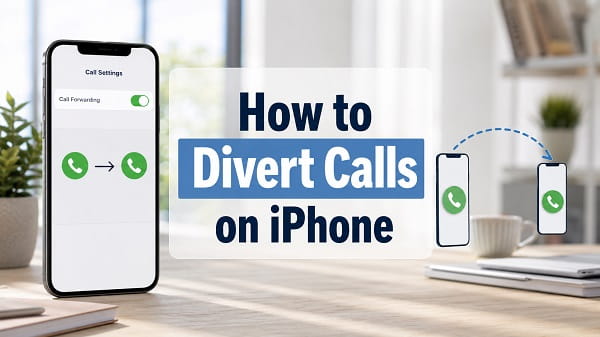
Call divert on iPhone sends incoming cellular calls to another phone number. It is useful when you are travelling, using a second phone, working from a different line or unable to answer the iPhone directly. Apple calls the feature Call Forwarding, while many mobile networks and users call it call divert.
If you are searching for how to call divert on iPhone, the quickest method is to open Settings > Apps > Phone > Call Forwarding, turn the feature on and enter the number that should receive your calls. On older iOS versions, the option may appear under Settings > Phone > Call Forwarding instead.
The menu controls unconditional forwarding, which redirects every incoming cellular call. Conditional forwarding, such as diverting only when the line is busy, unanswered or unreachable, usually requires a carrier code or help from the mobile network.
Call forwarding availability, codes and charges depend on the carrier. The option may be absent even when the iPhone itself is working correctly.
Quick Steps to Divert Calls on iPhone
To forward all incoming calls:
- Open Settings.
- Scroll down and tap Apps.
- Select Phone.
- Tap Call Forwarding.
- Turn on Call Forwarding.
- If the iPhone uses Dual SIM, select the line you want to configure.
- Tap Forward To.
- Enter the destination phone number.
- Tap Back and wait for the setting to save.
Place a test call to your iPhone from another number. The call should ring on the destination phone instead.
If Call Forwarding is missing, loading continuously or refuses to save, skip to the troubleshooting section below. The feature is controlled partly by the mobile network, so an iOS reset is not always the solution.
What Is Call Divert on iPhone?
Call divert and call forwarding mean the same thing. The mobile network redirects a call intended for one number to another number according to the forwarding rule.
For example, suppose your main iPhone number is Number A and your office phone is Number B. When unconditional call forwarding is active on Number A, a caller dials Number A but the network sends the call to Number B.
Call forwarding normally applies to carrier voice calls. It does not automatically forward:
- SMS or RCS messages
- iMessages
- FaceTime audio calls
- FaceTime video calls
- WhatsApp calls
- Calls made through another internet calling application
Those services use separate accounts and settings.
Call forwarding also differs from Calls on Other Devices. Apple’s Calls on Other Devices feature lets nearby Apple devices signed into the same Apple Account make or receive calls through the iPhone. Call forwarding redirects the carrier call to a separate telephone number through the network.
Types of Call Forwarding
There are two broad types of call divert.
Unconditional call forwarding
Every incoming call is forwarded immediately. The iPhone normally does not ring first.
Use it when:
- You want all calls to reach another phone.
- The iPhone will be left behind.
- One number should temporarily behave like another line.
- An assistant or office phone should receive every call.
The iPhone Call Forwarding menu normally controls this type.
Conditional call forwarding
Calls are forwarded only under a specified condition:
- When busy: The line is already handling another call.
- When unanswered: The phone rings for a period but nobody answers.
- When unreachable: The phone is off, outside coverage or unavailable to the network.
Voicemail commonly depends on conditional forwarding. When a call is unanswered or the phone is unreachable, the carrier diverts it to the voicemail access number.
Apple states that conditional forwarding availability depends on the carrier and recommends contacting the network for its setup information.
Method 1: Set Up Call Forwarding Through Settings
The built-in menu is the safest method because it shows whether forwarding is enabled and which destination number is saved.
On current iOS versions
- Open Settings.
- Tap Apps.
- Select Phone.
- Tap Call Forwarding.
- Turn on the switch.
- Tap Forward To.
- Enter the destination number.
- Tap Back.
Apple’s official iPhone call-forwarding instructions confirm this path. Apple also notes that the iPhone must be within cellular-network range when forwarding is configured.
On older iOS versions
Use:
Settings > Phone > Call Forwarding
The remaining steps are the same. Apple moved many application settings into the Apps section on newer iOS releases, which explains why older screenshots show a different location.
Enter the number carefully
Use the full destination number accepted by the carrier. If a local format does not save, try the international format with the country code.
For example, a fictional US number written domestically as:
(202) 555-0147
may be written internationally as:
+1 202 555 0147
The United States and Canada use the +1 country code. The formatting rule differs in the United Kingdom, Australia and other countries, so use the complete international format accepted by the carrier and destination.
How to Divert Calls With Dual SIM
An iPhone with a physical SIM and eSIM, two eSIMs or another supported Dual SIM combination manages forwarding separately for each line.
- Open Settings > Apps > Phone > Call Forwarding.
- Select the line to configure when prompted.
- Turn on Call Forwarding.
- Enter the destination number.
- Repeat the process for the second line only if needed.
Turning on forwarding for the personal line does not automatically forward calls to the business line.
If you want Line A to forward to Line B when Line A is busy or unavailable, the carrier must support conditional call forwarding. This can be useful on Dual SIM because an incoming call on one line may otherwise go to voicemail while the other line is active.
Test both lines separately. Labelled lines can be easy to confuse, particularly after changing an eSIM or renaming the plans.
Method 2: Use a Carrier Call-Forwarding Code
GSM networks commonly support short dialling codes, sometimes called MMI or supplementary-service codes. These codes are processed by the carrier rather than stored only on the iPhone.
Common GSM patterns include:
| Purpose | Common GSM code pattern |
|---|---|
| Forward all calls | **21*destination-number# |
| Check all-call forwarding status | *#21# |
| Cancel all-call forwarding | ##21# |
| Forward when busy | **67*destination-number# |
| Check busy forwarding | *#67# |
| Cancel busy forwarding | ##67# |
| Forward when unanswered | **61*destination-number# |
| Check unanswered forwarding | *#61# |
| Cancel unanswered forwarding | ##61# |
| Forward when unreachable | **62*destination-number# |
| Check unreachable forwarding | *#62# |
| Cancel unreachable forwarding | ##62# |
| Cancel several forwarding rules | ##002# |
To use a supported code:
- Open the Phone app.
- Select Keypad.
- Enter the complete code and destination number.
- Tap the call button.
- Wait for the network confirmation message.
These codes are common patterns, not a promise that every carrier uses or accepts them. Some CDMA and carrier-specific systems use different commands, such as *72 to activate forwarding and *73 to cancel it.
Contact the carrier before using ##002#. It can remove conditional diversions used for voicemail, causing unanswered calls to stop reaching the voicemail service until the network restores the correct settings.
How to Divert Only Unanswered Calls
The iPhone Settings menu normally forwards every call. To divert only calls you do not answer, use the carrier’s conditional-forwarding instructions.
On a compatible GSM network, the pattern is commonly:
**61*destination-number#
Some carriers allow a ring-time value to be added before the final #. The valid delay values and code format differ, so do not copy a timing command from another network without checking.
After activation:
- Call the iPhone from another phone.
- Let it ring without answering.
- Confirm that the destination phone receives the diverted call.
- Verify that voicemail still behaves as expected.
How to Divert Calls When the iPhone Is Busy
Busy forwarding sends a call elsewhere when the line cannot accept another call.
The common GSM pattern is:
**67*destination-number#
This rule may interact with Call Waiting. If Call Waiting is enabled, the network may present the second call instead of treating the line as busy. The exact behaviour depends on the carrier and account configuration.
Use *#67# to check the rule on networks that support the command, and ##67# to cancel it.
How to Divert Calls When the iPhone Is Off or Unreachable
Unreachable forwarding applies when the network cannot reach the iPhone. That can happen when:
- The iPhone is switched off.
- Airplane Mode disables cellular service.
- The phone has no signal.
- The SIM or eSIM is temporarily unavailable.
- The account cannot register on the mobile network.
The common GSM pattern is:
**62*destination-number#
Use *#62# to view the current unreachable destination and ##62# to cancel it where supported.
Do not be surprised if the status already contains an unfamiliar number. It may be the carrier’s voicemail platform rather than evidence of hacking.
How to Turn Off Call Divert on iPhone
Use the same menu that enabled it:
- Open Settings.
- Tap Apps > Phone.
- Select Call Forwarding.
- Choose the relevant line on a Dual SIM iPhone.
- Turn off Call Forwarding.
Wait for the switch to update before leaving the page. Place a test call to confirm that the iPhone rings again.
For a carrier-code setup, cancel the specific forwarding rule instead:
- All calls:
##21# - Busy:
##67# - Unanswered:
##61# - Unreachable:
##62#
I recommend cancelling individual rules rather than using the broad ##002# command because the broad code may also remove voicemail forwarding.
How to Check Whether Call Forwarding Is Active
Use any of these methods.
Check Settings
Open Settings > Apps > Phone > Call Forwarding. A green switch indicates that unconditional forwarding is enabled, and the Forward To field shows the destination.
Apple’s forwarding-safety instructions recommend checking this page when reviewing where incoming calls are being sent.
Look for the forwarding icon
On supported carriers, a small phone-and-arrow forwarding icon can appear in the status area when unconditional call forwarding is active. Depending on the iPhone model, checking Control Centre may make status information easier to see.
The icon may not reflect every carrier-code condition consistently, so do not rely on it alone.
Use a status code
Compatible GSM networks commonly accept:
*#21#for all calls*#61#for unanswered calls*#62#for unreachable calls*#67#for busy calls
Make a test call
Call the iPhone from another number under the condition you configured. Testing is the most practical confirmation.
Does Call Divert Work When the iPhone Is Off?
Yes, if unconditional forwarding or unreachable conditional forwarding was successfully registered with the carrier before the phone went offline.
Call forwarding is primarily a network feature. Once the carrier has stored the rule, it can redirect the incoming call without the iPhone being switched on.
However, you normally need cellular coverage when setting or changing the rule. Apple specifically warns that forwarding may not activate if the iPhone is outside the cellular network when the setting is configured.
Does Call Divert Cost Money?
It can. The original incoming call and the forwarded portion may be treated as separate call legs. A carrier can charge the iPhone line as though it placed a call to the forwarding destination.
Possible costs include:
- Local voice-plan minutes
- Per-minute forwarding charges
- International call rates
- Roaming-related costs
- Charges on the destination line
Forwarding to an international number or activating it while travelling can be particularly expensive. Confirm the network’s call-forwarding rates before leaving it enabled for a long period.
Call Forwarding and Voicemail
Voicemail is often implemented through conditional call forwarding. When you do not answer, the carrier diverts the call to a voicemail number.
Changing unanswered, busy or unreachable forwarding can therefore:
- Send calls to another phone instead of voicemail.
- Stop missed calls from reaching voicemail.
- Replace the carrier’s voicemail number.
- Cause callers to hear an error message if the destination is invalid.
If voicemail stops working after entering a forwarding code, cancel the rule and contact the carrier to restore its standard voicemail diversions.
Call Divert vs Do Not Disturb and Focus
Focus and Do Not Disturb silence or filter notifications on the iPhone. They do not normally redirect the carrier call to another number.
| Feature | What happens to an incoming call |
|---|---|
| Call forwarding | The carrier redirects the call to another number |
| Do Not Disturb or Focus | The iPhone may silence the ring or apply allowed-caller rules |
| Silence Unknown Callers | Unknown callers are silenced and may go to voicemail |
| Blocked contact | The iPhone does not notify you normally; carrier voicemail behaviour can vary |
| Calls on Other Devices | Signed-in Apple devices can receive the iPhone line’s calls |
If a caller says the phone never rings, call forwarding is only one possible cause. The phone not receiving calls troubleshooting steps also cover Focus, blocked numbers, SIM problems and network outages.
Call Forwarding Option Missing on iPhone
A missing menu usually means the carrier or account does not expose standard GSM call forwarding through iOS.
Check the following:
- Confirm the path is Settings > Apps > Phone on current iOS.
- Search Settings for “Call Forwarding.”
- Restart the iPhone.
- Confirm that the SIM or eSIM is active.
- Turn Airplane Mode on for 15 seconds, then turn it off.
- Check for an iOS update.
- Check for a carrier-settings update under Settings > General > About.
- Ask the carrier whether call forwarding is enabled on the account.
Apple notes that standard in-menu forwarding is available with supported GSM service. Customers on another network type or a carrier-specific system may need activation codes or carrier assistance.
Do not factory-reset the iPhone simply because this menu is missing. A reset cannot force a carrier to provision an unsupported service.
Call Forwarding Switch Keeps Loading
The switch may spin or fail to display its current state when the iPhone cannot retrieve forwarding information from the network.
Try these fixes:
- Move to an area with reliable cellular signal.
- Turn off Wi-Fi temporarily so the cellular connection can be tested clearly.
- Toggle Airplane Mode on and off.
- Restart the iPhone.
- Remove and reinsert the physical SIM when appropriate.
- Disable a VPN temporarily.
- Open Settings > General > About and wait for a carrier-settings prompt.
- Contact the carrier if the page still cannot load.
The issue can be on the network side even when calls and mobile data otherwise work.
If ordinary cellular services are also failing, work through the iPhone cellular data connection fixes before changing the forwarding rule again.
Call Forwarding Will Not Save the Number
If Forward To disappears or reverts:
- Check the number for missing digits.
- Try the destination in international format.
- Confirm that forwarding to that country or number type is permitted.
- Check that the line has voice service.
- Turn off an existing conflicting forwarding rule.
- Confirm account credit or billing status where relevant.
- Test the carrier’s approved code instead of the Settings menu.
Some carriers prevent forwarding to premium-rate, short-code, toll-free or international numbers.
Calls Still Ring on the iPhone
If unconditional forwarding is active but the iPhone still rings:
- Reopen Call Forwarding and confirm the switch remains on.
- Check that you configured the correct Dual SIM line.
- Verify the destination number.
- Turn forwarding off, restart and enable it again.
- Call from a number that is not blocked.
- Ask the carrier to confirm the forwarding rule on its system.
Also check whether another Apple device is ringing through Calls on Other Devices. That does not necessarily mean carrier forwarding failed.
Forwarded Calls Do Not Reach the Destination
The destination phone may be off, outside coverage, blocking the caller or unable to accept forwarded calls.
Test this sequence:
- Call the destination directly.
- Confirm it can receive an ordinary call.
- Remove call blocking or Focus for the test.
- Check the international number format.
- Turn off forwarding and activate it again.
- Try another ordinary mobile or landline number.
If no destination works, the carrier may have restricted forwarding or the line may need provisioning.
Update Carrier Settings
Carrier settings control network features such as calling, mobile data, voicemail and messaging.
- Connect the iPhone to Wi-Fi or mobile data.
- Open Settings > General > About.
- Wait on the page for about 30 seconds.
- Tap Update if a carrier-settings prompt appears.
- Restart the iPhone and test forwarding again.
No prompt usually means that no new carrier-settings package is available.
If the iPhone freezes and will not restart normally, use the correct button sequence in how to force restart an iPhone. A force restart does not erase the device.
Reset Network Settings as a Last Software Step
Use a network reset only after checking carrier support, signal, number format and account status. It removes saved Wi-Fi networks and passwords, cellular settings, VPN configuration and other network preferences.
- Open Settings.
- Select General > Transfer or Reset iPhone.
- Tap Reset.
- Select Reset Network Settings.
- Enter the passcode and confirm.
The iPhone restarts. Reconnect to Wi-Fi and test the Call Forwarding page.
Review the precautions in how to reset network settings on iPhone before proceeding. This reset does not erase photos or apps, but it creates work reconnecting network services.
Is Call Forwarding a Sign That the iPhone Is Hacked?
Not by itself. Carriers use forwarding for voicemail, and users can enable it intentionally through Settings or a network code.
Dialling *#21# on a compatible network checks an unconditional-forwarding status. It is not a spyware detector and cannot prove whether the iPhone has been hacked.
If you find an unknown destination:
- Turn off Call Forwarding in Settings.
- Cancel the specific unwanted rule with the carrier-approved method.
- Change the carrier-account password or PIN.
- Review devices signed into the Apple Account.
- Contact the carrier to confirm whether the number belongs to voicemail.
Avoid viral posts claiming that any number displayed by a forwarding-status code proves surveillance. The number may be a legitimate network service.
Frequently Asked Questions
What is the code to divert calls on iPhone?
On many GSM networks, **21*destination-number# forwards all calls and ##21# cancels that rule. Codes differ by carrier, so confirm the correct command before using it.
Where is Call Forwarding on iPhone?
On current iOS versions, open Settings > Apps > Phone > Call Forwarding. Older versions may use Settings > Phone > Call Forwarding.
How do I divert calls from one iPhone to another?
Turn on Call Forwarding and enter the second iPhone’s cellular number in Forward To. The destination device does not have to use the same Apple Account.
Can I divert only one contact’s calls?
The built-in carrier call-forwarding feature does not normally redirect calls according to contact. It applies to the line or to conditions such as busy, unanswered or unreachable.
Can I forward calls but keep receiving text messages?
Yes. Call forwarding affects voice calls, not SMS, iMessage or RCS. Messages should continue arriving on the original line when it remains active.
Can I divert FaceTime calls?
Carrier call forwarding does not redirect FaceTime audio or video calls to a phone number. FaceTime follows Apple Account and device settings.
Will the caller know the call was forwarded?
Usually there is no clear announcement, but carrier behaviour varies. The destination phone may display the original caller’s number, the forwarding line or another identifier.
Does call forwarding work without mobile data?
Yes. It is a carrier voice-network feature and does not normally require a mobile-data bundle. Cellular network access may still be needed when activating or changing the rule.
Can I forward calls to an international number?
Only if the carrier permits it. International forwarding can attract international call charges, so confirm the rate before activating it.
Why is the Call Forwarding option not showing?
The carrier may not support the iPhone menu, the account may not be provisioned, or a different network system may require a dial code. Update carrier settings and contact the provider before resetting the phone.
How do I cancel all call divert settings?
Turn off unconditional forwarding in Settings and cancel each conditional rule using the carrier’s approved commands. Some GSM networks use ##002# to cancel several rules, but it may also remove voicemail forwarding.
Call divert is most reliable when it is configured through the iPhone menu or with codes supplied by the carrier. After activating it, make a test call under the intended condition and verify voicemail separately. That short test prevents missed calls, unexpected charges and a forwarding rule remaining active long after it is needed.
