
An unlocked iPhone can use a SIM or eSIM from a different compatible carrier. A locked iPhone is restricted to the carrier that sold or activated it until that carrier approves an unlock.
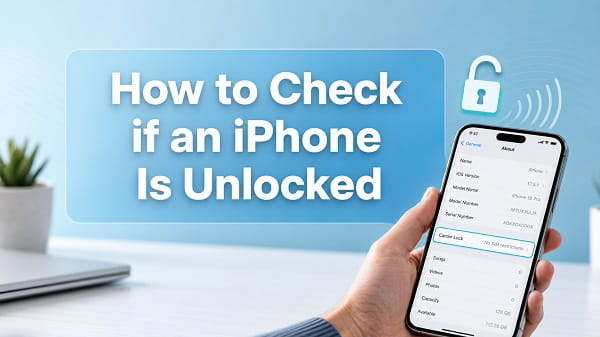
The quickest way to check if an iPhone is unlocked is to open Settings > General > About and look for Carrier Lock. If it says No SIM restrictions, the iPhone is unlocked. If it displays a carrier restriction or another lock message, contact the current carrier before trying to switch networks.
That Settings check is the best place to start, but it is not the only useful test. A different carrier’s active SIM or eSIM can confirm whether the phone can actually activate and use another network. This matters when buying a used iPhone, changing carriers or preparing to travel.
Quick Answer: Is My iPhone Unlocked?
Follow these steps:
- Open the Settings app.
- Tap General.
- Tap About.
- Scroll down to Carrier Lock.
- Read the message beside it.
Here is what the result usually means:
| Carrier Lock result | Meaning |
|---|---|
| No SIM restrictions | The iPhone is carrier-unlocked |
| SIM locked | The iPhone is restricted to a carrier |
| A carrier name or restriction message | The iPhone is probably carrier-locked |
| Carrier Lock is missing | Update iOS, restart the phone, test another SIM or ask the carrier |
Apple’s current instructions use No SIM restrictions as the confirmation that an iPhone is unlocked. The exact layout may look slightly different on an older iOS version, but the setting is normally found on the About screen.
What Does an Unlocked iPhone Mean?
A carrier-unlocked iPhone is not restricted to one mobile network. It can normally be activated with a compatible SIM or eSIM from another carrier.
For example, an unlocked iPhone used on AT&T may be moved to T-Mobile or another compatible provider if the new carrier supports that iPhone model, its network bands and its SIM or eSIM setup.
An unlocked phone can be helpful when you want to:
- Change carriers without buying another iPhone
- Use a local travel eSIM in another country
- Add a second carrier on a Dual SIM model
- Sell the phone to a wider group of buyers
- Compare mobile plans without being tied to the original provider
Unlocking does not guarantee that every carrier will accept the iPhone. The device must still be compatible with the carrier’s network, free from a lost-or-stolen block and eligible for activation.
Method 1: Check Carrier Lock in Settings
The built-in Carrier Lock field is the easiest and most reliable first check because it shows the carrier policy currently stored for the iPhone.
On a Current iOS Version
- Connect the iPhone to Wi-Fi or cellular data.
- Open Settings.
- Select General.
- Tap About.
- Scroll until you find Carrier Lock.
If the field says No SIM restrictions, the iPhone is unlocked.
If it says SIM locked, shows a restriction or does not display the expected message, contact the carrier associated with the phone. Apple states that only the carrier can unlock an iPhone for use with another network.
Why an Internet Connection May Help
The iPhone can receive activation and carrier information through Apple’s servers and the mobile provider. If the phone has been approved for an unlock recently, connect it to the internet, restart it and check the About page again.
Opening Settings > General > About can also trigger a carrier settings update. Install the update if a prompt appears, then check Carrier Lock again.
Does “No SIM Restrictions” Definitely Mean Unlocked?
Yes, it means the iPhone is not restricted by a carrier lock. It does not promise that the phone will work on every network.
A different carrier can still reject or fail to activate the phone because of:
- Unsupported cellular bands or technology
- A lost-or-stolen report
- An unpaid-device or account block
- A regional carrier restriction outside the normal SIM lock
- An inactive or damaged SIM
- An eSIM transfer or activation problem
- A carrier that does not support that model or IMEI
Treat No SIM restrictions as proof of carrier-unlocked status, then use the new carrier’s compatibility checker before transferring service.
Method 2: Test a SIM From Another Carrier
Testing a working SIM from a different carrier is the strongest practical check. It confirms more than the status label because it shows whether the iPhone can activate on another network.
This method applies only to iPhones with a physical SIM tray. Some iPhone models sold in the United States use eSIM only.
What You Need
Use a SIM card that:
- Belongs to a different carrier from the original one
- Is active and currently working
- Is the correct size
- Has not been reported lost
- Is not protected by an unknown SIM PIN
Borrowing an active SIM for a short test is fine if its owner agrees. Do not change or erase anything on the SIM.
How to Run the SIM Test
- Turn off the iPhone.
- Remove the current SIM with a SIM-eject tool.
- Insert the active SIM from another carrier.
- Turn on the iPhone.
- Wait for activation and a network name to appear.
- Make a short call, send a text or load a webpage using cellular data.
If the new carrier connects and the basic services work, the iPhone is unlocked and compatible with that network.
If the iPhone displays SIM Not Supported, SIM Locked or an activation message stating that the SIM is not supported, it is probably still locked to another carrier.
What If the New SIM Shows No Service?
No Service does not prove that the iPhone is locked. It can also mean:
- The SIM is inactive
- The carrier has no signal in that location
- The iPhone model is incompatible with the network
- The line needs activation
- The SIM is damaged
- The IMEI is blocked
- Carrier settings are outdated
- The phone has a cellular hardware fault
Return the SIM to the phone where it normally works. If it also shows No Service there, the SIM or carrier line is the likely problem. If it works in the other phone but not in the iPhone, check Carrier Lock, compatibility and IMEI eligibility with the carrier.
If the iPhone connects to the carrier but mobile data fails, use iPhone Not Connecting to the Internet on Cellular Data to troubleshoot the connection separately. A mobile-data configuration issue does not necessarily mean the device is locked.
Method 3: Activate an eSIM From Another Carrier
An eSIM test is useful for an eSIM-only iPhone and for Dual SIM models. It is also convenient when a carrier offers a trial or short-term prepaid plan.
Before buying a plan, enter the iPhone’s IMEI on the new carrier’s official compatibility page. An unlocked status does not overcome a carrier’s model, band or certification requirements.
To add an eSIM:
- Open Settings.
- Tap Cellular or Mobile Service.
- Select Add eSIM.
- Follow the carrier’s transfer, QR-code or app-based activation process.
- Label the new line so it is easy to identify.
- Make a call or use cellular data on the new line.
If the eSIM from a different carrier activates and registers on the network, the iPhone is unlocked.
If setup fails, read the message carefully. A carrier-lock error is different from an invalid QR code, unsupported IMEI, expired activation code, number-transfer delay or account verification problem.
Dual SIM Does Not Automatically Mean Unlocked
An iPhone can support two lines and still be carrier-locked. Dual SIM describes the phone’s ability to hold two active line configurations. Carrier lock describes which networks those lines may use.
Check Settings > General > About > Carrier Lock even if both IMEI entries appear on the screen.
Method 4: Ask the Carrier
The carrier that locked the iPhone has the final authority over its unlock status and eligibility. Apple can show the status and provide activation support, but it cannot override the carrier’s lock.
Contact the carrier when:
- Carrier Lock does not say No SIM restrictions
- A different SIM produces a SIM-not-supported message
- The carrier recently approved an unlock but Settings still shows locked
- You do not know whether an unlock request was completed
- You are buying a phone that is still financed
- The original owner claims the phone will be unlocked later
Have the following information ready:
- IMEI or IMEI2
- Phone number previously used on the device
- Account holder’s name and account details
- Purchase receipt, if available
- Device payoff confirmation
- Unlock-request reference number
Find the IMEI under Settings > General > About. It may also appear on the original packaging, but use the number shown on the actual device when possible.
Carrier rules differ. A provider may require the phone to be fully paid, active for a minimum period, associated with an account in good standing and not reported lost, stolen or involved in fraud. Military-deployment and consumer-law exceptions can also vary by country and carrier.
Check the provider’s current official unlock policy instead of relying on an old forum post or a fixed waiting period. Policies and automated unlocking practices can change.
Method 5: Check the Purchase Source
The seller or receipt can provide useful evidence, although it is not as conclusive as the Carrier Lock field or a different-carrier activation test.
Bought Directly From Apple
An iPhone bought from Apple as Connect to any carrier later or described as unlocked is generally sold without a carrier restriction. However, verify the phone itself if it is used, refurbished or has changed ownership.
Financing and carrier promotional purchases can have different terms. The store where the iPhone was purchased does not always reveal which activation policy was later applied.
Bought From a Carrier
A carrier-sold iPhone may be locked initially and unlocked automatically or by request after it becomes eligible. Do not assume that paying off the balance changed the status instantly. Check Carrier Lock and ask the carrier to confirm.
Bought From a Marketplace or Private Seller
Descriptions such as unlocked, factory unlocked, GSM unlocked and works with any carrier are seller claims. Confirm the status on the iPhone before paying.
If a seller refuses to open Settings, allow a SIM test or provide the IMEI for a carrier compatibility check, treat that as a warning sign.
Carrier Lock Is Not the Same as Activation Lock
The word “locked” is used for several unrelated iPhone protections. Confusing them can lead to buying an unusable phone or asking the wrong company for help.
| Type of restriction | What it controls | Who can resolve it? |
|---|---|---|
| Carrier or SIM lock | Which mobile carriers the iPhone can use | The locking carrier |
| Activation Lock | Whether the iPhone can be activated without the owner’s Apple Account | The owner, or Apple in limited proof-of-purchase cases |
| Screen passcode | Access to the iPhone’s contents | The owner through Apple’s passcode-recovery process |
| SIM PIN | Access to a specific physical SIM or eSIM line | The SIM owner or carrier using the PUK process |
| IMEI blocklist | Whether carriers will allow the device on their networks | The carrier or organization that submitted the block |
Carrier-unlocked does not mean owner-unlocked. A used iPhone can say No SIM restrictions and still be protected by Activation Lock.
Apple explains that Activation Lock turns on with Find My and can prevent someone else from activating the device. If a used iPhone shows iPhone Locked to Owner, do not buy it until the seller removes it from their Apple Account. See Apple’s Activation Lock information for the current ownership checks.
Carrier Lock Is Not the Same as an IMEI Block
An IMEI block or blacklist is usually associated with a phone reported lost, stolen, fraudulent or otherwise ineligible for a carrier’s network. Unlocking the SIM restriction does not remove that report.
An iPhone can therefore be:
- Unlocked and clear for activation
- Unlocked but IMEI-blocked
- Carrier-locked but not blocklisted
- Both carrier-locked and blocklisted
Ask the carrier you plan to use to check the IMEI. A marketplace seller’s screenshot is not enough because the status may change after the screenshot was taken.
Should You Use an Online IMEI Unlock Checker?
An online checker may offer clues, but it should not be your only source of truth.
Third-party databases can be:
- Outdated
- Incomplete for some carriers or countries
- Wrong about refurbished or replacement devices
- Unclear about whether “clean” refers to financing, blocklist or carrier lock
- Designed to sell a questionable paid unlock service
- Used to collect device identifiers and personal information
Prefer the Carrier Lock field, a real SIM or eSIM test and confirmation from the carrier. If you need an IMEI compatibility check, use the official website of the carrier you intend to join.
Never give a random website your Apple Account password, iPhone passcode, carrier PIN, one-time security code or payment-account credentials. Legitimate carrier unlocking does not require handing over an Apple Account password to a third-party service.
What to Do if Carrier Lock Is Missing
Carrier Lock normally appears in the About section on iOS 14 and later, but it may be absent because of outdated software, incomplete activation, a temporary carrier-settings issue or a device-management configuration.
Try these checks:
- Connect the iPhone to a reliable Wi-Fi network.
- Open Settings > General > Software Update and install the latest compatible iOS update.
- Restart the iPhone.
- Return to Settings > General > About and wait for about 30 seconds.
- Install a carrier settings update if prompted.
- Test an active SIM or eSIM from another carrier.
- Contact the carrier with the IMEI.
If the network information looks stale after a recent carrier change, resetting network settings on the iPhone may help with connectivity. It removes saved Wi-Fi networks and network-related settings, so it should not be the first step. A network reset cannot force a carrier unlock or bypass an eligibility requirement.
What “SIM Not Supported” Means
A SIM-not-supported message during activation usually means the iPhone’s current activation policy does not allow that SIM. Check Carrier Lock and contact the carrier that originally sold or locked the phone.
Before assuming that the iPhone is locked, confirm that:
- The SIM is active
- The SIM belongs to a genuinely different carrier
- The SIM works in another compatible phone
- The iPhone supports the carrier’s network
- The carrier supports that iPhone’s IMEI
- There is no pending eSIM transfer
Apple’s official iPhone carrier-unlock instructions state that only the current carrier can unlock the device. Avoid software tools claiming to remove a modern iPhone carrier lock locally. The relevant policy is handled through carrier and activation systems, not a hidden switch that a repair app can safely override.
Why an iPhone Can Be Paid Off but Still Locked
Paying the remaining device balance can make an iPhone eligible for unlocking, but eligibility and completion are not always the same event.
The carrier may still need to:
- Process an automatic unlock
- Receive a manual request
- Verify the account holder
- Wait for a payment to clear
- Confirm the minimum service period
- Remove a fraud or account review
- Send the updated policy to Apple’s activation system
If the phone was just paid off, ask the carrier whether the unlock is approved, pending or completed. Restart the iPhone with an internet connection after confirmation, then check the Carrier Lock field again.
How to Unlock an iPhone That Is Carrier-Locked
There is no universal code in iPhone Settings that removes a carrier lock. Use this process:
- Identify the carrier that locked the iPhone.
- Review that carrier’s current eligibility rules.
- Pay any valid device balance or resolve account restrictions.
- Submit an unlock request through the official carrier website, app, store or support channel.
- Keep the request reference number.
- Wait for confirmation that the unlock is complete.
- Connect the iPhone to the internet and restart it.
- Insert another carrier’s SIM or activate its eSIM.
- Check Settings > General > About > Carrier Lock again.
If the carrier confirms the unlock but another SIM still fails, ask the carrier to verify that the correct IMEI was submitted. Dual SIM models may show IMEI and IMEI2, and an administrative error can delay the change.
Apple also documents a backup, erase and restore process for people who do not have another SIM available after the carrier confirms the unlock. Do not erase the iPhone merely to find out whether it is locked. Use that process only after backing up the device and confirming the carrier has completed its part.
Checklist Before Buying a Used iPhone
Checking the carrier lock is only one part of inspecting a used iPhone. Complete these checks before payment whenever possible.
1. Verify Carrier Lock
Open Settings > General > About and confirm No SIM restrictions. Take the reading from the phone, not from a seller’s old screenshot.
2. Test Your Carrier
Insert your active SIM or add your carrier’s eSIM. Confirm that calls, texts and cellular data work. If you cannot test it before purchase, verify the IMEI directly with the carrier.
3. Check Activation Lock
The seller should turn off Find My, sign out of their Apple Account and erase the iPhone. Begin setup far enough to confirm that it does not ask for the previous owner’s Apple Account.
Do not accept a promise that the owner will remove Activation Lock later. The seller should resolve it while you can still return or decline the phone.
4. Check the IMEI
Compare the IMEI in Settings with the receipt and packaging if available. Ask your intended carrier whether the device is eligible for activation.
5. Inspect Parts and Repair History
On supported models, open Settings > General > About and look for Parts and Service History. This does not determine carrier lock, but it can reveal replaced components and help you evaluate the phone.
6. Test Basic Hardware
Check the display, cameras, speakers, microphones, buttons, Face ID or Touch ID, charging, Wi-Fi and Bluetooth. A phone can be genuinely unlocked and still have expensive hardware faults.
7. Be Careful With Financing
Ask whether the device is fully paid. Some phones may initially activate and later face carrier or financial restrictions. Purchase from a seller or platform with clear identity records and buyer protection.
How to Check a Sealed or Unactivated iPhone
It is difficult to prove the current carrier-lock status of a sealed iPhone using only the box. Model number, serial number and IMEI can help identify the product, but they do not replace an on-device Carrier Lock check.
For a sealed phone:
- Read the retailer’s exact listing and return policy
- Confirm whether it is sold as unlocked or tied to a carrier
- Ask the intended carrier to check the IMEI
- Keep the receipt
- Activate and inspect Carrier Lock before the return period ends
A shrink-wrapped box is not proof that the phone is factory-unlocked. It may be a carrier unit, a resealed return or a device with activation conditions.
How to Check if an iPhone Is Unlocked Without a SIM Card
Use Settings > General > About > Carrier Lock. You do not need a physical SIM to read the status.
If it says No SIM restrictions, the iPhone is unlocked. If the field is missing or unclear, connect to the internet, update iOS and ask the original carrier to check the IMEI.
An eSIM from another carrier can also serve as the live activation test, especially on an eSIM-only iPhone.
How to Check if an iPhone Is Unlocked by IMEI
The safest IMEI-based method is to contact the carrier that sold the phone or the carrier you want to join.
- Find the IMEI under Settings > General > About.
- Copy it carefully.
- Open the intended carrier’s official device-compatibility page or contact support.
- Ask whether the IMEI is eligible for activation and whether the carrier can confirm its lock status.
Remember that compatibility, blocklist status and SIM-lock status are different checks. Ask what the result actually covers.
Frequently Asked Questions
How do I know if my iPhone is unlocked?
Open Settings > General > About and look at Carrier Lock. No SIM restrictions means the iPhone is unlocked. Confirm with an active SIM or eSIM from another carrier if you need a real-world test.
Can I check whether my iPhone is unlocked without contacting the carrier?
Yes. Check Carrier Lock in Settings or test another carrier’s active SIM or eSIM. Contact the carrier if the result is missing, inconsistent or still shows a restriction after an unlock request.
Does “No SIM restrictions” mean factory unlocked?
It proves that the iPhone is currently carrier-unlocked. It does not reveal whether it was originally sold unlocked or was unlocked by a carrier later.
Can Apple unlock my iPhone?
No. Apple says only the current carrier can unlock an iPhone for use with another carrier. Apple can help with iPhone activation or software problems, but it cannot approve a carrier unlock.
Is an unlocked iPhone compatible with every carrier?
No. The carrier must support the iPhone model, its network bands, its regional configuration and its IMEI. Check compatibility before moving a number or purchasing a plan.
Can a locked iPhone use two eSIMs?
It may support multiple eSIM profiles, but a carrier lock can restrict which networks those eSIMs use. Dual SIM support is not proof of an unlocked phone.
Will a factory reset unlock an iPhone?
No. Erasing or factory-resetting an iPhone does not override a carrier’s lock. It can also trigger Activation Lock during setup if Find My was enabled and the owner did not remove the device correctly.
Does removing the SIM card unlock the iPhone?
No. The lock is part of the device’s carrier activation policy, not information stored only on the removable SIM.
Can jailbreaking unlock an iPhone?
Jailbreaking does not provide a legitimate, dependable carrier unlock for current iPhones. It can reduce security, cause instability and interfere with updates or support. Request the unlock from the carrier.
Why does my unlocked iPhone show SOS Only?
SOS Only means the iPhone is not registered for normal service with the selected carrier, but it may still reach emergency services. Possible causes include poor coverage, an inactive line, SIM or eSIM provisioning problems, incompatible service or a carrier outage. It does not automatically mean the phone has become locked again.
Can an iPhone become locked again after being unlocked?
A completed official carrier unlock is generally intended to remain in place. If Settings later shows a restriction, contact the carrier and provide the earlier unlock confirmation. Replacement devices and administrative errors can require a fresh review.
What if calls work but cellular data does not?
The iPhone may already be unlocked. Check that the correct cellular line is selected, the data plan is active and the carrier settings are current. A wrong APN, roaming setting, provisioning problem or network outage can affect data independently.
Should I reset network settings to unlock the phone?
No. Resetting network settings can fix some Wi-Fi, Bluetooth and cellular configuration problems, but it cannot remove a carrier lock. Use it only for a separate connectivity problem after confirming the carrier status.
Is it safe to share an IMEI with a buyer?
An IMEI is not a password, but it is a unique device identifier. Share it only when necessary and preferably through a reputable marketplace or directly with a carrier. Never share account PINs, verification codes or Apple Account credentials.
The Best Way to Confirm Before Switching Carriers
Start with Settings > General > About > Carrier Lock. If it says No SIM restrictions, check the iPhone’s IMEI with the new carrier and activate that carrier’s SIM or eSIM. Those three checks cover the issues that matter most: unlock status, network eligibility and actual service activation.
If Carrier Lock shows anything else, do not pay an unknown website or erase the iPhone hoping the restriction will disappear. Ask the carrier that locked the device to confirm its eligibility and complete the official unlock. That route protects the phone, the account and any remaining warranty or support options.
