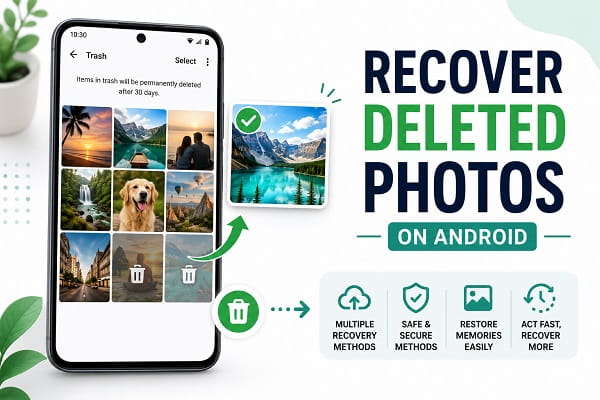
Accidentally deleting important photos can be stressful. Whether it’s family pictures, vacation memories, work-related images, screenshots, or scanned documents, losing photos often feels permanent.
Fortunately, deleted photos are not always gone forever.
Modern Android devices include several recovery options that can help restore deleted pictures, especially if you act quickly. Depending on how the photos were deleted and whether you use cloud backup services, there is a good chance you can get them back.
In this guide, you’ll learn how to recover deleted photos on Android using built-in Android features, Google Photos, cloud backups, and other recovery methods.
Can Deleted Photos Be Recovered on Android?
In many cases, yes.
When a photo is deleted, Android often moves it to a temporary trash folder rather than permanently erasing it immediately.
Many services such as Google Photos also keep deleted items for a specific period before removing them permanently.
Your chances of recovery depend on:
- How long ago the photo was deleted
- Whether backup services are enabled
- Whether the storage space has been overwritten
- The recovery method you use
The sooner you attempt recovery, the better your chances of success.
What to Do Immediately After Deleting Photos
One of the biggest reasons photos get deleted accidentally is a lack of available storage space. Many users remove images while trying to free up memory quickly. Before deleting important files, consider these methods to free up storage space on Android without losing valuable photos.
Before trying any recovery method, follow these recommendations.
Stop Taking New Photos
New images may overwrite storage areas where deleted photos remain.
Avoid Installing Unnecessary Apps
Installing large apps may use storage space needed for recovery.
Check Backup Services First
Cloud backups often provide the easiest recovery option.
Act Quickly
Many recovery folders automatically delete files after a certain period.
Taking immediate action increases your chances of success.
Method 1: Recover Photos from Google Photos Trash
Screenshots are often just as important as camera photos because they may contain receipts, conversations, or important information. If you’ve recently changed devices, it’s worth learning how to take a screenshot on Android so you can continue saving important content safely.
Google Photos is the most common recovery source for Android users.
When photos are deleted, they usually move to the Trash folder.
How to Recover Deleted Photos
- Open Google Photos.
- Tap Library.
- Select Trash or Bin.
- Locate the deleted photos.
- Select the photos.
- Tap Restore.
The restored photos will return to:
- Your gallery
- Google Photos library
- Original albums
How Long Does Google Photos Keep Deleted Photos?
Generally:
- Backed-up photos: up to 60 days
- Non-backed-up photos: approximately 30 days
After this period, recovery becomes much more difficult.
Method 2: Check Your Phone’s Gallery Trash Folder
Many Android manufacturers include their own recycle bin system.
Examples include:
Samsung Gallery
Samsung devices include a Trash folder.
Xiaomi Gallery
Some Xiaomi devices provide deleted item recovery.
Oppo and Vivo Devices
Many modern phones include recently deleted folders.
Recovery Steps
- Open Gallery.
- Locate Trash, Recycle Bin, or Recently Deleted.
- Select the deleted photos.
- Tap Restore.
This method is often overlooked but can be highly effective.
Method 3: Recover Photos from Cloud Backups
If your photos were backed up, recovery becomes much easier.
Google Photos Backup
Check whether cloud backup is enabled.
OneDrive
Microsoft users may have automatic photo synchronization.
Dropbox
Photos stored in Dropbox may remain accessible.
Amazon Photos
Some users rely on Amazon’s cloud backup service.
Review your cloud storage accounts before attempting advanced recovery methods.
Method 4: Restore Photos from a Device Backup
Backups become especially important when moving to a new phone. If you’re upgrading your device, follow our guide on how to transfer data from Android to Android to ensure your photos, apps, and settings move safely to your new device.
Many Android users regularly back up their phones.
If a backup exists, deleted photos may be recoverable.
Potential Backup Sources
- Google Backup
- Samsung Cloud
- Manufacturer backup tools
- Third-party backup apps
Important Consideration
Restoring a backup may also affect newer files and settings.
Review backup dates carefully before proceeding.
Method 5: Check File Manager Applications
Some file manager apps maintain their own recycle bins.
Examples include:
- Files by Google
- File Manager Plus
- Manufacturer file managers
Steps
- Open the file manager.
- Look for Trash or Recycle Bin.
- Search for deleted images.
- Restore available files.
This method can sometimes recover images that are no longer visible in the gallery.
Method 6: Recover Photos from an SD Card
If your photos were stored on a memory card, recovery may still be possible.
Steps
- Remove the SD card.
- Insert it into a computer.
- Use a trusted recovery tool.
- Scan for deleted image files.
Because SD cards operate separately from internal storage, recovery success rates can be higher.
Method 7: Check Messaging and Social Media Apps
Many users forget that copies of photos may still exist elsewhere.
Review:
- Telegram
- Facebook Messenger
- Google Drive
- Email attachments
You may discover the photo was previously shared or backed up.
Why Photo Recovery Sometimes Fails
Unfortunately, recovery is not always possible.
Common reasons include:
Permanent Deletion
The Trash folder may have been emptied.
Storage Overwriting
New files may replace deleted data.
Disabled Backups
No backup copies were created.
Hardware Problems
Storage damage can affect recovery success.
This is why regular backups are so important.
How to Protect Photos from Future Loss
Many users store important documents as images or scanned PDFs. To create digital copies of receipts, certificates, and paperwork before they’re lost, learn how to scan documents using an Android phone using free Android tools.
The best recovery strategy is prevention.
Enable Google Photos Backup
Automatic cloud backups provide excellent protection.
Use Multiple Backups
Store important photos in more than one location.
Back Up Regularly
Frequent backups reduce risk.
Transfer Important Files
Move valuable photos to:
- Cloud storage
- External drives
- Computers
Review Trash Folders Periodically
Don’t leave important photos sitting in temporary folders.
Common Photo Recovery Mistakes
Installing Too Many Recovery Apps
Many apps make unrealistic promises.
Continuing to Use the Phone Heavily
New files can reduce recovery chances.
Ignoring Cloud Backups
Cloud storage is often the easiest solution.
Waiting Too Long
The longer you wait, the lower your recovery success rate.
Act quickly whenever photos are deleted accidentally.
Are Photo Recovery Apps Safe?
Some recovery apps are legitimate.
Others are not.
When choosing a recovery app:
Use Trusted Developers
Read reviews carefully.
Download from Google Play Store
Avoid unknown sources.
Check Permissions
Be cautious about apps requesting unnecessary access.
Understand Limitations
No recovery app can guarantee success.
Always approach recovery tools realistically.
Frequently Asked Questions
Can I recover permanently deleted photos on Android?
It depends. If backups exist or the storage has not been overwritten, recovery may still be possible.
Does Google Photos keep deleted photos?
Yes. Deleted photos typically remain in the Trash folder for a limited period.
Can I recover photos without a backup?
Possibly. Recovery success depends on how recently the files were deleted and whether storage space has been reused.
What is the easiest way to recover deleted photos?
Checking Google Photos Trash or your phone’s Gallery Trash folder is usually the fastest and most effective method.
Cloud backups are one of the most reliable ways to protect photos from accidental deletion. To ensure backups work properly, you need a stable internet connection. If you’re having connectivity issues, read our guide on WiFi connected but no internet on Android for troubleshooting tips.
Conclusion
Losing important photos can be frustrating, but recovery is often possible if you act quickly. Modern Android devices provide several built-in recovery options, including Google Photos Trash, gallery recycle bins, cloud backups, and backup restoration tools.
The most effective recovery method depends on how your photos were stored and whether backup services were enabled before deletion.
To avoid future problems, enable automatic photo backups, maintain multiple copies of important files, and regularly review your backup settings. A few minutes of preparation today can save you from losing valuable memories tomorrow.
