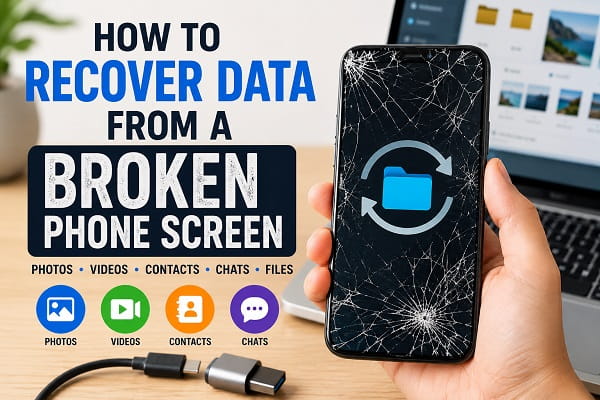
Dropping your phone and watching the screen crack is frustrating enough, but the real panic usually begins when you realize all your important data is still trapped inside.
Family photos, work documents, videos, contacts, WhatsApp conversations, banking apps, and years of memories can suddenly feel out of reach because the display no longer responds or remains completely black.
Fortunately, a broken screen doesn’t always mean your data is lost.
In many cases, the phone itself continues working normally even though the display has stopped functioning. The processor, storage chip, and operating system may still be running perfectly, which means your files are often recoverable if you use the right method.
The challenge is choosing the correct recovery approach.
Many online guides immediately recommend installing recovery software without first explaining whether your phone is still usable internally. Others assume every broken screen behaves the same way, even though a cracked display, a black screen, and an unresponsive touchscreen each require different solutions.
Trying the wrong recovery method wastes valuable time and may even make recovering your data more difficult.
This guide explains how to determine the condition of your phone, identify the safest recovery option, and retrieve your important files from Android devices with cracked screens, black displays, or touchscreens that no longer respond.
The First Question You Need to Answer
Before attempting to recover anything, determine exactly what has happened to your phone.
Although people often describe every display problem as a “broken screen,” several completely different situations can produce similar symptoms.
Understanding which one applies to your phone helps you avoid unnecessary troubleshooting.
Scenario 1: The Screen Is Cracked but Still Works
This is the best-case situation.
You can:
- Unlock the phone.
- Open apps.
- Connect to Wi-Fi.
- Enable backups.
- Transfer files normally.
If your phone still responds to touch, recovering your data is usually straightforward.
Scenario 2: The Display Is Black but the Phone Is Still Running
If your screen still turns on but doesn’t respond to touch, don’t assume your files are lost. Our guide on fixing an Android touchscreen that’s not working explains how to determine whether the issue is caused by software or physical damage.
This is one of the most common situations after a drop.
You may notice:
- The phone vibrates.
- Notifications continue arriving.
- Calls still come through.
- Alarms still sound.
- The charging indicator works.
Although the display remains black, the operating system may still be running in the background.
This often allows your data to be recovered without opening the phone.
Scenario 3: The Touchscreen Doesn’t Respond
Sometimes the display still shows pictures clearly, but touching the screen does nothing.
Without touch input, unlocking the device or approving file transfers becomes difficult.
Fortunately, there are several ways to control the phone without using the damaged touchscreen, which we’ll cover later in this guide.
Scenario 4: The Phone Will Not Turn On
This is the most challenging situation.
If the phone shows no signs of life:
- No vibration.
- No charging indicator.
- No sounds.
- No notification lights.
the problem may extend beyond the display.
In these cases, professional repair or advanced data recovery techniques may be required.
Check Whether the Phone Is Still Working
Before assuming the worst, perform a few simple checks.
Ask yourself:
- Does the phone vibrate when someone calls?
- Can you hear notification sounds?
- Does the charging indicator appear?
- Does your smartwatch remain connected?
- Does your Bluetooth headset still connect automatically?
- Can you hear alarms?
Every positive answer increases the chances that your data remains safely stored inside the phone. The more signs of life your device shows, the more recovery options you’ll have.
If the phone powers on but the display flickers, flashes, or shows distorted images, review our guide on fixing a phone screen that’s flickering before attempting more advanced recovery methods.
Don’t Rush Into a Factory Reset
Many people mistakenly believe resetting the phone is the quickest way to fix a damaged screen.
Unfortunately, a factory reset permanently removes the very information you’re trying to recover.
Until your photos, videos, contacts, messages, and important documents have been copied elsewhere, avoid any troubleshooting step that erases user data.
If someone recommends resetting the phone before attempting recovery, stop and make sure you understand exactly what will be lost.
Before You Begin Recovery
Preparation is just as important as the recovery process itself.
Gather the following if possible:
- The original USB cable.
- A computer with enough storage space.
- Your Google account credentials.
- Your Samsung account (if applicable).
- An OTG adapter if your touchscreen doesn’t respond.
- A USB mouse.
- Access to your Wi-Fi network.
Having these items ready will make the recovery process much smoother, especially if your phone can only be unlocked once before the battery runs out.
Back Up Anything You Can Access Immediately
If your screen still responds occasionally, don’t spend time searching for the perfect recovery method.
Instead, copy your most valuable data first.
Prioritize:
- Family photos.
- Videos.
- Contacts.
- WhatsApp chats.
- Important documents.
- Notes.
- Voice recordings.
Applications can always be downloaded again.
Personal memories usually cannot.
That’s why your first goal should always be protecting irreplaceable files before attempting more advanced troubleshooting.
Method 1: Check Whether Your Files Are Already Backed Up
Before attempting complicated recovery techniques, find out whether your data has already been backed up automatically.
Many Android phones regularly upload important information to cloud services without the owner even realizing it.
Depending on your settings, you may already have access to:
- Photos
- Videos
- Contacts
- Calendar events
- Documents
- App data
- Device settings
If automatic backup was enabled before the screen was damaged, recovering your files may take only a few minutes.
Check Google Photos
Google Photos is often the easiest place to start.
Sign in to the same Google account on another phone or computer and see whether your pictures and videos are already available.
If they are, you can download them immediately without touching the damaged phone.
Check Google Drive
Android devices frequently back up:
- Contacts
- Device settings
- Call history
- SMS messages (on supported devices)
- Installed apps
If Google Backup was active, much of your information can be restored to another Android phone.
Samsung Users Should Check Samsung Cloud
Many Samsung Galaxy devices also synchronize selected information with Samsung Cloud.
Depending on your settings, you may recover:
- Contacts
- Notes
- Calendar
- Gallery items
- Samsung Internet data
- Device settings
This provides another recovery option even if the display no longer works.
Method 2: Connect the Phone to a Computer
If the screen still works well enough to unlock the phone, transferring files directly to a computer is often the fastest solution.
Connect the phone using a reliable USB cable.
Once connected:
- Unlock the device.
- Select File Transfer mode if prompted.
- Copy important folders to your computer.
If you’re moving your recovered files to another Android device, our step-by-step guide on transferring data from Android to Android shows the safest way to migrate everything successfully.
Prioritize:
- DCIM (camera photos)
- Pictures
- Movies
- Downloads
- Documents
- Music
Creating a complete copy before attempting repairs greatly reduces the risk of accidental data loss.
Method 3: Use a USB Mouse With an OTG Adapter
One of the most effective recovery methods for phones with a damaged touchscreen is using a USB OTG adapter.
OTG stands for On-The-Go.
It allows your phone to communicate directly with USB accessories such as:
- Mouse
- Keyboard
- Flash drive
After connecting a USB mouse:
- A cursor usually appears on the screen.
- You can unlock the phone.
- Open Settings.
- Approve USB file transfers.
- Enable backups.
- Copy important files.
This solution often works surprisingly well when the display still shows an image but no longer responds to touch.
Method 4: Transfer Data Using Samsung Smart Switch
If you’re replacing a Samsung Galaxy phone with another Samsung device, Smart Switch may help recover much of your information.
Depending on the condition of the damaged phone, Smart Switch can transfer:
- Contacts
- Photos
- Videos
- Messages
- Call logs
- Applications
- Device settings
Wireless transfer is possible if both devices remain functional.
Otherwise, a USB cable or OTG adapter may be required.
Method 5: Connect to an External Display
Some Android phones support video output through USB-C.
If compatible, connecting the phone to:
- A monitor
- Television
- External display
allows you to see the screen even when the phone’s own display remains black.
Combined with a USB mouse or keyboard, this effectively turns your damaged phone into a temporary desktop device.
You can then:
- Unlock the phone.
- Access your files.
- Enable cloud backup.
- Transfer important data.
Not every Android phone supports external display output, but it is one of the most effective recovery methods for supported models.
Method 6: Recover Files Using Google Files or Nearby Share
If the touchscreen still works occasionally, transferring files wirelessly may be easier than relying on a USB cable.
Applications such as Google’s Files app allow you to share documents, photos, and videos with nearby devices.
This method is particularly useful if:
- The charging port is damaged.
- USB connections fail repeatedly.
- You only need to recover a few important files.
Method 7: Use Recovery Software Carefully
Many desktop recovery programs claim they can recover files from broken Android phones.
Some genuinely help under the right circumstances.
Others promise far more than they can actually deliver.
Before using recovery software, understand its limitations.
Most tools require at least one of the following:
- USB debugging enabled.
- The phone unlocked.
- File transfer permission granted.
- Root access.
If your screen is completely unusable and USB debugging was never enabled, many recovery programs cannot communicate with the device.
Always research software carefully before installing it, especially if payment is required.
Method 8: Recover WhatsApp Conversations
For many people, WhatsApp conversations are more valuable than photos.
Fortunately, WhatsApp regularly creates backups.
Depending on your settings, these may exist in:
- Google Drive
- Local device storage
When setting up WhatsApp on another Android phone using the same phone number and Google account, you may be prompted to restore your previous conversations automatically.
If the damaged phone still functions, avoid uninstalling WhatsApp until you’ve confirmed your backup status.
Once your chats have been restored, you can follow our guide on transferring WhatsApp from Android to Android if you’re setting up a replacement phone.
Method 9: Recover Contacts
Contacts are usually among the easiest items to restore.
If synchronization was enabled, sign in to the same Google account on another Android device.
Your contacts often appear automatically within a few minutes.
Samsung users may also recover contacts through Samsung Cloud if synchronization was enabled before the screen was damaged.
Method 10: Recover Files From an SD Card
If your phone uses expandable storage, remove the microSD card carefully.
Insert it into:
- Another phone.
- A computer.
- A card reader.
You may immediately regain access to:
- Photos
- Videos
- Music
- Downloads
- Documents
Because the SD card stores data separately from the phone itself, recovering these files is often much simpler than recovering information stored in internal memory.
What If USB Debugging Wasn’t Enabled?
One of the most common questions people ask is whether they can recover data if USB debugging was never turned on.
The answer depends on the condition of your phone.
USB debugging allows a computer to communicate with your Android device using advanced commands. However, most people never enable it because it is hidden inside the Developer Options menu.
If USB debugging is disabled but:
- The display still works, or
- You can control the phone using a USB mouse,
you may still be able to enable it before attempting advanced recovery.
If the display is completely unusable and USB debugging was never enabled, many recovery programs will have limited access to your phone’s internal storage.
This doesn’t necessarily mean your data is gone, but it does reduce the number of recovery methods available.
What If the Screen Is Completely Black?
A black display doesn’t always mean the phone is dead.
Many phones continue running normally even though nothing appears on the screen.
Check for these signs:
- The phone vibrates when you press the power button.
- Notifications still make sounds.
- The charging LED lights up (if your phone has one).
- Bluetooth devices still connect.
- Your alarm goes off at the usual time.
If the phone is still operating in the background, an external display, OTG mouse, or cloud backup may still allow you to recover your files.
If there are no signs of life at all, the problem is likely more serious than a damaged screen.
What If You Can’t Unlock the Phone?
Modern smartphones encrypt user data for security.
That means your files are generally inaccessible until the device is unlocked.
If you cannot unlock the phone because the touchscreen is damaged, try these options:
- Connect a USB mouse using an OTG adapter.
- Use an external display if supported.
- Unlock the device with a fingerprint sensor if it still works.
- Use facial recognition if available.
- Enter your PIN using a connected keyboard.
Avoid repeatedly guessing your PIN, as too many failed attempts may temporarily lock the device.
Can a Repair Shop Recover the Data?
Yes, in many cases.
Professional repair technicians often replace only the damaged display while leaving the phone’s internal storage untouched.
Once the new screen is installed, you can unlock the phone and immediately back up your data. If the damage extends to the motherboard or storage chip, specialist data recovery services may be required. These services are usually more expensive but can sometimes recover files from severely damaged devices.
If the damage was caused by water rather than an impact, check our guide on getting water out of your phone speaker for additional steps that may help prevent further hardware problems.
Should You Replace the Screen Before Recovering Data?
If the phone contains valuable information, replacing the display is often the safest option.
A screen replacement is usually far less expensive than losing years of:
- Family photos
- Videos
- Business documents
- Contacts
- Personal messages
Once the new screen is installed, back up everything before continuing to use the phone.
Is Data Recovery Software Always Necessary?
No.
In fact, many people recover their files without using any recovery software.
Cloud backups, USB transfers, OTG adapters, and SD cards often provide everything needed.
Recovery software should usually be considered only after simpler methods have been exhausted.
How to Protect Your Data Before Another Accident
Recovering data is far easier when your phone is already backed up.
To reduce the risk of future data loss:
- Enable Google Backup.
- Turn on Google Photos backup.
- Sync your contacts with your Google account.
- Back up WhatsApp regularly.
- Save important documents to cloud storage.
- Copy important files to a computer from time to time.
- Use a protective case and quality screen protector.
Even if your phone is lost, stolen, or damaged beyond repair, these habits ensure your important information remains accessible.
Regular cloud backups are only one part of protecting your information. Knowing how to recover accidentally deleted pictures is equally important, so see our guide on recovering deleted photos on Android for additional recovery options.
Frequently Asked Questions
Can I recover data from a phone with a broken screen?
Yes. If the phone still powers on, there are several ways to recover your data, including cloud backups, USB transfers, OTG adapters, external displays, and professional screen replacement.
If your phone still powers on but you can’t access saved wireless networks during the recovery process, our guide on finding saved WiFi passwords on Android can help you reconnect quickly.
Can I recover photos if my screen is black?
Yes. If Google Photos backup was enabled, you can access your photos from another device by signing in with the same Google account.
Will replacing the screen erase my data?
No. A standard screen replacement does not normally erase your files because the storage chip remains inside the phone.
However, it’s always wise to confirm this with the repair technician before authorizing any repairs.
Can I recover WhatsApp messages from a broken phone?
If WhatsApp backups were enabled, you can usually restore your chats during setup on another Android device using the same phone number and Google account.
Can I recover data without USB debugging?
Yes, depending on the condition of your phone. Cloud backups, OTG adapters, Smart Switch, SD cards, and external displays often work without USB debugging.
Can I recover files if my phone won’t turn on?
Recovery becomes much more difficult if the phone shows no signs of power. In such cases, professional repair or specialist data recovery services may be required.
Is professional data recovery worth it?
If the phone contains irreplaceable photos, business files, or sentimental memories, professional recovery may be worthwhile. For less critical data, replacing the screen or restoring from a backup is usually more cost-effective.
Recover Your Data Before Attempting Major Repairs
A broken screen can make it seem as though everything stored on your phone has disappeared, but appearances can be deceiving. In many cases, your files remain safely stored inside the device even when the display is cracked, black, or completely unresponsive.
The key is to stay calm and choose the recovery method that matches your situation. Whether your data is available through cloud backups, a USB connection, an OTG adapter, an SD card, or a replacement display, acting carefully gives you the best chance of recovering your important files without making the problem worse.
Once your data has been safely backed up, you can repair or replace the phone with confidence, knowing that your photos, documents, contacts, and conversations are protected.
