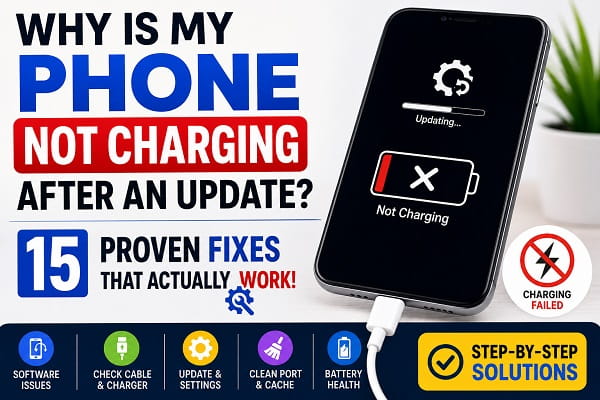
It can be frustrating when your phone suddenly stops charging properly after installing a software update. Everything may have worked perfectly before the update, but afterward your device either refuses to charge, charges extremely slowly, or repeatedly connects and disconnects from the charger.
Many people immediately assume the update has permanently damaged their phone, but that’s rarely the case. Software updates can sometimes introduce temporary bugs, change battery management settings, or interfere with charging behavior. In other situations, the update simply exposes an existing hardware problem that had previously gone unnoticed.
The good news is that most charging problems that appear after an update can be resolved without replacing your phone. Simple steps such as restarting the device, checking charging accessories, installing follow-up updates, or resetting certain settings are often enough to restore normal charging.
This guide explains why your phone may not be charging after an update and provides practical solutions that work on Samsung Galaxy, Google Pixel, Xiaomi, OnePlus, Motorola, Oppo, Vivo, Tecno, Infinix, Realme, and many other Android smartphones. Some of the troubleshooting steps may also help if you’re experiencing similar charging issues on an iPhone.
Why Did My Phone Stop Charging After an Update?
A software update doesn’t usually damage the battery or charging port directly. Instead, updates can temporarily affect the way your phone manages charging, communicates with accessories, or controls battery optimization.
Some of the most common reasons include:
- Temporary software bugs.
- Background system optimization after the update.
- Charging settings that changed automatically.
- App conflicts.
- Cached system files.
- Charging cable or charger issues that became noticeable after the update.
- Hardware faults unrelated to the update.
The best approach is to troubleshoot each possible cause one step at a time.
1. Restart Your Phone
One of the simplest and most effective fixes is restarting your phone.
After a major software update, background services continue optimizing apps and rebuilding system files. During this process, temporary glitches can affect charging performance.
Restarting clears temporary processes and reloads the operating system.
How to fix it
- Press and hold the power button.
- Tap Restart.
- Wait for the phone to reboot completely.
- Connect the charger again.
If charging returns to normal after restarting, the issue was likely caused by a temporary software glitch.
2. Check Your Charging Cable and Charger
Sometimes the update isn’t responsible at all.
Charging accessories naturally wear out over time, and it’s possible they happened to fail around the same time the update was installed.
Inspect both the charging cable and power adapter for signs of damage, loose connections, or overheating.
How to fix it
- Try another charging cable.
- Test another compatible charger.
- Plug the charger into a different wall outlet.
- Use the original charger if available.
If your phone continues charging very slowly instead of refusing to charge completely, you should also read Why Is My Phone Charging Slowly? because many of the causes discussed there may apply.
3. Check for Another Software Update
Manufacturers frequently release follow-up updates after major Android releases to fix newly discovered bugs.
If your charging problem started immediately after updating, another update may already be available with a fix.
How to fix it
- Open Settings.
- Tap Software Update or System Update.
- Check for available updates.
- Install any pending update.
- Restart your phone after installation.
Keeping your phone updated helps resolve known software-related charging issues before they become long-term problems.
4. Clean the Charging Port
A software update doesn’t usually cause dirt to appear inside your charging port, but it can make you notice an existing charging problem that was already developing.
Pocket lint, dust, and other debris can prevent the charging cable from making proper contact with the charging pins.
Before assuming the update is responsible, inspect the charging port carefully.
How to fix it
- Turn off your phone.
- Shine a flashlight into the charging port.
- Remove visible lint using a wooden toothpick or a plastic cleaning tool.
- Use compressed air to remove loose dust if available.
- Avoid using metal objects that could damage the charging pins.
If your phone also displays a moisture warning while charging, our guide on Moisture Detected in Charging Port? explains how to remove the warning safely.
5. Let the Phone Finish Background Optimization
Many Android phones continue working in the background for several hours after installing a major update.
During this period, the operating system rebuilds app caches, optimizes installed applications, indexes files, and completes other maintenance tasks. These background activities increase power consumption and may temporarily affect charging performance.
If your phone was updated only a short time ago, give it a little more time before assuming something is wrong.
How to fix it
- Leave your phone connected to the charger for at least 30 to 60 minutes.
- Keep the screen off whenever possible.
- Avoid installing additional apps until background optimization finishes.
- Restart the phone once optimization is complete.
Many charging issues disappear after the update process has fully completed.
6. Make Sure Battery Protection Features Aren’t Limiting Charging
Some software updates reset battery settings or enable battery protection features automatically.
Depending on your phone, these features may include:
- Adaptive Charging
- Battery Protection
- Protect Battery
- Smart Charging
- Optimized Charging
These features help extend battery lifespan but may reduce charging speed or temporarily limit charging under certain conditions.
How to fix it
- Open Settings.
- Tap Battery.
- Review your battery protection settings.
- Temporarily disable them if you need to test charging performance.
If charging returns to normal, you can decide whether to keep the feature enabled based on your preferences.
7. Check Whether Fast Charging Is Still Enabled
Some updates reset charging preferences without notifying the user.
If fast charging has been turned off, your phone may appear to have a charging problem simply because it is charging much more slowly than before.
How to fix it
- Open Settings.
- Go to Battery or Battery and Device Care.
- Locate the charging settings.
- Enable Fast Charging or Super Fast Charging if available.
If fast charging still isn’t working after enabling the option, you should also read Fast Charging Not Working? for additional troubleshooting steps.
8. Close Apps Running in the Background
Immediately after an update, many apps continue syncing data, downloading updates, and rebuilding their own caches.
These background processes increase battery usage while the phone is charging, making it seem like charging has stopped or slowed significantly.
How to fix it
- Close apps you aren’t using.
- Pause cloud backups temporarily.
- Stop large downloads.
- Restart the phone if background activity remains unusually high.
Reducing battery usage allows more of the charger’s power to recharge the battery.
9. Wipe the System Cache (If Your Phone Supports It)
Some Android phones allow you to clear the system cache through Recovery Mode.
Unlike clearing app cache, this process removes temporary system files that may have become corrupted after a software update.
It doesn’t erase your personal files, photos, or installed apps.
How to fix it
The exact steps vary depending on your phone manufacturer, so refer to your device’s official instructions before entering Recovery Mode.
Once the cache has been cleared, restart the phone and test charging again.
10. Try Charging With the Phone Turned Off
Charging your phone while it’s powered off is a useful way to determine whether the problem is software-related.
If the battery charges normally while the phone is turned off but not while it’s running, the issue is likely caused by software or background processes rather than faulty charging hardware.
How to fix it
- Turn off your phone completely.
- Connect the charger.
- Leave the phone charging for about 30 minutes.
- Turn it back on and check the battery level.
This simple test can provide valuable clues about the source of the problem.
11. Reset All Settings
If your phone still won’t charge properly after the update, resetting your system settings may help resolve configuration problems introduced during the software installation.
Unlike a factory reset, this process usually does not delete your photos, videos, apps, or personal files. It simply restores system settings such as network preferences, permissions, and other configuration options to their default values.
How to fix it
- Open Settings.
- Navigate to System, General Management, or a similar menu depending on your device.
- Select Reset.
- Choose Reset All Settings if your phone provides this option.
- Restart the device after the reset is complete.
After restarting, reconnect the charger and check whether charging has returned to normal.
12. Check Battery Health
A software update doesn’t normally damage a battery, but it can expose an aging battery that was already beginning to fail.
If your battery has significantly degraded, you may notice symptoms such as:
- Very slow charging.
- Rapid battery drain.
- Unexpected shutdowns.
- Excessive heat while charging.
- Battery percentage jumping unexpectedly.
How to fix it
- Check your phone’s battery health if the feature is available.
- Compare your current battery performance with how the phone behaved before.
- If the battery is heavily worn, consider replacing it through an authorized repair center.
If your battery also drains unusually fast after charging, our guide on Why Is My Phone Battery Draining So Fast? may help you identify additional causes.
13. Perform a Factory Reset as a Last Resort
If every other troubleshooting step has failed, a factory reset may resolve software corruption that survived the update.
Because this process removes your personal data, it should only be performed after trying the other fixes in this guide.
Before resetting your phone
- Back up your photos, videos, and documents.
- Sync your contacts.
- Make sure you know your Google account credentials.
- Ensure your battery has enough charge before starting.
Once the reset is complete, test charging before reinstalling your apps.
If charging works normally on a clean system, one of your previous settings or installed applications may have been contributing to the problem.
14. Test Wireless Charging (If Your Phone Supports It)
If your phone supports wireless charging, this is another useful troubleshooting step.
If wireless charging works while wired charging does not, the problem is more likely related to the charging port, charging cable, or USB-C connector rather than the battery itself.
How to fix it
- Place your phone on a compatible wireless charger.
- Wait a few seconds to see whether charging begins.
- Compare the results with wired charging.
If you’re using an iPhone and wireless charging isn’t working either, you can also read iPhone Wireless Charging Not Working? for additional troubleshooting steps.
15. Visit an Authorized Repair Center
If your phone still isn’t charging after trying every solution in this guide, the update may not be the real cause.
Instead, the software installation may have coincided with an existing hardware issue becoming noticeable.
Possible hardware problems include:
- A damaged charging port.
- A faulty charging IC.
- A worn battery.
- Internal water damage.
- Motherboard failure.
A qualified technician can perform diagnostic tests to determine the exact cause and recommend the appropriate repair.
How to Prevent Charging Problems After Future Updates
Although not every charging issue can be prevented, following a few best practices reduces the likelihood of experiencing problems after installing future software updates.
Install Updates With a Sufficient Battery Level
Avoid installing major updates when your battery is nearly empty.
Keeping your battery above 50% or leaving the phone connected to a reliable charger during the update helps reduce the risk of interruptions.
Use Reliable Charging Accessories
Low-quality chargers and cables often create charging issues that become noticeable after updates.
Whenever possible, use original or certified charging accessories.
Keep Your Phone Updated
Don’t ignore smaller maintenance updates.
Manufacturers frequently release bug fixes shortly after major software releases to correct charging and battery-related issues.
Restart Your Phone After Updating
Although many phones restart automatically after installing updates, performing one additional restart can sometimes clear temporary glitches that remain after installation.
Frequently Asked Questions
Why did my phone stop charging immediately after an update?
This is often caused by a temporary software bug, background optimization, charging settings that changed during the update, or an unrelated hardware problem that became noticeable afterward.
Can a software update damage my battery?
In most cases, no. Software updates don’t physically damage batteries. However, they can temporarily affect battery management or reveal existing battery health issues.
Why is my phone charging very slowly after updating?
Background optimization, battery protection features, overheating, damaged charging accessories, or software bugs may all reduce charging speed after an update. You should also read Why Is My Phone Charging Slowly? if the issue continues.
Should I factory reset my phone after an update?
Only if every other troubleshooting step has failed. A factory reset should be considered a last resort because it removes your personal data unless you’ve backed everything up.
How long does Android optimize apps after an update?
Depending on your phone model, storage, and the size of the update, optimization may continue for several minutes or even a few hours after installation.
Restore Normal Charging After an Update
Experiencing charging problems after a software update can be worrying, but it doesn’t usually mean your phone has suffered permanent damage. In many cases, the issue is caused by temporary software glitches, charging settings, background optimization, or accessories that need attention.
Start with the simplest solutions, such as restarting your phone, checking your charger and cable, cleaning the charging port, and installing any available follow-up updates. If the problem continues after working through each step, a professional inspection can help identify whether an underlying hardware fault is responsible.
By keeping your phone updated, using quality charging accessories, and following good charging habits, you can reduce the chances of running into similar issues after future software updates.
