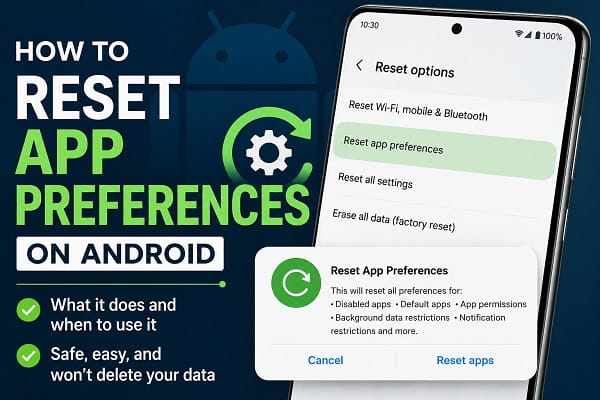
Android includes a variety of troubleshooting tools that can solve common problems without deleting your personal files. One of the most overlooked features is Reset App Preferences. Although many users see this option in their phone’s settings, few understand what it actually does or when it should be used.
Because the name sounds technical, it’s easy to assume that resetting app preferences will erase apps, delete photos, or wipe important data. Fortunately, that’s not how the feature works.
Reset App Preferences simply restores certain app-related settings back to their default state. It can resolve problems such as apps not opening correctly, notifications failing to appear, disabled system apps, broken default app selections, or permission conflicts—all without removing your personal files.
Whether you’re trying to fix an app that isn’t behaving properly or following a troubleshooting guide that recommends resetting app preferences, understanding exactly what the feature changes can help you decide whether it’s the right solution.
In this guide, you’ll discover what Reset App Preferences does, what it doesn’t do, when you should use it, and how to safely reset app preferences on your Android phone.
What Is Reset App Preferences?
Reset App Preferences is a built-in Android feature that restores certain application settings to their original defaults.
Unlike a factory reset, it doesn’t erase your photos, videos, messages, documents, or installed applications.
Instead, Android simply resets several app-related configurations that may have changed over time.
These include:
- Disabled apps.
- Default applications.
- App permissions (in some Android versions).
- Background data restrictions.
- Notification restrictions.
- Permission preferences for supported devices.
Because only app settings are affected, Reset App Preferences is considered one of the safest troubleshooting options available.
What Happens When You Reset App Preferences?
Many users hesitate because they aren’t sure what will actually change.
After resetting app preferences, Android restores several settings to their default values.
Depending on your device and Android version, the following may happen:
- Disabled system apps are re-enabled.
- Default apps are cleared.
- Notification preferences may return to default.
- Background app restrictions may be removed.
- Permission restrictions may be reset on some devices.
However, your personal information remains untouched.
What Reset App Preferences Does NOT Delete
This is one of the biggest misconceptions.
Resetting app preferences does not delete:
- Photos.
- Videos.
- Contacts.
- Messages.
- Installed apps.
- Music.
- Downloads.
- Documents.
- Google account.
- Saved passwords.
You won’t need to reinstall your applications after performing the reset.
Your apps remain installed exactly as before.
What Problems Can Reset App Preferences Fix?
Reset App Preferences is designed to correct problems caused by incorrect app settings rather than hardware faults.
It may help resolve issues such as:
- Apps that won’t open.
- Apps crashing unexpectedly.
- Notifications not appearing.
- Incorrect default apps.
- Disabled system applications.
- Permission-related problems.
- Background apps failing to work properly.
- Apps opening with the wrong application.
Although it isn’t guaranteed to solve every software problem, it’s often recommended before attempting more drastic solutions such as a factory reset.
If your Android phone has become sluggish or apps aren’t responding as expected, resetting app preferences may help resolve software-related conflicts. You can also follow our guide on why your phone is running slow for additional ways to improve your device’s performance.
When Should You Reset App Preferences?
You should consider using this feature if:
- An app suddenly stops working.
- A troubleshooting guide recommends it.
- You’ve accidentally changed app settings.
- Notifications have stopped working for several apps.
- System apps were disabled by mistake.
- Default apps keep changing unexpectedly.
Because the process doesn’t erase personal data, it’s generally safe to try before more advanced troubleshooting methods.
When You Should NOT Reset App Preferences
Although resetting app preferences is safe, it isn’t always necessary.
For example, it probably won’t fix:
- A broken phone screen.
- Water damage.
- Battery problems.
- Hardware failures.
- Storage shortages.
- Malware infections.
- Slow internet connections.
If your problem is caused by hardware rather than software settings, other troubleshooting steps will be more effective.
How to Reset App Preferences on Android
The exact steps may vary slightly depending on your phone manufacturer and Android version, but the overall process is similar on most devices.
Method 1: Most Android Phones
- Open Settings.
- Tap Apps or Apps & Notifications.
- Tap See All Apps if necessary.
- Tap the three-dot menu in the upper-right corner.
- Select Reset App Preferences.
- Read the confirmation message carefully.
- Tap Reset Apps to confirm.
The process usually takes only a few seconds.
Once it’s complete, Android immediately restores the affected app settings without restarting your phone.
How to Reset App Preferences on Samsung Phones
Samsung Galaxy devices use One UI, so the menu layout may differ slightly.
To reset app preferences on Samsung:
- Open Settings.
- Tap Apps.
- Tap the three-dot menu.
- Choose Reset App Preferences.
- Confirm the reset.
If you don’t see the option, make sure your phone is running a recent version of One UI.
How to Reset App Preferences on Google Pixel Phones
On Google Pixel devices:
- Open Settings.
- Tap Apps.
- Select See All Apps.
- Tap the three-dot menu.
- Choose Reset App Preferences.
- Confirm your selection.
Because Pixel phones run a version of Android close to Google’s original software, these steps are similar to many other Android devices.
What You’ll Need to Set Up Again
Although your apps remain installed, you may notice a few changes afterward.
For example, you may need to:
- Choose your default browser again.
- Select your preferred messaging app.
- Pick your default phone app.
- Re-enable app notifications if you customized them.
- Grant permissions to certain apps when prompted.
Most users can restore these preferences in just a few minutes.
Reset App Preferences vs Clear App Cache
These two features are often confused, but they serve different purposes.
| Reset App Preferences | Clear App Cache |
|---|---|
| Resets app-related settings | Removes temporary files |
| Doesn’t delete apps | Doesn’t delete apps |
| Restores default app selections | Leaves app preferences unchanged |
| May fix permission problems | May fix corrupted cache files |
| Affects multiple apps | Affects one app at a time |
If one app is behaving strangely, clearing its cache may be enough.
If several apps are experiencing unusual problems, resetting app preferences may be the better option.
Reset App Preferences vs Factory Reset
A factory reset is much more drastic.
Here’s the difference:
| Reset App Preferences | Factory Reset |
|---|---|
| Keeps personal files | Deletes personal files |
| Keeps installed apps | Removes installed apps |
| Resets app settings only | Resets the entire phone |
| Takes only a few seconds | May take much longer |
| Safe for troubleshooting | Requires a full backup first |
Whenever possible, try Reset App Preferences before considering a factory reset.
Is Reset App Preferences Safe?
Yes.
For most Android users, Reset App Preferences is completely safe.
It doesn’t:
- Delete personal files.
- Remove installed apps.
- Sign you out of your Google account.
- Erase photos or videos.
Instead, it simply restores certain application settings to their default state.
Because of this, many technicians recommend it as one of the first troubleshooting steps for software-related issues.
What If Reset App Preferences Doesn’t Fix the Problem?
If your issue continues after resetting app preferences, the cause may lie elsewhere.
Depending on the symptoms, you may need to:
- Clear the affected app’s cache.
- Update the app.
- Restart your phone.
- Install pending Android updates.
- Free up storage space.
- Uninstall and reinstall the app.
- Perform a network reset if the problem is connection-related.
- Consider a factory reset as a last resort.
Working through these steps methodically makes it easier to identify the true cause of the problem.
If you’re experiencing connection problems such as mobile internet not working, resetting app preferences may not be enough. Our guide on fixing mobile data not working on Android covers additional network-specific troubleshooting steps.
Frequently Asked Questions
Will Reset App Preferences delete my apps?
No. Resetting app preferences does not uninstall or remove any of your apps. All installed applications remain on your phone exactly as they were before the reset.
Will I lose my photos or videos?
No. Your personal files, including photos, videos, music, documents, and downloads, are not affected.
Does Reset App Preferences delete app data?
No. It does not erase saved app data such as game progress, messages, or documents stored within apps. It only restores certain app-related settings to their default values.
Will I need to sign in to my apps again?
In most cases, no. Since your apps and their data remain intact, you generally won’t be asked to sign in again. However, some apps may request certain permissions the next time you open them.
Is Reset App Preferences the same as resetting all settings?
No. Reset App Preferences affects only app-related settings. Resetting all settings changes many more system settings, while a factory reset erases the entire device.
Can Reset App Preferences fix apps that keep crashing?
If the issue involves incoming calls, spam detection, or the Phone app itself, resetting app preferences can sometimes restore default behavior. You can also read our guide on Android Caller ID and Spam Protection to make sure your calling features are configured correctly.
It can help if the crashes are caused by incorrect app settings, disabled system apps, or permission conflicts. However, if an app is crashing because of corrupted files or software bugs, clearing the app cache, updating the app, or reinstalling it may also be necessary.
Can I undo Reset App Preferences?
No. There is no “Undo” button. If you’ve customized default apps, notification settings, or permissions, you’ll need to configure them again manually.
Common Mistakes to Avoid
Although Reset App Preferences is safe, there are a few mistakes people commonly make.
Avoid:
- Confusing it with a factory reset.
- Expecting it to fix hardware problems.
- Using it before trying a simple phone restart.
- Ignoring available Android or app updates.
- Assuming it will speed up a phone with nearly full storage.
Using the feature for the right type of problem increases the chances of resolving the issue quickly.
When Reset App Preferences Is the Right Choice
Reset App Preferences is most useful when multiple apps begin behaving unexpectedly after changes to your phone’s settings or software.
Consider using it if:
- Notifications suddenly stop working.
- Apps no longer open with the correct default application.
- System apps were disabled accidentally.
- Permission settings have become inconsistent.
- Several apps are affected by unusual behavior.
If you’re troubleshooting network registration issues and your phone displays Emergency Calls Only, you may also need to check your SIM card, carrier settings, or network configuration. Our dedicated guide explains how to fix the problem step by step.
Because it doesn’t remove your personal data, it’s often one of the safest troubleshooting steps to try before moving on to more advanced solutions.
Get Your Apps Working Properly Again
Reset App Preferences is one of Android’s most useful built-in troubleshooting tools, yet many users overlook it because they’re unsure what it actually does. Fortunately, the feature is designed to restore important app-related settings without deleting your apps, photos, messages, or other personal files.
If you’re dealing with notification problems, incorrect default apps, disabled system applications, or other software-related issues, resetting app preferences can often resolve the problem in just a few seconds. Should the issue continue, you can then move on to additional troubleshooting methods such as clearing app cache, updating Android, or performing a network reset before considering a factory reset.
Understanding when to use Reset App Preferences—and when it’s not the right solution can save time, prevent unnecessary resets, and help restore your Android phone to normal operation with minimal effort.
