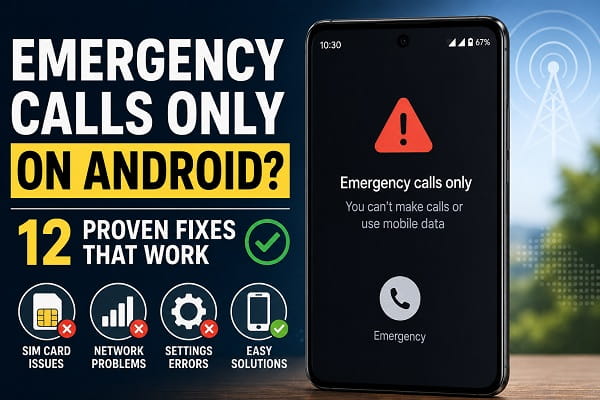
Seeing “Emergency Calls Only” on your Android phone can be worrying, especially if you’re expecting important calls or need access to mobile data. Although the message may seem like a serious hardware problem, it usually means your phone cannot connect properly to your mobile carrier’s network.
When this happens, you’ll typically be unable to make regular phone calls, send text messages, or use mobile data. However, your device may still allow emergency calls to numbers such as 911, 112, or other local emergency services, depending on your country.
The good news is that this issue is often temporary and can usually be fixed without replacing your phone.
Several different problems can trigger the “Emergency Calls Only” message, including SIM card issues, poor network coverage, incorrect network settings, software bugs, or temporary outages from your mobile carrier.
This guide explains why your Android phone says “Emergency Calls Only,” how to identify the exact cause, and the most effective solutions for restoring normal network service.
What Does “Emergency Calls Only” Mean?
When your phone displays Emergency Calls Only, it means the device cannot register with your mobile network for normal communication.
Instead of connecting to your carrier, the phone is only able to access networks that support emergency services.
As a result, you may notice that:
- Regular phone calls fail.
- SMS messages cannot be sent.
- Mobile data stops working.
- The signal indicator may disappear or show very limited service.
- Your phone displays “Emergency Calls Only” or “Emergency Calls.”
In many cases, the phone itself is working normally. The problem lies with the network connection rather than the hardware.
If your phone reconnects to the network but mobile internet still isn’t working, our guide on fixing mobile data not working on Android covers the most common causes and solutions.
Common Reasons Your Phone Says Emergency Calls Only
Several issues can cause your phone to lose access to your mobile network.
The most common include:
- Poor network coverage.
- SIM card not inserted correctly.
- Damaged or inactive SIM card.
- Temporary carrier outage.
- Airplane Mode enabled.
- Incorrect network settings.
- Software bugs.
- Network registration problems.
- Unsupported network bands while travelling.
- IMEI-related issues in rare cases.
Understanding which of these applies to your phone will help you choose the right solution.
Check Whether You’re in a Poor Coverage Area
Weak network coverage is one of the simplest explanations.
If you’re inside:
- Underground parking garages.
- Elevators.
- Remote rural areas.
- Mountains.
- Large concrete buildings.
your phone may struggle to connect to your carrier.
Try moving:
- Outside the building.
- Near a window.
- To another location.
If the signal returns, poor coverage was likely the cause.
Turn Airplane Mode Off and On Again
Refreshing your phone’s network connection often resolves temporary registration problems.
To do this:
- Swipe down from the top of the screen.
- Turn Airplane Mode on.
- Wait about 30 seconds.
- Turn Airplane Mode off again.
Your phone will search for available mobile networks and attempt to reconnect.
Restart Your Android Phone
A simple restart refreshes:
- Network services.
- SIM communication.
- Background processes.
- Carrier settings.
Many temporary network issues disappear after restarting the device.
If you haven’t restarted your phone recently, try this before attempting more advanced troubleshooting.
Check Your SIM Card
A loose or damaged SIM card is another common cause of this problem.
Power off your phone before removing the SIM card.
Inspect it carefully for:
- Dirt.
- Dust.
- Scratches.
- Physical damage.
Clean the SIM gently with a soft, dry cloth if necessary.
Reinsert it securely before turning the phone back on.
If possible, test the SIM in another compatible phone.
If the same problem appears there, your carrier may need to replace the SIM card.
Verify Your Mobile Network Is Available
Sometimes the issue isn’t your phone at all.
Mobile carriers occasionally experience temporary service outages due to:
- Network maintenance.
- Equipment failures.
- Power interruptions.
- Severe weather.
If people using the same carrier nearby are experiencing similar problems, waiting for the outage to be resolved may be the only solution.
You can also visit your carrier’s official website or social media pages for service updates.
Select Your Network Manually
Normally, Android automatically selects the strongest available network.
If this process fails, manually choosing your carrier may restore service.
To do this:
- Open Settings.
- Tap Network & Internet or Connections.
- Select Mobile Network.
- Open Network Operators.
- Disable automatic selection.
- Choose your carrier manually from the list.
Wait a few moments to see whether the phone reconnects successfully.
Reset Network Settings
Corrupted network settings can prevent your phone from connecting correctly.
Resetting them restores:
- Mobile network settings.
- Wi-Fi settings.
- Bluetooth settings.
This process does not erase personal files such as photos, videos, or documents.
After the reset finishes, reconnect to your mobile network and test your phone again.
If you’re using a Samsung Galaxy device, the reset process is slightly different, which we’ll discuss later in this guide.
If you’re using a Samsung Galaxy phone, the steps for resetting network settings are slightly different. Follow our guide on how to reset network settings on Samsung for detailed instructions
Check Your Preferred Network Type
If your phone is set to use a network mode that isn’t available in your area, it may struggle to register with your carrier.
For example, selecting 5G Only in an area without 5G coverage could prevent your device from connecting properly.
To check your preferred network type:
- Open Settings.
- Tap Network & Internet or Connections.
- Select Mobile Network.
- Tap Preferred Network Type.
- Choose 5G/4G/3G/2G (Auto) or the recommended automatic option.
Allow your phone a few moments to reconnect after changing the setting.
Update Your Android Phone
Software bugs can occasionally interfere with your phone’s ability to connect to mobile networks.
Phone manufacturers regularly release updates that improve:
- Network stability.
- Carrier compatibility.
- SIM card communication.
- Overall system performance.
To check for updates:
- Open Settings.
- Tap Software Update or System.
- Check for available updates.
- Download and install any available updates.
Restart your phone after the installation completes.
Check for Carrier Settings Updates
Mobile carriers occasionally release configuration updates that improve network connectivity.
Unlike regular Android updates, these settings are usually installed automatically.
If you’ve recently changed carriers or inserted a new SIM card, restarting your phone may prompt the latest carrier settings to install.
If you’re unsure whether an update is available, contact your carrier for guidance.
Disable and Re-enable Your SIM Card (Dual SIM Phones)
If your phone supports two SIM cards or an eSIM alongside a physical SIM, temporarily disabling and re-enabling the affected SIM may refresh the connection.
Go to:
Settings → SIM Manager (or a similarly named menu)
Turn the SIM off, wait a few seconds, then turn it back on.
Your phone will attempt to reconnect to the network.
Test Your Phone in Safe Mode
Third-party apps rarely cause the “Emergency Calls Only” message, but network management apps, VPNs, or security software can occasionally interfere with connectivity.
Booting into Safe Mode temporarily disables downloaded apps.
If your phone connects normally in Safe Mode, one of your installed applications may be causing the problem.
Restart your phone normally afterward and uninstall any recently installed apps that could be affecting network performance.
Check Whether the IMEI Is Valid
Every mobile phone has a unique IMEI (International Mobile Equipment Identity) number.
If the IMEI is missing, corrupted, or blocked, your phone may not register on your carrier’s network.
To check your IMEI:
- Open the Phone app.
- Dial *#06#.
- Verify that an IMEI number appears.
If no IMEI is displayed, or if the number is shown as Unknown or Null, professional assistance may be required.
Never attempt to change or modify your phone’s IMEI, as doing so may violate local laws.
Check Your eSIM Configuration
If your phone uses an eSIM instead of a physical SIM card, the issue may be related to the eSIM profile.
Check that:
- The eSIM is enabled.
- The correct mobile plan is selected.
- The eSIM profile hasn’t been accidentally removed.
If necessary, contact your carrier to reactivate or reinstall the eSIM profile.
Remove Recently Installed Apps
If the problem started immediately after installing a new application, the app may be interfering with your phone’s network functions.
Pay particular attention to:
- VPN applications.
- Firewall apps.
- Network optimization tools.
- Device management software.
Uninstall one app at a time and test your connection after each removal.
Perform a Network Reset
If you’ve tried several fixes without success, performing a network reset is often worthwhile.
This restores your phone’s network configuration to its default state.
After the reset, you’ll need to reconnect to:
- Wi-Fi networks.
- Bluetooth devices.
However, your photos, videos, contacts, and installed apps remain untouched.
Factory Reset (Only as a Last Resort)
A factory reset should only be considered after every other troubleshooting step has failed.
This process removes:
- Apps.
- Messages.
- Settings.
- Accounts.
- Personal data stored on the device.
Before proceeding:
- Back up your photos.
- Save important documents.
- Sync your contacts.
- Confirm that the issue isn’t caused by your SIM card or carrier.
Many “Emergency Calls Only” problems are resolved long before a factory reset becomes necessary.
When the Problem Is Your Mobile Carrier
Sometimes your phone is working perfectly, but your carrier is experiencing problems.
Possible carrier-related causes include:
- Temporary outages.
- SIM activation delays.
- Suspended service.
- Billing issues.
- Network maintenance.
If you’ve ruled out problems with your phone, contact your carrier and ask them to verify that your line is active and properly provisioned.
When to Seek Professional Repair
Professional repair may be necessary if:
- Your phone suffered physical damage before the problem appeared.
- The SIM reader is damaged.
- The IMEI is missing or invalid.
- The device never detects any SIM card.
- All troubleshooting steps have failed.
A technician can inspect the SIM tray, antenna, motherboard, and other hardware components that are difficult to diagnose at home.
Frequently Asked Questions
Why does my Android phone say “Emergency Calls Only”?
This message usually appears when your phone cannot register with your mobile carrier’s network. Common causes include poor signal, SIM card problems, incorrect network settings, carrier outages, or software issues.
Can I still receive calls when my phone says “Emergency Calls Only”?
No. In most cases, you won’t be able to receive regular calls, send text messages, or use mobile data. However, you should still be able to contact emergency services where supported.
If your phone has network service but incoming calls still aren’t coming through, read our guide on why your phone is not receiving calls for additional troubleshooting steps.
Will resetting network settings delete my photos?
No. A network reset only restores settings related to Wi-Fi, Bluetooth, and mobile networks. Your personal files, including photos, videos, contacts, and apps, remain unchanged.
Why does my phone say “Emergency Calls Only” with a SIM card inserted?
This can happen if:
- The SIM card is damaged.
- The SIM isn’t activated.
- The carrier is experiencing an outage.
- Your phone can’t register on the network.
- The SIM isn’t seated properly.
Removing and reinserting the SIM card often resolves simple connection problems.
Can a software update cause this issue?
Although uncommon, a software update can sometimes affect network settings or carrier compatibility. Installing the latest updates or resetting your network settings often resolves these problems.
Does Airplane Mode cause “Emergency Calls Only”?
Yes. If Airplane Mode remains enabled or doesn’t switch off correctly, your phone won’t connect to your carrier’s network. Turning Airplane Mode on for a few seconds and then off again is one of the easiest troubleshooting steps.
Why does the problem keep coming back?
If your phone repeatedly switches to “Emergency Calls Only,” possible causes include:
- An aging or damaged SIM card.
- Weak network coverage in your area.
- A failing SIM card reader.
- Carrier network instability.
- An underlying hardware issue.
If the problem occurs frequently in different locations, it’s worth contacting your mobile carrier or having the device inspected.
Common Mistakes to Avoid
When trying to fix this issue, avoid these common mistakes:
- Removing the SIM card while the phone is powered on.
- Performing a factory reset before trying simpler fixes.
- Ignoring available software updates.
- Assuming the phone is damaged without testing the SIM in another device.
- Switching network settings repeatedly without allowing time for the phone to reconnect.
- Overlooking the possibility of a carrier outage.
Taking a methodical approach makes it much easier to identify the real cause.
When to Contact Your Mobile Carrier
If you’ve completed all the troubleshooting steps in this guide and your phone still displays Emergency Calls Only, it’s time to contact your carrier.
They can check whether:
- Your SIM card is active.
- Your account is in good standing.
- There are outages affecting your area.
- Your device is correctly registered on the network.
- A replacement SIM card is required.
In many cases, the carrier can identify account or network issues that aren’t visible from your phone.
Restore Your Phone’s Network Connection
An Emergency Calls Only message doesn’t automatically mean your phone has developed a serious fault. More often than not, it’s caused by a temporary network problem, a SIM card issue, incorrect settings, or a software glitch that can be resolved with a few simple troubleshooting steps.
Start with the easiest fixes, such as checking your signal, restarting the phone, reseating the SIM card, and toggling Airplane Mode. If the issue persists, work through the more advanced solutions like resetting network settings, updating your software, and verifying your network configuration.
Once your phone reconnects to the network, it’s also worth checking that Android’s Caller ID and Spam Protection is enabled to help identify unknown callers and reduce unwanted spam calls.
If your phone still can’t connect after completing these steps, your mobile carrier or a qualified repair technician can help determine whether the problem lies with your account, SIM card, or the device itself. Taking a systematic approach gives you the best chance of restoring normal service without unnecessary repairs or data loss.
