Network problems on Samsung phones can be surprisingly frustrating. One moment your phone connects to WiFi without any issues. The next moment, websites refuse to load, mobile data stops working, Bluetooth devices disconnect repeatedly, or your phone struggles to maintain a stable network connection.
In many cases, users spend hours restarting their phones, removing SIM cards, toggling Airplane Mode, and searching for solutions online before discovering that a network settings reset may solve the problem in minutes.
However, resetting network settings is often misunderstood.
Some users avoid it because they fear losing personal data. Others use it too quickly without understanding what it actually does. There are also situations where a network reset won’t fix the problem at all because the issue lies elsewhere.
Understanding what happens during a network reset, what information is removed, and which problems it can realistically solve will help you decide whether it’s the right troubleshooting step for your Samsung device.
What Does Reset Network Settings Mean on Samsung?
A network settings reset restores your phone’s networking configuration to its default state.
Rather than deleting photos, apps, messages, or contacts, the process focuses exclusively on network-related settings.
This includes:
- Saved WiFi networks
- WiFi passwords
- Bluetooth pairings
- Mobile network settings
- VPN configurations
- Network preferences
Think of it as giving your Samsung phone a fresh networking start without affecting your personal files.
Why Samsung Phones Sometimes Develop Network Problems
Modern smartphones manage multiple wireless technologies simultaneously.
Your Samsung device may constantly switch between:
- Mobile networks
- WiFi networks
- Bluetooth devices
- VPN services
- Hotspot connections
Over time, configuration conflicts can occur.
A network reset helps eliminate these conflicts by removing existing network configurations and rebuilding them from scratch.
Signs You May Need to Reset Network Settings
If you’re having trouble connecting to wireless networks, you may also want to read our guide on finding saved WiFi passwords on Android to make sure you’re using the correct network credentials.
A network reset isn’t necessary for every connectivity issue.
However, it often helps when you experience symptoms such as:
WiFi Refuses to Connect
The phone detects available networks but fails to establish a connection.
Mobile Data Stops Working
Signal bars appear normal, but internet access remains unavailable.
Bluetooth Devices Keep Disconnecting
Headphones, speakers, smartwatches, or car systems repeatedly lose connection.
SIM Card Network Problems
The phone struggles to register with your mobile carrier despite an active SIM card.
Frequent Internet Interruptions
Connections work briefly before dropping unexpectedly.
Hotspot Issues
The phone creates a hotspot, but connected devices cannot access the internet.
These are some of the most common situations where a network reset can be useful.
Problems a Samsung Network Reset Can Fix
Many users want to know whether resetting network settings is worth trying.
The answer depends on the type of issue involved.
Corrupted WiFi Profiles
Every WiFi network your phone joins creates stored information.
Sometimes those stored settings become corrupted.
A reset removes the damaged configuration and allows a clean connection.
Mobile Data Configuration Errors
Incorrect network settings can interfere with:
- Mobile data access
- MMS messaging
- Carrier services
Resetting often restores default carrier settings.
Connectivity problems are not always caused by network settings alone. If your internet connection still doesn’t work after resetting your network settings, check our guide on mobile data not working on Android for additional troubleshooting steps.
Bluetooth Pairing Problems
Repeated connection failures frequently result from corrupted pairing records.
Removing all Bluetooth connections and pairing again can solve persistent issues.
Incorrect Network Preferences
Users sometimes change advanced network settings without realizing their impact.
A reset restores Samsung’s recommended defaults.
VPN Conflicts
VPN configurations occasionally interfere with internet access.
Resetting network settings removes problematic configurations.
Problems a Samsung Network Reset Cannot Fix
This is where many users become disappointed.
A network reset is helpful, but it is not a universal solution.
There are several situations where it simply won’t solve the problem.
Carrier Outages
If your mobile provider is experiencing a service disruption, resetting network settings won’t restore connectivity.
Physical SIM Card Damage
A damaged SIM card often requires replacement.
Hardware Failure
Problems involving:
- Antennas
- Modems
- Internal network components
cannot be fixed through software resets.
Router Problems
If the issue originates from the WiFi router itself, resetting your Samsung phone will not help.
Account Suspension
Carrier account restrictions or unpaid bills can prevent network access regardless of phone settings.
Understanding these limitations prevents unnecessary troubleshooting.
The Downsides of Resetting Network Settings on Samsung
Most articles focus only on the benefits.
However, there are disadvantages that users should understand before proceeding.
You’ll Lose Saved WiFi Passwords
After the reset, previously saved WiFi networks must be reconnected manually.
If you don’t remember certain passwords, reconnecting may become inconvenient.
Since saved wireless credentials are removed during the process, it’s useful to know how to find saved WiFi passwords on Android before performing a network reset.
Bluetooth Devices Must Be Paired Again
Wireless earbuds, smartwatches, speakers, and vehicles will need to be reconnected.
VPN Settings Are Removed
Custom VPN configurations are typically erased.
Network Preferences Return to Default
Any personalized network settings you’ve configured will need to be set up again.
Although these drawbacks are relatively minor, they’re worth considering before performing the reset.
What Does NOT Get Deleted?
One of the biggest myths surrounding network resets is that personal data disappears.
Fortunately, that isn’t true.
A Samsung network reset does not remove:
- Photos
- Videos
- Apps
- Contacts
Personal information such as contacts remains safe during a network reset. If you’ve accidentally lost phone numbers for another reason, see our guide on recovering deleted contacts on Android.
- Messages
- Documents
- Music
- Samsung account data
- Google account information
Only networking-related configurations are affected.
This makes the procedure much safer than a factory reset.
Before Resetting Network Settings
Before performing a network reset, there are several simpler troubleshooting steps worth trying.
Restart Your Samsung Phone
Temporary software glitches often disappear after a reboot.
Toggle Airplane Mode
Enabling and disabling Airplane Mode can force the device to reconnect to networks.
Restart Your Router
If WiFi is the issue, the router may be responsible rather than the phone.
Check Carrier Status
Confirm that your mobile provider is not experiencing outages.
Update Software
Samsung software updates frequently include connectivity fixes.
If these steps fail, a network reset becomes a reasonable next option.
If you’re transferring information to a new phone while troubleshooting connectivity problems, our guide on transferring WhatsApp from Android to Android explains how to move chats and media safely.
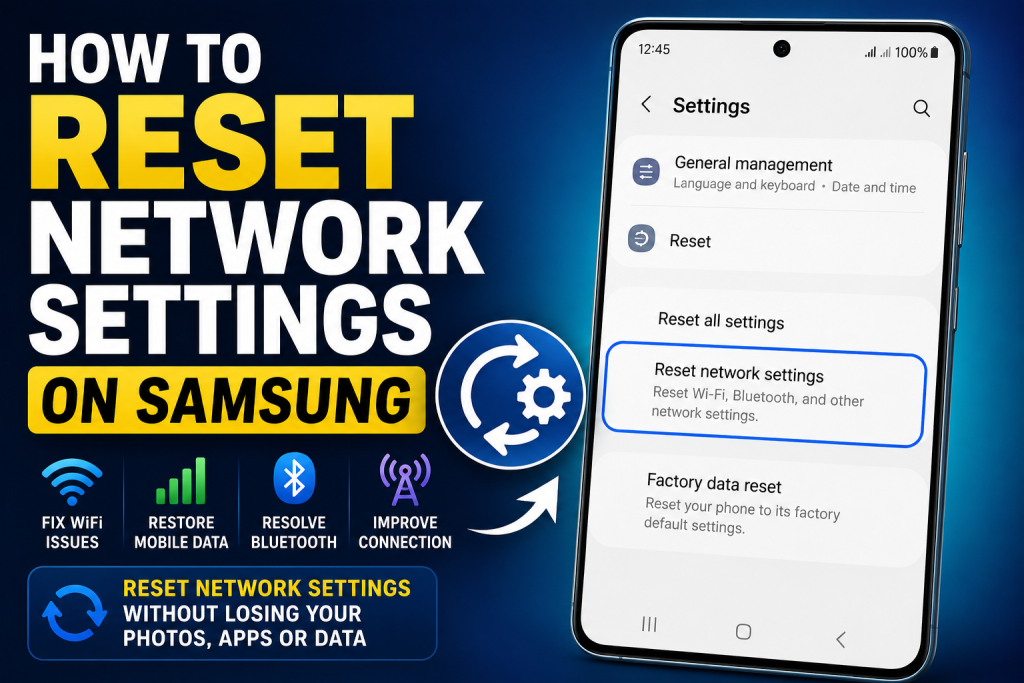
How to Reset Network Settings on Samsung
The exact menu may vary slightly depending on your Samsung model and One UI version.
Generally:
- Open Settings.
- Tap General Management.
- Select Reset.
- Tap Reset Network Settings.
- Review the information displayed.
- Confirm the reset.
- Enter your PIN, password, or pattern if prompted.
The phone will restore networking settings to their default configuration.
Afterward, you’ll need to reconnect to WiFi networks and re-pair Bluetooth devices.
What Happens After the Reset?
Immediately after the process completes:
- WiFi passwords are removed.
- Bluetooth pairings disappear.
- Mobile network settings are refreshed.
- VPN profiles are removed.
- Network preferences return to default.
The phone essentially behaves as though networking features are being configured for the first time.
This fresh start is often enough to resolve stubborn connectivity issues.
Samsung Models That Support Network Reset
The feature is available on most Samsung devices, including:
- Galaxy S Series
- Galaxy A Series
- Galaxy Z Fold Series
- Galaxy Z Flip Series
- Galaxy Note Series
- Galaxy M Series
Although menu names may vary slightly, the functionality remains largely the same.
Frequently Asked Questions
Will Resetting Network Settings Delete My Photos?
No. Photos remain completely unaffected.
Will I Lose My Apps?
No. Installed applications remain on the device.
Does Resetting Network Settings Remove Contacts?
No. Contacts are not deleted.
Will It Fix Mobile Data Problems?
It can help if the problem is caused by incorrect network configurations or corrupted settings.
Does It Remove WiFi Passwords?
Yes. Saved WiFi credentials are removed.
Will Bluetooth Devices Be Deleted?
Existing pairings are removed and must be paired again.
Is It the Same as a Factory Reset?
No. A factory reset removes significantly more information and restores the entire device to its original state.
How Long Does the Process Take?
The reset itself usually takes only a few moments.
Use Network Reset as a Troubleshooting Tool, Not a First Reaction
Resetting network settings can be one of the most effective ways to solve stubborn connectivity problems on a Samsung phone. It often resolves issues involving WiFi, mobile data, Bluetooth, hotspot connections, and network registration without affecting personal files or applications.
At the same time, it should not be viewed as a magic fix for every network problem. Carrier outages, damaged SIM cards, router issues, and hardware failures require different solutions. Understanding what a network reset can and cannot do helps you troubleshoot more efficiently and avoid unnecessary frustration.
If basic fixes such as restarting the phone, checking your carrier, and updating software haven’t worked, resetting network settings is often the next logical step before considering more drastic measures such as a factory reset.
