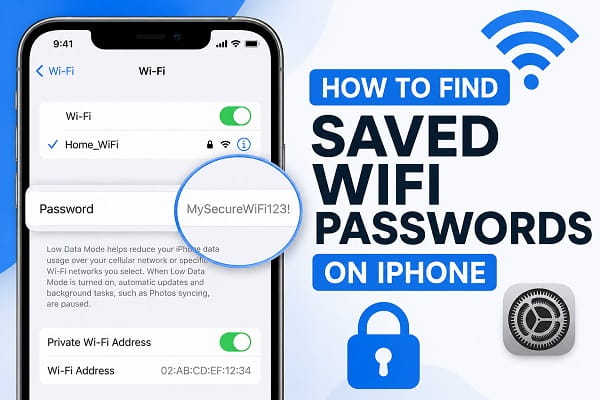
Most people don’t realize how often they rely on saved WiFi passwords until they suddenly need one. Maybe you’ve purchased a new laptop and want to connect it to your home network. Perhaps a friend asks for your WiFi password while visiting, or you’re setting up a smart TV, gaming console, printer, or streaming device. In many cases, your iPhone is already connected to the network and working perfectly, yet you have no idea what the actual password is.
For years, this was one of the most frustrating aspects of owning an iPhone. Apple allowed devices to remember wireless networks indefinitely, but users had very little visibility into the passwords stored on their own devices. Recovering a forgotten WiFi password often meant logging into a router, searching through old paperwork, or borrowing another computer.
Thankfully, modern versions of iOS have changed that.
Apple now provides built-in tools that allow users to view saved WiFi passwords directly from their iPhones. Combined with iCloud Keychain and password-sharing features, finding a forgotten WiFi password has become significantly easier than it was just a few years ago.
However, many users still struggle because the process varies depending on the iPhone model, iOS version, network status, and security settings.
This guide explains everything you need to know about finding saved WiFi passwords on iPhone, including current networks, previously connected networks, iCloud Keychain recovery, password sharing, troubleshooting, and alternative recovery methods when the password isn’t immediately available.
How iPhone Stores WiFi Passwords
Every time your iPhone successfully joins a wireless network and you choose to save the connection, the password is stored securely within Apple’s credential management system.
Unlike some operating systems that expose network credentials more openly, Apple places saved WiFi passwords inside a protected environment tied to:
- Face ID
- Touch ID
- Device passcode
- iCloud Keychain
This approach prioritizes security while still allowing legitimate users to retrieve passwords when necessary.
As a result, your iPhone may remember dozens or even hundreds of wireless networks over time without requiring you to enter those credentials again.
Why People Need Saved WiFi Passwords
Many users assume they only need a WiFi password during initial setup. In reality, there are numerous situations where viewing a saved password becomes important.
Common examples include:
Connecting New Devices
When purchasing:
- Smart TVs
- Streaming boxes
- Security cameras
- Printers
- Tablets
- Laptops
you often need the exact WiFi password again.
Sharing Internet Access
Visitors frequently ask for network access.
Knowing how to retrieve or share the password quickly can save time and frustration.
Replacing an Old Router
Many users compare saved credentials against router settings during network upgrades.
Troubleshooting Network Problems
Sometimes verifying the correct password helps identify authentication issues.
Can You View Saved WiFi Passwords on iPhone?
Yes.
Recent versions of iOS allow users to view passwords for networks they have previously joined.
This capability eliminated one of the biggest complaints iPhone users had for years.
However, Apple still protects the information through authentication requirements to prevent unauthorized access.
Finding the Password for Your Current WiFi Network
The easiest scenario is when your iPhone is already connected to the network.
Open:
Settings → Wi-Fi
Tap the information icon beside the connected network.
Inside the network details page, locate the Password field.
After authenticating with Face ID, Touch ID, or your passcode, the stored password becomes visible.
You can also copy the password directly to the clipboard.
For most users, this is the fastest solution.
Why Apple Requires Face ID or Passcode
Apple protects sensitive information such as saved WiFi credentials, messages, and account data behind additional security layers. The same privacy-focused approach affects how blocked messages on iPhone are handled and why they cannot be viewed through a dedicated inbox.
Many users wonder why a password is hidden behind another password.
The answer comes down to security.
A WiFi password effectively grants access to a private network.
Anyone who gains temporary access to your unlocked phone could potentially view network credentials if Apple didn’t require additional verification.
The authentication step helps ensure that only authorized users can access sensitive information.
How to Find Passwords for Networks You Used Previously
What if the network isn’t currently connected?
This is a surprisingly common situation.
You may be:
- Visiting a previous location.
- Reconnecting an old device.
- Looking for credentials from another property.
- Recovering information from a previous setup.
Modern versions of iOS maintain a list of known networks.
These saved networks can often be accessed through WiFi settings after authentication.
Because Apple regularly updates network management features, the exact process may vary slightly depending on the iOS version installed on your device.
Understanding Known Networks
A known network is simply a WiFi connection your iPhone remembers.
These networks remain stored until:
- You manually forget them.
- Network settings are reset.
- Device management policies remove them.
- Security settings change.
Understanding this concept helps explain why some passwords remain available years later while others disappear unexpectedly.
Using iCloud Keychain to Recover WiFi Passwords
One of Apple’s most powerful ecosystem features is iCloud Keychain.
Many users associate Keychain only with website logins and app credentials.
In reality, it also synchronizes WiFi passwords across trusted Apple devices.
This means a network saved on your iPhone may also be available on:
- Mac
- iPad
- Other trusted Apple devices
connected to the same Apple ID.
This synchronization creates an additional recovery path when a password isn’t easily accessible on the iPhone itself.
How to Check Whether iCloud Keychain Is Enabled
Before relying on Keychain to recover saved credentials, it’s worth confirming that the feature is actually active.
To check:
- Open Settings.
- Tap your Apple ID at the top.
- Select iCloud.
- Tap Passwords and Keychain.
- Verify that Sync This iPhone is enabled.
If Keychain has been active for some time, there’s a good chance many of your saved WiFi credentials have already been synchronized across your Apple devices.
This can be extremely helpful when one device cannot display a password but another device can.
Finding WiFi Passwords Using a Mac
Many iPhone users also own a Mac, and in some situations a Mac provides an easier way to locate saved network credentials.
Because WiFi passwords can synchronize through iCloud Keychain, your Mac may already contain the information you’re looking for.
This becomes particularly useful when:
- The password isn’t displaying on the iPhone.
- You’re troubleshooting network issues.
- You need access to several saved networks.
- You’re managing multiple devices.
On a Mac, WiFi passwords can often be viewed through the Passwords section of System Settings after authentication.
For users heavily invested in the Apple ecosystem, this is one of the most effective recovery methods.
How WiFi Password Sharing Works on iPhone
If you’re helping someone connect using a different mobile platform, you can also learn how to share a WiFi password on Android without manually typing the network credentials.
One of Apple’s most underrated features is WiFi password sharing.
In many situations, you don’t actually need to know the password.
You simply need another device to connect.
Apple allows users to securely share network access without manually revealing the password itself.
This reduces mistakes, improves security, and eliminates the need to type long passwords repeatedly.
Requirements for Password Sharing
For password sharing to work properly:
- Both devices must have WiFi enabled.
- Bluetooth should be enabled on both devices.
- Both devices should be physically nearby.
- The receiving device must attempt to join the network.
- The sharing device must already be connected.
- Both users should have each other’s contact information saved.
When these requirements are met, a sharing prompt often appears automatically.
Why Password Sharing Is Safer
Many people still read WiFi passwords aloud or send them through messaging apps.
Password sharing avoids this entirely.
Benefits include:
- Reduced typing errors
- Better security
- Faster device setup
- Less risk of exposing credentials
For families and households with multiple Apple devices, this feature can save significant time.
What Happens When You Forget a Network?
The “Forget This Network” option can be useful when troubleshooting connection problems.
However, many users don’t realize the consequences.
When you forget a network:
- Stored credentials are removed.
- Automatic reconnection stops.
- Password information may no longer be available.
- The network must be set up again manually.
This is why it’s often wise to record important WiFi credentials before removing a saved network.
Can You Recover a Forgotten WiFi Password After Removing the Network?
Possibly.
The answer depends on several factors:
If iCloud Keychain Is Enabled
The credentials may still exist on another synced Apple device.
If Another Device Remains Connected
A phone, tablet, laptop, or smart device may still have access to the network.
If Router Credentials Are Available
The password can often be viewed through the router’s administration panel.
If the Password Was Never Changed
The original password may still appear on the router label.
The recovery method depends entirely on how the network was configured.
Finding the Password Through Your Router
Many users overlook the router itself.
If the network password cannot be located through Apple devices, the router is often the next logical place to check.
Most routers include:
- Network name (SSID)
- Default WiFi password
- Administrative login information
These details are usually printed on:
- The bottom panel
- The side label
- The rear sticker
For users who never changed the default credentials, this may immediately solve the problem.
Accessing Router Settings
If the default password has been changed, the router’s administration panel may still reveal the current password.
Access generally requires:
- Router IP address
- Administrator username
- Administrator password
Once logged in, the wireless settings section typically displays the active network credentials.
This approach is especially useful when no Apple device retains the password.
Why Some WiFi Passwords Don’t Appear
Privacy and security settings sometimes limit access to stored information on iPhone. Similar restrictions can affect how users attempt to recover communication records after blocking a contact, which we explain in our guide on seeing blocked messages on iPhone.
A common frustration occurs when users follow the correct steps but still cannot view a saved password.
Several factors can cause this.
Outdated iOS Version
Older versions of iOS may not support direct password viewing.
Updating the device often resolves this limitation.
Device Restrictions
School, workplace, and managed devices may restrict access to stored credentials.
Network Was Never Saved Properly
If the password was entered incorrectly or the connection wasn’t stored, it may not be available.
Synchronization Problems
Occasional iCloud Keychain issues can prevent passwords from appearing correctly across devices.
Authentication Failures
Face ID, Touch ID, or passcode verification problems may block access.
Understanding these causes can prevent unnecessary troubleshooting.
Security Risks of Revealing WiFi Passwords
Just because you can view a password doesn’t always mean you should share it freely.
Anyone with your WiFi password may potentially:
- Access your internet connection
- Connect additional devices
- Consume network bandwidth
- Access local network resources
For this reason, many security experts recommend:
- Changing default router passwords
- Using strong encryption
- Limiting guest access
- Reviewing connected devices periodically
Protecting your network remains just as important as recovering access to it.
How to Create a More Secure Home WiFi Network
If you’re already reviewing your WiFi settings, it’s a good opportunity to improve network security.
Consider:
Using Strong Passwords
Avoid:
- Names
- Birthdays
- Phone numbers
- Simple words
Instead, use longer combinations of letters, numbers, and symbols.
Enabling WPA3 Security
Modern routers often support WPA3 encryption.
This provides stronger protection than older security standards.
Creating a Guest Network
Guest networks allow visitors to access the internet without exposing your primary network.
Updating Router Firmware
Regular updates help protect against security vulnerabilities.
These measures improve overall network protection while reducing the risk of unauthorized access.
Frequently Asked Questions
Can I See Saved WiFi Passwords on Every iPhone?
Most modern iPhones running recent versions of iOS support password viewing, although the exact process may vary.
Do I Need a Third-Party App?
No.
Apple provides built-in tools that allow users to view saved WiFi passwords without external applications.
Can I View Passwords for Networks I’m Not Currently Connected To?
In many cases, yes, provided the network remains stored on the device or within iCloud Keychain.
Why Doesn’t My Password Appear?
Common causes include outdated software, forgotten networks, synchronization problems, or device restrictions.
Is iCloud Keychain Required?
Not necessarily.
However, Keychain can make password recovery significantly easier across multiple Apple devices.
Can I Share WiFi Without Revealing the Password?
Yes.
Apple’s built-in sharing feature allows devices to join networks without manually displaying the password.
Will Resetting Network Settings Delete Saved Passwords?
Yes.
Resetting network settings generally removes saved WiFi networks and credentials.
Is It Safe to Store WiFi Passwords on iPhone?
Yes.
Apple protects stored credentials through encryption, device authentication, and secure synchronization systems.
Make Future WiFi Problems Easier to Solve
Sometimes the issue isn’t the password but the connection itself. If your device repeatedly loses internet access after connecting successfully, you may want to read our guide on phone keeps disconnecting from WiFi for additional troubleshooting steps.
Most people only think about WiFi passwords when something stops working. A new device arrives, a visitor asks for internet access, or a smart gadget refuses to connect, and suddenly a password you haven’t typed in years becomes extremely important.
Fortunately, modern iPhones make recovering saved WiFi passwords far easier than they once did. Between built-in password viewing, iCloud Keychain synchronization, secure password sharing, and router-based recovery options, there are now multiple ways to regain access without resetting your entire network.
The smartest approach is to treat this as more than a one-time fix. Keep your Apple devices updated, enable iCloud Keychain if you use multiple Apple products, and periodically review your network security settings. Doing so not only makes password recovery easier but also helps protect your home network from unauthorized access.
The next time someone asks for your WiFi password or you need it yourself you’ll know exactly where to find it.
