Losing photos is one of the few smartphone problems that can feel genuinely personal. Unlike a forgotten password or a temporary network issue, deleted photos often involve memories that cannot be recreated. Family gatherings, travel experiences, graduation ceremonies, birthdays, business documents, screenshots, and once-in-a-lifetime moments can disappear with a single tap.
Sometimes the deletion is accidental. In other cases, photos vanish after a software update, a failed synchronization, a storage cleanup, or a device reset. The good news is that deleting a photo on an iPhone does not always mean it is gone forever.
Apple has built several layers of protection into iOS to help users recover lost photos. Depending on how and when the images disappeared, you may be able to restore them from the Recently Deleted album, retrieve them from iCloud Photos, recover them from a backup, or locate them through other built-in recovery methods.
However, successful recovery often depends on acting quickly and understanding how iPhone photo storage works. Many users accidentally make recovery harder by continuing to use the device, modifying backups, or misunderstanding where their photos are actually stored.
This guide explains how photo deletion works on iPhone, what happens after an image is removed, and the most effective methods for recovering deleted photos before they become permanently inaccessible.
Before Trying to Recover Deleted Photos
If you’re trying to recover other types of information in addition to photos, you may also want to learn how to recover deleted contacts on Android, since many recovery principles are similar across mobile devices.
The first few minutes after discovering missing photos can make a significant difference.
Many people immediately begin downloading recovery apps, resetting settings, or experimenting with random solutions they find online. Unfortunately, those actions can sometimes reduce recovery chances rather than improve them.
Before attempting any recovery method:
- Stop deleting additional files.
- Avoid factory resetting the device.
- Do not disable iCloud services unnecessarily.
- Check whether the photos were actually deleted.
- Confirm whether another Apple device still contains the images.
The goal is to preserve every possible recovery source until you understand what happened.
Why Photos Disappear on iPhone
Missing photos are not always permanently deleted. The same confusion often occurs with messages, especially when users block a contact and later wonder whether those conversations can still be accessed. Our guide on how to see blocked messages on iPhone explains what actually happens after a number is blocked.
Not every missing photo was intentionally deleted.
In many cases, users believe images have been erased when they have actually been moved, hidden, synced elsewhere, or affected by account settings.
Common causes include:
Accidental Deletion
This remains the most common reason photos disappear.
A few accidental taps while organizing albums can remove hundreds of images.
iCloud Synchronization Issues
When iCloud Photos synchronizes changes across devices, unexpected settings changes can sometimes make images appear missing.
Storage Management Actions
Users attempting to free up storage occasionally remove photos without realizing their importance.
Device Reset or Restoration
Restoring an iPhone can affect locally stored content if backups are unavailable.
Shared Library Changes
Recent iOS versions introduced additional photo-sharing features that sometimes cause confusion about where images are stored.
Software Problems
Although uncommon, bugs and synchronization failures can occasionally affect photo visibility.
Understanding why the photos disappeared is often the first step toward recovering them.
What Happens When You Delete a Photo on iPhone?
Many people imagine that deleting a photo instantly removes it from the device forever.
That is usually not what happens.
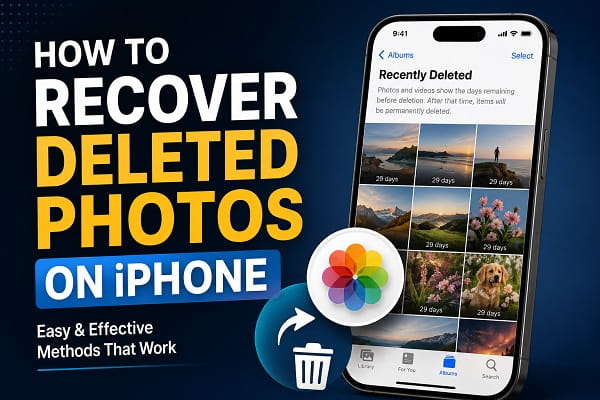
When a photo is deleted, iOS typically moves it to a temporary holding area called the Recently Deleted album.
This functions as a safety net designed to prevent accidental data loss.
During this period:
- Photos remain recoverable.
- Videos remain recoverable.
- Albums and organization may still be preserved.
- Recovery requires only a few taps.
This recovery window gives users time to correct mistakes before permanent deletion occurs.
Check the Recently Deleted Album First
The Recently Deleted album should always be your first recovery destination.
It is responsible for restoring countless photos every day.
How to Access Recently Deleted
- Open the Photos app.
- Scroll to Utilities.
- Select Recently Deleted.
- Authenticate using Face ID, Touch ID, or passcode if required.
You should see photos and videos that were deleted recently.
How Long Do Photos Stay There?
In most cases:
- Photos remain available for approximately 30 days.
- Videos remain available for approximately 30 days.
After that period, automatic removal usually occurs.
Recovering Photos From Recently Deleted
To restore images:
- Open Recently Deleted.
- Select the photos you want.
- Tap Recover.
- Confirm the action.
The photos should return to your library.
For many users, recovery ends here.
Why Recently Deleted Is So Effective
Apple designed the feature specifically because accidental deletion is extremely common.
Think of it as a recycle bin for your photos.
Instead of immediately erasing files, iOS provides a buffer period that dramatically reduces permanent loss.
This simple feature is responsible for recovering more photos than any other recovery method available on iPhone.
Recover Photos Using iCloud Photos
Cloud synchronization is also useful for preserving network credentials across Apple devices. If you’ve ever forgotten your wireless password, our guide on finding saved WiFi passwords on iPhone explains how to access saved network information.
If Recently Deleted does not contain the missing images, iCloud may still help.
Many iPhone users automatically synchronize their photo libraries through iCloud Photos.
When enabled, photos are stored not only on the device but also within Apple’s cloud infrastructure.
This creates additional recovery possibilities.
Check Whether iCloud Photos Is Enabled
Open:
Settings → Apple ID → iCloud → Photos
Verify whether:
- Sync this iPhone is enabled.
- iCloud Photos is active.
If synchronization was enabled before the loss occurred, the photos may still exist elsewhere.
How iCloud Photo Synchronization Works
Understanding synchronization helps explain many recovery situations.
When iCloud Photos is active:
- Photos uploaded from one device appear on others.
- Deletions can synchronize across devices.
- Edits synchronize automatically.
- Albums synchronize automatically.
Because of this behavior, sometimes a photo exists on another device even when it appears missing from your primary iPhone.
Before assuming the image is lost, check:
- iPad
- Mac
- Secondary iPhone
- Web access through iCloud
You may discover that the file still exists.
Check iCloud Photos Through a Web Browser
Many users only check the Photos app and forget that iCloud can be accessed independently.
If you suspect synchronization issues, logging directly into iCloud can reveal whether the photos still exist within your cloud library.
Visit iCloud.com and sign in using your Apple ID.
From there:
- Open Photos.
- Browse your library.
- Search for missing images.
- Review recently deleted items if available.
This method is particularly useful when:
- Your iPhone is damaged.
- Synchronization appears incomplete.
- You recently changed devices.
- Storage optimization is affecting visibility.
Sometimes the images remain safely stored in iCloud even when they seem absent from the phone itself.
Recover Photos From an iPhone Backup
What happens if the photos are no longer in Recently Deleted and cannot be found through iCloud Photos?
The next recovery option is a backup.
Backups exist for one reason: recovering information after unexpected loss.
Many users create backups without ever needing them. Then one day a deleted photo becomes valuable, and that backup suddenly becomes extremely important.
Recovery success depends on whether the backup was created before the photos disappeared.
Types of iPhone Backups
Apple generally supports:
- iCloud backups
- Computer backups through Finder
- Computer backups through iTunes (older Windows systems)
Each backup type can potentially contain photos that no longer exist on the device.
Recovering Photos From an iCloud Backup
If your photos were present when the backup was created, restoration may be possible.
However, there is an important consideration.
Restoring an iCloud backup generally replaces the current device state with the backup state.
This means:
- Newer changes may be lost.
- Recent files may disappear.
- Current settings may be replaced.
For that reason, backup restoration should be approached carefully.
Before restoring, confirm:
- Backup date
- Backup contents
- Whether alternative recovery methods have been exhausted
Many users rush into a restoration and later realize they replaced newer data unnecessarily.
Recovering Photos From Finder or iTunes Backups
Users who regularly back up their devices to a computer may have additional recovery options.
These backups can sometimes preserve:
- Photos
- Videos
- Messages
- Contacts
- Device settings
even after content has disappeared from the phone itself.
Computer backups are often overlooked because many people rely heavily on iCloud.
Yet they can become valuable recovery sources when cloud-based options fail.
Can Permanently Deleted Photos Be Recovered?
This is one of the most frequently asked questions.
The answer is:
Sometimes—but not always.
Once a photo has:
- Been removed from Recently Deleted
- Been deleted from backups
- Been synchronized across all devices
- Been removed from iCloud
recovery becomes much more difficult.
At that stage, success depends on whether another copy still exists somewhere.
Possible sources include:
- Older backups
- Secondary Apple devices
- Shared albums
- Cloud storage services
- External storage exports
The longer you wait, the lower the likelihood of successful recovery.
Common Recovery Myths
The internet is full of misleading information about photo recovery.
Understanding these myths can save time and prevent disappointment.
Myth 1: Deleted Photos Are Always Recoverable
Not true.
Some photos can be recovered, while others become permanently inaccessible after deletion and synchronization.
Recovery depends on timing, backups, and storage behavior.
Myth 2: Recovery Apps Can Restore Everything
Many third-party tools make bold promises.
Some are useful in specific situations.
Others exaggerate their capabilities.
No recovery application can guarantee the restoration of every deleted image.
Myth 3: iCloud Automatically Keeps Everything Forever
iCloud is a synchronization service, not an unlimited archival system.
If a deletion synchronizes across devices and enough time passes, the image may disappear everywhere.
Myth 4: Factory Resetting Helps Recovery
A factory reset rarely improves recovery chances.
In many situations, it makes recovery significantly harder.
Why Photos Sometimes Appear Missing When They Are Not
In some situations, photos aren’t actually deleted but become difficult to locate because of software behavior or storage issues. Similar problems can occur when users try recovering deleted photos on Android, where files may still exist even when they seem to have disappeared.
A surprising number of recovery cases involve photos that were never deleted.
Users simply cannot locate them.
Common causes include:
Hidden Album
Photos can be moved into the Hidden album.
Many users forget they placed them there.
Search and Organization Issues
Large libraries can make images difficult to locate manually.
Using search features often reveals photos thought to be lost.
Shared Libraries
Shared Photo Libraries can change where images appear.
Users may assume deletion occurred when the photos were merely moved.
Multiple Apple IDs
Using different Apple IDs on different devices can create confusion about where photos are stored.
How to Search for Missing Photos More Effectively
Before assuming deletion, try searching by:
- Location
- Date
- Person
- Object
- Event
Apple’s photo recognition technology is surprisingly powerful.
Searching terms such as:
- Beach
- Dog
- Car
- Wedding
- Food
may locate images much faster than scrolling manually through thousands of photos.
What to Do Immediately After Accidental Deletion
If you accidentally delete important photos, follow this order:
Step 1
Check Recently Deleted.
Step 2
Check iCloud Photos.
Step 3
Check other Apple devices.
Step 4
Review available backups.
Step 5
Investigate alternative storage locations.
Following this sequence avoids unnecessary actions that could complicate recovery.
Protecting Your Photos From Future Loss
Regular backups are important whenever you’re moving data between devices. Before switching phones, you may also want to learn how to transfer WhatsApp from Android to Android without losing chats and media files.
The easiest photo recovery is the one you never need.
A few preventive habits can dramatically reduce the risk of permanent loss.
Enable iCloud Photos
Synchronization provides an additional layer of protection.
Maintain Regular Backups
Backups create recovery opportunities when accidents occur.
Review Storage Settings
Understanding how photos are stored helps prevent surprises.
Export Important Photos
Consider keeping copies of irreplaceable images outside your primary device.
Avoid Random Cleanup Sessions
Many accidental deletions occur during rushed storage-cleaning efforts.
Take time to review files carefully before removing them.
Frequently Asked Questions
Can I Recover Photos Deleted More Than 30 Days Ago?
Possibly, but success depends heavily on backups and whether another copy still exists.
Does iCloud Keep Deleted Photos Forever?
No. Deleted items generally remain available only for a limited period.
Can I Recover Photos After a Factory Reset?
Recovery may be possible if a backup was created before the reset occurred.
Will Restoring a Backup Delete Current Data?
In many cases, yes. Restoring replaces the device with the backup version.
Can I Recover Deleted Videos Using the Same Methods?
Yes. The same recovery options generally apply to videos stored in the Photos app.
Why Did My Photos Disappear After Updating iOS?
This may result from synchronization issues, storage settings, Apple ID changes, or indexing delays rather than actual deletion.
Can Another Apple Device Still Have the Photos?
Yes. Devices that synchronized previously may still contain copies of missing images.
Should I Install a Recovery App Immediately?
Not necessarily. Built-in Apple recovery options should be checked first because they often solve the problem without third-party software.
Give Recovery the Best Possible Chance
When photos disappear, it’s easy to assume the worst. Yet many supposedly “lost” images are still sitting in Recently Deleted, waiting to be restored, synchronized through iCloud, stored on another Apple device, or preserved inside a backup created weeks earlier.
The biggest mistake most people make is rushing into drastic solutions before understanding how Apple’s photo ecosystem works. Taking a methodical approach starting with Recently Deleted, then checking iCloud, backups, and secondary devices usually delivers the best results.
More importantly, every recovery attempt is a reminder of how valuable backups can be. A few minutes spent enabling synchronization and maintaining regular backups today can prevent the stress of trying to recover irreplaceable memories tomorrow.
