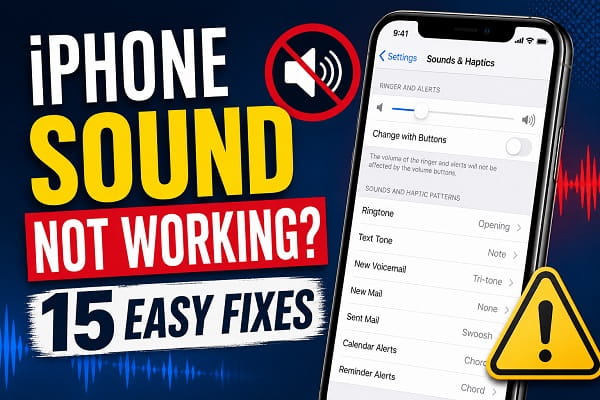
Whether you’re trying to answer a phone call, watch a video, listen to music, or hear a notification, sound problems can quickly make your iPhone frustrating to use. Sometimes the issue is as simple as the Ring/Silent switch being enabled, while in other cases it could be caused by Bluetooth devices, incorrect audio settings, Focus mode, software bugs, or even hardware damage.
The good news is that most iPhone sound problems can be fixed without visiting a repair shop. In many cases, a few simple checks are enough to restore your speaker, ringtone, media audio, and notification sounds.
This guide explains the most common reasons why your iPhone has no sound and walks you through 15 proven fixes that work for most iPhone models and recent versions of iOS.
Why Is the Sound Not Working on Your iPhone?
Before trying different solutions, it’s helpful to understand what might be causing the problem.
| Problem | Most Likely Cause | Recommended Fix |
|---|---|---|
| No ringtone | Silent Mode or Focus Mode | Check Ring/Silent switch and Focus settings |
| No notification sound | Notification settings | Enable notification sounds |
| No media sound | Low volume or Bluetooth | Increase volume and disconnect Bluetooth |
| Speaker sounds muffled | Dirty speaker grille | Clean the speaker carefully |
| No sound during calls | Earpiece or Bluetooth issue | Test Speaker mode and disable Bluetooth |
| Sound stopped after update | iOS software bug | Restart and update iOS |
| No sound in one app | App settings | Check the app’s audio settings |
| No sound anywhere | Hardware or software issue | Reset settings or contact Apple Support |
Common causes include:
- The Ring/Silent switch is enabled.
- The volume is turned all the way down.
- Do Not Disturb or another Focus mode is active.
- Your iPhone is connected to Bluetooth headphones or speakers.
- App-specific sound settings are disabled.
- Temporary iOS software glitches.
- Dirty or blocked speaker openings.
- Incorrect notification settings.
- Outdated iOS software.
- Hardware damage caused by drops or water exposure.
Identifying the cause makes it much easier to choose the right fix.
Fix 1: Check the Ring/Silent Switch
The Ring/Silent switch is located on the left side of most iPhone models.
If you can see an orange color inside the switch, your iPhone is in Silent Mode.
Move the switch toward the screen until the orange indicator disappears.
Once Ring Mode is enabled again, test:
- Incoming calls
- Text notifications
- Keyboard sounds
- Lock sounds
Many users accidentally activate Silent Mode without realizing it.
Fix 2: Increase the Volume
Sometimes the speaker works perfectly, but the volume has simply been reduced to zero.
Press the Volume Up button several times while playing music or a video.
You can also:
- Open Settings.
- Tap Sounds & Haptics.
- Drag the Ringer and Alerts slider to increase the volume.
If media sound works but ringtones do not, the issue is usually related to the ringtone settings rather than the speaker itself.
Fix 3: Turn Off Do Not Disturb or Focus Mode
Do Not Disturb and Focus modes can silence calls, notifications, and alerts, making it seem as though your iPhone has no sound.
If you’ve recently enabled Focus mode, notifications may remain silent until it is turned off.
Follow our guide on How to Turn Off Do Not Disturb on iPhone if you’re unsure how to disable it.
After turning off Focus mode, test your ringtone and notification sounds again.
Fix 4: Disconnect Bluetooth Devices
If your iPhone is connected to:
- Wireless earbuds
- Bluetooth headphones
- Bluetooth speakers
- Car audio
the sound may be playing through those devices instead of the built-in speaker.
To disconnect Bluetooth:
- Open Settings.
- Tap Bluetooth.
- Turn Bluetooth off temporarily.
Now play a video or song to see whether the sound returns through the iPhone speaker.
Fix 5: Restart Your iPhone
A simple restart often fixes temporary software glitches affecting audio.
To restart:
- Press and hold the Side button and either Volume button.
- Drag the power slider.
- Wait about 30 seconds.
- Turn your iPhone back on.
After restarting, test:
- Phone calls
- Music
- Videos
- Notifications
- Keyboard clicks
Many temporary sound issues disappear after a reboot.
Fix 6: Check the Volume Inside the App
Some apps have their own independent volume controls.
For example:
- Games
- Video players
- Streaming apps
- Music apps
Open the app experiencing the problem and check whether its audio has been muted or reduced.
Also make sure the content itself isn’t muted.
Some video players include a mute button that is easy to tap accidentally.
Fix 7: Clean the iPhone Speaker
Dust, lint, pocket debris, and dirt can gradually block the speaker grille, making the sound weak, muffled, or completely inaudible.
Carefully inspect the bottom speaker openings and the earpiece at the top of the phone.
To clean them safely:
- Use a soft, dry brush.
- Gently remove visible dust.
- Wipe the speaker area with a clean microfiber cloth.
Avoid:
- Sharp objects like needles or pins.
- Excessive force.
- Water or liquid cleaners.
- Compressed air at close range, as it may push debris further inside.
Once cleaned, play a song or video to see if the sound quality improves.
Fix 8: Make Sure Your iPhone Isn’t Stuck in Headphone Mode
Although modern iPhones no longer have a headphone jack, some devices can occasionally become stuck routing audio to previously connected wired or wireless audio devices.
Signs include:
- No sound from the speakers.
- Audio only plays through headphones.
- The volume indicator shows headphones instead of speaker output.
Try these steps:
- Disconnect any Lightning or USB-C audio accessories.
- Turn Bluetooth off temporarily.
- Restart your iPhone.
- Connect and disconnect your headphones again if applicable.
Afterward, test the speaker using music or a YouTube video.
Fix 9: Check Notification Sound Settings
If only notifications are silent while videos and music play normally, the issue is probably with your notification settings.
To check:
- Open Settings.
- Tap Sounds & Haptics.
- Tap Text Tone.
- Select a notification sound.
- Repeat the process for other alerts if necessary.
Next:
- Open Settings.
- Tap Notifications.
- Choose the affected app.
- Make sure Allow Notifications is enabled.
- Ensure Sounds is turned on.
Many users disable notification sounds for individual apps without realizing it.
Fix 10: Turn Off Attention Aware Features
Some iPhone models use Face ID to determine whether you’re looking at the screen.
When Attention Aware Features are enabled, your iPhone may reduce the volume of certain alerts after detecting your attention.
To disable it:
- Open Settings.
- Tap Face ID & Passcode.
- Enter your passcode.
- Turn off Attention Aware Features.
Then test your ringtone and notification sounds again.
Fix 11: Update iOS
Software bugs occasionally affect audio performance.
Apple frequently releases updates that resolve issues involving:
- Speaker problems.
- Notification sounds.
- Bluetooth audio.
- FaceTime audio.
- Call volume.
To update:
- Open Settings.
- Tap General.
- Select Software Update.
- Download and install any available update.
Restart your iPhone after the update completes.
Fix 12: Reset All Settings
If incorrect settings are causing the problem, resetting all settings may restore normal sound without deleting your personal files.
To do this:
- Open Settings.
- Tap General.
- Select Transfer or Reset iPhone.
- Tap Reset.
- Choose Reset All Settings.
This resets:
- Sound settings.
- Wi-Fi settings.
- Bluetooth settings.
- Keyboard settings.
- Privacy settings.
Your photos, videos, contacts, and apps will remain intact.
Fix 13: Test the Speakers
Before assuming the speakers are damaged, test them using different types of audio.
Try:
- Playing music.
- Watching a YouTube video.
- Playing a voice recording.
- Making a phone call using Speaker mode.
- Testing ringtone previews in Settings > Sounds & Haptics.
If sound works in one app but not another, the issue is likely app-specific rather than a hardware failure.
Fix 14: Restore Your iPhone
If none of the previous fixes work, restoring your iPhone may resolve deep software issues.
Before restoring:
- Back up your data to iCloud or a computer.
- Ensure you know your Apple Account credentials.
You can restore using Finder on a Mac or the Apple Devices app/iTunes on Windows, depending on your computer.
After the restore is complete, test the sound before reinstalling all your apps.
Fix 15: Contact Apple Support
If your iPhone still has no sound after trying every fix, the problem may be hardware-related.
Common hardware causes include:
- Damaged speakers.
- Water damage.
- Faulty audio IC.
- Loose internal connections.
- Damage from accidental drops.
If your device is under warranty or covered by AppleCare+, contact Apple Support or visit an authorized service provider for professional diagnosis and repair.
Frequently Asked Questions
Why is my iPhone playing videos without sound?
Your iPhone may be connected to a Bluetooth audio device, the video may be muted, the volume may be too low, or the app itself may have audio disabled. Disconnect Bluetooth devices and test another video to identify the cause.
Why can I hear music but not phone calls?
This usually indicates a problem with the earpiece speaker, call audio settings, Bluetooth routing, or network-related call settings. Try enabling Speaker mode during a call to determine whether the issue is limited to the earpiece.
Why are my notifications silent but music still works?
This often happens when Do Not Disturb, Focus mode, Silent Mode, or notification sounds are enabled incorrectly. Check Sounds & Haptics, Notifications, and your Focus settings to ensure alerts are allowed.
Can water damage cause iPhone sound problems?
Yes. Water exposure can affect the speakers, microphones, and internal audio components. If your iPhone recently came into contact with water, allow it to dry completely before testing the sound again.
Why does my iPhone have sound only through Bluetooth?
Your iPhone may still be connected to wireless headphones, a Bluetooth speaker, or your car’s audio system. Turn Bluetooth off temporarily and test the built-in speakers.
Will resetting all settings delete my photos?
No. Resetting all settings only restores system settings to their defaults. Your photos, videos, contacts, apps, and other personal data remain untouched.
Why is my ringtone not working but everything else has sound?
This usually means your ringtone volume is turned down, Silent Mode is enabled, or the selected ringtone has been changed. Check Settings > Sounds & Haptics and verify that a ringtone is selected.
How do I know if my iPhone speaker is damaged?
If there’s no sound from music, videos, calls, voice recordings, or system sounds after trying all the fixes in this guide, your speaker or another internal audio component may require professional repair.
Whether the issue is caused by a simple setting or a more serious hardware fault, these troubleshooting steps resolve most iPhone sound problems. Working through them one by one will help you identify the cause and restore normal audio without unnecessary repairs or expense.
