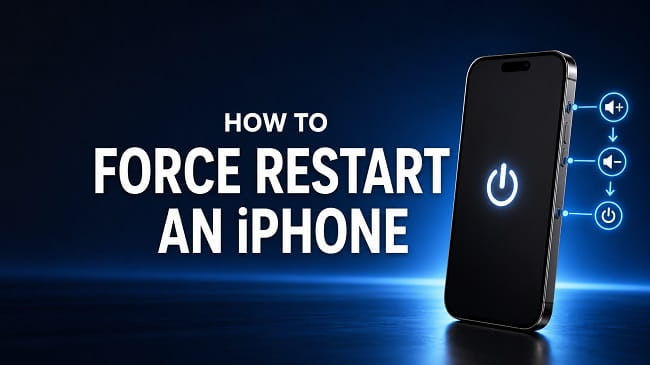
When an iPhone freezes, stops responding to touch, or remains on a black screen, a normal restart may be impossible. A force restart makes the iPhone shut down and start again by using its physical buttons. It does not delete your photos, apps, messages, accounts, or settings.
The correct button combination depends on the iPhone model. If you use the wrong sequence or hold the wrong buttons together, the iPhone may open Siri, display the power-off slider, or trigger Emergency SOS instead of restarting.
Quick answer: how to force restart an iPhone
For an iPhone 8 or newer, including iPhone X and later and the second- and third-generation iPhone SE:
- Quickly press and release the Volume Up button.
- Quickly press and release the Volume Down button.
- Press and hold only the Side button.
- Keep holding the Side button when the screen turns black.
- Release it when the Apple logo appears.
The first two presses must be quick. Do not hold a volume button together with the Side button. The Apple logo can take more than 10 seconds to appear, so do not release the Side button too early.
Force restart instructions for every iPhone model
| iPhone model | Button combination |
|---|---|
| iPhone 8 and later | Quickly press Volume Up, quickly press Volume Down, then hold the Side button until the Apple logo appears |
| iPhone SE (2nd and 3rd generation) | Quickly press Volume Up, quickly press Volume Down, then hold the Side button until the Apple logo appears |
| iPhone 7 and iPhone 7 Plus | Hold the Side button and Volume Down button together until the Apple logo appears |
| iPhone 6s, iPhone 6s Plus, and iPhone SE (1st generation) | Hold the Home button and Side button together until the Apple logo appears |
| iPhone 6 and earlier | Hold the Home button and the Side or Top button together until the Apple logo appears |
iPhone 8, iPhone X, and newer models
These instructions apply to iPhone 8 and 8 Plus, iPhone X and later Face ID models, and newer iPhone SE models that have a Home button.
- Press and immediately release Volume Up.
- Press and immediately release Volume Down.
- Hold the Side button until the Apple logo appears.
The order matters. Think of the sequence as up, down, hold Side. The first two actions are taps, while the final action is a press and hold.
If the power-off screen appears, you probably held a volume button with the Side button. Release every button, wait a few seconds, and repeat the sequence more carefully.
iPhone 7 and iPhone 7 Plus
Press and hold the Volume Down and Side buttons at the same time. Continue holding both buttons after the screen goes black, then release them when the Apple logo appears.
The iPhone 7 series uses a pressure-sensitive Home button rather than a mechanical one. That is why its force-restart combination uses Volume Down instead of the Home button.
iPhone 6s, first-generation iPhone SE, and earlier models
Press and hold the Home button and the Side button together. If the iPhone has a Top button instead of a Side button, hold Home and Top. Release both buttons when the Apple logo appears.
If the Home button is damaged, this button combination will not work. See the alternatives below.
Does force restarting an iPhone erase anything?
No. A force restart does not erase personal data or reset iPhone settings. It simply interrupts the current power state and starts iOS again.
It is different from these actions:
- Normal restart: Shuts iOS down through the on-screen controls before starting it again.
- Force restart: Uses physical buttons when the phone or screen is unresponsive.
- Reset All Settings: Restores system settings without intentionally deleting personal files.
- Erase All Content and Settings: Factory-resets the iPhone and deletes its data.
- Restore with a computer: Reinstalls iOS and can erase the device, depending on the option selected.
After a force restart, the iPhone will require its passcode. Face ID and Touch ID remain temporarily unavailable until that passcode is entered. This is a normal security measure and does not mean either feature is broken.
When should you force restart an iPhone?
A force restart is useful when iOS cannot complete a normal restart. Common examples include:
- The screen is frozen and will not respond to taps or swipes.
- An app is stuck and you cannot return to the Home Screen.
- The screen is black, but the phone vibrates, rings, or makes sounds.
- The iPhone is stuck on a loading spinner.
- The power-off slider will not appear or cannot be moved.
- The touchscreen has stopped responding across the entire system.
If only one app is misbehaving and the rest of the phone still works, close and reopen that app first. A force restart is best reserved for situations in which normal controls are unavailable.
For persistent touch problems, use the fuller steps in iPhone touchscreen not working after the device turns back on. Repeated freezing can be caused by an iOS bug, nearly full storage, a faulty app, physical damage, or failing hardware. A restart may clear the immediate symptom without correcting the underlying cause.
Force restart versus a normal restart
Use a normal restart whenever the touchscreen and buttons still respond. It gives iOS an opportunity to close processes cleanly.
On an iPhone with Face ID, hold a volume button and the Side button until the sliders appear, drag the power-off slider, wait about 30 seconds, and hold the Side button to turn the phone on again. On an iPhone with a Home button, hold the Side or Top button until the slider appears.
You can also go to Settings > General > Shut Down. This option is particularly useful if the Side button is unreliable but the screen still works.
A force restart is the fallback when those methods cannot be used. It is safe when needed, but there is no benefit to repeatedly force restarting a responsive iPhone.
What to do if the force restart does not work
Failure does not immediately mean the iPhone is permanently damaged. Work through the checks below in order.
1. Repeat the correct sequence
On iPhone 8 and later, timing is the most common problem. Volume Up and Volume Down must be separate, quick presses. Hold only the Side button at the end and continue holding it through the black screen.
Remove a tight or poorly fitted case if it makes any button difficult to press. Check whether each button gives normal physical feedback. A stuck volume or Side button can prevent the sequence from registering.
2. Charge the iPhone
Connect the iPhone to a known-working wall charger and leave it connected for at least 30 minutes. If the battery is deeply discharged, it can take time before a charging symbol or Apple logo appears. Apple advises allowing up to one hour of charging when an iPhone will not turn on.
Inspect the cable, adapter, wall outlet, and charging port if there is no response. Do not force an object into the port. If possible, test with another certified cable and adapter.
After charging, try the force-restart sequence again while the phone remains connected.
3. Check whether the display is the real problem
Call the iPhone from another phone or connect it to power. If it rings, vibrates, makes charging sounds, or is detected by a computer while the display stays black, the phone may be running with a failed or disconnected screen.
A force restart cannot repair a damaged display. Arrange an inspection, especially if the trouble began after a drop, impact, liquid exposure, or screen replacement.
4. Use recovery mode on a computer
If the iPhone turns on but remains stuck at the Apple logo, or a computer recognizes it but iOS will not load, recovery mode may reinstall the system software.
Connect the iPhone to a Mac or Windows PC. Open Finder on a current Mac, Apple Devices on a current Windows PC, or iTunes where applicable. Then use the force-restart buttons for your model, but keep holding the final button after the Apple logo appears. Release it only when the recovery-mode screen, showing a cable and computer, appears.
When the computer offers Update or Restore, choose Update first. Update attempts to reinstall iOS while preserving personal data. Restore erases the iPhone and installs a fresh copy of iOS, so use it only when necessary and when you understand the data-loss risk.
If the software download takes more than about 15 minutes, the iPhone may leave recovery mode. Let the download finish, then repeat the recovery-mode steps.
5. Get the iPhone inspected
Service may be required if:
- A required physical button is broken or stuck.
- The iPhone does not respond after an hour on a verified charger.
- It repeatedly shuts down or freezes again after starting.
- It cannot enter recovery mode or is not detected by a computer.
- The problem followed a hard impact or liquid exposure.
- The screen or body is lifting, which can indicate a swollen battery.
Stop charging or pressing on an iPhone with a swollen battery. Place it on a nonflammable surface away from heat and have it handled by a qualified technician.
How to restart an iPhone when a button is broken
A true force restart requires the model’s working physical buttons. There is no on-screen substitute when both iOS and the touchscreen are completely frozen.
If the touchscreen still responds, try one of these methods instead:
Restart from Settings
Go to Settings > General > Shut Down, drag the slider, and wait for the iPhone to switch off. Connect it to power to turn it back on if the Side button does not work.
Restart with AssistiveTouch
Open Settings > Accessibility > Touch > AssistiveTouch and turn on AssistiveTouch. Tap the floating button, then choose Device > More > Restart. Confirm when prompted.
AssistiveTouch is also helpful while arranging a repair for an unreliable Home or Side button. If the physical Home button is the main issue, see iPhone Home button not working for accessibility options and repair checks.
If the iPhone is stuck on the Apple logo
A force restart may recover an iPhone that briefly hangs during startup. However, repeatedly forcing it to restart will not fix corrupted system files or an interrupted update.
If a progress bar is visible, give the update time to finish. Apple recommends intervention when the progress bar has not moved for at least one hour. At that point, connect the iPhone to a computer, place it in recovery mode, and select Update before considering Restore.
If the phone reaches the Lock Screen after restarting, unlock it and check for an iOS update under Settings > General > Software Update. Also open Settings > General > iPhone Storage and create free space if storage is almost full.
How to avoid triggering Emergency SOS
On newer iPhones, holding the Side button with either volume button can open the emergency controls. Depending on the settings, continuing to hold the buttons may start an Emergency SOS countdown.
For a force restart on iPhone 8 and later, do not hold Side and Volume together. Tap Volume Up, tap Volume Down, then hold only the Side button. If an SOS countdown starts accidentally, release the buttons and follow the on-screen prompt to cancel it. Do not place a test emergency call.
What to check after the iPhone restarts
Once the Lock Screen appears, enter the passcode and confirm that the phone responds normally. Then:
- Install any available iOS update.
- Update the app that was open when the freeze occurred.
- Check available iPhone storage.
- Back up important data to iCloud or a computer.
- Watch for heat, unexpected shutdowns, or another freeze.
If biometric unlocking still fails after entering the passcode, troubleshoot Face ID not working on iPhone or Touch ID not working on iPhone separately. A force restart does not remove enrolled fingerprints or facial data.
Frequently asked questions
How long should I hold the Side button?
Hold it until the Apple logo appears. This commonly takes 10 seconds or longer. On an iPhone 8 or later, release Volume Up and Volume Down quickly, then keep holding only the Side button.
Why does Siri open instead of the iPhone restarting?
The volume presses were probably skipped or did not register. Release the Side button and repeat the full up, down, hold-Side sequence.
Why does the power-off slider appear?
You may be holding a volume button with the Side button. Release all buttons and try again. For iPhone 8 and later, the volume buttons are quick individual presses, not buttons to hold.
Can a force restart damage an iPhone?
Using the correct sequence when the iPhone is unresponsive should not damage it. It should not be used repeatedly as a substitute for resolving recurring crashes, storage problems, damaged buttons, or battery faults.
Will I need my passcode after a force restart?
Yes. iOS requires the device passcode after every restart before Face ID or Touch ID can unlock the phone again.
Can I force restart an iPhone without touching the screen?
Yes. That is the main purpose of the button sequence. The required physical buttons must work.
What if my iPhone is frozen during an update?
Do not interrupt it merely because the update is taking several minutes. If the progress bar has not moved for at least an hour, connect the iPhone to a computer and use recovery mode. Choose Update first to attempt an iOS reinstall without erasing the phone.
Is force restart the same as factory reset?
No. A force restart only reboots the iPhone. A factory reset erases personal data and settings.
The button sequence worth remembering
For most iPhones currently in use, remember three actions: quickly press Volume Up, quickly press Volume Down, then hold the Side button until the Apple logo appears. It is a safe first response to a completely frozen or unresponsive iPhone and does not erase personal data.
If nothing appears after the correct sequence, charge the device, try once more, and move to recovery mode or professional service rather than repeating the buttons indefinitely.
