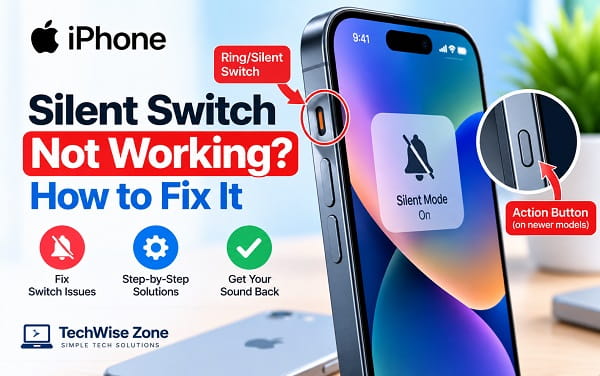
An iPhone silent switch not working can leave the phone stuck in Ring mode, stuck in Silent mode, or changing modes only when you move the switch several times. Sometimes the switch feels loose or physically stuck. In other cases, the switch moves normally and even shows the orange marker, but the iPhone still rings or does not vibrate as expected.
The first thing to identify is whether your iPhone actually has a Ring/Silent switch. Many older and still-supported iPhone models use the physical switch on the left side. Newer supported models can use an Action button instead, and the troubleshooting steps are different.
I recommend starting with the simple physical and software checks below before assuming the switch needs repair.
Quick Fixes for an iPhone Silent Switch That Is Not Working
Try these first:
- Remove the case and move the Ring/Silent switch again.
- Check whether the orange indicator becomes visible.
- Restart the iPhone.
- Open Settings > Sounds & Haptics and verify your sound and haptic settings.
- Turn off Do Not Disturb or another Focus mode temporarily.
- Clean around the switch with a soft, dry cloth.
- Test whether the problem is really the switch or the speaker.
- If your iPhone has an Action button, check Settings > Action Button instead.
- Update iOS.
- Arrange service if the switch is physically damaged, loose, stuck, or works intermittently after cleaning.
Apple’s current iPhone button and switch troubleshooting also recommends removing cases or films that can interfere with a button or switch and checking for dirt or debris before arranging repair.
First, Check Whether Your iPhone Has a Silent Switch or an Action Button
This distinction matters because newer iPhones do not all use the traditional Ring/Silent switch.
iPhone With a Ring/Silent Switch
The physical Ring/Silent switch is on the left side of the iPhone above the volume buttons.
When you move the switch toward the back of the iPhone and orange is visible, the phone is in Silent mode.
Move it toward the front of the phone so orange is no longer visible to return to Ring mode.
iPhone With an Action Button
Supported newer models use an Action button instead of the traditional Ring/Silent switch.
Apple currently assigns Silent Mode to the Action button by default on supported models, but the button can be customized for other functions.
To check it:
Settings > Action Button
Swipe through the available actions and select Silent Mode if you want the Action button to control ringing.
Apple’s current Action button guidance says you press and hold the Action button to perform the assigned action.
If your Action button currently opens the camera, flashlight, a shortcut, or another feature, it is not broken simply because pressing it does not mute the iPhone.
1. Remove the Case and Test the Silent Switch Again
A protective case is one of the easiest things to eliminate.
Some cases have a narrow opening around the Ring/Silent switch. If the case is thick, misaligned, damaged, or poorly fitted, it can prevent the switch from moving fully into position.
Remove the case completely.
Then move the switch several times between Ring and Silent mode.
Watch for the orange indicator.
If the switch begins working normally with the case removed, replace or reposition the case. There is no reason to reset iOS for a physical obstruction.
Apple specifically recommends removing cases or protective material that may block a button or switch when troubleshooting iPhone controls.
2. Check Whether the Switch Actually Moves Into Position
Move the switch carefully.
A healthy Ring/Silent switch should move distinctly between its two positions.
Pay attention to these symptoms:
- The switch does not move at all
- It moves only part of the way
- It feels unusually loose
- It springs back by itself
- It moves but does not stay in position
- The iPhone changes mode only when you hold the switch
- The switch works after several attempts
- There is no on-screen response when you move it
These symptoms make a physical switch problem more likely.
Do not force the switch with a tool. Repeatedly pushing a jammed switch with excessive pressure can make mechanical damage worse.
3. Look for the Orange Silent-Mode Indicator
On models with the physical Ring/Silent switch, the orange indicator is a useful clue.
Orange Is Visible but the iPhone Still Rings
The switch has physically entered the Silent position, so the problem may involve:
- A sound you are mistaking for a ringtone
- An alarm
- Media playback
- A game
- Emergency or special notification behavior
- An app with its own audio
- A sound or Focus configuration
Silent mode does not mute every possible sound an iPhone can produce.
Apple notes that Clock alarms still sound in Silent mode. Audio apps such as Music and many games can also continue producing sound.
Orange Never Appears
Remove the case and inspect the switch.
If it cannot move fully into the Silent position, dirt, physical damage, or a worn switch may be responsible.
4. Restart the iPhone
A restart can clear a temporary iOS problem where the switch changes position but the software does not respond properly.
On an iPhone with Face ID:
- Press and hold the Side button and either Volume button.
- Drag the power-off slider.
- Wait for the phone to shut down.
- Turn it back on.
After restarting, move the Ring/Silent switch once and watch the screen for the mode change.
Do not immediately change several other settings. Test the switch first so you know whether the restart helped.
5. Check Silent Mode in Sounds & Haptics on Action Button Models
This step mainly applies to iPhones that use an Action button rather than a Ring/Silent switch.
Open:
Settings > Sounds & Haptics
On supported models, Apple allows Silent mode to be turned on or off from software.
If Silent mode changes correctly from Settings but not from the Action button, focus on the Action button assignment or physical button.
If Silent mode cannot be controlled correctly even through Settings, the problem may be more software-related.
6. Make Sure the Action Button Is Assigned to Silent Mode
A customized Action button is easy to mistake for a failed silent switch.
Open:
Settings > Action Button
Swipe until Silent Mode appears.
Then press and hold the Action button.
If Silent mode now changes correctly, there was no hardware fault. The Action button had simply been assigned to another function.
This is especially worth checking after:
- Setting up a new iPhone
- Restoring from another device
- Experimenting with Action button options
- Creating a Shortcut
- Changing accessibility controls
- Letting someone else configure the phone
7. Check Whether You Are Pressing the Action Button Correctly
Apple’s current design uses a press and hold for the assigned Action button function.
A quick tap may not behave the way you expect.
Press and hold the Action button and watch for the on-screen Silent mode response.
If the button works when held but not when quickly tapped, that is expected behavior rather than a fault.
8. Clean Around the Ring/Silent Switch
Dust, lint, skin oils, and pocket debris can collect around the switch.
Turn the iPhone off first.
Remove the case.
Use a clean, dry, soft cloth around the switch. A small, soft brush can help remove loose debris from the surrounding area.
Do not:
- Pour liquid into the opening
- Spray cleaning fluid directly onto the switch
- Insert a needle
- Use a metal pin
- Scrape inside the opening
- Force the switch back and forth aggressively
Apple recommends checking for debris around a problematic button or switch and cleaning gently.
After cleaning, turn the phone back on and test the switch.
9. Check Whether the iPhone Is Actually Stuck in Silent Mode
Sometimes the physical switch works, but the user interprets another sound setting as Silent mode.
Test with an incoming call.
Then compare:
- Ring/Silent switch position
- Ringtone volume
- Focus mode
- Haptic behavior
- Media volume
If the switch is in Ring mode but incoming calls remain silent, the switch may not be the real problem.
Check:
Settings > Sounds & Haptics
Move the Ringtone and Alerts slider.
If you hear no sound from the speaker at all, you may have a speaker or audio problem rather than a silent-switch problem.
For call-specific audio issues, see iPhone Speaker Not Working During Calls? How to Fix It.
10. Check Ringtone and Alerts Volume
The Ring/Silent switch does not replace your ringtone-volume setting.
Open:
Settings > Sounds & Haptics
Find Ringtone and Alerts.
Move the slider to a clearly audible level.
Then switch the phone to Ring mode and test an incoming call.
If the ringtone returns after increasing this slider, the silent switch was probably working correctly. The ringer volume was simply too low.
This distinction is important because the volume buttons can also change different types of volume depending on what the iPhone is doing.
11. Turn Off Do Not Disturb Temporarily
Silent mode and Do Not Disturb are different features.
Do Not Disturb can silence calls, alerts, and notifications even when the Ring/Silent switch is in Ring mode.
Open Control Center and tap Focus.
If Do Not Disturb is active, turn it off temporarily.
Then test an incoming call.
If the phone rings normally, the silent switch was not the problem.
TechWise Zone already has a detailed walkthrough for this situation: How to Turn Off Do Not Disturb on iPhone.
12. Check Other Focus Modes
Do Not Disturb is only one Focus mode.
Also check whether any of these are active:
- Sleep
- Work
- Personal
- Driving
- A custom Focus
A scheduled Focus can switch on automatically and make the iPhone appear to ignore the Ring/Silent switch.
Open:
Settings > Focus
Review active modes and schedules.
If the problem occurs only at a particular time, place, or while using a certain app, an automated Focus is a strong possibility.
Do not disable every Focus permanently just for testing. Turn the relevant one off temporarily and compare the result.
13. Check Haptics if the iPhone Does Not Vibrate in Silent Mode
A common complaint is:
“The silent switch works, but my iPhone doesn’t vibrate.”
That is not necessarily a switch failure.
Apple’s current guidance says to open:
Settings > Sounds & Haptics > Haptics
and select the option that allows haptics to play in Silent mode.
Apple currently labels this behavior Play in Silent Mode in its support instructions.
Test an incoming call afterward.
If the phone is silent but now vibrates, the switch was working. The missing behavior came from the Haptics setting.
14. Do Not Confuse Silent Mode With a Failed Speaker
Try playing music or a video.
Then turn Silent mode off and test:
- Ringtone
- Notification sound
- Keyboard sound
- Music
- Video
- Speakerphone
If no audio comes from the built-in speaker in any situation, the Ring/Silent switch is probably not the main problem.
Check the speaker opening for blockage, remove the case, restart the iPhone, and test again.
A call-only problem should be handled separately with iPhone Speaker Not Working During Calls.
15. Remember That Alarms Can Still Sound in Silent Mode
This catches many people.
Putting an iPhone in Silent mode does not mean every sound is disabled.
Apple says alarms set in the Clock app can still sound while Silent mode is on.
So if the switch shows orange and an alarm rings, that does not prove the silent switch is broken.
Likewise, music, videos, games, and other media can continue playing sound.
Silent mode is mainly about ringtones, alerts, and related system sounds, not a universal master-mute control.
16. Test With a Real Incoming Call
A simple ringtone test is more useful than guessing from interface sounds.
Set the iPhone to Ring mode and have someone call you.
Then set it to Silent mode and repeat the test.
Observe:
- Does the ringtone stop?
- Does the phone vibrate?
- Does the screen still show the incoming call?
- Does the silent indicator appear?
- Does changing the switch create an on-screen response?
This test separates ringtone behavior from unrelated app and media audio.
17. Test Notification Sounds Separately
A phone can ring normally but still have silent notifications because notification settings are controlled per app.
If the Ring/Silent switch works for calls but one app remains silent:
Open:
Settings > Notifications > [App]
Check its sound settings.
Do not repair or reset the physical switch because one app has notifications disabled.
18. Check for a Stuck On-Screen Silent Mode State
Move the Ring/Silent switch and watch the screen.
You should see feedback showing the change between Ring and Silent states on supported software.
If the switch physically changes but iOS repeatedly shows the wrong state:
- Restart the iPhone.
- Remove the case.
- Move the switch again.
- Update iOS.
- Force restart if necessary.
If the mismatch continues and the switch also feels physically abnormal, service becomes more likely.
19. Update iOS
Open:
Settings > General > Software Update
Install an available stable update after backing up important information.
An iOS update can correct system-level problems involving sound controls, haptics, Focus behavior, or button handling.
After updating, test the Ring/Silent control before resetting any settings.
20. Force Restart the iPhone
A force restart is reasonable when the Ring/Silent state or Action button interface appears frozen after a normal restart.
On many current iPhones:
- Press and quickly release Volume Up.
- Press and quickly release Volume Down.
- Press and hold the Side button.
- Release it when the Apple logo appears.
Older models use different button combinations.
A force restart does not erase your photos, apps, or other personal data.
21. Check Whether the Problem Started After a Drop
A physical drop changes the diagnosis.
Inspect the left side of the iPhone for:
- Bent frame
- Cracks
- Switch misalignment
- Switch sitting deeper than normal
- Loose switch movement
- Damage near the volume buttons
- A case that no longer fits correctly
If the silent switch stopped working immediately after an impact, software resets are less likely to help.
Back up the iPhone and arrange professional inspection if the switch is physically damaged.
22. Check for Liquid Exposure
Liquid around a mechanical switch can cause intermittent behavior.
Do not attempt to dry the switch with high heat.
Avoid:
- Hair dryers
- Ovens
- Direct heaters
- Compressed air forced into openings
Let the phone dry according to safe device-handling practices.
If the switch becomes unreliable after liquid exposure, arrange service.
Repeatedly moving a wet or contaminated switch is not a good troubleshooting strategy.
23. Use Software Controls as a Temporary Workaround
A physically failing switch does not necessarily leave you without any way to manage sound.
On supported Action button models, Silent mode can be controlled from software.
On iPhones where the physical switch is the primary control, you can still use other settings to reduce interruptions, including:
- Focus
- Do Not Disturb
- Ringtone and Alerts volume
- Per-app notification sounds
These are workarounds, not repairs.
If the physical switch is damaged, use the workaround only until you can arrange service.
24. Use AssistiveTouch for Related Hardware-Control Problems
AssistiveTouch can replace several physical-button actions with onscreen controls.
Turn it on at:
Settings > Accessibility > Touch > AssistiveTouch
Apple says AssistiveTouch can be used to adjust volume, lock the screen, restart the device, and replace several physical-button interactions.
It is useful when you have broader button problems, although it should not be presented as a magical repair for a broken Ring/Silent switch.
If multiple physical controls are failing, that is additional evidence that hardware inspection may be appropriate.
25. Reset All Settings Only if the Switch Is Physically Fine
A broad settings reset should be late in the process.
Consider it only when:
- The switch moves normally
- The orange marker appears correctly
- There is no visible physical damage
- Restarting does not help
- iOS is current
- Sound and haptic settings appear wrong system-wide
- Focus is not responsible
- The speaker works normally
Open:
Settings > General > Transfer or Reset iPhone > Reset
Then review the available reset options.
Reset All Settings does not erase the phone in the same way as a factory erase, but it resets many preferences and creates setup work.
I would not use it for a switch that is jammed, loose, or mechanically damaged.
iPhone Silent Switch Is Stuck
When the switch will not move:
- Remove the case.
- Power the iPhone off.
- Inspect the opening.
- Clean gently with a soft, dry cloth.
- Do not use a metal tool.
- Do not force the switch.
If it still will not move, arrange repair.
A stuck mechanical part is unlikely to be fixed by resetting iOS.
iPhone Silent Switch Is Loose
A loose switch that moves without a distinct click or refuses to stay in position is more likely to have a mechanical problem.
Remove the case first to make sure the case is not creating the sensation.
If the switch itself is genuinely loose, back up the device and arrange service.
Software settings cannot tighten a worn or damaged switch.
iPhone Silent Switch Works Only Sometimes
Intermittent behavior can come from:
- Debris
- Case interference
- Worn switch mechanism
- Physical damage
- Moisture
- Temporary iOS state problem
Remove the case, clean the area gently, restart the phone, and test repeatedly with real incoming calls.
If the switch works only when held at a certain angle or moved several times, hardware wear becomes much more likely.
iPhone Is Stuck in Silent Mode
If the iPhone will not leave Silent mode:
- Move the switch so orange is not visible.
- Remove the case and test again.
- Restart the iPhone.
- Check Settings > Sounds & Haptics.
- Turn off Focus modes temporarily.
- Increase Ringtone and Alerts volume.
- Update iOS.
On an Action button model, also check Settings > Action Button and confirm the button is assigned correctly.
If the physical switch cannot leave the Silent position, arrange service.
iPhone Won’t Go Into Silent Mode
If the phone continues ringing even though you move the switch:
- Confirm orange is visible.
- Test with a real incoming call.
- Remember that alarms and media can still make sound.
- Remove the case.
- Restart the iPhone.
- Update iOS.
If there is no on-screen response when the switch moves and the phone continues ringing, the switch may not be registering correctly.
iPhone Silent Switch Works but Phone Does Not Vibrate
Check:
Settings > Sounds & Haptics > Haptics
Make sure haptics are allowed in Silent mode.
Also verify that the symptom is not being altered by Focus settings.
Apple specifically recommends checking Haptics and Do Not Disturb when an iPhone does not vibrate in Silent mode.
iPhone Silent Switch Shows Orange but Notifications Still Make Sound
First identify the sound.
Silent mode does not mute all media, alarms, games, or every special alert condition.
Test with:
- A normal phone call
- A normal text notification
- The affected app
- An alarm
- Music playback
If normal calls and texts are silent but another type of sound still plays, the switch is probably working.
Check that specific app or sound category.
iPhone Silent Switch Not Working After an Update
Do not assume the update damaged the hardware.
Try:
- Restart the iPhone.
- Remove the case.
- Test the switch.
- Check Sounds & Haptics.
- Turn off Focus temporarily.
- Check for another iOS update.
- Force restart.
If the switch also feels physically loose, jammed, or intermittent, the timing of the update may be coincidental.
iPhone Silent Switch Not Working After a Drop
Physical damage moves to the top of the list.
If the switch stopped working immediately after the iPhone was dropped, inspect the frame and switch alignment.
Do not force the switch back into place.
A bent frame or damaged internal switch assembly needs professional inspection.
Action Button Is Not Muting the iPhone
On an Action button model:
- Open Settings > Action Button.
- Select Silent Mode.
- Press and hold the Action button.
- Check whether the iPhone changes mode.
- Restart the iPhone if the screen does not respond.
- Remove a case that may block the button.
- Clean around the button gently.
- Update iOS.
If the Action button fails with every assigned function, not just Silent Mode, the problem is broader than sound settings.
Silent Mode Is Not the Same as Do Not Disturb
This distinction prevents a lot of unnecessary troubleshooting.
Silent Mode controls whether the iPhone rings or plays many alert sounds.
Do Not Disturb is part of Focus and changes how calls and notifications are delivered.
An iPhone can therefore be:
- In Ring mode with Do Not Disturb on
- In Silent mode with Do Not Disturb off
- In Silent mode while still playing music
- In Silent mode while an alarm sounds
When the phone is unexpectedly quiet even though the Ring/Silent switch is in Ring mode, check Do Not Disturb and Focus settings before blaming the switch.
What Not to Do With a Faulty Silent Switch
Avoid fixes that can create more damage than the original problem.
Do not:
- Force a stuck switch
- Insert a needle or pin around it
- Pour alcohol or cleaner into the opening
- Spray compressed air directly into the switch
- Factory reset the iPhone before checking the hardware
- Assume every sound in Silent mode means the switch failed
- Assume no vibration means the switch failed
- Delete management profiles without authorization
- Repeatedly reset settings when the switch is physically damaged
A hardware symptom should be handled as hardware.
Best Troubleshooting Order
For most iPhones with a Ring/Silent switch, I recommend this order:
- Remove the case.
- Check whether the switch moves fully.
- Look for the orange indicator.
- Restart the iPhone.
- Test with an incoming call.
- Check Ringtone and Alerts volume.
- Turn off Focus modes temporarily.
- Check Haptics if vibration is missing.
- Clean around the switch gently.
- Update iOS.
- Force restart if the software state appears stuck.
- Consider Reset All Settings only if the switch is physically normal.
- Arrange service for a jammed, loose, damaged, or intermittent switch.
For an iPhone with an Action button:
- Check Settings > Action Button.
- Assign Silent Mode.
- Press and hold the button.
- Check Silent mode under Sounds & Haptics.
- Remove the case.
- Restart.
- Update iOS.
- Arrange service if the button itself fails across multiple assigned actions.
You might like to see:
- Siri Isn’t Working on iPhone? How to Fix It
- How to Fix iPhone GPS Not Working? Try These Fixes
- iPhone Speaker Grayed Out? Causes and Fixes
- How to Clean iPhone Charging Port Safely
- How to Share Calendar on iPhone
Frequently Asked Questions
Why is my iPhone silent switch not working?
Common causes include a case blocking the switch, dirt or debris, a physically worn switch, a temporary iOS problem, confusion with Focus or volume settings, or a different control system on newer Action button models.
How do I know whether my iPhone is in Silent mode?
On an iPhone with a Ring/Silent switch, orange showing at the switch indicates Silent mode. Supported Action button models show the mode through iOS and can also provide software controls.
Why is my iPhone still ringing when the silent switch is on?
First confirm orange is visible and test a normal incoming call. Also distinguish ringtones from alarms, media, games, emergency behavior, and app-specific audio, because Silent mode does not mute every sound.
Why doesn’t my iPhone vibrate when the silent switch is on?
Open Settings > Sounds & Haptics > Haptics and check the option that allows haptics in Silent mode. Apple also recommends checking whether Do Not Disturb is affecting the behavior.
Why is my iPhone still silent when the switch is in Ring mode?
Check Ringtone and Alerts volume and turn off Do Not Disturb or other Focus modes temporarily. If the speaker itself produces no sound, troubleshoot the speaker rather than the Ring/Silent switch.
Can a phone case stop the iPhone silent switch from working?
Yes. A thick or poorly aligned case can prevent the switch from moving fully. Apple recommends removing cases or films that may interfere with a button or switch during troubleshooting.
Can I fix a stuck iPhone silent switch myself?
You can remove the case and clean loose debris gently with a soft, dry cloth. Do not force the switch or insert sharp tools. A switch that remains stuck or damaged should be professionally serviced.
Does Silent mode mute alarms on iPhone?
No. Apple states that Clock alarms can still sound while Silent mode is enabled.
Does Silent mode mute music and videos?
No. Media apps can continue playing audio even while the iPhone is in Silent mode.
Why doesn’t my new iPhone have a silent switch?
Some newer supported iPhones use an Action button instead of the traditional Ring/Silent switch. The Action button can be assigned to Silent Mode or to another function.
How do I make the Action button control Silent mode?
Open Settings > Action Button, swipe to Silent Mode, and then press and hold the Action button when you want to switch modes.
Should I factory reset my iPhone for a broken silent switch?
No. A factory erase is not an appropriate early fix, especially when the switch is physically jammed, loose, or damaged. Start with the case, switch movement, sound settings, Focus, restart, cleaning, and iOS update.
Separate the Switch Problem From the Sound Problem
The fastest way to fix an iPhone silent switch that is not working is to identify whether the physical control, Silent mode setting, vibration behavior, or audio system is actually failing.
A switch that will not move, feels loose, or works only at a certain angle points strongly toward hardware. A switch that moves normally but the phone stays quiet in Ring mode makes ringtone volume, Focus, or speaker output more relevant. A phone that enters Silent mode but does not vibrate usually needs a Haptics check rather than a new switch.
On newer models with an Action button, confirm that the button is actually assigned to Silent Mode before treating it as a fault.
Start with the case, switch position, restart, Sounds & Haptics, and Focus settings. Those checks solve or correctly classify most of the common symptoms without unnecessary resets. When the physical switch remains stuck, damaged, or intermittent after gentle cleaning, back up the iPhone and arrange service instead of forcing it.
