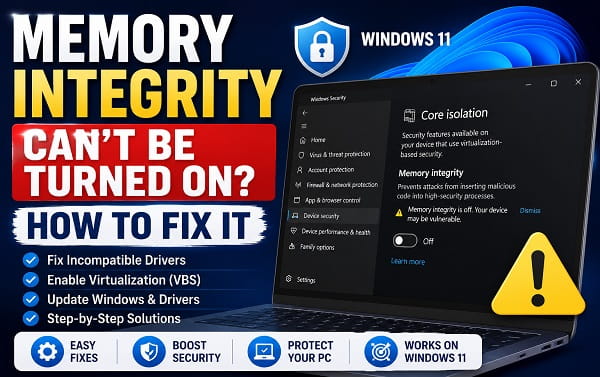
Memory Integrity is one of the security features built into Windows 11 to help protect important parts of the operating system from malicious or incompatible kernel-level code. It is part of Core isolation and uses virtualization-based security to make it harder for untrusted code to interfere with protected Windows processes.
When Memory Integrity can’t be turned on, Windows may show an incompatible driver warning, list one or more .sys files, switch the setting back off after a restart, or simply refuse to enable the feature without giving you a useful explanation.
The most common cause is an older or incompatible device driver. Microsoft specifically says that when Memory Integrity fails to turn on because of a driver, you should first look for an updated compatible version from the device manufacturer. If no compatible version exists and you no longer need the device or software, removing that device or app may also remove the driver that is blocking Memory Integrity.
Do not begin by manually deleting .sys files from C:\Windows\System32\drivers. A driver can have several components and a package stored in the Windows Driver Store. Deleting only the visible file can leave Windows in an inconsistent state or break the hardware that depends on it.
Start with Windows Update, identify any incompatible driver, update or remove the software or device that installed it, and then check the more advanced fixes if Windows still refuses to enable Memory Integrity.
What Is Memory Integrity in Windows 11?
Memory Integrity is also known as Hypervisor-Protected Code Integrity, or HVCI.
It is part of Windows virtualization-based security. Windows uses hardware virtualization to isolate a protected environment from the normal operating system, then uses that environment to enforce stronger code-integrity rules for kernel-mode software.
In practical terms, Memory Integrity makes it harder for malicious or vulnerable drivers to inject code into protected Windows processes.
You can normally find the setting at:
Windows Security > Device security > Core isolation details > Memory integrity
Microsoft currently documents this as the standard Windows Security location for enabling Memory Integrity.
When the feature is working correctly, you can turn the switch on and restart Windows if prompted.
When it fails, the reason is often a driver that does not meet the security requirements needed to run with HVCI.
Why Can’t I Turn On Memory Integrity?
The most common causes include:
- An incompatible device driver
- An old driver left behind by hardware you no longer use
- Old phone, printer, scanner, USB, audio, storage, or peripheral software
- A driver package that remains in the Windows Driver Store after an app was removed
- Virtualization being disabled in BIOS or UEFI
- Damaged Windows system files
- Windows Security or virtualization components not loading correctly
- A driver update that reintroduced an incompatibility
- A security or device-management policy
- Windows enabling the feature but turning it off again after reboot because a critical driver cannot load
If Windows lists an incompatible driver, start there.
If Windows shows Memory integrity can’t be turned on but lists no drivers, skip to the section for cases where no incompatible driver appears.
1. Try Turning Memory Integrity On Again
Start by opening the correct setting.
- Open Start.
- Search for Windows Security.
- Open the app.
- Select Device security.
- Click Core isolation details.
- Find Memory integrity.
- Turn it On.
- Restart the computer if Windows asks.
If the switch turns on and remains enabled after restart, no additional troubleshooting is necessary.
If Windows says Memory Integrity cannot be turned on because of incompatible drivers, choose the option to review the drivers.
Write down the exact names before changing anything.
A driver name may look similar to:
example.sysWindows may also show additional information such as the driver provider, product name, or published INF name.
That information helps you determine which device or program installed it.
2. Install Windows Updates
Before removing drivers, make sure Windows is current.
Open:
Settings > Windows Update
Click:
Check for updates
Install available cumulative updates and restart.
Then open:
Settings > Windows Update > Advanced options > Optional updates
Look under Driver updates.
A newer driver may already be available through Windows Update.
Microsoft recommends checking for an updated compatible driver when Memory Integrity reports an incompatibility.
After installing relevant updates:
- Restart Windows.
- Open Windows Security.
- Return to Core isolation details.
- Try Memory Integrity again.
If the same driver remains listed, continue below.
3. Identify the Incompatible Driver
Do not remove a driver until you know what it belongs to.
Open:
Windows Security > Device security > Core isolation details
Look for:
Review incompatible drivers
or the equivalent link shown by your Windows build.
Write down:
- Driver filename
- Published name if shown
- Product or device name
- Driver provider
- Version
- Any hardware information Windows displays
Then search Device Manager for the related device.
Right-click Start and select:
Device Manager
Look under categories such as:
- Sound, video and game controllers
- Network adapters
- Bluetooth
- Universal Serial Bus controllers
- Human Interface Devices
- Printers
- Storage controllers
- Cameras
- Ports
- Software components
A driver filename by itself can be difficult to recognize, so the provider and associated software are often more useful.
If the driver belongs to hardware you still use, update it rather than deleting it.
4. Update the Driver From the Device Manufacturer
Microsoft’s recommended first response to an incompatible Memory Integrity driver is to check with the device manufacturer for a newer compatible version.
Use the official support site for:
- Your laptop manufacturer
- Your desktop PC manufacturer
- Your motherboard manufacturer
- The specific device manufacturer
Examples include Dell, HP, Lenovo, ASUS, Acer, MSI, Gigabyte, Intel, AMD, NVIDIA, Realtek, Logitech, Canon, Epson, Brother, and other hardware vendors.
Download a driver intended for:
- Your exact hardware model
- Your Windows version
- Your system architecture
Install it and restart.
Then return to:
Windows Security > Device security > Core isolation details
and try enabling Memory Integrity again.
Do not use a third-party driver updater simply because it claims to have a newer version. Low-level security compatibility is one situation where installing the correct OEM driver matters more than chasing the highest version number.
If Windows is blocking a trusted older driver and you are considering disabling driver-security features instead, read How to Disable Driver Signature Enforcement in Windows 11 first. Driver Signature Enforcement and Memory Integrity are related security mechanisms, but they are not the same setting, and neither should be disabled casually.
5. Remove the Device or App That Installed the Old Driver
Sometimes the incompatible driver belongs to hardware or software you no longer use.
Common examples include old:
- Android phone-management suites
- USB modem software
- Printers and scanners
- RGB utilities
- Virtual-drive tools
- Security software
- Hardware monitoring utilities
- Game anti-cheat software
- Older audio devices
- Phone flashing tools
- Webcam utilities
- USB-to-serial adapters
If you recognize the software:
- Open Settings.
- Go to Apps > Installed apps.
- Find the old program.
- Uninstall it.
- Restart Windows.
- Check Memory Integrity again.
If it belongs to a physical device:
- Disconnect the device if appropriate.
- Open Device Manager.
- Find the device.
- Right-click it.
- Select Uninstall device.
- Read any checkbox about removing the driver carefully.
- Restart Windows.
Do not remove a storage, chipset, input, networking, or other critical driver unless you understand what hardware depends on it.
6. Check the Driver Store With PnPUtil
An app can be uninstalled while its driver package remains in the Windows Driver Store.
Windows includes a Microsoft command-line tool called PnPUtil for enumerating and managing driver packages.
Open Windows Terminal (Admin) or Command Prompt (Admin).
Run:
pnputil /enum-driversWindows will display third-party driver packages.
Look for the driver associated with the incompatible file.
Important information includes:
Published Name
Original Name
Provider Name
Class Name
Driver Version
The Published Name often looks like:
oem42.infDo not delete an oem#.inf package simply because its number looks unfamiliar.
Match the provider, original INF, class, and version with the incompatible device before removing anything.
Microsoft documents PnPUtil as the built-in tool for enumerating, installing, and deleting driver packages from the Driver Store.
7. Remove an Obsolete Driver Package With PnPUtil
Use this only when all of the following are true:
- Windows identifies the driver as incompatible
- You have identified which software or hardware installed it
- You no longer need that driver, or you already have a compatible replacement
- You have backed up anything important
- You understand which device may stop working
The Microsoft-supported syntax for deleting a driver package is:
pnputil /delete-driver oem42.inf /uninstallReplace:
oem42.infwith the Published Name of the actual incompatible package.
Do not copy the example number blindly.
After removing the correct package:
- Restart Windows.
- Return to Windows Security.
- Scan for incompatible drivers again.
- Try enabling Memory Integrity.
If Windows says the package is in use, do not immediately force removal.
First identify what device or service still depends on the driver.
Microsoft’s driver documentation supports the /delete-driver command, but removing the wrong package can disable working hardware.
8. Do Not Delete the .sys File Manually
Some tutorials suggest opening:
C:\Windows\System32\driversfinding the incompatible .sys file, and deleting it.
I do not recommend that approach.
A Windows driver installation can include:
- The
.sysbinary - An INF package
- Catalog files
- Registry configuration
- Device associations
- Services
- Supporting components stored in DriverStore
Deleting only one file can leave the driver package registered while the binary is missing.
This can create startup errors, missing devices, or a broken uninstall path.
Use:
- The application’s uninstaller
- Device Manager
- The manufacturer’s installer
- PnPUtil
instead.
9. Check for Old Hidden Devices
A driver may belong to hardware that is no longer connected.
Open Device Manager.
Select:
View > Show hidden devices
Look for faded entries related to the incompatible driver.
Examples can include old:
- USB devices
- Phones
- Bluetooth adapters
- Printers
- Scanners
- Storage devices
- Network adapters
If you are certain the device is no longer used:
- Right-click it.
- Select Uninstall device.
- Restart Windows.
- Recheck Memory Integrity.
Do not remove hidden system devices just because they appear faded.
Many legitimate devices can appear differently depending on whether they are currently active.
10. Check Whether Virtualization Is Enabled
Memory Integrity relies on virtualization-based security.
If hardware virtualization is disabled in BIOS or UEFI, Memory Integrity may not work correctly.
Open:
Task Manager > Performance > CPU
Look for:
Virtualization: Enabled
If it says Disabled, you may need to enable the virtualization feature in BIOS or UEFI.
Common setting names include:
- Intel Virtualization Technology
- Intel VT-x
- AMD SVM
- SVM Mode
- AMD-V
- Virtualization Technology
The exact name and location vary by motherboard.
If you need help reaching the firmware interface, use How to Open BIOS in Windows 11.
Once inside BIOS or UEFI:
- Find the virtualization option.
- Enable it.
- Save the settings.
- Restart Windows.
- Confirm Task Manager now shows virtualization as enabled.
- Try Memory Integrity again.
Do not randomly change Secure Boot, TPM, storage controller, overclocking, or other firmware options while troubleshooting one setting.
11. Check for a BIOS or UEFI Update
If virtualization is enabled but Memory Integrity still fails, check whether your PC or motherboard manufacturer has a newer BIOS.
Firmware updates can contain:
- Security improvements
- CPU microcode updates
- Virtualization fixes
- Driver compatibility changes
- Hardware stability fixes
First identify your current version.
My How to Check BIOS Version on Windows 11 guide shows several ways to do that without entering the firmware menu.
Then compare your version with the official support page for your exact computer or motherboard.
Read the release notes.
Do not update BIOS only because Memory Integrity is off if there is no relevant reason. Firmware updates carry more risk than normal Windows settings changes and should be performed according to the manufacturer’s instructions.
12. Run DISM and System File Checker
If Windows Security behaves strangely, the toggle fails without useful driver information, or other Windows components are also malfunctioning, repair the operating system files.
Open Windows Terminal (Admin).
Run:
DISM.exe /Online /Cleanup-Image /RestoreHealthWait for it to finish.
Then run:
sfc /scannowRestart Windows.
Try Memory Integrity again.
DISM and SFC will not make an incompatible driver compatible, but they can repair damaged Windows components involved in Windows Security and virtualization-based protection.
If SFC reports:
Windows Resource Protection could not perform the requested operationuse Windows Resource Protection Error: How to Fix It for the dedicated repair steps.
13. What If Memory Integrity Shows No Incompatible Drivers?
This is one of the more frustrating versions of the problem.
Windows can sometimes say Memory Integrity cannot be enabled while the incompatible-driver list appears empty.
If that happens:
- Install Windows updates.
- Restart Windows.
- Reopen Core isolation details.
- Scan for incompatible drivers again.
- Check Device Manager for warning icons.
- Update chipset, storage, USB, audio, networking, and graphics drivers from the manufacturer.
- Confirm hardware virtualization is enabled.
- Run DISM and SFC.
- Test after a clean boot if necessary.
Also review software installed shortly before the problem started.
Low-level utilities can install drivers even when the application itself does not obviously look like hardware software.
Examples include:
- RGB software
- Monitoring utilities
- Fan control tools
- VPN software
- Virtual machine applications
- Phone utilities
- Backup tools
- Anti-cheat systems
- Security applications
If the issue began after installing one of these, update or temporarily uninstall it and test again.
14. Perform a Clean Boot
If no incompatible driver is shown, a third-party service or driver loaded by installed software may still be interfering with Windows security.
A clean boot starts Windows with Microsoft services and a minimal set of third-party startup components.
Press:
Windows + RType:
msconfigand press Enter.
Then:
- Open the Services tab.
- Check Hide all Microsoft services.
- Click Disable all.
- Open the Startup tab.
- Open Task Manager.
- Disable nonessential startup apps.
- Restart Windows.
- Try enabling Memory Integrity.
If it works during the clean boot, re-enable services and startup apps gradually until you identify the conflicting software.
Do not permanently leave essential third-party security or device services disabled without understanding what they do.
15. Check Windows Security for Other Device Security Warnings
Open:
Windows Security > Device security
Review the entire page instead of only the Memory Integrity toggle.
Look for warnings related to:
- Core isolation
- Security processor
- Secure Boot
- Hardware security capabilities
Memory Integrity is one part of a larger Windows security architecture.
If Windows Security itself is missing options, showing corrupted pages, or failing to open, the problem may be broader than one HVCI toggle.
The Windows Security Button: What It Is and How to Use It on Windows 11 article explains the difference between Windows Security actions and the Windows Security app if you are troubleshooting the Windows security interface more broadly.
16. Memory Integrity Turns Off Again After Restart
A particularly confusing symptom is when Memory Integrity appears to turn on successfully but switches back off after reboot.
That usually means Windows could not keep HVCI active during startup.
Possible causes include:
- An incompatible boot-time driver
- A security product or low-level utility
- Virtualization not initializing correctly
- Firmware compatibility
- A driver that was updated or reinstalled automatically
- A system configuration that conflicts with HVCI
Start by checking Review incompatible drivers again after the reboot.
Then check Windows Update and your hardware manufacturer’s driver page.
If you recently installed or updated a device, temporarily undo that change.
Do not repeatedly force the toggle on while ignoring a driver that Windows identifies as incompatible.
Microsoft’s current support material makes clear that Memory Integrity can block a driver from loading when that driver does not meet the required compatibility rules.
17. What Does “A Driver Can’t Load on This Device” Mean?
You may encounter the reverse situation.
Instead of Memory Integrity refusing to turn on, Memory Integrity is already on and Windows displays:
A driver can’t load on this device
Microsoft explains that this can happen because the Memory Integrity setting prevents an incompatible driver from loading.
That means Windows security is doing what it was designed to do.
Your choices are usually:
- Check for an updated compatible driver.
- Update the application or device software.
- Remove the old device or app if it is no longer needed.
- Contact the manufacturer for a compatible driver.
Turning off Memory Integrity may allow the old driver to load, but it reduces a Windows security protection.
Use that as a last resort only when you understand the tradeoff and genuinely need the hardware or software.
18. Should You Turn Off the Microsoft Vulnerable Driver Blocklist?
Usually, no.
Windows includes a vulnerable-driver blocklist designed to prevent known vulnerable drivers from loading.
This is related to driver security but is not the same thing as solving a normal incompatible-driver problem.
If Memory Integrity is blocked by an old driver, the preferred solution is:
- Update the driver
- Remove the obsolete device
- Remove the old software
- Use a compatible driver package
Do not weaken the vulnerable-driver blocklist simply to make old unsupported software work unless you fully understand the security consequences.
19. Can Antivirus Software Prevent Memory Integrity From Turning On?
Potentially, especially if the security software installs kernel-level drivers.
Modern antivirus and endpoint-security applications can install low-level components that interact closely with Windows.
If the problem began after installing or updating a security product:
- Update the product.
- Check the vendor’s Windows 11 compatibility information.
- Install the latest driver components.
- Contact the vendor if Windows identifies its driver as incompatible.
Do not uninstall your security software permanently without making sure Microsoft Defender Antivirus or another trusted protection is active.
20. Can Old Phone or USB Drivers Block Memory Integrity?
Yes.
This is a common category of incompatible driver because phone-management, flashing, USB modem, serial adapter, and older peripheral applications often install kernel drivers.
If Windows lists an unfamiliar .sys file:
- Note the provider.
- Check installed programs for old phone or device utilities.
- Check Device Manager with hidden devices visible.
- Update the associated software.
- Remove it if you no longer use the hardware.
- Use PnPUtil only after you identify the correct driver package.
This is safer than searching the filename online and deleting the first matching file.
21. Can Realtek Drivers Block Memory Integrity?
They can if a specific installed Realtek driver is incompatible with HVCI.
Do not assume every Realtek driver is incompatible.
Realtek provides many different drivers for:
- Audio
- Ethernet
- Wi-Fi
- Card readers
- Other hardware
If Windows specifically lists a Realtek driver:
- Identify the device.
- Visit the PC or motherboard manufacturer’s support page.
- Install the current driver for that exact model.
- Restart Windows.
- Recheck Memory Integrity.
If the driver is related to Realtek audio and you are also having sound problems, Realtek Audio Console Not Opening? How to Fix It covers the newer Realtek driver stack and OEM driver installation in more detail.
22. Can NVIDIA or AMD Drivers Affect Memory Integrity?
Any kernel-mode driver can potentially create a compatibility issue if it does not meet the requirements enforced by Memory Integrity.
For graphics hardware:
- Install the current driver from NVIDIA, AMD, Intel, or your laptop manufacturer.
- Restart Windows.
- Recheck the incompatible-driver list.
Do not disable Memory Integrity just because you use a dedicated GPU.
Modern supported graphics drivers are designed to operate with current Windows security features.
If a specific older graphics driver is required for legacy software, check whether the manufacturer provides a newer compatible package.
23. Can Memory Integrity Affect Performance?
Memory Integrity uses virtualization-based security, so it adds some security overhead.
The impact varies by:
- CPU generation
- Workload
- Driver compatibility
- Storage and memory configuration
- Game or application
On modern Windows 11 hardware, many users will not notice a meaningful difference in ordinary use.
For most systems, I would not disable Memory Integrity solely because an old optimization guide says it increases performance.
If you are troubleshooting an actual performance problem, measure performance before and after any change rather than assuming Memory Integrity is responsible.
24. Is It Safe to Leave Memory Integrity Off?
Windows can still run with Memory Integrity disabled, but you lose one layer of protection against malicious or vulnerable kernel-mode code.
Microsoft recommends resolving incompatible drivers when possible instead of simply leaving the protection off.
Whether you can enable it depends on your hardware, drivers, and software.
If an essential device requires an old incompatible driver and no updated driver exists, you may have to choose between:
- Keeping the device and leaving Memory Integrity off
- Replacing or removing the device and enabling Memory Integrity
For an obsolete peripheral you rarely use, replacing the hardware is often the better long-term choice.
For business-managed computers, follow your organization’s security policy rather than making the decision yourself.
25. Does Memory Integrity Need Secure Boot?
Memory Integrity and Secure Boot are separate security technologies, although they are both part of the broader Windows hardware-security model.
Memory Integrity specifically depends on virtualization-based security and hardware virtualization support.
Secure Boot helps prevent unauthorized boot software from loading before Windows.
A system can have different combinations of these protections depending on its firmware and security configuration.
If Device Security reports several hardware-security problems, check the PC manufacturer’s Windows 11 security requirements before changing BIOS settings.
26. Does Memory Integrity Require TPM 2.0?
TPM 2.0 is a Windows 11 security requirement on supported PCs and is used by several Windows security features, but Memory Integrity’s core mechanism is HVCI and virtualization-based security.
If your Windows 11 PC is fully supported but Memory Integrity refuses to turn on, incompatible drivers are usually more relevant than immediately blaming TPM.
Check the exact Windows Security warning before changing TPM settings.
Do not clear the TPM as a routine Memory Integrity fix. Clearing TPM can affect BitLocker, PINs, credentials, and other security data.
27. What If Core Isolation Is Missing?
If Core isolation details does not appear where expected:
- Install all Windows updates.
- Confirm you are running a supported Windows 11 installation.
- Check Device Security for other warnings.
- Confirm hardware virtualization is enabled.
- Repair Windows with DISM and SFC.
- Check whether the PC is managed by an organization.
On business or school computers, administrators can control virtualization-based security through policy.
Do not edit Group Policy or Registry values until you know whether the device is managed.
28. What If Memory Integrity Is Greyed Out?
A greyed-out switch can indicate:
- Organizational policy
- A security configuration controlled by an administrator
- Device-management settings
- Required Windows components not being available
- A virtualization or hardware limitation
If the computer belongs to your employer or school, contact the administrator.
If it is your personal PC:
- Install Windows updates.
- Confirm virtualization is enabled.
- Review Device Security warnings.
- Check for incompatible drivers.
- Run DISM and SFC.
Avoid forcing policy or Registry changes before identifying why Windows disabled access to the setting.
29. Should You Edit the Registry to Force Memory Integrity On?
Not as the first solution.
Microsoft supports configuring HVCI through Windows Security and administrative policy mechanisms, but forcing the setting through Registry values does not make an incompatible driver compatible.
If Windows is deliberately refusing to enable Memory Integrity because a driver cannot run under HVCI, changing a Registry value can create startup or device problems.
Resolve the compatibility issue first.
Registry or policy configuration makes sense mainly in managed or advanced environments where you already understand the hardware and driver state.
Frequently Asked Questions
Why can’t I turn on Memory Integrity in Windows 11?
The most common reason is an incompatible device driver. Windows may also fail to enable it because virtualization is disabled, Windows components are damaged, a low-level application installs an incompatible driver, or the feature cannot remain active during boot.
How do I fix “Memory integrity can’t be turned on”?
Open Windows Security > Device security > Core isolation details, review incompatible drivers, update those drivers from the manufacturer, uninstall obsolete devices or software, restart Windows, and try the toggle again.
What are incompatible drivers in Memory Integrity?
They are kernel-mode drivers that do not meet the compatibility or security requirements enforced by Hypervisor-Protected Code Integrity.
The driver may belong to a printer, USB device, phone utility, network adapter, audio device, security app, or other hardware/software.
Should I delete incompatible .sys files?
No. Do not manually delete a driver file from System32 as your first fix.
Update or uninstall the associated device or software. If an obsolete driver package remains, use Microsoft’s PnPUtil tool after correctly identifying its Published Name.
How do I find the driver package for an incompatible driver?
Open an administrator Terminal and run:
pnputil /enum-driversMatch the driver provider, original name, class, and version with the incompatible driver Windows Security reports.
What command removes a Windows driver package?
Microsoft supports:
pnputil /delete-driver oemXX.inf /uninstallReplace oemXX.inf with the actual Published Name shown on your PC. Do not copy an example package name without identifying the driver first.
Why does Memory Integrity show no incompatible drivers?
Windows may be unable to identify the conflict in the interface, or the problem may involve virtualization, Windows components, firmware, or third-party low-level software. Update Windows and drivers, check virtualization, run DISM/SFC, and test with a clean boot.
Why does Memory Integrity turn off after restart?
A driver or boot-time component may be incompatible with HVCI, virtualization may not initialize correctly, or Windows may be reverting the feature to keep the system bootable. Recheck incompatible drivers after the restart and update low-level device drivers.
Is Memory Integrity the same as Core isolation?
Memory Integrity is one security feature under the Core isolation section of Windows Security. Core isolation refers to the broader virtualization-based security environment.
Is Memory Integrity the same as Driver Signature Enforcement?
No.
Driver Signature Enforcement checks whether drivers meet Windows signing requirements. Memory Integrity uses HVCI to enforce stronger kernel code-integrity protections in a virtualization-based environment.
Can I turn Memory Integrity off to install an old driver?
Windows may allow some incompatible drivers to load when Memory Integrity is off, but doing so reduces a security protection. First look for an updated compatible driver.
Do I need Memory Integrity for Windows 11?
Windows 11 can run with Memory Integrity off on many systems, but Microsoft includes it as an important Windows security protection. I recommend resolving driver conflicts and enabling it when your hardware and software support it.
Does enabling Memory Integrity delete files?
No. Turning Memory Integrity on does not delete your personal files.
The main compatibility concern is that an older driver may no longer load.
Can Memory Integrity stop a device from working?
Yes. If a device relies on an incompatible driver, Windows may prevent that driver from loading while Memory Integrity is active.
Update the driver or replace/remove the device if no compatible version exists.
Why does Windows say “A driver can’t load on this device”?
Microsoft says this message can appear when Memory Integrity prevents an incompatible driver from loading. Update the driver rather than automatically disabling Memory Integrity.
Does disabling virtualization stop Memory Integrity?
Memory Integrity relies on virtualization-based security, so hardware virtualization should be enabled for the feature to operate correctly.
Fix the Driver Conflict Before Disabling the Security Feature
When Memory Integrity can’t be turned on, start with the incompatible driver rather than trying to force the Windows Security switch.
Install Windows updates, identify the driver Windows reports, and look for a current version from the device or computer manufacturer. If the driver belongs to hardware or software you no longer use, uninstall it normally and remove the leftover driver package only when you have correctly identified it.
If Windows reports no incompatible driver, check virtualization, update chipset and device drivers, repair Windows with DISM and SFC, and test whether a third-party service is responsible.
Memory Integrity is designed to block code that does not meet its kernel-security requirements. The best fix is therefore to make the driver environment compatible with the protection, not to weaken Windows security just to keep an obsolete driver running.
