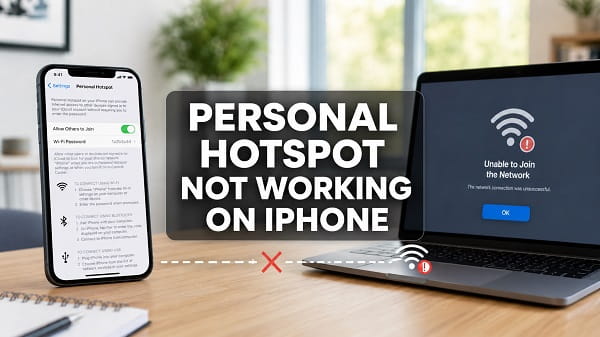
If Personal Hotspot is not working on your iPhone, first confirm that cellular data works, then open Settings > Personal Hotspot and enable Allow Others to Join. Keep that screen open while the other device searches for the hotspot. Restart both devices, verify the hotspot password and turn on Maximize Compatibility if an older laptop, phone or smart device cannot find or join the network.
Personal Hotspot shares the iPhone’s cellular data connection. It cannot provide internet when the mobile line has no active data service, cellular coverage is unavailable, or the carrier plan does not include tethering.
The correct fix depends on the symptom. A missing Personal Hotspot option usually points to cellular or carrier configuration. A visible hotspot that rejects the password is generally a Wi-Fi or password issue. A device that connects but has no internet normally indicates a cellular data, carrier, VPN or data-limit problem.
Why is Personal Hotspot not working on my iPhone?
Common causes include:
- Cellular Data is turned off.
- The mobile plan does not support Personal Hotspot.
- The carrier has not provisioned tethering correctly.
- Allow Others to Join is disabled.
- The other device is using an old password.
- The hotspot is using a Wi-Fi band the other device cannot detect.
- Wi-Fi or Bluetooth is temporarily stuck.
- A VPN, security app or configuration profile is interfering.
- The iPhone has weak cellular service or no usable data balance.
- Low Data Mode, a carrier limit or hotspot allowance is restricting use.
- The iPhone or connecting device needs a software update.
- Network settings have become corrupted.
- USB trust, cable or driver problems are blocking wired hotspot use.
Work through the fixes that match your symptom and test after each one.
1. Confirm that cellular data works on the iPhone
Personal Hotspot does not share the Wi-Fi network currently joined by the iPhone. It shares the iPhone’s mobile data connection.
Turn off Wi-Fi on the iPhone and open Safari. Load a new website using cellular data. If it does not load, fix the mobile connection before troubleshooting the hotspot.
Check:
- Open Settings > Cellular or Mobile Data.
- Turn on Cellular Data.
- Confirm that the correct SIM or eSIM line is selected for data.
- Check that the line has an active data allowance.
- Look for usable 4G, LTE or 5G signal.
If the iPhone shows No Service or SOS Only, restart it, toggle Airplane Mode and check for a carrier outage. Personal Hotspot cannot work without cellular internet.
2. Make sure the carrier plan supports Personal Hotspot
Apple states that Personal Hotspot requires an activated carrier plan that includes the service. Some carriers restrict tethering, require a specific plan or place a separate limit on hotspot data.
Contact the carrier when:
- the Personal Hotspot menu is missing;
- the option is greyed out despite cellular data working;
- the carrier recently changed your plan;
- a new SIM or eSIM was activated;
- the hotspot worked before a number port or plan renewal; or
- an error says to contact the carrier.
Ask whether tethering is provisioned on the line and whether the plan has a hotspot allowance. Buying ordinary phone data does not always guarantee that the carrier permits it to be shared.
3. Turn on Allow Others to Join
Open:
Settings > Personal Hotspot
If that path is missing, try:
Settings > Cellular > Personal Hotspot
Enable Allow Others to Join. Keep the Personal Hotspot screen open until the other device connects. Apple specifically recommends remaining on this screen during initial Wi-Fi connection.
The hotspot name is the iPhone’s device name. You can see or change it under Settings > General > About > Name.
4. Restart both devices
Restart the iPhone providing the hotspot and the phone, tablet or computer trying to join it. This clears temporary Wi-Fi, Bluetooth, cellular and address-assignment problems.
After restarting:
- Confirm that cellular data works on the iPhone.
- Enable Allow Others to Join.
- Keep the hotspot settings screen open.
- Turn Wi-Fi on for the connecting device.
- Select the iPhone by name and enter the password.
Restarting is safer than resetting network settings and should be tried first.
5. Turn Wi-Fi and Bluetooth off and back on
Personal Hotspot uses Wi-Fi for the most common connection method. Apple features such as Instant Hotspot also rely on Bluetooth for discovery.
On both devices, open Settings and turn Wi-Fi off. Wait about five seconds and turn it on again. Repeat for Bluetooth.
Use the switches inside Settings while troubleshooting. Control Centre may only disconnect the current connection temporarily rather than fully restarting the wireless radio.
6. Check the hotspot password
On the iPhone, open Settings > Personal Hotspot and read the Wi-Fi Password exactly. Passwords are case-sensitive.
On the connecting device, forget the old hotspot network and join it again:
- On an iPhone or iPad, open Wi-Fi settings, tap the information button beside the hotspot and choose Forget This Network.
- On Android, open the saved network details and choose Forget.
- On Windows, open Manage Known Networks and remove the iPhone hotspot.
- On Mac, open Wi-Fi settings, view known networks and forget the iPhone.
Enter the current password again. If it remains rejected, change the hotspot password on the iPhone to a new one containing at least eight standard characters. Avoid unusual symbols while testing older devices.
7. Turn on Maximize Compatibility
An iPhone 12 or later may use a faster hotspot mode that some older devices cannot detect or join reliably. Apple recommends enabling Maximize Compatibility in this situation.
Open:
Settings > Personal Hotspot > Maximize Compatibility
Turn it on and reconnect the other device. This can improve compatibility by using a more widely supported connection mode.
Apple warns that enabling Maximize Compatibility may reduce hotspot performance and Wi-Fi security for connected devices. Use it when necessary, not automatically when every device already connects correctly.
8. Move the devices closer together
Keep the iPhone and connecting device nearby, ideally in the same room. Apple recommends keeping devices within about 30 feet or 10 metres, but walls, appliances and radio congestion can reduce the practical range.
Move away from microwave ovens, crowded wireless equipment and thick walls. Do not bury the iPhone inside a bag or closed drawer, especially while it is charging and using cellular data.
If the hotspot works at close range but fails farther away, the connection is limited by signal strength or interference rather than the password.
9. Turn Airplane Mode on and off
Airplane Mode forces the cellular and wireless radios to reconnect.
- Open Control Centre.
- Enable Airplane Mode.
- Wait about 15 seconds.
- Turn it off.
- Wait for the cellular signal to return.
- Enable Personal Hotspot again.
Test cellular data on the iPhone before reconnecting the other device.
10. Disconnect unnecessary hotspot devices
The carrier or iPhone may limit how many devices can connect simultaneously. Multiple devices also divide the available cellular speed.
Disconnect tablets, TVs, consoles and computers that are not currently needed. Turn off automatic connection to the iPhone hotspot on those devices so they do not silently rejoin.
The blue or green hotspot indicator on the iPhone can show that another device is connected. If the hotspot becomes stable with one device, reconnect the others one at a time.
11. Disable VPN and security apps temporarily
A VPN, firewall, DNS filter or security app can interfere with internet sharing even when cellular data works directly on the iPhone.
Disconnect the VPN and test the hotspot. If it works, update or reinstall the VPN app and check its local-network or tethering support.
Do not remove a work or school VPN profile without permission. Open Settings > General > VPN & Device Management to see whether the iPhone is managed. Contact the administrator when the hotspot problem affects a managed device.
12. Check Low Data Mode and data limits
Low Data Mode reduces background network activity but normally does not completely disable Personal Hotspot. However, it can make connected devices appear slow or prevent background downloads.
Open Settings > Cellular > Cellular Data Options > Data Mode and review the setting. The path can vary by carrier and iPhone model.
Also check the carrier account for:
- exhausted monthly data;
- a separate hotspot-data limit;
- reduced speed after reaching a threshold;
- an expired plan; or
- restrictions while roaming.
A device may join the hotspot successfully but show no internet when the carrier has blocked or exhausted tethering data.
13. Update iOS and the connecting device
Install current stable software on both devices. On the iPhone, open:
Settings > General > Software Update
Update Windows, macOS, Android or iPadOS on the device attempting to connect. Compatibility fixes can affect Wi-Fi security, USB drivers, Bluetooth discovery and address assignment.
Restart both devices after updating and test again.
14. Check for a carrier settings update
Carrier settings control cellular network features, including data and tethering configuration.
Connect the iPhone to the internet, open Settings > General > About and wait for about 30 seconds. Install a carrier settings update if prompted.
After changing a SIM, eSIM or plan, restart the iPhone even if no prompt appears. Contact the carrier if Personal Hotspot remains missing.
15. Verify the APN settings
An incorrect APN can allow some phone data while breaking Personal Hotspot, depending on the carrier.
If the carrier allows APN editing, the settings may appear under:
Settings > Cellular > Cellular Data Network
or
Settings > Mobile Data > Mobile Data Options > Mobile Data Network
Do not guess the APN. Ask the carrier for the exact Cellular Data and Personal Hotspot APN values. Incorrect information can stop mobile data and may create billing problems.
If the iPhone is managed by an organisation, the APN may come from a configuration profile.
16. Reset network settings
Reset network settings when Personal Hotspot remains broken after the simpler fixes.
Go to:
Settings > General > Transfer or Reset iPhone > Reset > Reset Network Settings
Enter the passcode and confirm. Apple states that this removes saved Wi-Fi networks and passwords, cellular settings, and VPN and APN settings previously used.
It does not delete photos, apps or messages, but you must reconnect Wi-Fi networks and restore manual network configuration. Read how to reset network settings on iPhone before proceeding.
After the restart, test cellular data first, then enable Personal Hotspot.
17. Fix Personal Hotspot connected but no internet
When a laptop or phone joins the hotspot but cannot browse, the Wi-Fi link is working. The problem is usually between the iPhone and cellular network, or within the connected device.
Try these checks:
- Turn Wi-Fi off on the iPhone and confirm Safari works through cellular data.
- Check the mobile data balance and hotspot allowance.
- Disconnect VPNs on both devices.
- Disable Private DNS or custom proxy settings on the connected device.
- Forget and rejoin the hotspot.
- Restart both devices.
- Test a second device on the same hotspot.
If no connected device has internet, focus on the iPhone or carrier. If only one device fails, reset or troubleshoot networking on that device.
18. Fix Personal Hotspot not showing on another device
Keep Settings > Personal Hotspot open on the iPhone while searching. Make sure Allow Others to Join is enabled and the other device’s Wi-Fi is on.
Turn on Maximize Compatibility, move the devices closer and change the iPhone name to something simple under Settings > General > About > Name.
Avoid emoji, quotation marks or unusual symbols in the iPhone name while testing an older laptop, television or smart device.
If another phone can see the hotspot but the original device cannot, the original device may not support the hotspot’s Wi-Fi band or security mode.
19. Fix “Unable to Join Network” or password errors
Forget the hotspot on the connecting device and enter the current password again. Change the hotspot password if necessary, then restart both devices.
Enable Maximize Compatibility on supported iPhones. Make sure the connecting device’s date and time are correct and install its latest software updates.
If every device receives the same error, reset network settings on the iPhone after recording essential Wi-Fi and VPN details.
20. Fix hotspot disconnecting when the iPhone locks
The hotspot can stop advertising aggressively when no device is actively connected or transferring data. Keep the Personal Hotspot screen open during initial connection.
Once connected, start loading a webpage or downloading a small file. Make sure Low Power Mode is not contributing to aggressive background behaviour:
Settings > Battery > Low Power Mode
Turn it off temporarily for testing. Keep the iPhone connected to power during long hotspot sessions, but monitor temperature.
If a non-Apple device disconnects repeatedly while Apple devices remain stable, enable Maximize Compatibility.
21. Prevent the iPhone from overheating
Personal Hotspot uses the cellular modem and Wi-Fi radio simultaneously. Charging, weak signal, large downloads and direct sunlight can generate substantial heat.
Move the iPhone out of direct sun, remove a thick case temporarily and place it where air can circulate. Stop wireless charging and use a reliable wired charger if power is needed.
Do not cool an overheated iPhone with ice or a refrigerator. Let it return to a normal temperature gradually.
If the hotspot fails only after sustained use, heat or carrier throttling is more likely than a password problem.
22. Fix USB Personal Hotspot on Mac
USB tethering can be more stable than Wi-Fi and charges the iPhone at the same time.
- Enable Allow Others to Join on the iPhone.
- Connect it to the Mac with a data-capable cable.
- Unlock the iPhone.
- Tap Trust if asked to trust the computer.
- On the Mac, open Network settings and select iPhone USB.
If iPhone USB appears but does not work, make the service inactive and active again, then reconnect the cable. Try another cable and USB port.
If the phone charges but the Mac never detects it, the cable may carry power without data.
23. Fix USB Personal Hotspot on Windows
Apple advises installing the latest Apple Devices app or iTunes for Windows. The required Apple drivers help Windows recognise the iPhone as a network device.
Then:
- Enable Allow Others to Join.
- Connect the unlocked iPhone with a data-capable USB cable.
- Tap Trust on the iPhone.
- Click Allow on the PC if prompted.
- Check Windows Network Connections for the iPhone adapter.
Restart the Apple Mobile Device service or reinstall Apple Devices if the adapter is missing. Try another cable before assuming the iPhone is faulty.
24. Fix Bluetooth Personal Hotspot
Bluetooth hotspot is slower than Wi-Fi but can be useful when Wi-Fi is unavailable.
On the iPhone:
- Enable Allow Others to Join.
- Open Settings > Bluetooth.
- Stay on that screen during pairing.
On the computer or other device, select the iPhone from nearby Bluetooth devices. Confirm that the pairing code matches on both screens.
If pairing fails, forget the devices from both sides, restart them and pair again. Keep the devices within about 10 metres.
25. Fix Instant Hotspot not working between Apple devices
Instant Hotspot lets nearby Apple devices connect without manually entering the password when they use the same Apple Account. Family members can also use it when Family Sharing is configured.
Check that:
- both devices have Wi-Fi and Bluetooth enabled;
- both are signed in to the correct Apple Account;
- the devices are near each other;
- Personal Hotspot is supported by the carrier plan;
- cellular data is turned on; and
- current software updates are installed.
For Family Sharing, open Settings > Personal Hotspot > Family Sharing and review whether family members need approval or can connect automatically.
26. Test another device and SIM
Connect a second phone, tablet or computer to the hotspot.
- If the second device works, troubleshoot the original connecting device.
- If no device works but cellular data works on the iPhone, suspect hotspot settings, carrier provisioning or APN configuration.
- If the SIM works in another compatible iPhone with hotspot service, suspect the original iPhone’s configuration.
Do not move an eSIM casually for testing. Ask the carrier before deleting or transferring it.
27. Contact the carrier or Apple
Contact the carrier when Personal Hotspot is missing, greyed out, blocked by the plan or connected without cellular internet. The carrier controls tethering eligibility, data allowances, APN configuration and network provisioning.
Contact Apple when the carrier confirms the account is correctly provisioned but the iPhone still cannot share data after an update and network reset, especially if Wi-Fi and Bluetooth also behave abnormally.
Quick diagnosis table
| Hotspot symptom | Most likely cause | Best first fix |
|---|---|---|
| Personal Hotspot option is missing | Cellular data or carrier provisioning | Enable cellular data and contact carrier |
| Hotspot is not visible | Discovery or Wi-Fi band issue | Keep hotspot screen open and enable Maximize Compatibility |
| Password is rejected | Old saved password | Forget network and re-enter current password |
| Connected but no internet | Cellular, plan, VPN or data-limit issue | Test cellular data directly on iPhone |
| Disconnects after a few minutes | Heat, power saving or compatibility | Cool iPhone and enable Maximize Compatibility |
| Only one device cannot connect | Connecting-device configuration | Forget hotspot and restart that device |
| USB hotspot not detected | Cable, trust or driver issue | Use data cable, tap Trust and update Apple software |
| Hotspot vanished after changing plan | Carrier provisioning | Restart and contact carrier |
| Very slow hotspot | Weak signal, congestion or compatibility mode | Move to stronger signal and check data limit |
Frequently asked questions
Why is Personal Hotspot not showing on my iPhone?
Cellular Data may be disabled, or the carrier plan may not include Personal Hotspot. Enable cellular data and contact the carrier if the option remains missing or greyed out.
Why can nobody see my iPhone hotspot?
Turn on Allow Others to Join and keep the Personal Hotspot settings screen open during connection. Enable Maximize Compatibility for older devices.
Why does the hotspot connect but have no internet?
The iPhone may lack working cellular data, an active data balance or carrier hotspot allowance. A VPN or exhausted tethering limit can also block internet access.
Does Personal Hotspot use mobile data?
Yes. Apple states that Personal Hotspot shares the iPhone’s cellular data connection. Usage counts against the carrier plan and may have separate limits.
What does Maximize Compatibility do?
It makes the hotspot easier for some older devices to detect and join. Apple notes that it may reduce performance and Wi-Fi security for connected devices.
Why does my hotspot keep turning off?
It may stop advertising when idle, disconnect because of compatibility, overheat during sustained use or be affected by power-saving behaviour. Keep the hotspot screen open during pairing and test with Low Power Mode off.
Will resetting network settings delete my photos?
No. It removes network configuration, including saved Wi-Fi passwords, cellular settings, VPN and APN settings. Personal files remain.
Can I use Personal Hotspot while the iPhone is connected to Wi-Fi?
Personal Hotspot shares the iPhone’s cellular internet connection, not the Wi-Fi network it has joined.
Why is the hotspot slow?
Speed depends on cellular signal, network congestion, the carrier plan, number of connected devices and compatibility mode. Disconnect unused devices and move to a location with stronger cellular service.
Is USB hotspot faster than Wi-Fi hotspot?
USB can be more stable and may reduce wireless interference, although actual speed still depends on the cellular connection and carrier limits.
Can my carrier disable Personal Hotspot?
Yes. The service requires a supported carrier and plan. The carrier can restrict tethering or apply a separate hotspot allowance.
Should I factory-reset the iPhone?
Not as an early fix. Confirm carrier support, update software and reset network settings first. A factory reset is disruptive and cannot fix a blocked carrier plan.
Personal Hotspot problems become much easier to diagnose when you separate discovery from internet access. If the hotspot is missing, check cellular data and the carrier. If devices cannot join, focus on Allow Others to Join, the password and Maximize Compatibility. If they connect without internet, test cellular data directly and check the plan, VPN and hotspot allowance before resetting the iPhone.
