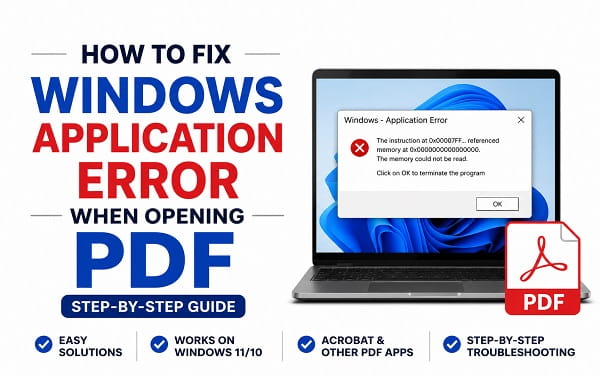
When you get a Windows – Application Error every time you open a PDF, especially when using Adobe Acrobat or Adobe Acrobat Reader, the problem may be caused by the PDF application, a damaged installation, Windows system-file corruption, a compatibility issue, or a conflict with another program.
One common version of the error says:
The instruction at 0x... referenced memory at 0x...
The memory could not be read.
Click on OK to terminate the program.
This problem has been reported on Windows 11 when opening PDFs with Adobe Acrobat, including cases where PDFs open normally from File Explorer but trigger the error when opened from New Outlook. Microsoft community reports also describe the error after upgrading from Windows 10 to Windows 11. citeturn0search3turn0search9turn0search10
The good news is that you do not necessarily need to reinstall Windows. In this guide, we’ll show you how to identify the cause and fix the Windows application error when opening PDF files, starting with the easiest solutions.
Why Does Windows Show an Application Error When Opening a PDF?
There isn’t one cause that applies to every computer.
The error can occur because of:
- A damaged Adobe Acrobat installation
- An outdated Acrobat version
- Corrupted Windows system files
- A compatibility problem between Windows and Acrobat
- A problem involving New Outlook and Acrobat
- Conflicting security or antivirus software
- Damaged Acrobat background processes
- A problem with the PDF file itself
- A Windows update or upgrade that changed system components
- A user-profile or application configuration problem
Adobe’s own troubleshooting documentation recommends checking for updates, repairing Acrobat, investigating background processes, checking antivirus interference, and reinstalling Acrobat when necessary. citeturn0search4turn0search6turn0search13
Microsoft community reports also show that Windows system-file repair and reinstalling Acrobat can resolve some cases. citeturn0search3
Before You Start: Find Out What Is Actually Triggering the Error
Before changing Windows settings, perform a simple test.
Try opening:
- A PDF saved on your computer.
- A different PDF.
- The same PDF in Microsoft Edge.
- A PDF attachment from Outlook, if that is where the problem occurs.
This helps narrow down the cause.
If Every PDF Causes the Error
If every PDF triggers the Windows Application Error, the PDF itself is unlikely to be the only problem.
Focus on:
- Adobe Acrobat
- Windows system files
- Drivers
- Security software
- Windows updates
- Application compatibility
If Only One PDF Causes the Error
If other PDFs open normally but one particular file produces the error, the file may be damaged or contain something that Acrobat cannot process correctly.
Try downloading the file again or opening it with Microsoft Edge.
If PDFs Work in Edge but Not Acrobat
This is an important clue.
If the same PDF opens normally in Edge but produces the Windows Application Error in Acrobat, the problem is more likely related to Acrobat or its interaction with Windows than to the PDF itself.
If PDFs Work From File Explorer but Not Outlook
This is another important distinction.
There are documented cases where PDFs opened normally from File Explorer but produced the Windows Application Error when opened through New Outlook. citeturn0search9turn0search10turn0search15
If that describes your situation, jump to the section on PDFs Opening From Outlook later in this guide.
How to Fix Windows Application Error When Opening PDF
Work through these solutions in order. You do not need to perform every step if an earlier solution fixes the problem.
1. Restart Windows
Start with a normal restart.
Close Acrobat and other applications, then select:
Start
> Power
> Restart
After Windows restarts, wait for the desktop to load completely before opening a PDF.
Then test several different PDF files.
A restart can clear a temporary Acrobat process or Windows process that became stuck.
If the error returns immediately, continue with the next solution.
2. End Stuck Adobe Acrobat Processes
Sometimes Acrobat or one of its background processes does not close correctly.
Adobe specifically recommends checking for unresponsive Acrobat processes when troubleshooting launch and process-related errors. citeturn0search4turn0search6
Step 1: Open Task Manager
Press:
Ctrl + Shift + Esc
Step 2: Find Adobe Processes
Look under Processes for entries such as:
- Adobe Acrobat
- Acrobat
- AcroCEF.exe
- RdrCEF.exe
Adobe documents AcroCEF and RdrCEF as background processes used by Acrobat and Acrobat Reader. citeturn0search6
Step 3: End the Stuck Process
Select the relevant Acrobat process and choose:
End task
Then close Task Manager.
Try opening the PDF again.
If the problem keeps happening, move to the next step. If Acrobat or another Windows application is repeatedly freezing, our guide on How to Force Quit on Windows: 7 Easy Methods provides additional ways to close an unresponsive process.
3. Update Adobe Acrobat or Acrobat Reader
An outdated PDF application can cause compatibility and stability problems.
Adobe recommends keeping Acrobat updated and provides the built-in update option:
Acrobat
> Menu
> Help
> Check for updates
Install any available update and restart Acrobat. Adobe’s current PDF troubleshooting guidance also recommends updating Acrobat when PDF-opening problems occur. citeturn0search4turn0search16
If Acrobat cannot stay open long enough to update, continue to the repair steps below.
4. Repair the Acrobat Installation
A damaged Acrobat installation can cause application errors when opening PDFs.
Adobe provides a built-in repair option for Acrobat installations.
Open Acrobat and go to:
Menu
> Help
> Repair installation
Follow the instructions and restart the computer when the repair is complete. Adobe also documents repair through Windows’ installed-program tools when necessary. citeturn0search4turn0search11
If Acrobat Will Not Open
You can use Windows’ installed-app options or Control Panel, depending on the Acrobat version installed on your computer.
The important point is to repair the existing installation before immediately uninstalling it.
5. Try Opening the PDF With Microsoft Edge
This is one of the best diagnostic tests because Edge can help you determine whether the problem is with the PDF itself or Adobe Acrobat.
Right-click the PDF and select:
Open with
> Microsoft Edge
If the PDF opens normally in Edge but Acrobat produces the Windows Application Error, the problem is more likely associated with Acrobat.
Adobe also documents changing the default application used to open PDF files. citeturn0search16
You can temporarily use Edge as the default PDF viewer while troubleshooting Acrobat.
6. Set the Correct Default PDF Application
If Windows has an incorrect or damaged file association, PDF files may not launch with the application you expect.
Right-click a PDF and select:
Open with
> Choose another app
Select Adobe Acrobat or Acrobat Reader.
Then enable:
Always use this app to open .pdf files
and select OK.
Adobe provides the same basic procedure for setting Acrobat as the default PDF application on Windows. citeturn0search16
7. Check Whether the Problem Started After a Windows Upgrade
Pay particular attention if the error appeared after:
- Upgrading from Windows 10 to Windows 11
- Installing a major Windows update
- Updating Adobe Acrobat
- Installing a new graphics or system driver
A Microsoft Q&A report describes a Windows Application Error when opening PDFs through Adobe from New Outlook after an upgrade from Windows 10 to Windows 11. citeturn0search10
If the timing matches a Windows upgrade or update, continue with Windows Update and system-file repair.
8. Run DISM to Repair Windows Components
Windows system components can become damaged or corrupted.
Microsoft recommends using Deployment Image Servicing and Management (DISM) before System File Checker when repairing Windows system corruption. citeturn0search0turn0search1
Step 1: Open Command Prompt as Administrator
Search Windows for:
Command Prompt
Right-click it and select:
Run as administrator
Step 2: Run DISM
Enter:
DISM.exe /Online /Cleanup-Image /RestoreHealth
Press Enter.
Wait for the operation to finish.
The process can take several minutes. Do not close the Command Prompt window while it is running.
When you see that the operation completed successfully, continue to SFC.
9. Run System File Checker
After DISM completes, run:
sfc /scannow
Press Enter.
Wait until verification reaches 100%.
Microsoft specifically recommends running DISM before SFC when repairing Windows system files. SFC checks protected Windows files and can replace corrupted copies with cached versions. citeturn0search0turn0search1
[INSERT SCREENSHOT 1 HERE — Administrator Command Prompt showing DISM followed by sfc /scannow on Windows 11]
What If SFC Finds Corrupted Files?
If Windows says it found corrupted files and successfully repaired them:
- Restart the computer.
- Open a PDF.
- Test several different PDF files.
If SFC reports that it could not repair some files, don’t assume Acrobat is the only problem. Continue investigating Windows system corruption. You can also follow our Windows Resource Protection Error: How to Fix It guide for the specific SFC/Windows Resource Protection problem.
If you encounter a Windows Resource Protection error while running SFC, see our guide on Windows Resource Protection Error: How to Fix It.
10. Check for Windows Updates
Open:
Settings
> Windows Update
Select:
Check for updates
Install available updates and restart the computer.
Microsoft recommends keeping Windows up to date when troubleshooting system problems, and current Windows repair guidance also includes checking for updates before running system-file repairs. citeturn0search1
If the PDF error began immediately after a Windows update, don’t automatically uninstall updates. First determine whether a newer update or Acrobat update is available.
11. Repair Acrobat From Windows
If the Acrobat application itself is damaged, Windows may provide a repair option through installed applications.
Open:
Settings
> Apps
> Installed apps
Find:
Adobe Acrobat
Open its available options and look for Repair if your installed version exposes the option.
If the repair option is not available, use Acrobat’s own repair function or reinstall the application.
Adobe also documents repairing Acrobat through Control Panel when appropriate. citeturn0search13turn0search14
12. Reinstall Adobe Acrobat
If updating and repairing Acrobat do not fix the problem, reinstalling the application may be necessary.
Before uninstalling, make sure you know which Adobe account or license you use and that you can reinstall the application afterward.
Then:
- Uninstall Adobe Acrobat.
- Restart Windows.
- Install the current Acrobat version from Adobe.
- Restart if prompted.
- Test several PDFs.
Adobe recommends uninstalling and reinstalling Acrobat when repair steps do not resolve persistent application problems. citeturn0search6turn0search14
Do not download modified or unofficial Acrobat installers from random websites.
13. Check Acrobat’s Compatibility Settings
Compatibility settings can sometimes interfere with applications after Windows upgrades.
Right-click the Acrobat shortcut and select:
Properties
> Compatibility
Check whether Run this program in compatibility mode is enabled.
If it is enabled and you did not intentionally configure it, test Acrobat with compatibility mode disabled.
Adobe’s launch troubleshooting documentation specifically recommends checking compatibility settings when Acrobat has problems starting. citeturn0search13
[INSERT SCREENSHOT 2 HERE — Adobe Acrobat Properties showing the Compatibility tab in Windows 11]
Do not randomly enable compatibility modes just because an application is having problems. Test the normal configuration first.
14. Temporarily Test Antivirus or Security Software
Security software can sometimes interfere with applications.
Adobe documents cases where antivirus or firewall software can interfere with Acrobat and recommends testing the application with the security software temporarily disabled, then adding Acrobat as an exception if appropriate. citeturn0search6turn0search13
However, this should be treated as a short diagnostic test, not a permanent solution.
If you temporarily disable antivirus protection:
- Disconnect from unnecessary networks if appropriate.
- Open only the PDF you are testing.
- Check whether the error disappears.
- Immediately re-enable your security software.
If the error disappears, investigate adding Acrobat to the security product’s approved/exclusion list rather than leaving antivirus protection disabled.
15. Check Whether Acrobat Protected Mode Is Involved
Adobe Acrobat includes security features designed to protect your computer from potentially unsafe PDF content.
In some documented troubleshooting cases, Protected Mode has been investigated when Acrobat fails to open correctly. Adobe also documents Protected Mode as a factor in certain Acrobat launch problems. citeturn0search8
If you decide to test whether Protected Mode is involved, treat it as a temporary diagnostic step.
In Acrobat, look under:
Menu
> Preferences
> Security (Enhanced)
Do not permanently disable security protections simply to make one PDF open.
If changing the setting resolves the problem, restore the security protection and look for an Acrobat update or another supported fix.
16. Check PDFs From Outlook
This deserves special attention because some users experience the Windows Application Error only when opening PDF attachments from Outlook.
For example, a Microsoft Q&A case reported that PDFs opened normally from the computer but generated the error when opened through New Outlook. citeturn0search10
Adobe Community reports describe a similar situation where a PDF attachment from New Outlook caused a memory-related Windows Application Error even though the PDF opened normally from File Explorer. citeturn0search15
Test the Same PDF Outside Outlook
Save the PDF attachment to your computer.
Then open it directly from File Explorer.
If:
PDF from File Explorer → Opens normally
PDF from Outlook → Application Error
the issue is probably not simply a damaged PDF.
Instead, investigate the interaction between Outlook, Acrobat, and Windows.
Temporarily Use Edge
You can also test the attachment with Microsoft Edge.
If Edge opens the attachment without an error, that gives you another clue that Acrobat is involved.
17. Run Acrobat as Administrator as a Test
If Acrobat has a permissions-related problem, launching it as administrator can help identify it.
Right-click the Acrobat shortcut and select:
Run as administrator
Then open the PDF.
If the error disappears only when Acrobat runs as administrator, don’t automatically leave Acrobat configured to always run with elevated privileges.
Instead, investigate the application’s permissions, installation, and user-profile configuration.
Adobe includes running Acrobat as administrator among its Windows launch troubleshooting steps. citeturn0search13
18. Create a New Windows User Profile as a Test
If Acrobat works correctly under another Windows user account, the problem may be specific to your current Windows profile.
Adobe’s Windows launch troubleshooting guidance also suggests testing Acrobat from another user profile when persistent problems remain. citeturn0search14
To test this, create a temporary local Windows account and sign in.
Install or open Acrobat as appropriate and test the same PDF.
If the problem disappears under the new account, the issue may be related to:
- User-profile configuration
- Per-user Acrobat settings
- Permissions
- Corrupted application data
This doesn’t necessarily mean you need to abandon your existing Windows account.
19. Check the PDF File Itself
If only one PDF produces the Windows Application Error, investigate the document before changing Windows.
Try:
- Downloading the PDF again
- Asking the sender to resend it
- Opening it in Microsoft Edge
- Opening it on another computer
- Saving a new copy
- Opening a different PDF in Acrobat
If the same PDF fails everywhere, the document may be damaged.
If hundreds of PDFs work and only one fails, reinstalling Windows would obviously be the wrong solution.
20. Check Your Storage if Other Windows Errors Are Appearing
If the PDF error is accompanied by broader Windows problems such as:
- File corruption
- Applications freezing
- Missing files
- Slow startup
- Disk errors
- Unexpected system crashes
check the health of your SSD.
Our guide on How to Check SSD Health in Windows 11 explains how to use Windows tools, PowerShell, and SMART information to investigate SSD health.
A healthy PDF application cannot compensate for a failing storage device, so broader system symptoms should not be ignored.
21. Check RAM if the Error Says “Memory Could Not Be Read”
If your exact error contains wording such as:
The memory could not be read
don’t automatically assume your physical RAM is defective.
A memory-access violation can result from an application problem, corrupted software, compatibility issue, or other system-level problem. If Windows also displays a MEMORYMANAGEMENT blue-screen error, see our guide on How to Fix MEMORYMANAGEMENT BSOD (win32k.sys) for that more specific problem.
However, if you also experience random crashes, freezes, corrupted files, or different application errors, test your RAM.
Windows includes a built-in diagnostic tool:
Press:
Windows + R
Type:
mdsched.exe
Press Enter.
Select:
Restart now and check for problems
You can also use our guide on How to Check RAM Speed in Windows 11 when investigating your installed memory configuration.
22. Perform a Clean Boot
If the problem continues after repairing Acrobat and Windows, a third-party startup application or service could be interfering with Acrobat.
A Windows clean boot starts the system with a minimal set of drivers and startup programs.
Press:
Windows + R
Type:
msconfig
Press Enter.
Open the Services tab.
Select:
Hide all Microsoft services
Then select:
Disable all
Next, open the Startup tab and use Task Manager to disable nonessential startup applications.
Restart Windows and test Acrobat.
If the error disappears during the clean boot, gradually re-enable third-party services and startup applications until you identify the conflict.
Microsoft also recommends clean-start troubleshooting when software conflicts are suspected. citeturn0search2
23. Check Event Viewer for Application Errors
If the error keeps returning, Windows Event Viewer may provide additional information.
Press:
Windows + R
Type:
eventvwr.msc
Press Enter.
Go to:
Windows Logs
> Application
Look for errors recorded at approximately the same time you opened the PDF.
You may see references to:
- Acrobat.exe
- Application Error
- Faulting module
- .dll files
- Windows components
Don’t assume the first error you see is the cause.
Look for repeated events that happen consistently when the PDF error appears.
24. Don’t Disable Windows Security Permanently
You may find online recommendations telling you to permanently disable:
- Windows Defender
- Acrobat Protected Mode
- Firewall protection
- UAC
- Other Windows security features
Avoid doing that simply because a PDF produces an application error.
Security features exist for a reason.
If disabling a security feature is used as a diagnostic test, restore it immediately afterward and look for a supported way to resolve the compatibility problem.
Windows Application Error When Opening PDF: Quick Diagnosis
Use this quick decision guide:
Does every PDF cause the error?
        |
        +-- YES → Repair/update Acrobat and Windows
        |
        +-- NO → Test the specific PDF in Edge and another computer

Does the PDF work in Edge?
        |
        +-- YES → Acrobat is the likely area to investigate
        |
        +-- NO → Investigate the PDF or Windows environment

Does it happen only from Outlook?
        |
        +-- YES → Test the PDF outside Outlook
        |
        +-- NO → Continue Acrobat/Windows troubleshooting

Did it start after a Windows update?
        |
        +-- YES → Check Windows Update and system-file integrity
        |
        +-- NO → Continue with Acrobat repair and compatibility checks
Which Fix Should You Try First?
For most people, this is the most efficient order:
1. Restart Windows
2. End stuck Acrobat processes
3. Update Acrobat
4. Repair Acrobat
5. Open the PDF in Edge
6. Check the default PDF application
7. Run DISM
8. Run SFC
9. Check Windows Update
10. Reinstall Acrobat
11. Test antivirus/security conflicts
12. Investigate Outlook if applicable
13. Try a clean boot
14. Check Event Viewer
15. Investigate RAM or SSD if broader problems exist
This order avoids making major changes before testing the simplest explanations.
Frequently Asked Questions
Why do I get a Windows Application Error when opening a PDF?
The error can be caused by Adobe Acrobat, damaged Acrobat files, Windows system-file corruption, compatibility problems, security software conflicts, Windows updates, or a specific damaged PDF.
Why does my PDF open in Edge but not Adobe Acrobat?
If the same PDF opens normally in Edge but causes an application error in Acrobat, the problem is more likely related to Acrobat or its interaction with Windows than to the PDF itself.
Why does the error happen only when opening PDF attachments in Outlook?
There are documented cases where PDFs opened from New Outlook trigger a Windows Application Error while the same PDFs open normally from File Explorer. This can point toward an interaction between Outlook, Acrobat, and Windows. citeturn0search9turn0search10turn0search15
What does “the memory could not be read” mean when opening a PDF?
It generally indicates that an application attempted to access a memory location in an invalid way. It does not automatically mean that your physical RAM is defective. Acrobat, Windows, drivers, or software compatibility problems can also cause memory-access violations.
How do I repair Adobe Acrobat?
Depending on your version, use Acrobat > Menu > Help > Repair installation, or use Windows/Control Panel’s repair option if available. Adobe documents both approaches. citeturn0search4turn0search11
Should I reinstall Adobe Acrobat?
Reinstall Acrobat if updating and repairing it do not solve the problem. Restart Windows after uninstalling before installing a fresh copy.
Can corrupted Windows files cause PDF application errors?
Yes. Microsoft documents that corrupted Windows system files can cause system errors and applications to malfunction. DISM followed by SFC can repair damaged Windows components and protected system files. citeturn0search0turn0search1
Should I run DISM or SFC first?
Run DISM first, then run:
sfc /scannow
Microsoft’s current guidance uses this order because DISM can provide the files needed for SFC repairs. citeturn0search0turn0search1
Why does Acrobat show an error even though the PDF opens?
The application itself can generate an error even when the document ultimately opens. This has been reported particularly with PDFs launched from New Outlook. citeturn0search15
Can antivirus software cause Adobe Acrobat errors?
Yes. Adobe documents cases where antivirus or firewall software can interfere with Acrobat. If you test this, temporarily disable protection only for diagnosis and immediately restore it afterward. citeturn0search6turn0search13
What if only one PDF causes the error?
Test that PDF in Edge, on another computer, or with another PDF reader. If every other PDF works normally, the specific document may be damaged.
Related TechWiseZone Guides
If the PDF error points to a broader Windows problem, these TechWiseZone guides provide the next troubleshooting steps:
- Windows Resource Protection Error: How to Fix It — for SFC and Windows system-file repair problems.
- How to Check SSD Health in Windows 11 — for storage-related instability, file corruption, or unexplained crashes.
- How to Check RAM Speed in Windows 11 — for investigating memory configuration when applications repeatedly crash.
- How to Force Quit on Windows: 7 Easy Methods — for dealing with Acrobat or other applications that stop responding.
- How to Fix MEMORY_MANAGEMENT BSOD (win32k.sys) — for a related memory-management blue-screen error.
- How to Fix a Blue Screen Without Text in Windows 11 — for wider Windows crash and blue-screen troubleshooting.
- Ctrl Alt Delete Not Working? How to Fix It — for additional troubleshooting when Windows keyboard security shortcuts fail.
Final Thoughts
A Windows Application Error when opening a PDF does not automatically mean the PDF itself is damaged or that Windows needs to be reinstalled.
Start by identifying the pattern:
- Does every PDF fail?
- Does only one PDF fail?
- Does the PDF work in Edge?
- Does the error happen only through Outlook?
- Did the problem start after a Windows or Acrobat update?
Those answers can quickly narrow down the cause.
For most users, the best starting point is to restart Windows, end stuck Acrobat processes, update or repair Acrobat, and test the same PDF in Edge. If that doesn’t work, move on to DISM and SFC, Windows updates, Acrobat reinstallation, compatibility checks, and clean-boot troubleshooting.
If the error occurs alongside other Windows problems such as file corruption, freezes, crashes, or blue screens, broaden the investigation to RAM, SSD health, drivers, and Windows system stability rather than treating the PDF application as the only possible cause. For example, see our guides on How to Check SSD Health in Windows 11 and How to Check RAM Speed in Windows 11.
