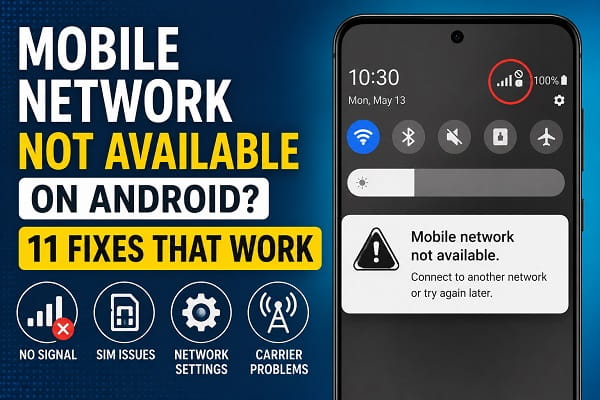
Seeing the “Mobile Network Not Available” error on your Android phone can be frustrating, especially when you need to make a call, send a text message, or use mobile data. Instead of connecting to your carrier’s network, your phone displays an error that prevents normal communication.
This problem can occur on almost any Android device, including Samsung Galaxy, Google Pixel, Xiaomi, Motorola, OnePlus, Tecno, Infinix, OPPO, vivo, Nokia, and other smartphones. In many cases, the issue is caused by temporary network glitches, incorrect settings, SIM card problems, software bugs, or carrier-related issues rather than a hardware fault.
The good news is that you can usually fix the problem without visiting a repair center. By working through the troubleshooting steps below, you can identify the cause and restore your mobile network.
Why Does My Android Say Mobile Network Not Available?
Before attempting any fixes, it’s helpful to understand why this message appears.
Common causes include:
- Temporary carrier outages.
- Poor signal coverage.
- A damaged or improperly inserted SIM card.
- Incorrect network settings.
- Airplane Mode being enabled.
- Outdated Android software.
- APN or carrier configuration problems.
- A faulty SIM card.
- Hardware issues affecting the phone’s antenna.
Identifying the most likely cause makes it easier to choose the right solution.
1. Check Whether Your Carrier Is Experiencing an Outage
Sometimes the problem isn’t your phone at all.
Mobile carriers occasionally perform maintenance or experience unexpected service outages that temporarily affect calls, text messages, and mobile data.
Before changing any settings:
- Ask someone using the same carrier if they’re having similar problems.
- Visit your carrier’s official status page if available.
- Check the carrier’s social media accounts for outage announcements.
If there’s an outage, the only solution is to wait until service has been restored.
2. Restart Your Android Phone
Restarting your phone refreshes important system services responsible for connecting to your carrier’s network.
To restart your phone:
- Press and hold the Power button.
- Tap Restart.
- Wait for the phone to reconnect to the mobile network.
After restarting, check whether the error message has disappeared.
Temporary software glitches often affect several Android features at once. If your phone has also become unusually slow or unstable, our guide on how to speed up a slow Android phone may help improve overall performance.
3. Turn Airplane Mode On and Off
Airplane Mode disconnects your phone from all wireless networks.
Turning it on and off forces Android to search for your carrier’s network again.
Steps:
- Swipe down from the top of the screen.
- Tap Airplane Mode.
- Wait about 30 seconds.
- Turn Airplane Mode off.
- Give your phone a minute to reconnect.
This simple step resolves many temporary registration problems.
4. Check Your Signal Strength
If you’re in an area with weak network coverage, your phone may display Mobile Network Not Available because it can’t establish a reliable connection.
Poor signal is common in:
- Underground parking garages.
- Basements.
- Elevators.
- Rural areas.
- Buildings with thick concrete walls.
Try moving outdoors or closer to a window before attempting more advanced troubleshooting.
5. Remove and Reinsert the SIM Card
A loose, dirty, or damaged SIM card can interrupt communication between your phone and your carrier.
To check the SIM card:
- Turn off your phone.
- Remove the SIM tray.
- Inspect the SIM card for dust or visible damage.
- Carefully reinsert the SIM card.
- Restart your device.
If you use an eSIM, skip this step and continue with the next solution.
If your phone no longer recognizes the SIM card after reinserting it, our guide on SIM card not detected on Android explains additional troubleshooting steps.
6. Select the Network Manually
Android normally chooses the strongest available network automatically.
Occasionally, manually selecting your carrier can restore service.
To do this:
- Open Settings.
- Tap Network & Internet or Connections.
- Select Mobile Network.
- Tap Network Operators.
- Disable Automatically Select Network.
- Wait for the available networks to load.
- Choose your carrier from the list.
Once connected, test whether calls and mobile data work normally.
7. Reset Network Settings
If incorrect network settings are preventing your phone from connecting, resetting them can often solve the problem.
A network reset restores:
- Mobile network settings.
- WiFi settings.
- Bluetooth connections.
To reset network settings:
- Open Settings.
- Tap System.
- Select Reset Options.
- Tap Reset Network Settings.
- Confirm the reset.
You’ll need to reconnect to WiFi networks afterward.
If mobile data also refuses to work after reconnecting, our guide on Mobile Data Not Working on Android covers additional fixes, including APN configuration and data settings.
8. Update Android Software
Software updates often include fixes for network connectivity, carrier compatibility, and system stability.
To check for updates:
- Open Settings.
- Tap System.
- Select Software Update.
- Download and install any available updates.
After the update finishes, restart your phone and check whether the mobile network error has been resolved.
9. Check Your Preferred Network Type
If your phone is set to an unsupported network mode, it may struggle to connect to your carrier.
To review your preferred network type:
- Open Settings.
- Tap Network & Internet or Connections.
- Select Mobile Network.
- Choose your SIM card if necessary.
- Tap Preferred Network Type.
- Select 5G/4G/3G/2G (Auto) or LTE/3G/2G (Auto), depending on your carrier.
Using Automatic mode allows your phone to switch between available network technologies for the best connection.
If your phone connects to the mobile network but you still can’t browse the internet, the problem may be related to your mobile data configuration rather than the network itself. Follow our guide on Mobile Data Not Working on Android for additional troubleshooting steps.
10. Verify Your APN Settings
APN (Access Point Name) settings tell your phone how to connect to your carrier’s mobile network.
Incorrect APN settings can prevent mobile data from working and, in some cases, interfere with network registration.
To review your APN settings:
- Open Settings.
- Tap Mobile Network.
- Select Access Point Names (APN).
- Compare your settings with those provided by your carrier.
- Reset the APN to its default values if necessary.
Always use the official APN information supplied by your mobile network provider.
Incorrect APN settings can also prevent WiFi Calling from working properly on some carriers. If you’re having trouble making calls over a wireless network, see our guide on WiFi Calling Not Working on Android for more solutions.
11. Contact Your Mobile Carrier
If you’ve completed all the previous steps and your phone still displays Mobile Network Not Available, it’s time to contact your carrier.
Your provider can check for issues such as:
- Service outages.
- SIM card activation problems.
- Account restrictions.
- Network maintenance.
- Carrier-side configuration errors.
If necessary, they may also recommend replacing your SIM card.
When the Problem May Be Hardware Related
Although software and network issues are the most common causes, hardware problems can also prevent your phone from connecting to the mobile network.
Possible hardware-related causes include:
- A damaged SIM card reader.
- A faulty internal antenna.
- Water damage.
- Damage caused by dropping the phone.
- Defective internal components.
If the error continues even after trying another SIM card and performing a factory reset, professional repair may be required.
If your phone isn’t detecting the SIM card at all, the issue may go beyond network settings. Our guide on SIM Card Not Detected on Android explains how to diagnose SIM-related problems and get your device connected again.
How to Prevent Mobile Network Problems
While not every issue can be avoided, a few good habits can reduce the chances of seeing this error again.
To keep your mobile connection reliable:
- Keep Android updated.
- Install carrier settings updates when available.
- Avoid removing the SIM card unnecessarily.
- Use a protective case to reduce physical damage.
- Restart your phone occasionally.
- Monitor your carrier’s service status during widespread outages.
Regular maintenance helps your phone maintain a stable connection to your carrier’s network.
Frequently Asked Questions
Why does my Android say Mobile Network Not Available?
This message usually appears when your phone cannot connect to your carrier’s network. Common causes include poor signal strength, SIM card issues, incorrect network settings, carrier outages, or software problems.
Can a damaged SIM card cause this error?
Yes. A damaged, dirty, or improperly inserted SIM card can prevent your phone from registering with the mobile network.
Will resetting network settings delete my photos?
No. Resetting network settings only restores WiFi, Bluetooth, and mobile network configurations. Your photos, apps, contacts, and other personal files remain safe.
Does Airplane Mode fix Mobile Network Not Available?
Sometimes. Turning Airplane Mode on and off forces your phone to reconnect to your carrier’s network, which can resolve temporary connection problems.
Can a software update cause network issues?
Occasionally. Although updates usually improve stability, they can sometimes introduce temporary compatibility problems. Installing the latest updates and restarting your phone often resolves these issues.
Should I replace my SIM card?
If your SIM card is several years old, damaged, or fails to work in another phone, requesting a replacement from your carrier is a good idea.
Get Your Mobile Network Working Again
The Mobile Network Not Available error is usually caused by temporary software glitches, SIM card problems, incorrect network settings, or issues with your carrier rather than permanent hardware damage.
Start with the simplest solutions, such as restarting your phone, toggling Airplane Mode, checking your signal strength, and reinserting the SIM card. If the problem persists, continue with more advanced fixes like resetting network settings, reviewing your APN configuration, or contacting your mobile provider.
Mobile connectivity problems often affect more than one feature. For example, if your phone can connect to WiFi but not share that connection with other devices, check out our guide on Android Hotspot Not Working for additional troubleshooting steps.
In most cases, one of these troubleshooting methods is enough to restore your connection and get your Android phone back online.
