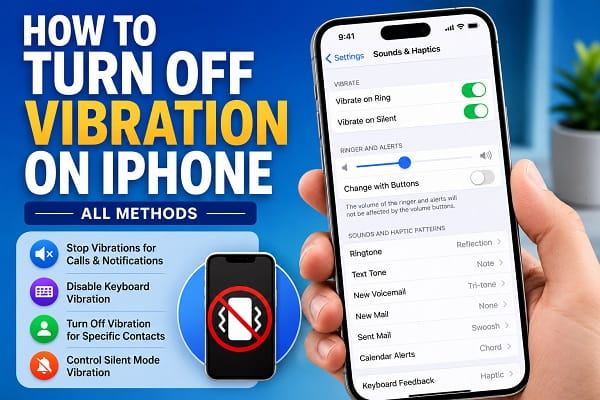
If your iPhone vibrates every time you receive a call, text message, email, or notification, it can quickly become distracting, especially during meetings, classes, or while you’re trying to sleep. While vibration is useful for alerting you without making a sound, not everyone wants their phone vibrating all the time.
The good news is that Apple gives you complete control over vibration settings. Whether you want to disable vibration entirely, stop vibration only in Silent Mode, turn off keyboard vibration, or prevent certain apps from vibrating, there are several ways to customize your iPhone to behave exactly how you want.
In this guide, I’ll show you how to turn off vibration on your iPhone step by step. I’ll also explain why your iPhone may continue vibrating even after changing the settings and how to fix it.
Why Does My iPhone Keep Vibrating?
Before changing any settings, it helps to understand why your iPhone vibrates in the first place.
Your iPhone uses vibrations to notify you about various activities, including:
- Incoming phone calls
- Text messages
- FaceTime calls
- Email notifications
- Social media alerts
- Emergency alerts
- Calendar reminders
- Keyboard feedback
- System notifications
Depending on your settings, your iPhone may vibrate when it’s in Ring Mode, Silent Mode, or both.
Fortunately, you can control each of these separately.
Method 1: Turn Off All Vibration on iPhone
If you don’t want your iPhone to vibrate at all, Apple makes it easy to disable every vibration.
Here’s how:
- Open the Settings app.
- Tap Accessibility.
- Select Touch.
- Scroll down until you find Vibration.
- Turn Vibration off.
Once disabled, your iPhone will no longer vibrate for:
- Calls
- Text messages
- Notifications
- Emergency alerts
- System vibrations
This is the quickest method if you want to completely disable vibration across the entire device.
Note: Turning off the master vibration switch affects all apps and system functions that rely on vibration feedback.
Method 2: Turn Off Vibration in Ring Mode
Some people still want vibration when the phone is silent but don’t want it vibrating while the ringtone is playing.
To disable vibration only while your iPhone is in Ring Mode:
- Open Settings.
- Tap Sounds & Haptics.
- Under Haptics, tap Always Play or Play in Ring Mode (the wording varies depending on your iOS version).
- Choose Don’t Play in Ring Mode or disable the Ring vibration option.
Now your iPhone will ring normally without vibrating whenever Ring Mode is enabled.
Method 3: Turn Off Vibration in Silent Mode
If your iPhone still vibrates after you move the Ring/Silent switch, this setting controls that behavior.
To disable vibration in Silent Mode:
- Open Settings.
- Tap Sounds & Haptics.
- Locate the Silent Mode haptics setting.
- Turn it off.
Once disabled, switching your iPhone to Silent Mode won’t trigger vibration alerts for incoming calls and notifications.
This is especially useful if you want your phone to remain completely silent during meetings, lectures, or bedtime.
Method 4: Turn Off Keyboard Vibration
Apple introduced keyboard haptic feedback to make typing feel more responsive. While many users enjoy it, others find it distracting or notice it slightly impacts battery life.
To disable keyboard vibration:
- Open Settings.
- Tap Sounds & Haptics.
- Select Keyboard Feedback.
- Turn off Haptic.
Your keyboard will no longer produce vibration while typing.
If you also want to remove keyboard clicking sounds, simply turn off Sound from the same screen.
Method 5: Turn Off Vibration for Individual Contacts
Maybe you only want to stop vibration when certain people call you.
For example, you may have assigned a custom vibration pattern to a friend or family member.
To remove it:
- Open the Contacts app.
- Select the contact.
- Tap Edit.
- Tap Ringtone.
- Choose Haptics.
- Select None.
- Tap Done.
Repeat these steps for any contacts with custom vibration patterns.
Method 6: Turn Off App Notification Vibrations
Not every app needs permission to interrupt you.
If apps like Facebook, Instagram, TikTok, or WhatsApp constantly make your phone vibrate, you can disable their notifications individually.
Here’s how:
- Open Settings.
- Tap Notifications.
- Choose the app.
- Turn off Allow Notifications, or customize the alert style.
Although some apps don’t provide a dedicated vibration setting, disabling or customizing notifications prevents unnecessary vibration alerts from those apps.
Why Is My iPhone Still Vibrating?
Sometimes users disable the obvious settings but still notice unexpected vibrations.
This usually happens because another feature is responsible.
Common causes include:
- Emergency alerts
- Government alerts
- Accessibility features
- Third-party apps
- Calendar reminders
- Focus Mode settings
- Custom contact vibrations
- Apple Watch notification mirroring
The next section explains how to identify each of these causes and stop them if needed.
You should also make sure your iPhone is running the latest version of iOS, as software updates occasionally resolve issues related to haptics and notification behavior.
If the vibration started after installing a new app, try temporarily disabling that app’s notifications to see if the problem stops.
As you continue customizing your iPhone, you may also find these guides helpful:
- How to Find Saved WiFi Passwords on iPhone
- How to Turn Off Do Not Disturb on iPhone
- Can WiFi Owner See What Sites I Visit on My Phone? Explained
Method 7: Turn Off Emergency Alert Vibrations
Even after disabling normal notification vibrations, your iPhone may still vibrate when it receives emergency or government alerts.
These alerts are designed to grab your attention and may include:
- Extreme weather warnings
- AMBER Alerts (in supported regions)
- Public safety alerts
- Emergency government notifications
If these alerts are enabled, your iPhone may vibrate regardless of your regular notification settings.
To review these settings:
- Open Settings.
- Tap Notifications.
- Scroll to the bottom of the page.
- Locate the Government Alerts or Emergency Alerts section.
- Turn off any alerts you don’t want to receive.
Note: Some emergency alerts are required by law in certain countries and cannot be disabled.
Method 8: Check Apple Watch Notification Mirroring
If you own an Apple Watch, it may appear that your iPhone keeps vibrating when the notifications are actually being managed between both devices.
Depending on your settings:
- Your Apple Watch may vibrate instead of your iPhone.
- Your iPhone may still vibrate if the watch isn’t being worn.
- Notification mirroring may cause unexpected haptic feedback.
To review these settings:
- Open the Watch app on your iPhone.
- Tap Notifications.
- Review which apps mirror notifications.
- Disable mirroring for apps you don’t want synchronized.
This won’t affect your iPhone’s main vibration settings but can reduce unwanted alerts if you regularly use an Apple Watch.
Method 9: Check Focus Mode Settings
Focus Modes such as:
- Do Not Disturb
- Sleep
- Work
- Personal
don’t always disable vibrations automatically.
Instead, they decide which people and apps are allowed to notify you.
If certain contacts or apps are allowed during a Focus Mode, your iPhone may still vibrate.
To check:
- Open Settings.
- Tap Focus.
- Choose the active Focus Mode.
- Review the allowed apps and people.
- Remove any notifications you don’t want during that Focus period.
If you’re unfamiliar with Focus Mode, my guide on How to Turn Off Do Not Disturb on iPhone explains how it works and how to disable it completely.
Method 10: Restart Your iPhone
Sometimes the problem isn’t your settings at all.
Temporary software glitches can cause the Taptic Engine to behave unexpectedly.
Restarting your iPhone refreshes system processes and often resolves random vibration issues.
To restart:
iPhone with Face ID
- Press and hold the Side button and either Volume button.
- Drag the power slider.
- Wait about 30 seconds.
- Turn your iPhone back on.
iPhone with a Home Button
- Press and hold the Power button.
- Drag the power slider.
- Wait a few seconds.
- Turn the phone back on.
If the vibration disappears after restarting, the issue was likely caused by a temporary software process.
Method 11: Update iOS
Apple frequently fixes bugs affecting notifications, haptics, and system behavior through software updates.
If your iPhone continues vibrating unexpectedly, installing the latest version of iOS may solve the problem.
To update:
- Open Settings.
- Tap General.
- Select Software Update.
- Download and install any available updates.
Keeping your iPhone updated also improves security and overall performance.
Method 12: Reset All Settings
If you’ve changed numerous notification, accessibility, or sound settings over time, it can become difficult to identify which one is causing the problem.
Instead of erasing your data, you can reset all settings.
Here’s how:
- Open Settings.
- Tap General.
- Select Transfer or Reset iPhone.
- Tap Reset.
- Choose Reset All Settings.
This resets:
- Sound settings
- Notification preferences
- Network settings
- Accessibility settings
- Display preferences
Your personal data—including photos, apps, and messages—will remain intact.
Does Turning Off Vibration Save Battery?
Yes, but only slightly.
The Taptic Engine uses power each time it creates a vibration.
For most users, the difference in battery life is small.
However, disabling vibration can help extend battery life if:
- You receive hundreds of notifications daily.
- You type frequently using keyboard haptics.
- Multiple apps send constant alerts.
While battery savings won’t be dramatic, every little improvement helps, especially on older iPhones with reduced battery health.
What If My iPhone Vibrates Randomly?
Random vibrations can occur for several reasons.
Some of the most common include:
- Hidden app notifications
- Mail syncing in the background
- Calendar reminders
- Automation shortcuts
- Accessibility features
- Software bugs
- Low battery notifications
- Charging accessories
- Bluetooth devices reconnecting
If you can’t identify the source, try temporarily disabling notifications for recently installed apps one at a time until the vibrations stop.
You should also review Settings > Notifications to see which apps are allowed to send alerts.
If you’ve recently connected to a new Wi-Fi network and are troubleshooting other phone-related issues, you may also find Can WiFi Owner See What Sites I Visit on My Phone? Explained helpful, especially if you’re concerned about privacy while managing your device.
Likewise, if you’re having connectivity issues after changing notification settings, check out Find Saved WiFi Passwords on iPhone to reconnect to trusted networks quickly.
Frequently Asked Questions
How do I completely turn off vibration on my iPhone?
The easiest way is to go to Settings > Accessibility > Touch and turn off Vibration. This disables vibrations for calls, messages, notifications, and most system alerts.
Can I turn off vibration but still hear my ringtone?
Yes. Open Settings > Sounds & Haptics and disable vibration for Ring Mode while leaving your ringtone enabled. This allows your iPhone to ring without vibrating.
Can I turn off vibration only for text messages?
Yes. You can customize message notifications by:
- Opening Settings.
- Tapping Notifications.
- Selecting Messages.
- Adjusting the notification settings or assigning None under Haptics for message alerts.
Why does my iPhone vibrate even when it’s on Silent Mode?
This usually happens because vibration is still enabled for Silent Mode. You can change this under Settings > Sounds & Haptics by disabling haptics while your phone is in Silent Mode.
How do I stop my iPhone keyboard from vibrating?
Go to:
Settings > Sounds & Haptics > Keyboard Feedback
Then turn off Haptic.
Your keyboard will stop vibrating whenever you type.
Can I disable vibration for one specific contact?
Yes.
Open the contact, tap Edit, select Ringtone, then Haptics, and choose None. Repeat the same process for Text Tone if necessary.
Why is my iPhone vibrating without notifications?
If there are no visible notifications, possible causes include:
- Background app activity
- Mail synchronization
- Calendar reminders
- Accessibility features
- Apple Watch notification syncing
- Software glitches
- Emergency alerts
Restarting your iPhone and reviewing notification settings usually resolves the issue.
Does turning off vibration improve battery life?
Yes, although the improvement is relatively small.
The Taptic Engine uses battery power every time it activates. Disabling unnecessary vibrations—especially keyboard haptics and frequent app notifications—can slightly reduce battery consumption over time.
Tips for Managing Notifications More Effectively
Turning off vibration is only one part of creating a distraction-free iPhone experience. You can make your device even quieter and more efficient by reviewing which apps are allowed to send notifications in the first place.
Take a few minutes every few months to remove notification permissions from apps you no longer use. This not only reduces unnecessary vibrations but also helps improve focus and conserves a small amount of battery life.
If you’re trying to minimize interruptions completely, consider combining these settings with Focus Modes and scheduled notification summaries so that only the most important alerts reach you.
With Apple’s flexible notification and haptic settings, you can decide exactly when your iPhone should vibrate and when it should remain completely silent. Whether you prefer to disable vibration entirely or only for specific situations like Silent Mode, keyboard typing, or individual contacts, the steps in this guide make it easy to customize your device to suit your preferences.
