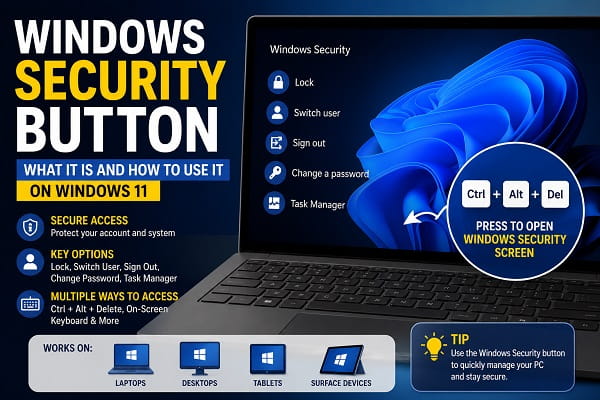
If you’ve ever been asked to “press the Windows Security button” while troubleshooting your PC or signing in to Windows, you may have wondered exactly what it means. Unlike many keyboard shortcuts, the Windows Security button isn’t always a physical button on your computer. Depending on the type of device you’re using, it could refer to a keyboard shortcut, a hardware button on a Windows tablet, or the secure sign-in screen used by Windows.
The Windows Security button is designed to protect important system functions by ensuring only the person using the computer can access options like changing passwords, opening Task Manager, switching users, or signing out. On traditional laptops and desktop computers, it’s typically accessed using the Ctrl + Alt + Delete keyboard shortcut. On some Windows tablets, including certain Microsoft Surface models, it’s activated using hardware buttons instead.
In this guide, I’ll explain what the Windows Security button is, where to find it, how to use it on different devices, and what to do if it isn’t working.
If you’re learning more about Windows system features, you may also find Windows PowerShell vs Command Prompt: What’s the Difference? helpful.
What Is the Windows Security Button?
The Windows Security button is a secure way of accessing Windows security options.
When activated, Windows opens the Windows Security screen, where you can:
- Lock your computer
- Switch users
- Sign out
- Change your password
- Open Task Manager
Because this screen is handled directly by Windows, it helps protect your account from malicious software attempting to imitate the login process.
Is the Windows Security Button a Physical Button?
It depends on your device.
Desktop and Laptop Computers
Most Windows laptops and desktop PCs don’t have a dedicated Windows Security button.
Instead, you access it by pressing:
Ctrl + Alt + Delete
This keyboard shortcut performs the same function.
Windows Tablets
Some Windows tablets include hardware buttons that act as the Windows Security button.
On older Microsoft Surface models, for example, pressing specific hardware buttons performs the same action as Ctrl + Alt + Delete.
Newer Surface devices generally rely on the keyboard shortcut or on-screen keyboard instead.
What Happens When You Press the Windows Security Button?
After activating the Windows Security button, you’ll see several options.
Lock
Locks your computer without closing your programs.
You’ll need to sign in again to continue using the device.
Switch User
Allows another user to sign in without logging you out.
Sign Out
Closes your current session and signs you out of Windows.
Remember to save your work before selecting this option.
Change Password
Lets you update your Windows account password.
Task Manager
Opens Task Manager, where you can:
- End unresponsive programs
- Monitor CPU usage
- Check memory usage
- Manage startup applications
Many troubleshooting guides begin by asking users to open Task Manager through the Windows Security screen.
How to Access the Windows Security Screen
There are several ways to open it.
Method 1: Press Ctrl + Alt + Delete
This is the easiest and most common method.
Simply press:
- Ctrl
- Alt
- Delete
at the same time.
Windows immediately displays the Windows Security screen.
Method 2: Use the On-Screen Keyboard
If your physical keyboard isn’t working:
- Open Settings.
- Select Accessibility.
- Click Keyboard.
- Turn on the On-Screen Keyboard.
- Press Ctrl, Alt, and Delete using the virtual keys.
This method is particularly useful for touchscreen devices.
Method 3: Use Hardware Buttons on Supported Tablets
Some Windows tablets support hardware button combinations that perform the Windows Security function.
Depending on your device model, consult the manufacturer’s documentation for the correct button combination.
Many newer Surface devices instead rely on the Type Cover keyboard or the on-screen keyboard.
Why Windows Uses the Security Button
The Windows Security screen is designed to prevent malicious software from stealing login credentials.
Because Ctrl + Alt + Delete is handled directly by Windows, applications cannot intercept it.
This secure attention sequence helps ensure you’re interacting with the genuine Windows login interface rather than a fake screen created by malware.
When Should You Use the Windows Security Button?
You might use it when:
- Your computer becomes unresponsive.
- You need to open Task Manager.
- You want to lock your PC quickly.
- You need to switch users.
- You want to sign out safely.
- You need to change your Windows password.
It’s one of the most useful shortcuts for everyday Windows administration.
What If the Windows Security Button Isn’t Working?
If pressing Ctrl + Alt + Delete or using the Windows Security button doesn’t bring up the Windows Security screen, don’t worry. In most cases, the issue is caused by a temporary software problem, outdated drivers, or incorrect system settings.
Here are the most effective fixes.
Fix 1: Restart Your Computer
A temporary Windows glitch may prevent the security screen from opening.
To restart your PC:
- Click Start.
- Select Power.
- Click Restart.
After Windows loads again, try pressing Ctrl + Alt + Delete.
Fix 2: Test Your Keyboard
A faulty keyboard can prevent the key combination from working.
Check whether:
- The Ctrl key works.
- The Alt key responds normally.
- The Delete key functions correctly.
You can also connect another keyboard to see if the issue disappears.
If you’re using a Surface device without a physical keyboard, enable the on-screen keyboard and try the key combination there.
Fix 3: Update Windows
Microsoft regularly fixes bugs affecting keyboard shortcuts and Windows security features.
To install updates:
- Open Settings.
- Select Windows Update.
- Click Check for updates.
- Install any available updates.
- Restart your computer.
Fix 4: Update Keyboard Drivers
Outdated or corrupted keyboard drivers can interfere with shortcut keys.
To update them:
- Press Windows + X.
- Select Device Manager.
- Expand Keyboards.
- Right-click your keyboard.
- Choose Update driver.
- Select Search automatically for drivers.
Restart your PC after the update.
Fix 5: Check for Stuck Keys
Sometimes one of the keys involved in the shortcut becomes physically stuck.
Inspect:
- Ctrl
- Alt
- Delete
Press each key individually to make sure it moves freely.
Cleaning the keyboard can often resolve this issue.
Fix 6: Run System File Checker
Corrupted Windows system files may prevent certain security features from functioning correctly.
Open Command Prompt as Administrator and run:
sfc /scannowAllow Windows to complete the scan and repair any damaged system files it finds.
Fix 7: Scan for Malware
Although rare, malware can interfere with Windows security features.
Run a full system scan using Windows Security or another trusted antivirus program to ensure your system hasn’t been compromised.
Windows Security Button vs Windows Security App
Many users confuse these two features.
They are not the same.
Windows Security Button
Used to access the secure Windows Security screen where you can:
- Lock your computer
- Switch users
- Sign out
- Change passwords
- Open Task Manager
Windows Security App
The Windows Security app is Microsoft’s built-in security center.
It lets you manage:
- Virus and threat protection
- Firewall settings
- Device security
- App and browser control
- Account protection
Although their names are similar, they serve completely different purposes.
Tips for Using the Windows Security Button
To make the most of this feature:
- Learn the Ctrl + Alt + Delete shortcut.
- Use it whenever you need to quickly access Task Manager.
- Lock your computer before leaving your desk.
- Keep Windows updated for the latest security improvements.
- Use strong passwords and Windows Hello whenever possible.
These simple habits help keep your Windows device secure.
Windows Security Button on Microsoft Surface Devices
Microsoft Surface devices work a little differently from traditional desktop and laptop computers because many models are designed to be used as tablets.
On older Surface Pro models without a connected Type Cover keyboard, the Windows Security function could be accessed using specific hardware button combinations. However, on newer Surface devices, Microsoft recommends using Ctrl + Alt + Delete with the Type Cover keyboard or the On-Screen Keyboard when the keyboard isn’t attached.
If you’re using your Surface Pro in tablet mode, you can enable the On-Screen Keyboard from Settings > Accessibility > Keyboard and use the Ctrl, Alt, and Delete keys from there to open the Windows Security screen.
The exact method may vary slightly depending on your Surface model and Windows version, but the Windows Security screen always provides the same secure options for locking your device, switching users, signing out, changing your password, and opening Task Manager.
Frequently Asked Questions
What is the Windows Security button?
The Windows Security button opens the Windows Security screen, allowing you to lock your PC, switch users, sign out, change your password, or access Task Manager.
Is the Windows Security button the same as Ctrl + Alt + Delete?
Yes.
On most Windows laptops and desktop computers, pressing Ctrl + Alt + Delete performs the same function as the Windows Security button.
Does every Windows computer have a Windows Security button?
No.
Most desktop and laptop computers don’t have a dedicated physical button. Instead, they use the Ctrl + Alt + Delete keyboard shortcut.
Some Windows tablets use hardware buttons to perform the same action.
Why isn’t Ctrl + Alt + Delete working?
Possible causes include:
- A faulty keyboard
- Outdated drivers
- Windows bugs
- Corrupted system files
- Malware
Trying the troubleshooting steps above usually resolves the problem.
Is the Windows Security screen safe?
Yes.
The Windows Security screen is handled directly by Windows and helps protect users from malicious software attempting to imitate the login process.
Can I open Task Manager without Ctrl + Alt + Delete?
Yes.
You can also:
- Press Ctrl + Shift + Esc
- Right-click the Start button and select Task Manager
- Search for Task Manager from the Start menu
These methods provide direct access to Task Manager.
Whether you’re using a desktop PC, laptop, or Windows tablet, understanding the Windows Security button can make managing your computer easier and more secure. From locking your device and switching users to opening Task Manager and changing your password, it’s one of the most useful built-in Windows features. If it ever stops working, the troubleshooting methods above should help restore normal functionality and keep your Windows 11 device running smoothly.
